kfconcept

KENTFAITH
K&F Concept    Blog >

Enjoy Your Selected Digital Life

Recently Viewed
  • Recently Viewed
  • Recently Viewed list is empty.

Compare (0) 0
  • Compare
  • You have not chosen any products to compare.

  • Compare
Currency: USD
  • Currency
Shop by Scene Shop by Rank

Log Into Your Account

Account

Order History

Wish List

Login

Forgotten Password?

Or connect with

Register Account

Already have an Account?Log In

  • Shopping Cart
  • Your shopping cart is empty!

  • Register/Login to purchase, earn points
  • Favorite
  • Your wish list is empty.

  • Register/Login to like, earn points
  • Activities
  • Guide
    • Filter Guide
    • Lens Adapter
    • Product Review
  • News & Reviews
    • Camera Reviews
    • Sample Gallery
    • News
  • Tutorials
    • Solar eclipse photography
    • Photography Basics
    • Landscape Photography
  • Inspiration
    • Travel
    • Travel Stories
  • Home
  • Blog
  • How To Set Up Lavalier Microphone On Laptop?

How To Set Up Lavalier Microphone On Laptop?

Kentfaith 2024-08-30 01:00:15 0 Comments

Setting Up a Lavalier Microphone on a Laptop: A Comprehensive Guide

In today's digital age, high-quality audio is essential for various activities, from virtual meetings and online classes to podcasting and content creation. One of the most convenient and effective tools for capturing clear audio is the lavalier microphone, also known as a lapel mic. These small, clip-on microphones are popular for their portability and ability to capture sound close to the source. However, setting up a lavalier microphone on a laptop can be a bit tricky if you're not familiar with the process. This guide will walk you through the steps to ensure you get the best audio quality possible.

Understanding the Basics
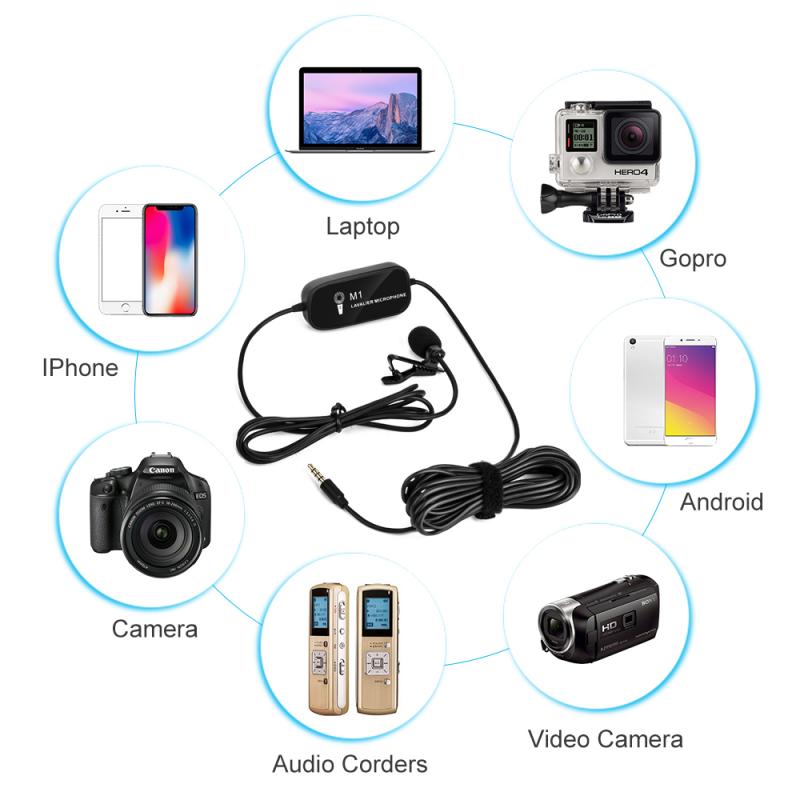
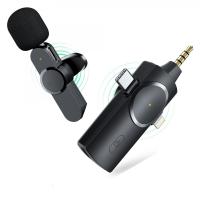
how to set up lavalier microphone on laptop 1

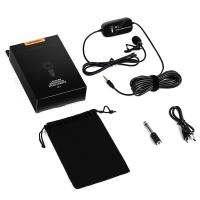
Before diving into the setup process, it's important to understand the components involved and how they work together. A lavalier microphone typically consists of the following parts:

- Microphone Capsule: The small part that captures the sound.

- Clip: Used to attach the microphone to your clothing.

- Cable: Connects the microphone to the recording device.

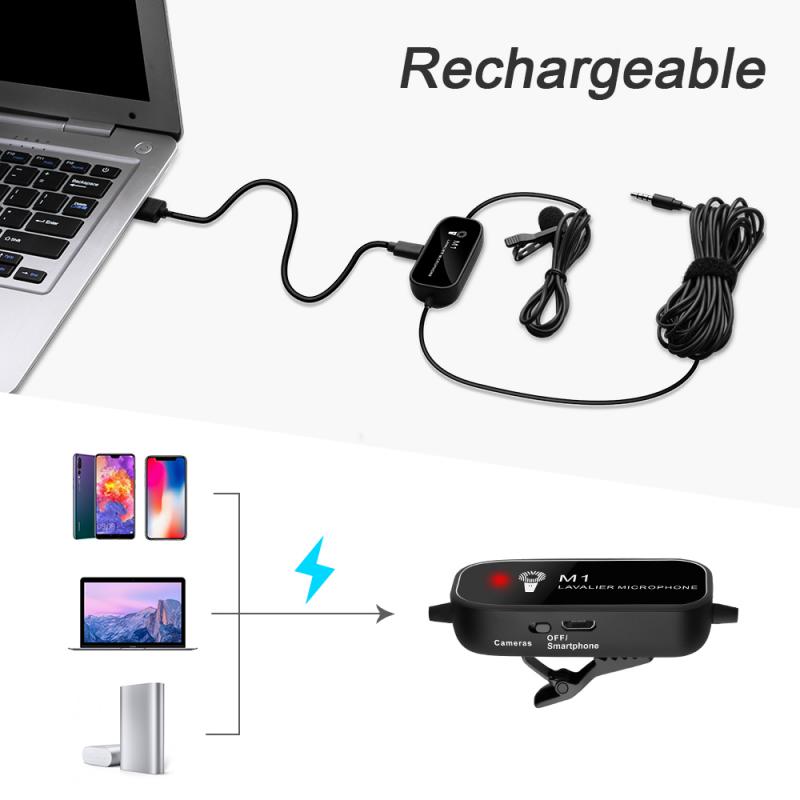
- Connector: The end of the cable that plugs into your laptop, usually a 3.5mm jack or USB.

Step-by-Step Setup Guide
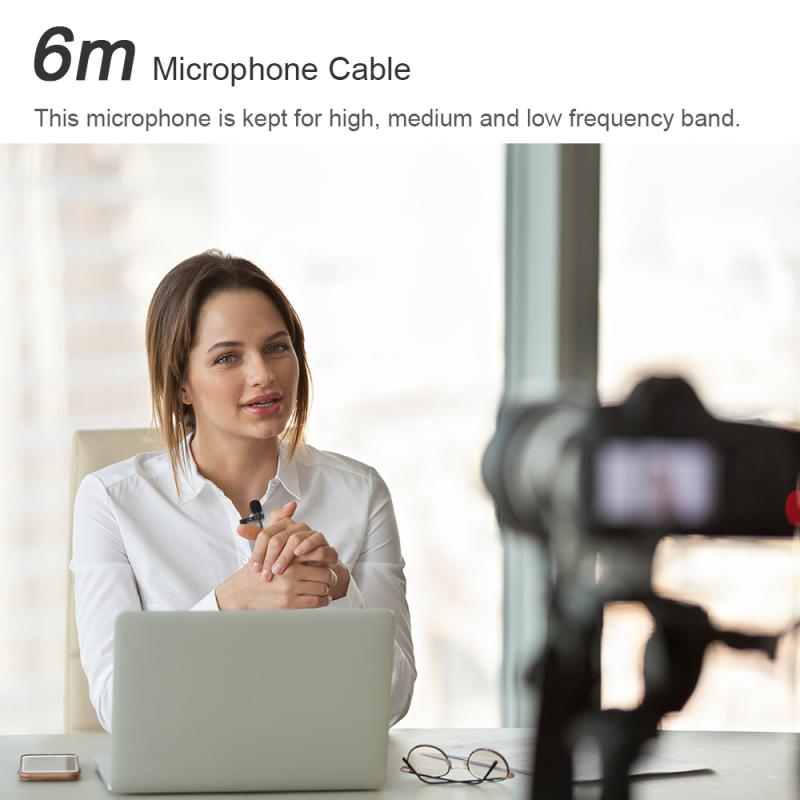
how to set up lavalier microphone on laptop 2

1. Check Compatibility

how to set up lavalier microphone on laptop 3

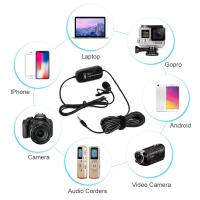
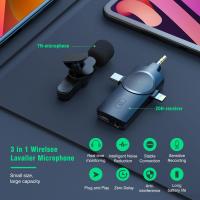
First, ensure that your lavalier microphone is compatible with your laptop. Most laptops have a 3.5mm audio jack that serves as both a headphone and microphone input. However, some newer laptops may only have USB-C ports, in which case you'll need an adapter.

2. Gather Necessary Equipment
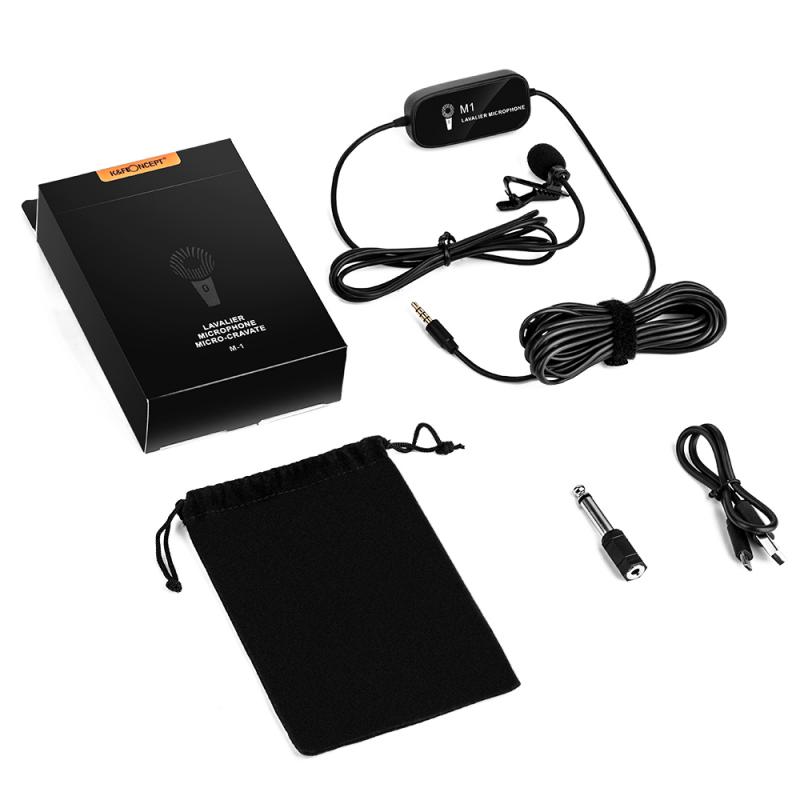
how to set up lavalier microphone on laptop 4

You'll need the following items:

- Lavalier microphone

- Laptop

- Adapter (if necessary)

- Audio recording software (optional but recommended for better control over audio settings)

3. Connect the Microphone

- 3.5mm Jack: If your lavalier microphone has a 3.5mm connector, simply plug it into the audio jack on your laptop. Ensure it's fully inserted to avoid any connection issues.

- USB: If your microphone uses a USB connector, plug it into an available USB port on your laptop.

- Adapter: If your laptop only has USB-C ports, use a USB-C to 3.5mm adapter or a USB-C to USB adapter, depending on your microphone's connector type.

4. Configure Audio Settings

Once the microphone is connected, you'll need to configure your laptop's audio settings to recognize and use the external microphone.

- Windows:

1. Right-click the speaker icon in the taskbar and select "Open Sound settings."

2. Under "Input," select your lavalier microphone from the dropdown menu.

3. Click "Device properties" to adjust the microphone volume and other settings.

- Mac:

1. Click the Apple menu and select "System Preferences."

2. Go to "Sound" and then the "Input" tab.

3. Select your lavalier microphone from the list of input devices.

4. Adjust the input volume as needed.

5. Test the Microphone

Before using the microphone for any important recordings or meetings, it's crucial to test it to ensure it's working correctly.

- Open an audio recording application or the built-in voice recorder on your laptop.

- Record a short clip while speaking into the lavalier microphone.

- Play back the recording to check the audio quality and volume levels.

6. Optimize Placement

The placement of the lavalier microphone can significantly impact the audio quality. Here are some tips for optimal placement:

- Clip the microphone to your clothing about 6-8 inches below your chin.

- Ensure the microphone is not rubbing against fabric or other objects, as this can cause unwanted noise.

- Position the microphone in a way that it captures your voice clearly without being obstructed.

Troubleshooting Common Issues

Even with careful setup, you may encounter some issues. Here are common problems and their solutions:

No Sound or Low Volume

- Check Connections: Ensure the microphone is securely connected to the laptop.

- Adjust Settings: Revisit the audio settings on your laptop and increase the input volume.

- Test on Another Device: Try the microphone on another device to rule out hardware issues.

Background Noise

- Use a Windscreen: A small foam cover can help reduce wind and background noise.

- Adjust Placement: Move the microphone to a different location on your clothing to minimize noise.

- Software Filters: Use audio recording software with noise reduction features.

Echo or Feedback

- Lower Volume: Reduce the microphone input volume to prevent feedback.

- Use Headphones: If you're using speakers, switch to headphones to avoid echo.

Enhancing Audio Quality

For those looking to take their audio quality to the next level, consider the following tips:

Use Audio Recording Software

Software like Audacity, Adobe Audition, or GarageBand offers advanced features for audio recording and editing. These tools allow you to:

- Adjust gain levels

- Apply noise reduction

- Add equalization and compression

Invest in Accessories

- Pop Filter: Reduces plosive sounds (like "p" and "b" sounds).

- External Sound Card: Provides better audio processing and can improve sound quality.

Regular Maintenance

- Clean the Microphone: Dust and debris can affect performance. Use a soft brush or compressed air to clean the microphone.

- Check Cables: Inspect the cables regularly for any signs of wear or damage.

Setting up a lavalier microphone on a laptop may seem daunting at first, but with the right steps and precautions, you can achieve excellent audio quality for your recordings, meetings, or content creation. By understanding the basics, configuring your settings correctly, and optimizing the microphone placement, you'll be well on your way to capturing clear and professional-sounding audio. Don't forget to troubleshoot common issues and consider investing in additional accessories and software to further enhance your audio experience. With these tips, you'll be able to make the most out of your lavalier microphone and ensure your voice is heard loud and clear.
Leave your comment
Cancel reply
Note: HTML is not translated!
Related products
Wireless Lavalier Microphone System with 4 Transmitters and 1 Receiver
$434.99 $304.99
Saramonic Wireless Lavalier Microphone for Smartphone Camera 492ft Range 20h Battery Life
11
$224.99 $157.99
【$59.99 Flash Deal One order per customer】M8 UHF Wireless Lavalier Microphone for Video Camera & Camcorder
56
$79.99
DJI Mic 2, Wireless Lavalier Microphone, Noise Cancelling, 48kHz 32-bit Float Internal Recording, 820 ft.(250m) Range, 18H Battery with Charging Case, Microphone for Camera/Phone, Vlog, Streaming
$704.99 $493.99
11 in 1 Step Up Ring Set
56
$37.99 $19.99
Mobile Phone Bluetooth Earphones Bluetooth V5.1 Earphone Hands-free Single Ear Earphone with CVC8.0 Noise-cancelling Microphone for Office/driving Compatible with Android/iPhone/laptop
1
$29.99
18 Pieces Filter Ring Adapter Set, Camera Lens Filter Metal Stepping Rings Kit (Includes 9pcs Step Up Ring Set + 9pcs Step Down Ring Set)
2
$43.99 $22.99
Cell Phone Bluetooth Headphones Bluetooth V5.1 Headphones with Charging Case Hands-Free Single Ear Headphones with CVC8.0 Noise Cancelling Microphone for Office/Driving Compatible with Android/iPhone/Laptop
HOT Seller
Cell Phone Bluetooth Headphones Bluetooth V5.1 Headphones with Charging Case Hands-Free Single Ear Headphones with CVC8.0 Noise Cancelling Microphone for Office/Driving Compatible with Android/iPhone/Laptop
57
$26.99
63'' Magnetic Iphone Tripod Phone Selfie Stick Tripod And Clip-On ND Filter(1-9 stops) For All Phone Set
207
$113.99 $59.99
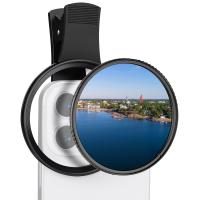
67mm Clip-on CPL Phone Camera Lens Filter Kit Applicable to All Mobile Phone Models
40
$18.99
Products You May Like
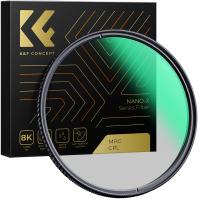
62mm CPL Filter 28 Layer Super Slim Circular Polarizing Filter Multi-coated Polarized MRC Filter Nano-Xcel Series
65
$44.99 $42.99
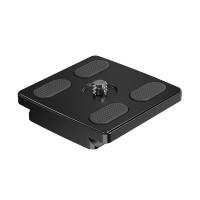
K&F Concept Professional 1/4" Quick Release Mounting Plate for TM2324 TM2515 TM2534 TC2534 TM2534T TM2235
30
$29.99 $19.99
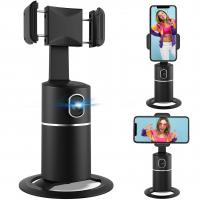
360° Face Tracking Phone Holder Desktop Tripod for Selfie Vlog Facetime YouTube Tik Tok, iPhone, Android Universal Phone Mount 6-8h Rechargeable
37
$34.99
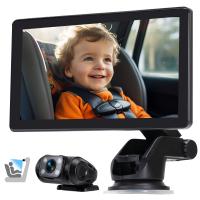
7in Display Baby Car Camera with 2K HD Camera Night Vision 3X Zoom
12
$142.49 $99.99
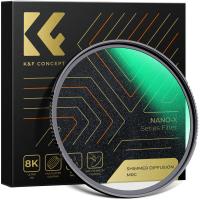
55mm Shimmer Diffusion 1 Filter Optical Glass Glimmer Effect Filter for Camera Lens Nano-Xcel Series
34
$49.99 $39.99
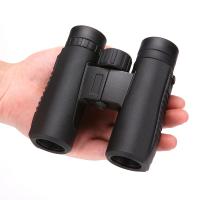
K&F Concept 1026MT 10x26 Binoculars Multi-Coated Optics and BaK4 Prisms for Bird Watching, Hunting, Sports Events or Concerts
6
$82.99 $51.99
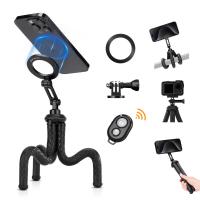
Octopus Magnetic Phone Holder Tripod Comes with Magnetic Guide, Bluetooth Remote Control, Mobile Phone Lanyard, GoPro Adapter MS36
34
$29.99
77mm CPL Filter Circular Polarizer Filter with Lens Cap Optical Glass Ultra Slim 18 Multi-Layer for Camera Lens Nano-Klear Series
23
$28.99 $22.99
K&F Concept Neck Lanyard Shoulder Strap with a 1/4" Screw for Pocket 3, Crossbody Strap for DJI OSMO Pocket 3 Accessories, Black
45
$17.99
Headband magnifier with light for close work, contains 5 lenses, perfect for jewelry, arts, crafts, painting and DIY
$23.99
Related articles
How To Use Earphone Microphone On Laptop?
How To Set Up Earphone Mic On Pc?
How To Set Up Earbuds?
When To Use A Lavalier Microphone?
How To Turn On Microphone And Camera On Hp Laptop ?
How To Turn On Camera And Microphone On Dell Laptop ?
How To Set Up A Telescope?
How To Set Up Action Camera?
How Does Lavalier Microphone And Recorder Work?
360 Degree Video Camera How Does It Work?
Blog You May Like
What Is A Rubber Lens Hood?
How Do You Build A Telescope?
How To Find Hidden Cameras And Recorders?
How To Find A Camera In Your Home?
How To Make Your Eyes Flash On Camera?
How Does Sd Card Work?
Who Makes Hidden Camera Detector?
How To Record Online Video With Sound?
How To Record Video Using Laptop Camera?
Does My Camera Have An Ir Filter?
Related categories
step up lens filter adapter rings On-Dash Camera streaming video camera camera lens adapter C mount lens adapter
Popular products
wireless microphone and transmitter mini microphone for recording wireless microphone for interviews uhf wireless microphone system professional camera backpacks camera laptop backpacks mic bluetooth wireless microphone Wireless Lavalier Microphone wireless audio recording portable wireless lavalier microphone
Related searches
Clip On Lavalier Microphone Wireless Lavalier Microphone For Laptop Wireless Lavalier Microphone To Computer New Wireless Lavalier Microphone Professional Lavalier Lapel Microphone Lavalier Microphone For Camera External Laptop Microphone Lavalier Microphone For Mobile Devices Lavalier Microphone For Macbook Air Lavalier Microphone For Video Camera
Popular searches
Metabones Adapter Sony E Mount Opteka 2.2 X Telephoto Lens Adapter Panasonic Camcorder 3d Lens Adapter Best Lens Filter For Portraits P900 Phase One Xf Lens Mount Tripod Light Stand Bag Canon To E Mount Adapter Used Digital Point And Shoot Camera M42 To Ef Adapter Wireless Motion Sensor Light With Camera
Blog Category
  • Activities
  • Guide
    • Filter Guide
    • Lens Adapter
    • Product Review
  • News & Reviews
    • Camera Reviews
    • Sample Gallery
    • News
  • Tutorials
    • Solar eclipse photography
    • Photography Basics
    • Landscape Photography
  • Inspiration
    • Travel
    • Travel Stories
Search Article
Latest from the Blog
How To Fix The Straps On A Camera?
What To Look For In A Dash Cam?
how to clean microfiber cloth?
How Much Does It Cost For Security Cameras?
How Fast Is A Camera Flash?
Black Friday 2025 Special at Kentfaith
What Is A Good Quality Dash Cam?
How To Keep Earbuds In Your Ear?
How Does a WiFi Trail Camera Work?
What Is Surveillance Camera Control System?
  • Easy Payment Multilple Payment Options

  • Free Shipping Global WareHouse Shipment

  • No Risk 30-Day No Reason Return

  • Limited Deals Buy More, Save More

  • Tax Free No any surcharges or tax fee

Information
  • About us
  • Contact Us
  • Site Map
  • Blog
  • Video
  • Gallery
  • VIP Membership Rewards
Service
  • Privacy Policy
  • Terms & Conditions
  • Shipping & Delivery
  • Payment Info
  • Warranty, Return & Refund
  • Intellectual Property Rights
  • Ambassador
  • Affiliates
  • Wholesale
Support
  • My account
  • Order History
  • FAQs
  • Extend Warranty
  • Logistics Tracking
Follow us
NewsLetter

Get the latest product, K&F Concept respects your privacy.

Powered By KENTFAITH © 2026