kfconcept

KENTFAITH
K&F Concept    Blog >

Enjoy Your Selected Digital Life

Recently Viewed
  • Recently Viewed
  • Recently Viewed list is empty.

Compare (0) 0
  • Compare
  • You have not chosen any products to compare.

  • Compare
Currency: USD
  • Currency
Shop by Scene Shop by Rank

Log Into Your Account

Account

Order History

Wish List

Login

Forgotten Password?

or connect with

Register Account

Already have an Account?Log In

  • Shopping Cart
  • Your shopping cart is empty!

  • Register/Login to purchase, earn points
  • Favorite
  • Your wish list is empty.

  • Register/Login to like, earn points
  • Activities
  • Guide
    • Filter Guide
    • Lens Adapter
    • Product Review
  • News & Reviews
    • Camera Reviews
    • Sample Gallery
    • News
  • Tutorials
    • Solar eclipse photography
    • Photography Basics
    • Landscape Photography
  • Inspiration
    • Travel
    • Travel Stories
  • Home
  • Blog
  • How To Set Up Lavalier Microphone On Laptop?

How To Set Up Lavalier Microphone On Laptop?

Kentfaith 2024-08-30 01:00:15 0 Comments

Setting Up a Lavalier Microphone on a Laptop: A Comprehensive Guide

In today's digital age, high-quality audio is essential for various activities, from virtual meetings and online classes to podcasting and content creation. One of the most convenient and effective tools for capturing clear audio is the lavalier microphone, also known as a lapel mic. These small, clip-on microphones are popular for their portability and ability to capture sound close to the source. However, setting up a lavalier microphone on a laptop can be a bit tricky if you're not familiar with the process. This guide will walk you through the steps to ensure you get the best audio quality possible.

Understanding the Basics
how to set up lavalier microphone on laptop 1

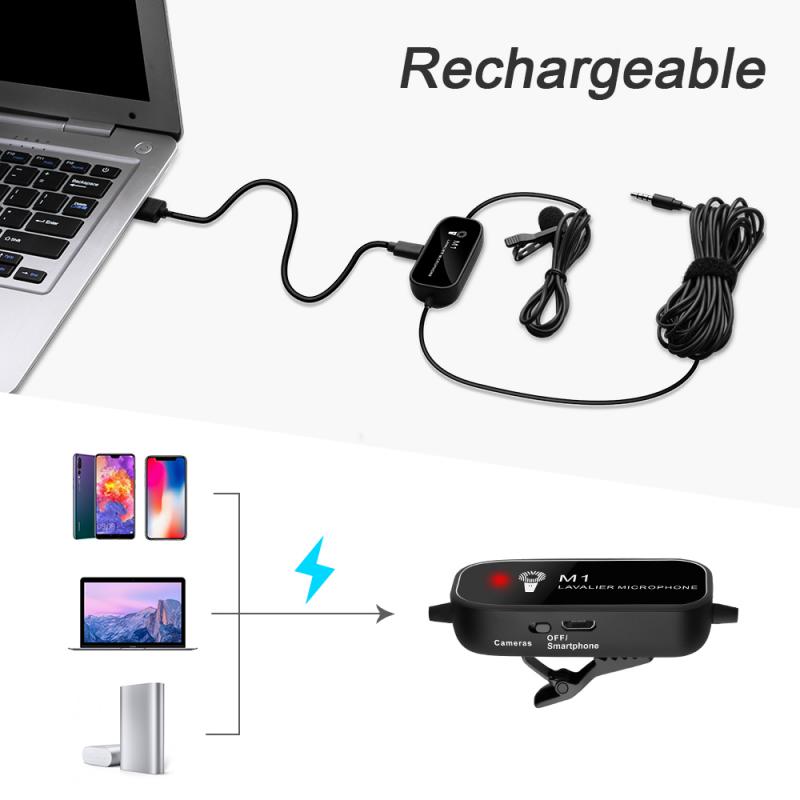
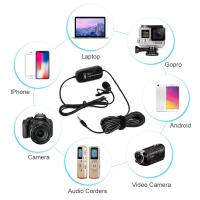
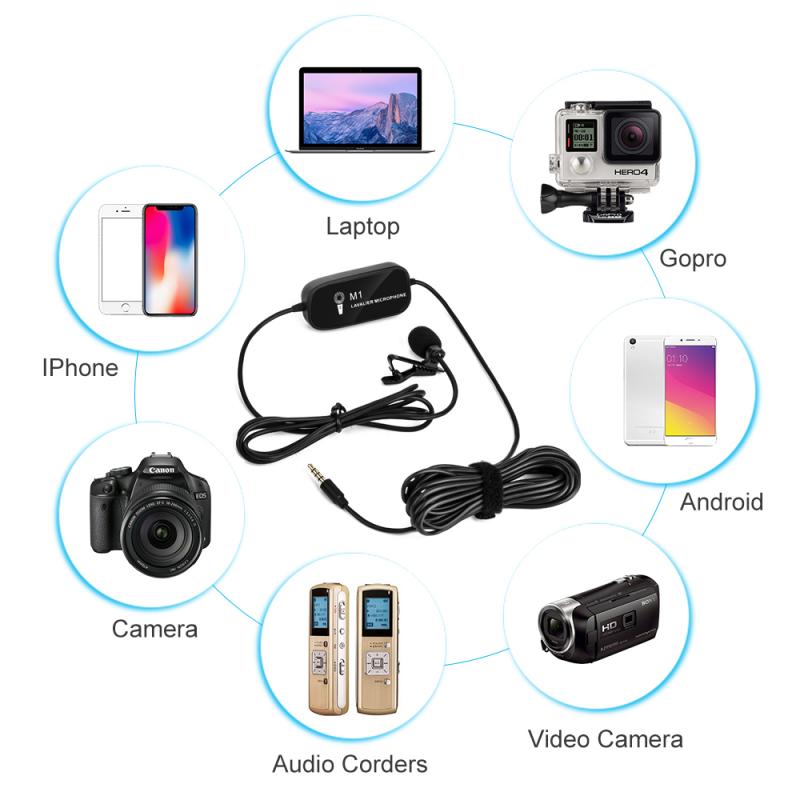
Before diving into the setup process, it's important to understand the components involved and how they work together. A lavalier microphone typically consists of the following parts:

- Microphone Capsule: The small part that captures the sound.

- Clip: Used to attach the microphone to your clothing.

- Cable: Connects the microphone to the recording device.

- Connector: The end of the cable that plugs into your laptop, usually a 3.5mm jack or USB.

Step-by-Step Setup Guide
how to set up lavalier microphone on laptop 2

1. Check Compatibility

how to set up lavalier microphone on laptop 3

First, ensure that your lavalier microphone is compatible with your laptop. Most laptops have a 3.5mm audio jack that serves as both a headphone and microphone input. However, some newer laptops may only have USB-C ports, in which case you'll need an adapter.

2. Gather Necessary Equipment
how to set up lavalier microphone on laptop 4

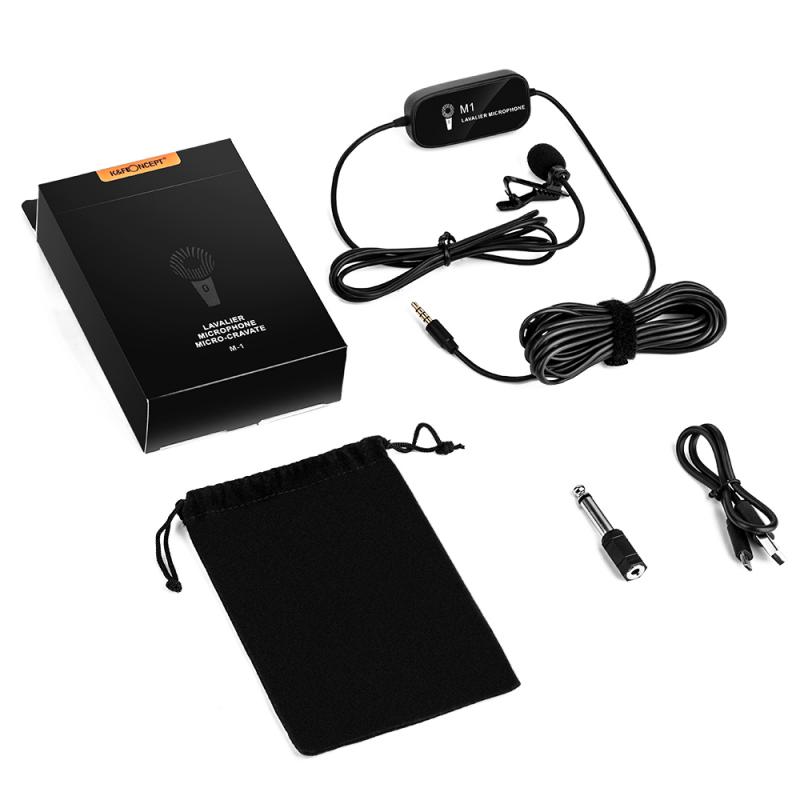
You'll need the following items:

- Lavalier microphone

- Laptop

- Adapter (if necessary)

- Audio recording software (optional but recommended for better control over audio settings)

3. Connect the Microphone

- 3.5mm Jack: If your lavalier microphone has a 3.5mm connector, simply plug it into the audio jack on your laptop. Ensure it's fully inserted to avoid any connection issues.

- USB: If your microphone uses a USB connector, plug it into an available USB port on your laptop.

- Adapter: If your laptop only has USB-C ports, use a USB-C to 3.5mm adapter or a USB-C to USB adapter, depending on your microphone's connector type.

4. Configure Audio Settings

Once the microphone is connected, you'll need to configure your laptop's audio settings to recognize and use the external microphone.

- Windows:

1. Right-click the speaker icon in the taskbar and select "Open Sound settings."

2. Under "Input," select your lavalier microphone from the dropdown menu.

3. Click "Device properties" to adjust the microphone volume and other settings.

- Mac:

1. Click the Apple menu and select "System Preferences."

2. Go to "Sound" and then the "Input" tab.

3. Select your lavalier microphone from the list of input devices.

4. Adjust the input volume as needed.

5. Test the Microphone

Before using the microphone for any important recordings or meetings, it's crucial to test it to ensure it's working correctly.

- Open an audio recording application or the built-in voice recorder on your laptop.

- Record a short clip while speaking into the lavalier microphone.

- Play back the recording to check the audio quality and volume levels.

6. Optimize Placement

The placement of the lavalier microphone can significantly impact the audio quality. Here are some tips for optimal placement:

- Clip the microphone to your clothing about 6-8 inches below your chin.

- Ensure the microphone is not rubbing against fabric or other objects, as this can cause unwanted noise.

- Position the microphone in a way that it captures your voice clearly without being obstructed.

Troubleshooting Common Issues

Even with careful setup, you may encounter some issues. Here are common problems and their solutions:

No Sound or Low Volume

- Check Connections: Ensure the microphone is securely connected to the laptop.

- Adjust Settings: Revisit the audio settings on your laptop and increase the input volume.

- Test on Another Device: Try the microphone on another device to rule out hardware issues.

Background Noise

- Use a Windscreen: A small foam cover can help reduce wind and background noise.

- Adjust Placement: Move the microphone to a different location on your clothing to minimize noise.

- Software Filters: Use audio recording software with noise reduction features.

Echo or Feedback

- Lower Volume: Reduce the microphone input volume to prevent feedback.

- Use Headphones: If you're using speakers, switch to headphones to avoid echo.

Enhancing Audio Quality

For those looking to take their audio quality to the next level, consider the following tips:

Use Audio Recording Software

Software like Audacity, Adobe Audition, or GarageBand offers advanced features for audio recording and editing. These tools allow you to:

- Adjust gain levels

- Apply noise reduction

- Add equalization and compression

Invest in Accessories

- Pop Filter: Reduces plosive sounds (like "p" and "b" sounds).

- External Sound Card: Provides better audio processing and can improve sound quality.

Regular Maintenance

- Clean the Microphone: Dust and debris can affect performance. Use a soft brush or compressed air to clean the microphone.

- Check Cables: Inspect the cables regularly for any signs of wear or damage.

Setting up a lavalier microphone on a laptop may seem daunting at first, but with the right steps and precautions, you can achieve excellent audio quality for your recordings, meetings, or content creation. By understanding the basics, configuring your settings correctly, and optimizing the microphone placement, you'll be well on your way to capturing clear and professional-sounding audio. Don't forget to troubleshoot common issues and consider investing in additional accessories and software to further enhance your audio experience. With these tips, you'll be able to make the most out of your lavalier microphone and ensure your voice is heard loud and clear.
Leave your comment
Cancel reply
Note: HTML is not translated!
Related products
EP033 Mini Plug Play Microphone Wireless Lavalier Mic For Type-C Phones Laptop
6
$48.89
Wireless Lavalier Microphone System with 4 Transmitters and 1 Receiver
$434.99 $304.99
Saramonic Wireless Lavalier Microphone for Smartphone Camera 492ft Range 20h Battery Life
11
$224.99 $157.99
【$59.99 Flash Deal One order per customer】M8 UHF Wireless Lavalier Microphone for Video Camera & Camcorder
56
$79.99
11 in 1 Step Up Ring Set
56
$37.99 $19.99
18 Pieces Filter Ring Adapter Set, Camera Lens Filter Metal Stepping Rings Kit (Includes 9pcs Step Up Ring Set + 9pcs Step Down Ring Set)
2
$43.99 $22.99
Mobile Phone Bluetooth Earphones Bluetooth V5.1 Earphone Hands-free Single Ear Earphone with CVC8.0 Noise-cancelling Microphone for Office/driving Compatible with Android/iPhone/laptop
1
$29.99
Cell Phone Bluetooth Headphones Bluetooth V5.1 Headphones with Charging Case Hands-Free Single Ear Headphones with CVC8.0 Noise Cancelling Microphone for Office/Driving Compatible with Android/iPhone/Laptop
HOT Seller
Cell Phone Bluetooth Headphones Bluetooth V5.1 Headphones with Charging Case Hands-Free Single Ear Headphones with CVC8.0 Noise Cancelling Microphone for Office/Driving Compatible with Android/iPhone/Laptop
57
$26.99
63'' Magnetic Iphone Tripod Phone Selfie Stick Tripod And Clip-On ND Filter(1-9 stops) For All Phone Set
207
$113.99 $59.99
67mm Clip-on CPL Phone Camera Lens Filter Kit Applicable to All Mobile Phone Models
40
$18.99
Products You May Like
Cold Shoe Action Camera Magnetic Quick Mount Holder, Tripod Mount for DJI Osmo Action 5 Pro Hot Shoe Camera Adapter with 1/4" Screw Hole for Osmo Action 3/4 DSLR Photography Accessories
95
$16.99
62mm HD Soft GND8 Lens Filter 3 Stop (0.9) Soft Graduated Neutral Density Filter K&F Concept Nano-Xcel Series
42
$67.99 $59.99
High Precision Metal Detector, Beach Waterproof Gold Detector, With Precise Positioning and Sensitive Detection Plate
HOT Seller
High Precision Metal Detector, Beach Waterproof Gold Detector, With Precise Positioning and Sensitive Detection Plate
88
$167.99 $73.99
Car Phone Holder
Car Phone Holder
$8.00
Lowest Price Trail Camera
10
$162.99 $106.99
St-60w Photography Light With Remote Control Dimmable Continuous Lighting with Bowens Mount for Video Recording Wedding Outdoor Photography EU Plug
1
$116.99
49mm Magnetic UV Filter Ultra Slim with Multi Coated Ultraviolet Protection Lens Filter with Cleaning Cloth Nano-K Series
34
$18.99 $14.99
High Quality Trail Cameras
10
$162.99 $106.99
Suction Cup Mount for DJI Osmo Pocket 3 DJI Osmo Pocket 4, Car Windshield Window Dash Mount Holder for GoPro Hero 13/12/11/10/9 Black, DJI Osmo Action 3/4/5 Pro, Insta360 X5/X4 Accessories
29
$16.99
Aluminum Alloy 360 Degree Panoramic Gimbal Tripod Head with 1/4'' Standard Quick Release Plate
99
$184.99 $80.99
Related articles
How To Use Earphone Microphone On Laptop?
How To Pair Wireless Lavalier Microphone?
How To Set Up Earphone Mic On Pc?
How To Set Up Earbuds?
When To Use A Lavalier Microphone?
How To Turn On Microphone And Camera On Hp Laptop ?
How To Turn On Camera And Microphone On Dell Laptop ?
How To Set Up A Telescope?
How To Set Up Action Camera?
How To Mount Ring Spotlight Camera Wireless?
Blog You May Like
Why Are My Beats Headphones Blinking White ?
Can Glass Filter Uv Light?
How To Use Sd Card For Games?
Where Is My Memory Card?
Why Only One Side Of Earphones Work?
What Is The Purpose Of A Ring Light?
How Much Does Camera Lens Repair Cost?
Can You Travel With Camera Batteries?
How To View Cameras On Wifi Network?
How To Charge Digital Camera Battery Without Charger ?
Related categories
step up lens filter adapter rings On-Dash Camera streaming video camera camera lens adapter C mount lens adapter
Popular products
wireless microphone and transmitter mini microphone for recording wireless microphone for interviews professional camera backpacks camera laptop backpacks uhf wireless microphone system high quality condenser microphone Wireless Lavalier Microphone wireless audio recording mic bluetooth wireless microphone
Related searches
Clip On Lavalier Microphone Wireless Lavalier Microphone For Laptop Wireless Lavalier Microphone To Computer New Wireless Lavalier Microphone Professional Lavalier Lapel Microphone Lavalier Microphone For Camera External Laptop Microphone Lavalier Microphone For Mobile Devices Lavalier Microphone For Macbook Air Lavalier Microphone For Video Camera
Related Scenes
Best Carry On Camera Bag Best Camera To Video Sports Best Camera To Capture Wildlife Best Dslr Camera Laptop Backpack Best Backpack For Camera And Laptop Best Video Camera To Record Sports Best Travel Backpack For Camera And Laptop Best Tripod Legs For Video Best Wifi Surveillance Camera Best Outdoor Camera Without Wifi
Blog Category
  • Activities
  • Guide
    • Filter Guide
    • Lens Adapter
    • Product Review
  • News & Reviews
    • Camera Reviews
    • Sample Gallery
    • News
  • Tutorials
    • Solar eclipse photography
    • Photography Basics
    • Landscape Photography
  • Inspiration
    • Travel
    • Travel Stories
Search Article
Latest from the Blog
Which Is The Best Outdoor Wireless Security Camera?
How To See Cells In A Microscope?
What Is The Field Diameter Of A Microscope?
Which Sony E Mount Lens?
Smartwatch That Can Monitor Blood Pressure?
How To Pair Wireless Lavalier Microphone?
Binoculars That Can See In The Dark?
How To Use Your Phone As A Microphone?
What Size Screen For Projector?
What Is The Best Camera For Action Sports?
  • Easy Payment Multilple Payment Options

  • Free Shipping Global WareHouse Shipment

  • No Risk 30-Day No Reason Return

  • Limited Deals Buy More, Save More

  • Tax Free No any surcharges or tax fee

Information
  • About us
  • Contact Us
  • Site Map
  • Blog
  • Video
  • Gallery
  • VIP Membership Rewards
Service
  • Privacy Policy
  • Terms & Conditions
  • Shipping & Delivery
  • Payment Info
  • Warranty, Return & Refund
  • Intellectual Property Rights
  • Ambassador
  • Affiliates
  • Wholesale
Support
  • My account
  • Order History
  • FAQs
  • Extend Warranty
  • Logistics Tracking
Follow us
NewsLetter

Get the latest product, K&F Concept respects your privacy.
Powered By KENTFAITH © 2026