kfconcept

KENTFAITH
K&F Concept    Blog >

Enjoy Your Selected Digital Life

Recently Viewed
  • Recently Viewed
  • Recently Viewed list is empty.

Compare (0) 0
  • Compare
  • You have not chosen any products to compare.

  • Compare
Currency: USD
  • Currency
Shop by Scene Shop by Rank

Log Into Your Account

Account

Order History

Wish List

Login

Forgotten Password?

Or connect with

Register Account

Already have an Account?Log In

  • Shopping Cart
  • Your shopping cart is empty!

  • Register/Login to purchase, earn points
  • Favorite
  • Your wish list is empty.

  • Register/Login to like, earn points
  • Activities
  • Guide
    • Filter Guide
    • Lens Adapter
    • Product Review
  • News & Reviews
    • Camera Reviews
    • Sample Gallery
    • News
  • Tutorials
    • Solar eclipse photography
    • Photography Basics
    • Landscape Photography
  • Inspiration
    • Travel
    • Travel Stories
  • Home
  • Blog
  • How To View Cameras On Wifi Network?

How To View Cameras On Wifi Network?

Kentfaith 2025-01-09 01:49:32 0 Comments

How to View Cameras on Your Wi-Fi Network: A Complete Guide

In today's connected world, more and more households and businesses are adopting IP cameras for surveillance and security. These cameras, which connect to your Wi-Fi network, allow you to monitor activities from anywhere—whether you're at home, at the office, or on the go. However, many users struggle with setting up and viewing these cameras over a Wi-Fi network. If you’ve been wondering how to view cameras on your Wi-Fi network effectively, this article will walk you through the entire process—from setting up the camera to accessing the footage remotely.

Understanding IP Cameras and Wi-Fi Networks
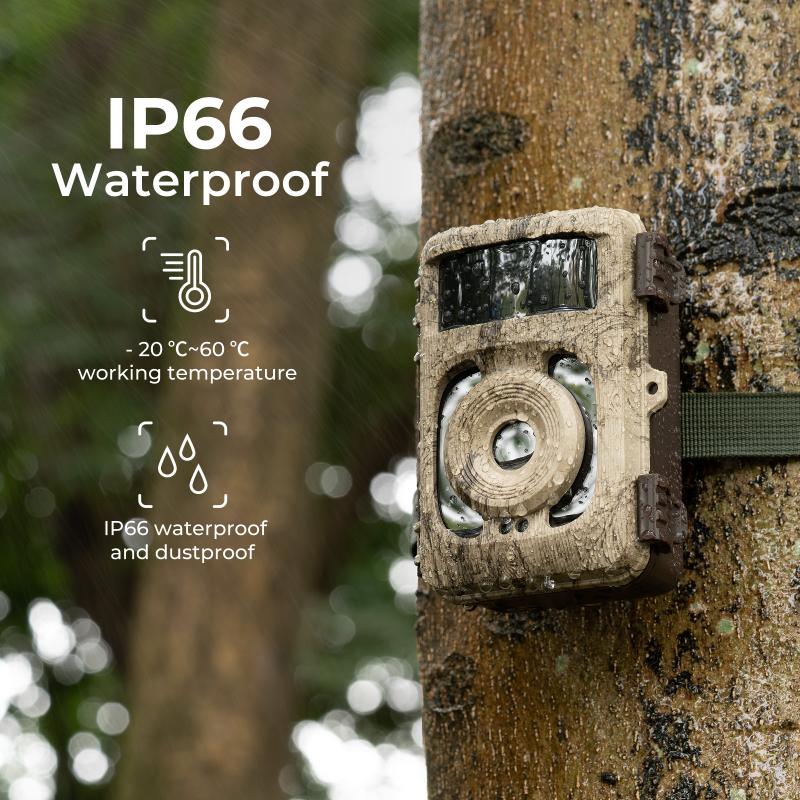
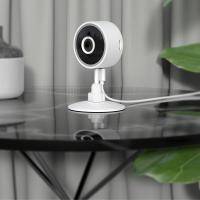
how to view cameras on wifi network 1

Before diving into the specifics of viewing cameras on your Wi-Fi network, it's important to understand how IP cameras work. An IP camera (Internet Protocol camera) is a digital video camera that transmits data over a network (usually Wi-Fi) to a storage device or viewing platform. This means that, unlike traditional CCTV cameras which use a direct cable connection to a monitor or recording device, IP cameras send video streams through the internet.

The cameras are typically connected to your Wi-Fi router, which then enables them to communicate with your smartphone, computer, or other devices. The advantage of IP cameras is their ability to provide real-time footage without the need for extensive wiring. Additionally, they often come with advanced features like motion detection, cloud storage, and remote viewing capabilities.

Step-by-Step Guide to Viewing Cameras on a Wi-Fi Network

1. Set Up the Camera on Your Wi-Fi Network

The first step in the process is to set up your IP camera and connect it to your Wi-Fi network. Most IP cameras come with detailed instructions, but here’s a general overview of the setup process:

- Install the Camera: Position the camera in a location with a good view of the area you want to monitor. Ensure that it is within range of your Wi-Fi router for a stable connection.

- Power Up: Plug in the camera and ensure it is powered on. Some cameras may have a status LED that blinks to indicate the device is ready to be configured.

- Connect the Camera to Your Wi-Fi Network:

- Using an App: Most modern cameras come with a companion app that allows you to set up the device. Download the app on your smartphone (available for iOS and Android).

- Wi-Fi Configuration: In the app, follow the on-screen instructions to connect your camera to the Wi-Fi network. This typically involves selecting your Wi-Fi network from a list and entering the Wi-Fi password.

- Via QR Code: Some cameras offer an easy setup method through a QR code. You will scan the code with your phone or the app, which then automatically configures the camera to your network.

- Test the Connection: After setting up the camera, ensure that it is transmitting video by checking the live feed in the app or on the camera’s web interface.

2. Accessing the Camera Locally on Your Network

Once your camera is connected to the Wi-Fi network, you can view the feed locally on your network. This can be done through your smartphone, computer, or a dedicated monitor.

- Smartphone or Tablet: Open the camera app that you used to configure the camera. The app should automatically detect the camera if it’s connected to the same Wi-Fi network. Once the camera is found, you can tap on it to view the live feed.

- PC or Laptop: Some IP cameras allow you to access their feed through a web browser. This is usually done by entering the camera’s IP address into the browser’s address bar. For example, if your camera’s IP address is 192.168.1.10, you can type that in, and it will prompt you for a username and password. After logging in, you’ll be able to view the camera’s feed.

- Third-Party Software: Many users prefer to use third-party software like Blue Iris, iSpy, or SecuritySpy to manage multiple IP cameras. These programs offer more advanced features such as motion detection alerts, video recording, and the ability to view multiple cameras simultaneously.

3. Viewing the Camera Remotely

One of the main advantages of IP cameras is the ability to access the camera feed remotely—whether you're at work, on vacation, or anywhere else. To view your camera remotely, you will need to ensure that it is set up for remote access.

- Cloud Services: Many modern IP cameras come with cloud storage and remote viewing capabilities built-in. Cameras like Nest, Ring, Arlo, and Wyze offer cloud services that allow you to view live footage or review past recordings from anywhere with an internet connection. Simply log into the associated app or website to access your camera feed.

- Port Forwarding (For Direct Access): If your camera does not provide cloud services, you can configure your router for port forwarding. This allows you to access the camera directly from your browser or app using your external IP address. The steps typically include:

1. Login to Router Settings: Open your browser and go to your router’s IP address (e.g., 192.168.1.1).

2. Find Port Forwarding Section: Locate the port forwarding section, usually under advanced settings.

3. Add a New Rule: Create a rule that forwards a specific port (usually port 80 for HTTP or 443 for HTTPS) to the internal IP address of your camera.

4. Access via External IP: Once port forwarding is set up, you can access the camera feed remotely by entering your external IP address (found by searching “What’s my IP?” in a search engine) followed by the port number in the browser. Example: `http://your-external-ip:8080`.

- VPN (Virtual Private Network): A more secure way to access your camera remotely is through a VPN. Setting up a VPN on your home network allows you to create a secure connection between your remote device and your home network. With a VPN, it will be as if you’re physically on the same network, and you can view your camera feed securely without exposing it to the internet.

4. Troubleshooting Common Issues

While the process of viewing your camera on a Wi-Fi network is generally straightforward, there can be some issues that arise. Here are some common problems and solutions:

- Camera Not Appearing in the App: If the camera doesn’t show up in your app or software, make sure it is connected to the same Wi-Fi network. Check if the camera is powered on and if the Wi-Fi signal is strong. You might need to reset the camera or restart your router.

- Lag or Low Quality Feed: If you experience lag or poor video quality, ensure that your Wi-Fi network has sufficient bandwidth. Cameras can consume a lot of data, especially when streaming at high resolution. You may need to upgrade your router or move the camera closer to the router for a stronger signal.

- Remote Access Issues: If you’re having trouble accessing your camera remotely, double-check the port forwarding settings or ensure that your cloud services are properly configured. Using a VPN is another option to secure and stabilize remote access.

5. Security Considerations

When setting up and using cameras on your Wi-Fi network, security is paramount. Exposing your cameras to the internet can create vulnerabilities if not done correctly. Here are a few tips to keep your surveillance system secure:

- Change Default Passwords: Always change the default username and password provided by the camera manufacturer. Use strong, unique passwords for both the camera and the router.

- Use Two-Factor Authentication (2FA): Many camera apps and services offer two-factor authentication, which provides an additional layer of security. Enable this feature if available.

- Update Firmware Regularly: Manufacturers release firmware updates to fix security vulnerabilities. Keep your camera’s firmware up to date to protect it from potential cyber threats.

- Network Segmentation: Consider placing your cameras on a separate Wi-Fi network (a guest network) rather than your main home or office network. This way, if the camera is compromised, your other devices remain secure.

Viewing cameras on your Wi-Fi network is not just about convenience; it’s about enhancing security, protecting your home or business, and having peace of mind. By following the steps outlined in this guide, you can easily set up and access your IP cameras locally and remotely. Whether you’re using a smartphone app, a browser interface, or third-party software, the process remains relatively simple, provided your Wi-Fi network is set up correctly. Always prioritize security in your setup to ensure that your camera feed is protected from unauthorized access. With the right knowledge and tools, you can confidently monitor your property from anywhere in the world.
Leave your comment
Cancel reply
Note: HTML is not translated!
Related products
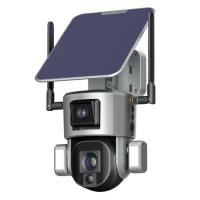
WiFi Security Camera with 4K Clarity, 180° Panoramic View with Dual Lens, Solar Powered, 360° Live View, Color Night Vision Kentfaith
$299.99 $239.99
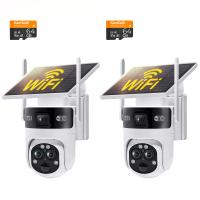
WiFi Security Camera with 6MP,  Dual Lens, Solar Powered, 360° Live View, Color Night Vision Kentfaith
WiFi Security Camera with 6MP, Dual Lens, Solar Powered, 360° Live View, Color Night Vision Kentfaith
16
$168.74 $134.99
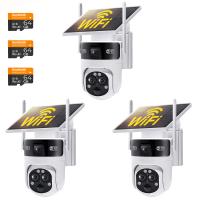
WiFi 3 Lens Solar Security Camera Wireless Outdoor, 6MP Full HD Video, 360° View Pan/Tilt Home Security Camera with Color Night Vision, Easy to Install, PIR Alarm, Kentfaith
15
$156.24 $124.99
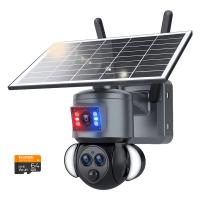
WiFi Security Camera with 15X Hybrid Zoom, Triple Lens, 6MP, Dual Views, Solar Powered, 360° Live View, Color Night Vision, Kentfaith
14
$187.49 $149.99
4 Channel Dash Cam, 360° View, 2K Front 1080P Rear Inside Left Right Car Camera, IR Night Vision, WDR, 5G WiFi,  24H Parking Mode, G-Sensor, OBD Cable Included, Kentfaith
4 Channel Dash Cam, 360° View, 2K Front 1080P Rear Inside Left Right Car Camera, IR Night Vision, WDR, 5G WiFi, 24H Parking Mode, G-Sensor, OBD Cable Included, Kentfaith
16
$187.49 $149.99
67mm Clip-on CPL Phone Camera Lens Filter Kit Applicable to All Mobile Phone Models
24
$18.99
67mm Clip-on ND2-32 Phone Camera Lens Filter Kit Applicable to All Mobile Phone Models
24
$37.99
4G Security Camera with 4K Clarity, 180° Panoramic View with Dual Lens, Solar Powered, 360° Live View, Color Night Vision Kentfaith
14
$374.99 $299.99
5K 75MP Digital Cameras for Photography, 20X Optical Zoom, WiFi Youtube Vlogging Camera with Autofocus & Dual Lens for Selfie, 4in Touchscreen Kentfaith
12
$299.99 $239.99
67mm Clip-on Black Mist 1/4 Phone Camera Lens Filter Kit Applicable to All Mobile Phone Models
24
$29.99
Products You May Like
UHF One Tow One Lavalier Wireless Microphone SLR Mobile Phone Photography Interview Video Live Lavalier Microphone
7
$44.99
SNDWAY SW-1500A Golf Rangefinder Distance / Angle / Height / Speed Measuring, Flagpole Locking, Support Naked Eye Focusing 150m Measuring Distance
16
$354.99 $154.99
40.5mm CPL Filter 0.1% Ultra-low Reflection (Titanium Coating ) With 28 Multi-Layer Coatings Ultra-Slim HD Circular Polarizer Filter Nano-Xcel Series
54
$46.99 $36.99
MicroDrive 64GB SD Memory Card
$16.00
58mm True Color Variable ND2-400 (1-9 Stops) ND Lens Filter Adjustable Neutral Density Filter with 18 Multi-Layer Coatings for Camera Lens Nano-Klear Series
42
$53.99 $27.99
Fluid Head, Lightweight Fluid Video Head Silky-Smooth Stable Tripod Head Mount Max Load 17.6lbs/8kg, Tripod Head for 360°Pan and -75°to 90 Tilt. BV40 K&F CONCEPT
11
$79.99
43mm MCUV Protection Filter with 28 Multi-Layer Coatings HD/Hydrophobic/Scratch Resistant/Ultra-Slim UV Filter for 43mm Camera Lens Nano-X Series
$34.99 $24.95
55mm Snap-On Center Pinch Lens Cap 5 in 1 with Anti-Loss Keeper Leash Compatible with Nikon, Canon, Sony, Fujifilm Camera Lenses
$15.99 $7.99
15-45x60 birding scope with tripod, storage bag, BAK4 HD waterproof viewing scope for birding wildlife scenery
$82.99 $53.99
Head mounted magnifier with 2 LED lights, with 4 removable lenses 1.5X, 2.5X, 3.5X, 5X, USB rechargeable hands-free magnifying glass for reading, jewelry, crafts, electronic maintenance
$27.99
Related articles
How To View Multiple Wifi Cameras On One Screen ?
How To Find Ip Cameras On Network?
How To Change Ring Camera Wifi Network ?
How Many Wireless Ip Cameras On A Network?
How To View Security Cameras On Iphone?
Smart Life Camera How To Change Wifi Network?
How To View Security Cameras On Smart Tv?
How To Change Wifi On Wyze Cameras ?
How To View Security Camera On Phone?
How To Make A Small Camera Bag?
Blog You May Like
Where To Buy Camera Battery Chargers?
How To Build A Phone Tripod Stand?
Why Does My Camera Keep Flashing?
Can We Repair Bluetooth Earphones?
Can You Use A Camcorder For Skype?
How To Set Smart Band Watch?
What Trail Camera Works With Us Cellular?
Who Makes The Best Binoculars?
Where Is The Microphone On Iphone 8 Plus?
How To Open Sd Card Packaging?
Related categories
Wifi Trail Cameras Outdoor Security Camera Wifi On-Dash Camera Baby Movement Monitor 4G Cameras C mount lens adapter m4/3 adapter endoscope cameras
Popular products
live view trail cameras wide view trail cameras Smart Home Hd Wifi Camera trail vision cameras wifi night trail cameras wifi capable trail cameras HD Conference camera wide view trail camera live view trail camera 1080P Outdoor Security Camera
Related searches
Wifi View Endoscope Network Security Camera Security Cameras That Connect To Wifi Bluetooth Wifi Cameras Battery Cameras Wifi Wifi Game Cameras Wifi Wildlife Cameras Multiple Wifi Cameras Security Cameras On Sale Trail Cameras On Sale
Popular searches
Gopro Hero 10 Nd Filter Wireless Wildlife Camera Camera Flash Bag Sharpest C Mount Lens Fotodiox Sony E Mount Graduated Nd Filter 52mm Fuji Xf To Mft Adapter Change Mount On Sigma Lens Bluetooth Headset With Boom Microphone Variable Nd Filter 82mm
Blog Category
  • Activities
  • Guide
    • Filter Guide
    • Lens Adapter
    • Product Review
  • News & Reviews
    • Camera Reviews
    • Sample Gallery
    • News
  • Tutorials
    • Solar eclipse photography
    • Photography Basics
    • Landscape Photography
  • Inspiration
    • Travel
    • Travel Stories
Search Article
Latest from the Blog
Camera Use Which Lens?
Which Bluetooth Earphones?
How To Wear Monocular?
How Big A Memory Card For Camera?
How To Find Camera Roll On Iphone 5s?
How To Stream Live From Surveillance Camera?
How Much Does It Cost For Security Cameras?
How To Find A Good Digital Camera?
What Does A Uv Camera Filter Do?
How To Fix The Straps On A Camera?
  • Easy Payment Multilple Payment Options

  • Free Shipping Global WareHouse Shipment

  • No Risk 30-Day No Reason Return

  • Limited Deals Buy More, Save More

  • Tax Free No any surcharges or tax fee

Information
  • About us
  • Contact Us
  • Site Map
  • Blog
  • Video
  • Gallery
  • VIP Membership Rewards
Service
  • Privacy Policy
  • Terms & Conditions
  • Shipping & Delivery
  • Payment Info
  • Warranty, Return & Refund
  • Intellectual Property Rights
  • Ambassador
  • Affiliates
  • Wholesale
Support
  • My account
  • Order History
  • FAQs
  • Extend Warranty
  • Logistics Tracking
Follow us
NewsLetter

Get the latest product, K&F Concept respects your privacy.

Powered By KENTFAITH © 2025