How To View Security Cameras On Smart Tv?
If you're looking to enhance your home security while making the most of your smart TV's functionality, you're likely considering how to view security camera feeds on your television. Smart TVs have evolved far beyond their origins as simple screens for movies and TV shows, and they now serve as hubs for integrating all the smart devices in our homes, including security cameras. Whether you're a tech novice or an experienced smart home enthusiast, this article will help you understand how to connect your security system with your TV effectively.
Why Viewing Security Cameras on Your Smart TV is Useful
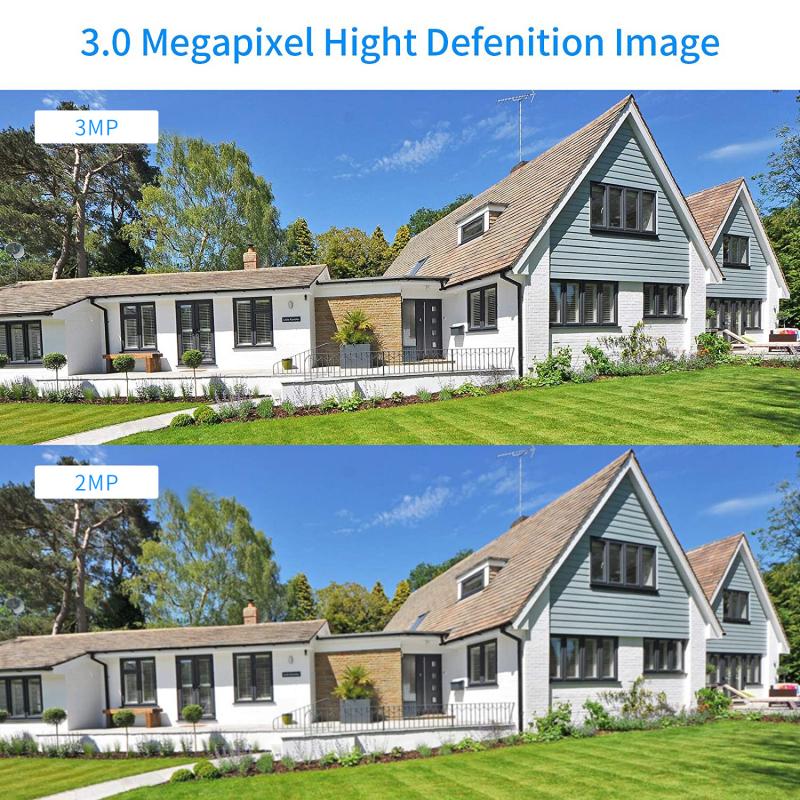
When it comes to home security, convenience and accessibility are key. A smart TV provides a larger screen for detailed views as compared to smartphones or tablets, making it ideal for monitoring suspicious activities or ensuring everything is in order at home. The integration of a smart TV with security cameras allows you not only to view live feeds but also to review recorded footage, giving you peace of mind.
Additionally, during significant events—like a baby’s first steps captured by an indoor camera or monitoring package deliveries captured by an outdoor camera—you’ll appreciate the larger screen. It doesn’t just make sense for security but is also a practical upgrade for your daily living.
This guide will walk you through the different methods of viewing your security camera feeds on your smart TV, addressing both wired and wireless solutions.
Option 1: Using Native Apps on Your Smart TV
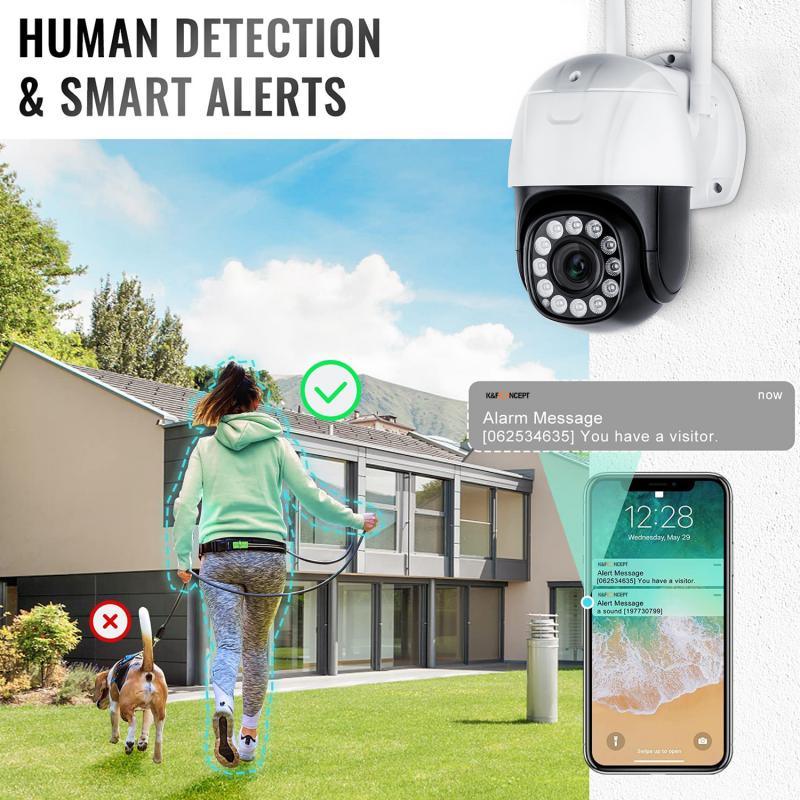
Some smart cameras and TVs are compatible with one another out of the box, thanks to pre-installed or downloadable apps available directly on the TV.
Steps for Native App Integration:
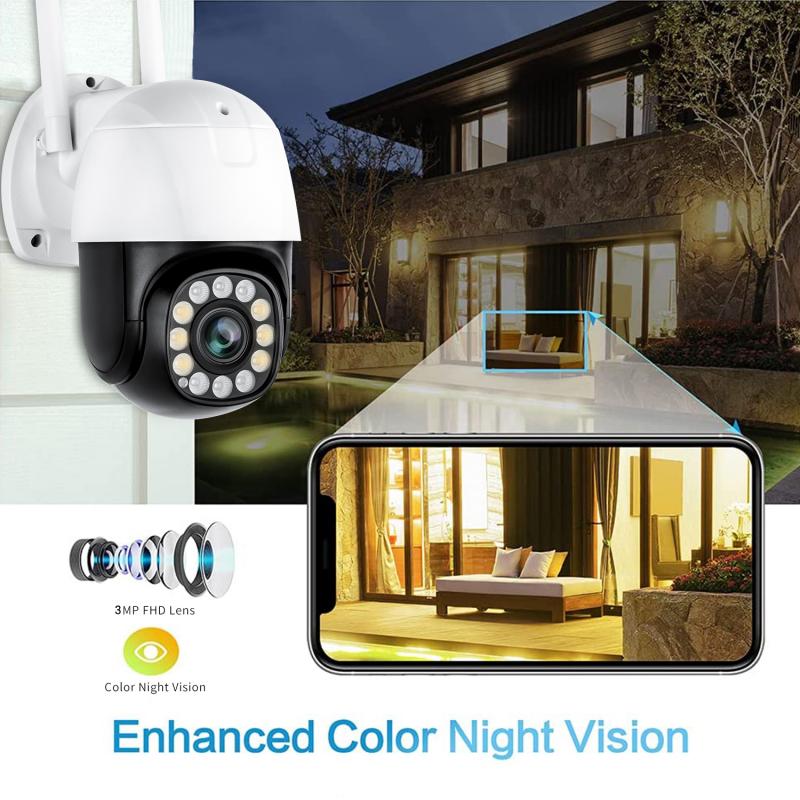
1. Check Compatibility: Look up whether your security camera brand offers a native app for your smart TV. Brands like Nest, Ring, or Arlo often provide apps that are compatible with TVs running Android TV, Fire TV, or compatible platforms.
2. Install the App: Open the app store on your smart TV (e.g., Google Play Store on Android TV) and search for your camera brand. Download and install its app.
3. Authenticate Yourself: Log into the app using your security system credentials. You may need to connect the TV app with the camera feed using an authentication code sent to your smartphone or email.
4. View Live or Recorded Footage: Once set up, you can navigate the app’s interface to see live views, switch cameras, and even adjust settings if needed.
Pros:
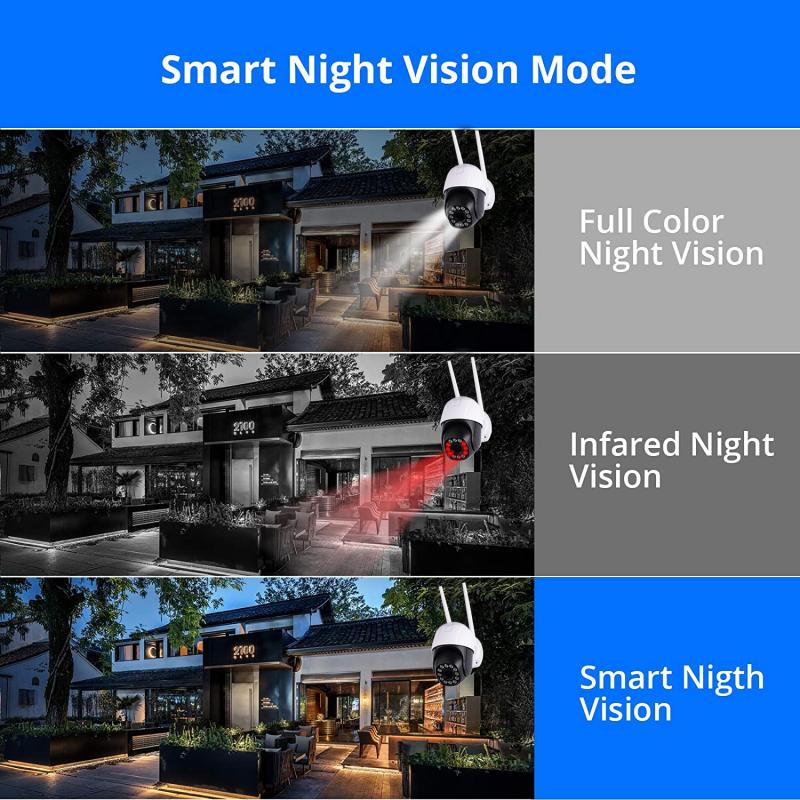
Minimal Hardware Needs: No need for extra cables or devices.
User-Friendly Interface: Built for TVs, these apps are often easier to use.
Cons:
Limited by Ecosystem: Requires compatibility between your camera and smart TV brand.
May Lack Features: Limited functions compared to mobile or PC apps.
Option 2: Using Screencasting or Screen Mirroring
If your security camera does not have a dedicated app for your smart TV, you can use a smartphone or tablet in combination with a screen-mirroring feature.
Steps to Screen Mirror Your Camera Feed:
1. Ensure Both Devices Are Connected to the Same Network: Your TV and the smartphone/tablet running your security camera app should be on the same Wi-Fi network.
2. Enable Screen Mirroring on the Smart TV: Depending on the brand (Samsung has Smart View, LG offers Miracast, and many TVs use Chromecast), enable the screen-mirroring feature on your TV. Detailed instructions are typically available in your TV's manual.
3. Enable Casting on Your Smartphone: Open the security camera app on your phone and use your phone’s built-in cast function to project the feed onto your TV. Apps like Nest and Arlo usually support casting.
4. Adjust the TV Display: Use your remote to position the display optimally on your screen.
Pros:
Highly Compatible: Works with nearly any smart camera system that offers an app.
No Extra Costs: Leverages existing devices.
Cons:
Dependent on Smartphone or Tablet: You need to keep the casting device active, which could drain battery life.
Limited Remote Accessibility: Cannot access functions without touching the phone.
Option 3: Connecting Security Cameras via HDMI or Streaming Dongles
For users who prefer not to work with wireless solutions (or when the app ecosystem isn't ideal), a direct hardware setup may be the preferred route.
HDMI Solution:
Some security DVRs/NVRs (Digital or Network Video Recorders) come with an HDMI output. You can connect them directly to your smart TV.
1. Connect and Configure: Use an HDMI cable to connect the recorder to one of your TV’s HDMI ports. Change the TV's input to the respective HDMI port to view the camera feeds.
2. Operate With DVR/NVR: Use the remote control or system menu of your DVR/NVR to navigate the feeds.
Streaming Dongles Solution (e.g., Chromecast, Roku, Fire TV Stick):
If you already use a streaming device, you can access some advanced security camera apps through them.
1. Download a Security App: Install compatible security monitoring apps on the dongle's platform.
2. Authenticate Your Feed: Just as with a native app on your TV, you’ll log in and start streaming.
Pros:
Stable and Reliable: Reliable connection for uninterrupted viewing.
Best for Multiple Cameras: Helpful for managing several cameras simultaneously.
Cons:
Requires Extra Equipment: HDMI setup or streaming dongles may add to your costs.
Less Convenient: Moving DVRs/NVRs may be cumbersome.
Option 4: Using Smart Assistants Like Alexa or Google Assistant
Smart assistants like Alexa and Google Assistant can bridge the gap between your security camera and your TV for voice-command functionality.
Steps to Use Smart Assistants:
1. Check Compatibility: Alexa and Google Assistant work better with some ecosystems, like Nest and Ring.
2. Enable Skills or Actions: Link the accounts of your security camera to your smart assistant.
3. Deploy Commands: For example, if you own an Echo Show device with a Fire TV, you can say: “Alexa, show the front door camera.”
Pros:
Hands-Free Control: Great for convenience, especially during emergencies.
Unified Ecosystem Management: Allows linkage with other smart devices.
Cons:
Dependent on Assistant Compatibility: Not all systems will work seamlessly.
Troubleshooting Common Issues
Even though the integration process is often seamless, you can encounter problems. Here are some quick fixes:
1. No Signal Issues: Ensure your devices are on the same network and your internet bandwidth is sufficient for HD streaming.
2. App Glitches: Clear the app cache or reinstall the app on your TV or phone.
3. Hardware Connection Loss: Double-check HDMI or Ethernet connections for physical setups.
Future-Ready Tips for Camera Integration
Stick to Ecosystem Players: Buy smart devices of the same ecosystem for higher compatibility.
Enable Cloud Access: A subscription plan with cloud access ensures you've got backup feeds and easy integration.
Upgrade Firmware Regularly: Camera and smart TV software must be updated to guarantee compatibility and security.
Integrating your security cameras with your smart TV offers both convenience and peace of mind. Whether you opt for native app solutions, screencasting, hardware connections, or smart assistants, the choice will ultimately depend on your current setup and budget. Each approach comes with its benefits and challenges, but all bring your home monitoring system into focus—on a screen that offers a much better view than your phone or tablet.
By carefully weighing your options and tailoring a solution that works best for your household, you’ll make the most of your smart home ecosystem. With these methods at your fingertips, enjoy convenient, secure, and accessible monitoring from the comfort of your couch!