How To View Security Cameras On Iphone?
In today’s interconnected world, security cameras have become an essential tool for safeguarding homes, businesses, and public spaces. With the rise of smartphones, monitoring these cameras has become more convenient than ever. If you own an iPhone, you can easily view your security camera feeds from anywhere, provided you have the right setup and tools. This article will guide you through the process of viewing security cameras on your iPhone, addressing common challenges and offering practical solutions.
Why View Security Cameras on Your iPhone?
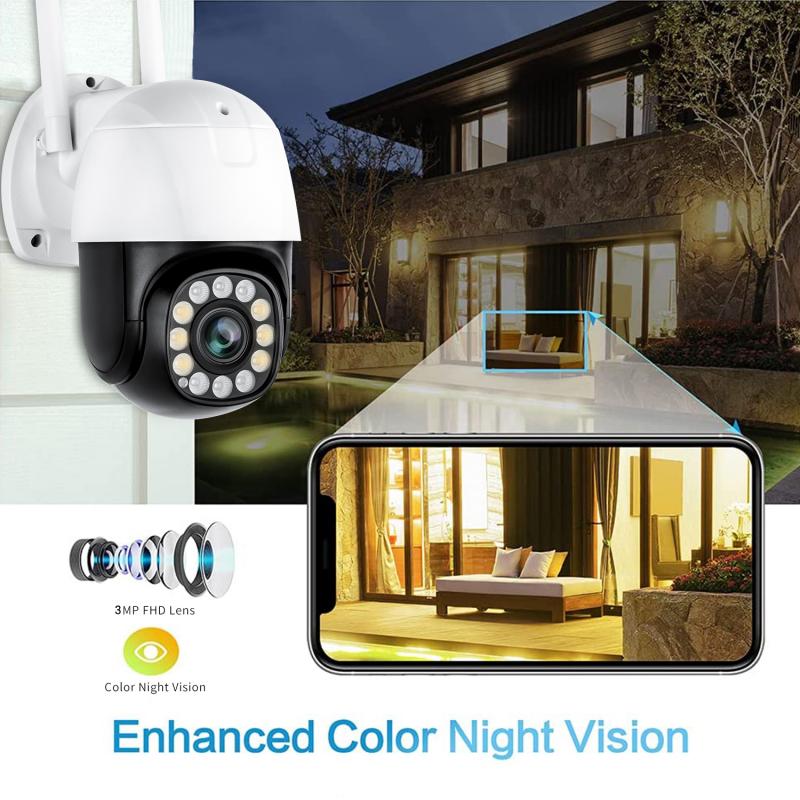
The ability to monitor security cameras on your iPhone offers several advantages:
1. Convenience: You can check your camera feeds anytime, whether you're at home, at work, or traveling.
2. Real-Time Monitoring: Stay updated on what's happening in your home or business in real time.
3. Enhanced Security: Quickly respond to suspicious activity or emergencies.
4. Remote Access: No need to be physically present near the camera system; you can access it from anywhere with an internet connection.
Prerequisites for Viewing Security Cameras on Your iPhone
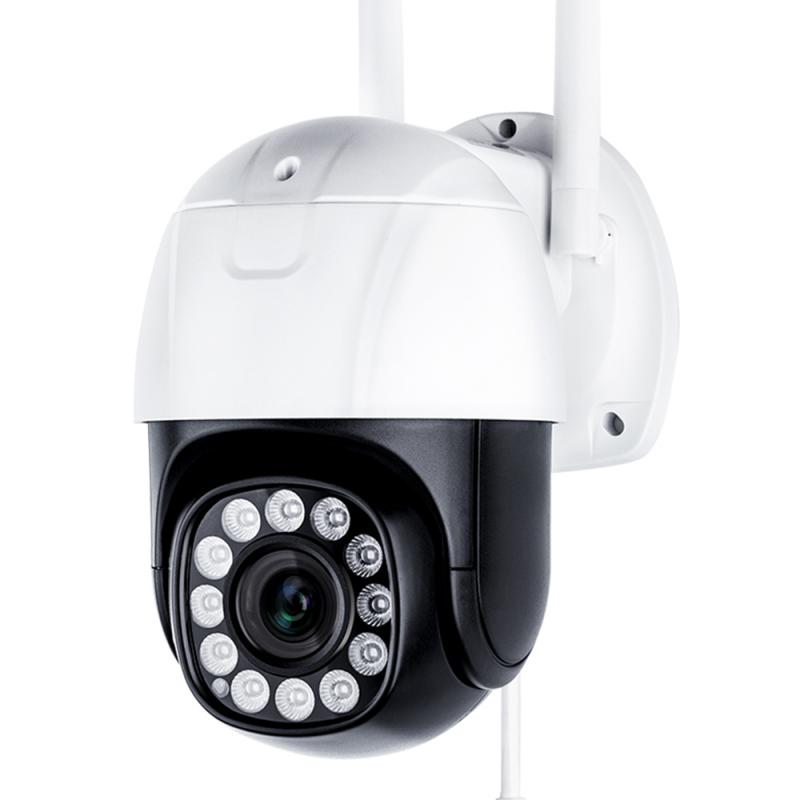
Before you can view your security cameras on your iPhone, ensure the following:
1. Compatible Security Camera System: Your cameras should support remote viewing via mobile devices. Most modern systems, including IP cameras and smart security cameras, offer this feature.
2. Internet Connection: Both your security camera system and your iPhone need to be connected to the internet.
3. Mobile App: Many security camera brands provide dedicated apps for iOS devices. These apps are typically available for free on the App Store.
4. Account Setup: You may need to create an account with the camera manufacturer or service provider to access the feeds.
Step-by-Step Guide to Viewing Security Cameras on Your iPhone
Step 1: Install the Camera App
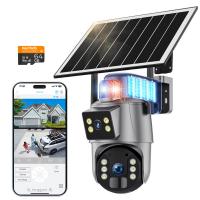
Most security camera systems come with a proprietary app designed for mobile devices. Search for the app in the App Store using the name of your camera brand (e.g., Ring, Arlo, Nest, Hikvision). Download and install the app on your iPhone.
Step 2: Set Up the App
Once the app is installed, open it and follow the setup instructions. You may need to:
- Create an account or log in with existing credentials.
- Pair your security cameras with the app. This often involves scanning a QR code on the camera or entering a unique device ID.
Step 3: Connect Your Cameras to Wi-Fi
Ensure your security cameras are connected to your home or office Wi-Fi network. This step is crucial for enabling remote access. Refer to the camera’s user manual for instructions on connecting to Wi-Fi.
Step 4: Configure Remote Access
Some camera systems require additional configuration for remote access. This may involve enabling port forwarding on your router or using a cloud-based service provided by the camera manufacturer. If you're unsure how to do this, consult the camera’s documentation or contact customer support.
Step 5: Access Live Feeds
Once the setup is complete, open the app on your iPhone. You should see a list of connected cameras. Tap on a camera to view its live feed. Many apps also allow you to:
- Switch between multiple cameras.
- Adjust settings like resolution and frame rate.
- View recorded footage.
Step 6: Enable Notifications
To stay informed about any unusual activity, enable push notifications in the app. This way, you'll receive alerts for motion detection, sound detection, or other triggers.
Alternative Methods for Viewing Security Cameras on iPhone
If your security camera system doesn’t have a dedicated app, you can still view the feeds using other methods:
1. Web Browser Access
Some security cameras allow you to access their feeds via a web browser. Open Safari on your iPhone and enter the camera’s IP address or the URL provided by the manufacturer. Log in with your credentials to view the feed.
2. Third-Party Apps
If your camera system doesn’t have an official app, you can use third-party apps like TinyCam, IP Cam Viewer, or ONVIF-compatible apps. These apps support a wide range of camera brands and models.
3. Home Automation Platforms
If your security cameras are integrated with a home automation system like Apple HomeKit, you can view the feeds directly through the Home app on your iPhone. This method is particularly useful for smart cameras.
Troubleshooting Common Issues
While viewing security cameras on your iPhone is generally straightforward, you may encounter some challenges. Here’s how to address them:
1. Connection Problems
If you can’t access your camera feeds, check the following:
- Ensure your cameras are connected to Wi-Fi.
- Verify that your iPhone has an active internet connection.
- Restart your router and cameras if necessary.
2. App Crashes or Errors
If the camera app crashes or displays errors:
- Update the app to the latest version.
- Restart your iPhone.
- Contact the app’s support team for assistance.
3. Poor Video Quality
If the video feed is blurry or laggy:
- Check your internet speed. A slow connection can affect video quality.
- Adjust the resolution settings in the app.
- Ensure your cameras are positioned in areas with strong Wi-Fi signals.
4. Security Concerns
To protect your camera feeds from unauthorized access:
- Use strong, unique passwords for your camera account.
- Enable two-factor authentication if available.
- Regularly update your camera firmware to patch security vulnerabilities.
Tips for Optimizing Your Security Camera Experience on iPhone
1. Organize Your Cameras: If you have multiple cameras, label them in the app for easy identification (e.g., “Front Door,” “Backyard,” “Garage”).
2. Schedule Notifications: Customize notification settings to avoid unnecessary alerts during certain hours.
3. Use Cloud Storage: Many camera systems offer cloud storage for recorded footage. This ensures you can access videos even if the camera is damaged or stolen.
4. Integrate with Smart Devices: If you use smart home devices like smart lights or door locks, integrate them with your security cameras for enhanced functionality.
Viewing security cameras on your iPhone is a simple yet powerful way to stay connected to your home or business. With the right setup, you can monitor live feeds, review recorded footage, and receive real-time alerts—all from the palm of your hand. Whether you’re using a dedicated app, a web browser, or a home automation platform, the process is designed to be user-friendly and efficient.
By following the steps outlined in this guide, you can ensure a seamless experience while addressing any challenges that may arise. Remember to prioritize security by using strong passwords and keeping your camera system updated. With these measures in place, you’ll have peace of mind knowing that your property is protected and accessible at all times.