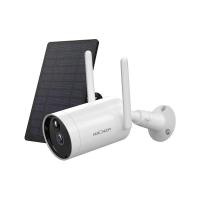
How Many Wireless Ip Cameras On A Network?
Maximizing the Number of Wireless IP Cameras on a Network: A Comprehensive Guide
Wireless IP cameras have become an essential part of modern security systems, offering flexibility, ease of installation, and remote monitoring capabilities. However, one of the most common questions users face when setting up a surveillance system is: "How many wireless IP cameras can I connect to my network?" The answer to this question depends on several factors, including network bandwidth, router capacity, camera resolution, and the intended use of the cameras. In this article, we’ll explore these factors in detail and provide practical tips to help you optimize your network for multiple wireless IP cameras.
Understanding the Basics: How Wireless IP Cameras Work

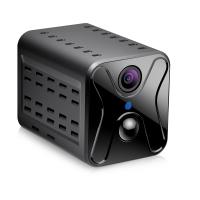
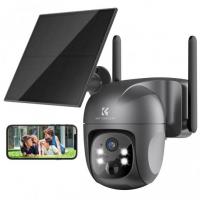
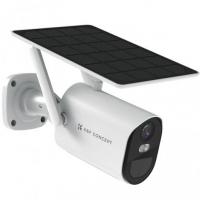
Wireless IP cameras transmit video data over a Wi-Fi network to a central device, such as a network video recorder (NVR), cloud storage, or a mobile app. Unlike traditional analog cameras, which require dedicated cabling, wireless IP cameras rely on your existing Wi-Fi infrastructure. While this makes installation easier, it also introduces challenges related to network performance and capacity.
Each camera on your network consumes bandwidth to transmit video streams. The more cameras you add, the greater the demand on your network. If your network is not properly configured or lacks sufficient capacity, you may experience issues such as lag, dropped connections, or poor video quality.
Key Factors That Determine the Number of Cameras You Can Connect

1. Network Bandwidth
Bandwidth is the amount of data your network can handle at any given time, typically measured in megabits per second (Mbps). Each wireless IP camera requires a certain amount of bandwidth to transmit video. For example:
- A 1080p camera typically requires 2-4 Mbps for smooth video streaming.
- A 4K camera may require 15-20 Mbps or more, depending on the compression technology used.
To calculate the total bandwidth required, multiply the bandwidth needed for a single camera by the number of cameras you plan to install. For instance, if you have 10 cameras, each requiring 3 Mbps, your network will need at least 30 Mbps of available bandwidth.
2. Router Capacity
Your router plays a critical role in managing the devices connected to your network. Consumer-grade routers are often designed to handle a limited number of devices, typically between 10 and 30. If you exceed this limit, the router may struggle to allocate resources effectively, leading to connectivity issues.
For larger setups, consider upgrading to a high-performance router or a mesh Wi-Fi system, which can handle more devices and provide better coverage.
3. Camera Resolution and Frame Rate
Higher resolution and frame rates result in better video quality but also require more bandwidth. For example:
- A 720p camera at 15 frames per second (fps) may use 1-2 Mbps.
- A 1080p camera at 30 fps may use 3-5 Mbps.
- A 4K camera at 30 fps may use 15-25 Mbps.
If bandwidth is a concern, you can reduce the resolution or frame rate of your cameras to lower their bandwidth requirements.
4. Compression Technology
Modern IP cameras use video compression technologies such as H.264, H.265, or H.265+. These technologies reduce the size of video files without significantly compromising quality. Cameras with H.265 or H.265+ compression are more efficient and require less bandwidth compared to those using older compression standards.
5. Wi-Fi Signal Strength and Interference
Wireless IP cameras rely on a strong and stable Wi-Fi signal. Factors such as distance from the router, physical obstructions (e.g., walls, furniture), and interference from other devices can affect signal strength. Weak signals can lead to dropped connections and poor video quality.
To improve signal strength, consider placing your router in a central location, using Wi-Fi extenders, or upgrading to a mesh Wi-Fi system.
6. Storage and Recording Settings
The way you store and record video also impacts your network. Continuous recording requires more bandwidth and storage compared to motion-triggered recording. If you’re using cloud storage, ensure your internet upload speed is sufficient to handle the data being transmitted.
Practical Tips for Optimizing Your Network

1. Assess Your Network’s Capacity
Before adding cameras, test your network’s current bandwidth and router capacity. Use online tools or apps to measure your internet speed and determine how much bandwidth is available for additional devices.
2. Upgrade Your Router
If your current router cannot handle the number of devices you plan to connect, consider upgrading to a high-performance model. Look for routers with features such as dual-band or tri-band support, Quality of Service (QoS) settings, and MU-MIMO technology, which can improve performance for multiple devices.
3. Use a Dedicated Network for Cameras
To prevent your cameras from competing with other devices (e.g., smartphones, laptops, smart TVs) for bandwidth, consider setting up a separate Wi-Fi network for your surveillance system. Many modern routers allow you to create a guest network that can be used for this purpose.
4. Optimize Camera Settings
Adjust the resolution, frame rate, and compression settings of your cameras to balance video quality and bandwidth usage. For example, if you only need to monitor general activity, a lower resolution and frame rate may be sufficient.
5. Leverage Motion Detection
Enable motion detection on your cameras to reduce the amount of data being transmitted and stored. This feature ensures that video is only recorded when motion is detected, saving bandwidth and storage space.
6. Consider Wired Alternatives
If your network is struggling to support multiple wireless cameras, consider using Power over Ethernet (PoE) cameras. These cameras transmit data and receive power through a single Ethernet cable, eliminating the need for Wi-Fi and reducing strain on your network.
7. Monitor and Maintain Your Network
Regularly monitor your network’s performance to identify and address any issues. Keep your router’s firmware up to date, and periodically check for devices that may be hogging bandwidth.
Real-World Scenarios: How Many Cameras Can You Realistically Add?

Let’s consider a few examples to illustrate how these factors come into play:
- Small Home Network
A typical home network with a 100 Mbps internet connection and a consumer-grade router can comfortably support 5-10 1080p cameras, assuming other devices are also using the network.
- Medium-Sized Business
A business with a 500 Mbps internet connection and a high-performance router can support 20-30 1080p cameras or 10-15 4K cameras, depending on the network’s overall usage.
- Large-Scale Deployment
For large-scale deployments, such as warehouses or office buildings, a dedicated network with enterprise-grade equipment is recommended. These setups can support hundreds of cameras, provided the network infrastructure is designed to handle the load.
The number of wireless IP cameras you can connect to your network depends on a combination of factors, including bandwidth, router capacity, camera settings, and Wi-Fi signal strength. By understanding these factors and following the optimization tips outlined in this article, you can design a surveillance system that meets your needs without overloading your network.
Whether you’re setting up a small home system or a large-scale deployment, careful planning and the right equipment are key to ensuring reliable performance. If you’re unsure about your network’s capacity, consult with a professional to assess your requirements and recommend the best solution for your specific situation. With the right approach, you can enjoy the benefits of a robust and efficient wireless IP camera system.