Can You Use Iphone As Microphone?
In today’s digital age, smartphones have become versatile tools that extend far beyond their original purpose of making calls. Among the many creative ways to use an iPhone, one of the most practical and lesser-known applications is using it as a microphone. Whether you're a content creator, a musician, a teacher, or someone who simply needs a quick audio solution, your iPhone can serve as a reliable microphone in various scenarios. In this article, we’ll explore how to use your iPhone as a microphone, the tools and apps you’ll need, and the practical applications of this functionality.
Why Use an iPhone as a Microphone?
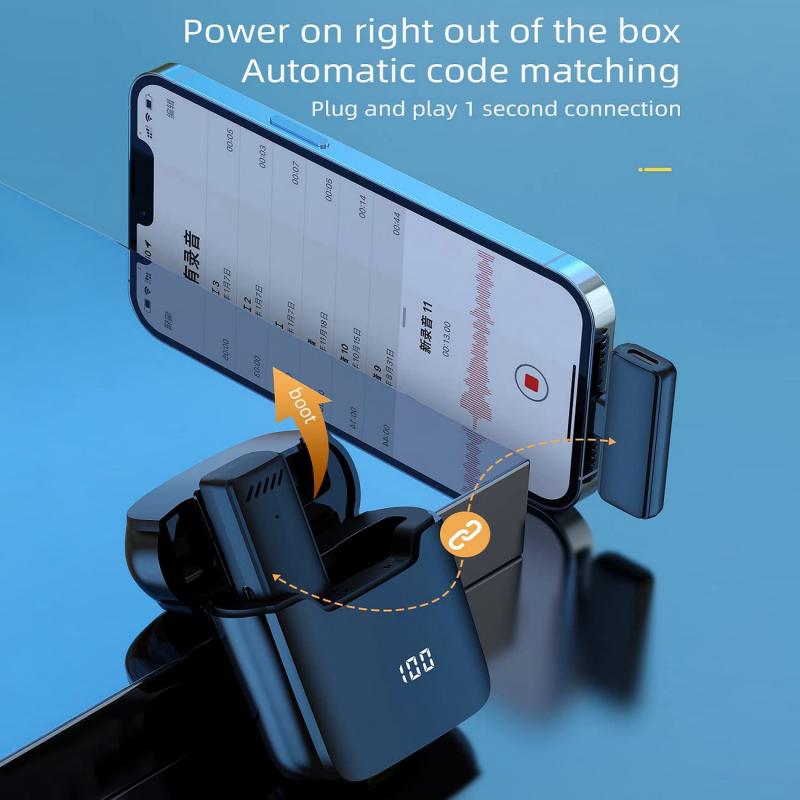
There are several reasons why you might want to use your iPhone as a microphone:
1. Convenience: If you don’t have access to a dedicated microphone, your iPhone can act as a quick and portable alternative.
2. Cost-Effective: Instead of purchasing an external microphone, you can use your iPhone to save money.
3. Versatility: With the right apps and settings, your iPhone can be used for a variety of purposes, such as recording audio, amplifying sound, or even connecting to a computer for live streaming or video conferencing.
4. Portability: iPhones are lightweight and easy to carry, making them a great on-the-go solution for audio needs.
How to Use Your iPhone as a Microphone
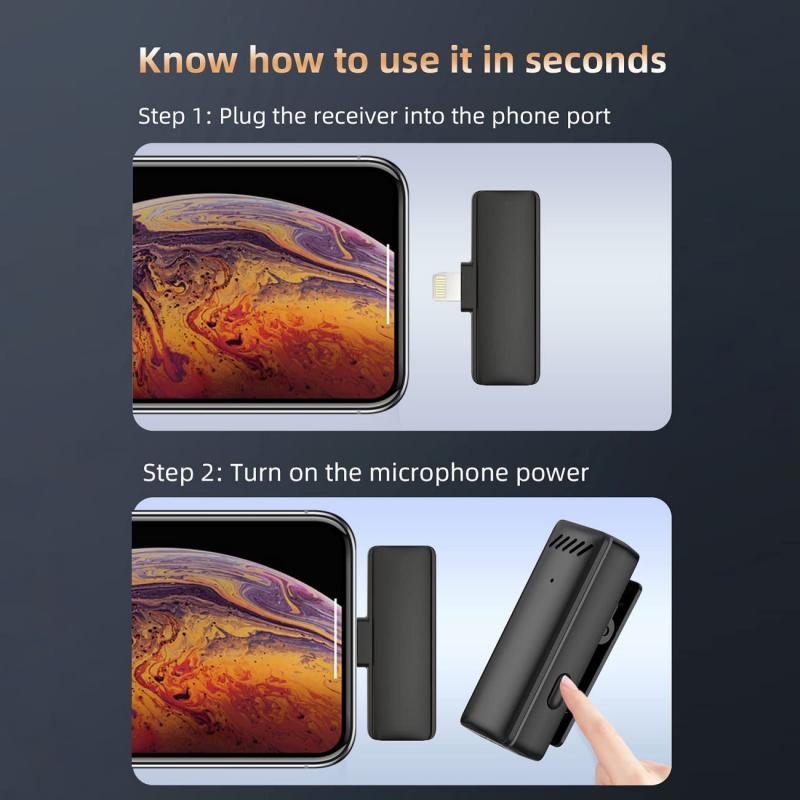
Using your iPhone as a microphone is relatively simple, but it does require some setup. Here’s a step-by-step guide:
1. Using Built-In Features
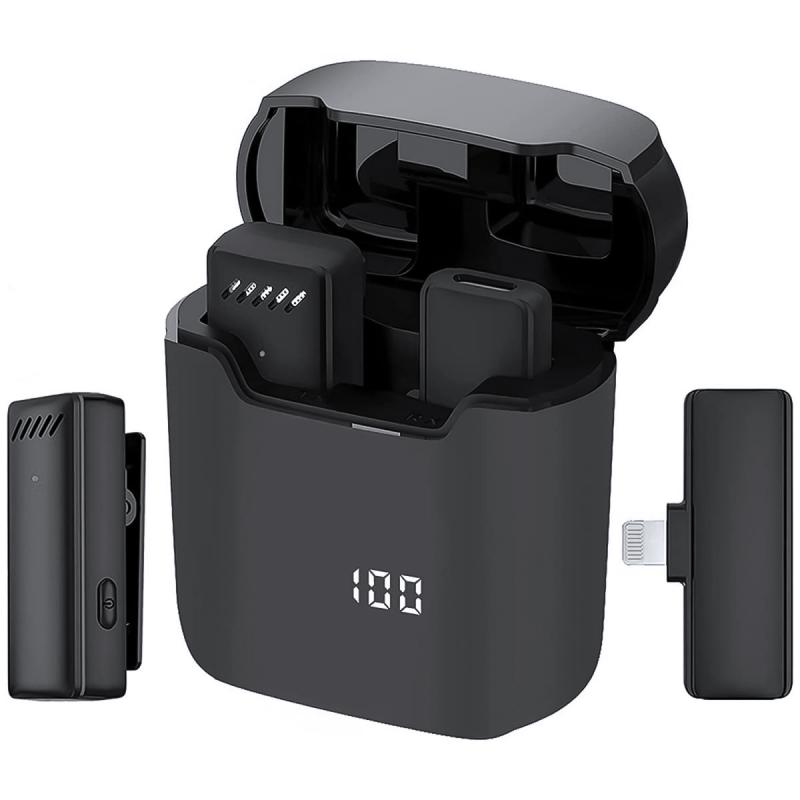
If you’re looking for a quick and easy solution, you can use the iPhone’s built-in Voice Memos app to record audio. While this doesn’t turn your iPhone into a live microphone, it’s a great way to capture high-quality audio for later use.
Steps:
- Open the Voice Memos app.
- Tap the red record button to start recording.
- Speak into your iPhone’s microphone.
- Save and share the recording as needed.
While this method is straightforward, it’s limited to recording and doesn’t allow for live audio output.
2. Using Third-Party Apps
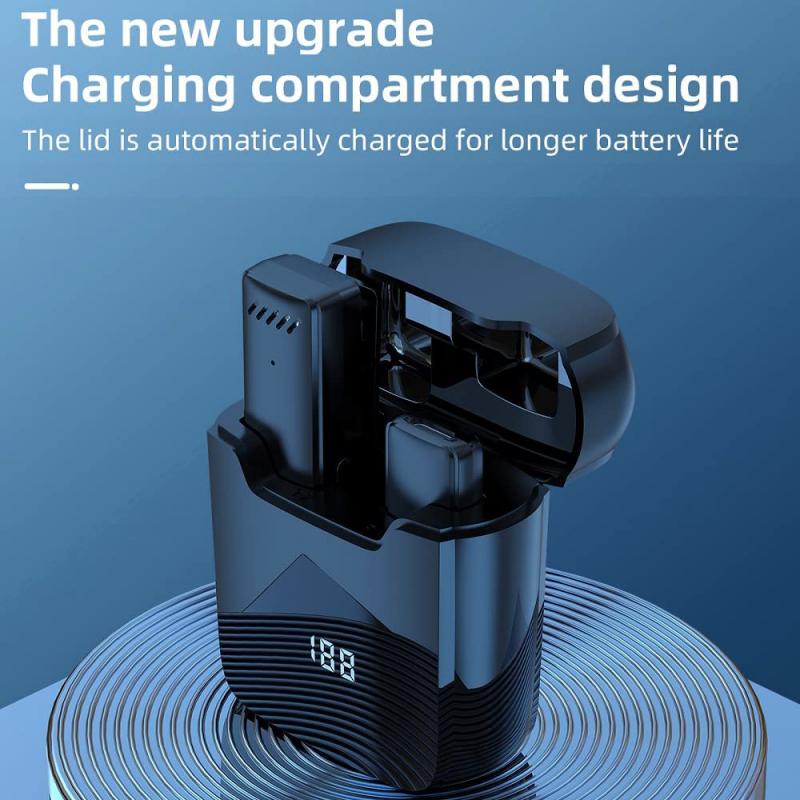
To use your iPhone as a live microphone, you’ll need a third-party app. Some popular options include:
- Megaphone: This app turns your iPhone into a live microphone that can amplify your voice through a speaker.
- Microphone Live: This app allows you to connect your iPhone to external speakers or headphones for live audio output.
- GarageBand: While primarily a music production app, GarageBand can also be used to process and amplify audio in real-time.
Steps:
- Download and install the app of your choice.
- Connect your iPhone to an external speaker or headphones.
- Open the app and follow the on-screen instructions to enable live audio.
3. Connecting to a Computer
If you want to use your iPhone as a microphone for your computer, you’ll need additional software and hardware. Here’s how:
Option 1: Using a USB Cable
- Download an app like WO Mic or Microphone Pro.
- Install the corresponding software on your computer.
- Connect your iPhone to your computer using a USB cable.
- Follow the app’s instructions to set up your iPhone as a microphone.
Option 2: Using Bluetooth or Wi-Fi
- Some apps, like WO Mic, also support Bluetooth or Wi-Fi connections.
- Pair your iPhone with your computer via Bluetooth or connect both devices to the same Wi-Fi network.
- Configure the app to use your iPhone as a microphone.
4. Using External Adapters
For professional-grade audio, you can use external adapters to connect your iPhone to a sound system or recording device. Lightning-to-3.5mm adapters or USB-C adapters (for newer iPhones) can help you connect your iPhone to external equipment.
Practical Applications of Using an iPhone as a Microphone
Now that you know how to set up your iPhone as a microphone, let’s explore some practical applications:
1. Public Speaking
If you’re giving a presentation or speech and don’t have access to a traditional microphone, your iPhone can serve as a makeshift mic. Simply connect it to a speaker using an app like Megaphone, and you’re good to go.
2. Content Creation
For vloggers, podcasters, and YouTubers, the iPhone can be a handy tool for recording audio. Apps like GarageBand allow you to process and edit audio, making it suitable for professional use.
3. Music Practice
Musicians can use their iPhone as a microphone to amplify their instruments or vocals during practice sessions. This is especially useful for solo performers or small groups.
4. Video Conferencing
If your computer’s built-in microphone isn’t up to par, you can use your iPhone as an external mic for video calls on platforms like Zoom, Microsoft Teams, or Google Meet.
5. Classroom or Workshop Settings
Teachers and workshop facilitators can use their iPhone as a microphone to ensure their voice reaches everyone in the room. This is particularly useful in larger spaces or when addressing a group.
6. Field Recording
Journalists, researchers, and filmmakers can use their iPhone to capture high-quality audio in the field. The portability and ease of use make it an excellent tool for on-the-go recording.
Tips for Optimal Audio Quality
To get the best results when using your iPhone as a microphone, keep the following tips in mind:
1. Use a Pop Filter: If you’re recording vocals, a pop filter can help reduce plosive sounds (like “p” and “b”).
2. Minimize Background Noise: Record in a quiet environment to ensure clear audio.
3. Adjust Settings: Many apps allow you to tweak settings like gain, equalization, and noise reduction for better sound quality.
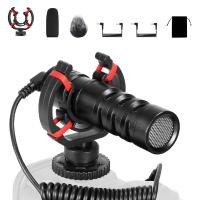
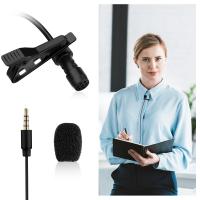
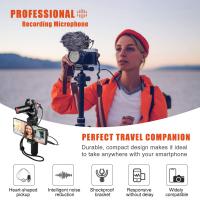
4. Use External Accessories: Consider using an external microphone that connects to your iPhone for even better audio quality.
5. Test Before Use: Always test your setup before using it in a live or important setting to ensure everything works as expected.
Limitations to Consider
While using an iPhone as a microphone is convenient, it does come with some limitations:
1. Audio Latency: Depending on the app and connection method, there may be a slight delay in audio output.
2. Battery Life: Prolonged use can drain your iPhone’s battery, so keep a charger handy.
3. Sound Quality: While the iPhone’s built-in microphone is decent, it may not match the quality of professional-grade microphones.
4. Compatibility: Not all apps and devices are compatible with this setup, so you may need to experiment to find the right combination.
Using your iPhone as a microphone is a practical and versatile solution for a variety of audio needs. Whether you’re giving a presentation, recording a podcast, or amplifying your voice, your iPhone can serve as a reliable tool with the right apps and accessories. While it may not replace a professional microphone in all scenarios, it’s a cost-effective and convenient alternative that’s always within reach.
By understanding the setup process, exploring different applications, and optimizing your audio quality, you can make the most of this functionality. So the next time you find yourself in need of a microphone, remember that your iPhone might just be the perfect solution.