Sony Camera How To Download Time Lapse?
Sony cameras are lauded for their versatility in photography and videography, allowing users to explore a range of creative possibilities. Among these features, time-lapse photography stands out as a popular and artistic technique. It enables photographers and videographers to capture the beauty of movement and transition, such as shifting clouds, bustling city streets, blooming flowers, or breathtaking star trails. However, for those new to Sony cameras or time-lapse software in general, downloading and setting up the necessary tools may seem slightly daunting. This article breaks down the process to help you get started and answers common questions surrounding time-lapse downloads and usage on Sony cameras.
Understanding Time-Lapse on Sony Cameras
Before diving into the process, it's essential to know that not all Sony cameras come with an inbuilt time-lapse feature. For some models, you may need to install an optional app called the “Time-Lapse” app via Sony’s discontinued PlayMemories Camera Apps platform. However, Sony’s latest models, part of the Alpha series, often integrate time-lapse functions directly into their firmware or allow customization through third-party software or external intervalometers.
There are two primary ways to access and execute time-lapse photography on a Sony camera:
1. Using the Built-in Interval Shooting Mode: Many recent Sony cameras, such as models in the Alpha line (e.g., A7 III, A6600), include an interval shooting mode in the native firmware. With this, time-lapse sequences can be created directly in-camera, or users can shoot individual frames for post-processing on editing software.
2. Installing a Time-Lapse App (Older Models): Some older models require users to install the Time-Lapse app through methods such as Sony’s PlayMemories platform. While PlayMemories has been discontinued, there are alternative ways to install such apps or rely on external accessories.
Step-by-Step Guide: How to Download Time-Lapse Software/Apps for Sony Cameras
1. Check Your Sony Camera Compatibility
Before proceeding, confirm whether your Sony camera model supports the time-lapse function. Check the camera manual or online specifications. For models with built-in interval shooting functionality, you can skip app installation altogether.
For older models without interval shooting mode, such as the A6000 or NEX series cameras, you’ll need a time-lapse app or external intervalometer.
2. Install App for Pre-2020 Models
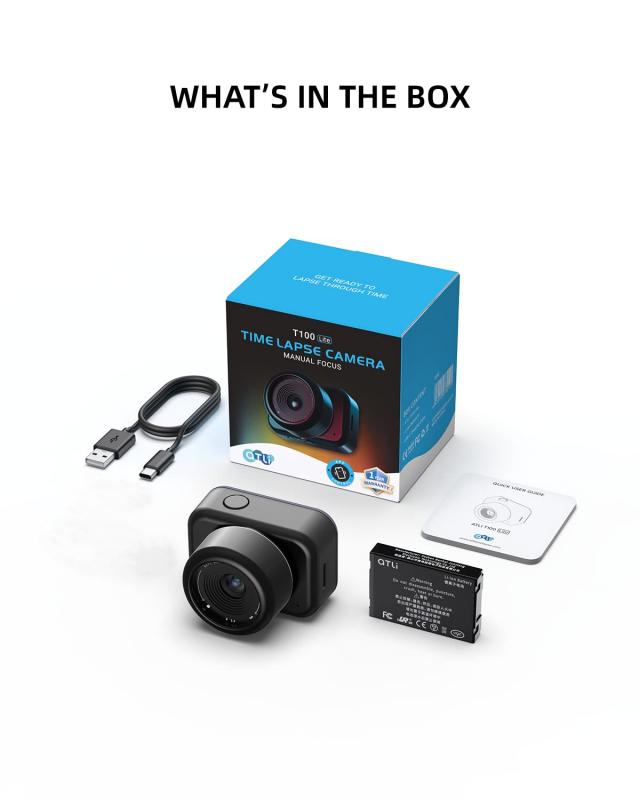
- Older Sony cameras supported apps through the PlayMemories Camera Apps platform. Due to its discontinuation, this option is no longer feasible for most users. Some individuals have explored using software patches or unofficial methods, but these could void warranties and are not typically recommended.
- Alternatively, use an external intervalometer for these camera models. Intervalometers are small, handheld devices that connect to your camera and automate the process of taking shots at programmed intervals.
3. Using the Built-In Interval Shooting Mode
For cameras with built-in time-lapse functionality (_e.g., Sony A7R IV or A7C_), follow these steps:
- Navigate to the camera’s menu system.
- Find the "Interval Shooting" option under the Photography Settings tab.
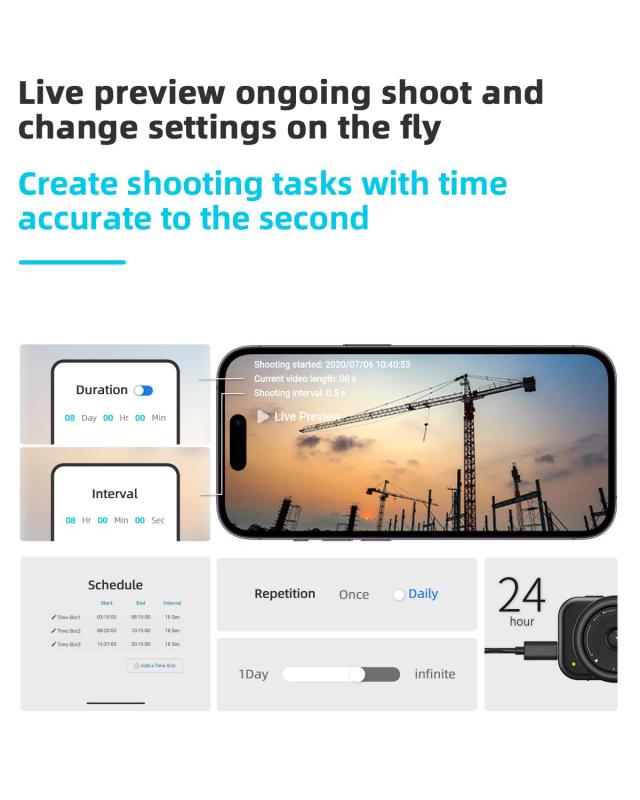
- Customize settings for interval duration, the number of shots, and delay before starting.
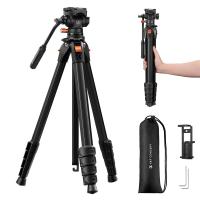
- Mount your camera on a tripod for stability.
- Press the shutter button to start capturing your time-lapse sequence.
The photos will be saved as a series of individual images on your memory card, which you can compile into a video during post-production.
4. Using External Intervalometers or Bluetooth Remotes
Even if your Sony camera doesn’t support time-lapse functionality natively, you can use third-party accessories to achieve similar results. Here’s how:
- Purchase an intervalometer compatible with your Sony camera model.
- Connect the intervalometer to your camera via its remote shutter port.
- Program the device to control intervals between shots and the number of exposures.
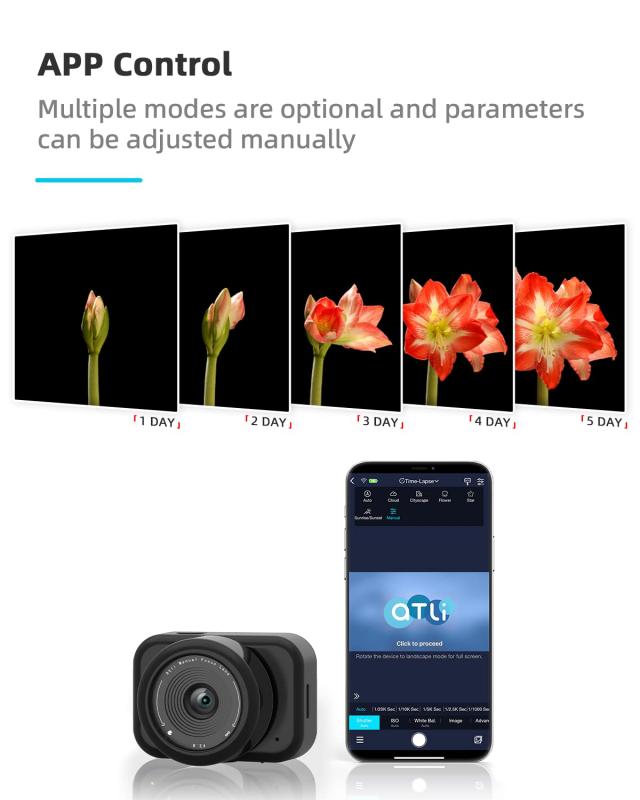
Alternatively, Bluetooth remotes or mobile apps may also function as interval control devices.
5. Processing Your Time-Lapse
After capturing the images on your camera, use video-editing software to combine the frames into a cohesive sequence. Common software tools for this include:
- Adobe Premiere Pro
- Final Cut Pro
- DaVinci Resolve
- Lightroom (for raw photo processing)
There are also dedicated tools for creating time-lapse videos directly from the images, such as Panolapse or LRTimelapse.
Troubleshooting Common Time-Lapse Issues
1. PlayMemories Camera Apps No Longer Available
If the PlayMemories platform is inaccessible for your camera, external intervalometers are your best alternative. They function effectively and are compatible with most camera models.
2. Battery Draining During Long Shoots
Time-lapse photography often involves lengthy shooting periods, which can quickly deplete your battery. Solving this issue involves:
- Using a high-capacity battery or battery grip.
- Connecting your camera to an external power source via USB.
- Carrying extra batteries to replace when needed.
3. Stability Problems in Footage
Unstable footage might result from camera movement during shooting. Always use a sturdy tripod and avoid touching your camera while capturing. Consider using a remote trigger or intervalometer for hands-free operation.
Tips for Capturing Stunning Time-Lapses on Your Sony Camera
1. Plan Your Scene
Choose subjects with interesting dynamics over time, such as traffic flow, scenic landscapes, night sky photography, or architectural movements.
2. Fine-Tune Settings
Use manual mode to control aperture, shutter speed, and ISO. Lock your focus to prevent changes mid-shoot.
3. Consider Lighting Conditions
Shooting during golden hours (sunrise or sunset) often results in striking visuals. If shooting at night, ensure your settings compensate for low light, and use long exposures to capture star trails or nighttime motion.
4. Post-Processing for Impact
Editing plays a vital role in creating the final time-lapse sequence. Adjust color profiles, white balance, and exposure levels during post-production to enhance the overall quality. Save your final video in a format compatible with your preferred media platform.
Closing Thoughts
Creating time-lapse photography adds a new layer of depth and creativity to your repertoire, even if your Sony camera lacks built-in functionality. By understanding your camera’s capabilities, utilizing external tools, and leveraging effective post-production techniques, you can seamlessly execute professional-grade time-lapse projects.
Whether you’re capturing the chaotic beauty of urban life or showcasing the gradual unfolding of natural phenomena, time-lapse photography allows you to tell a compelling story through the rhythm of movement and time. Explore, experiment, and embrace this artistic technique to transform everyday moments into works of art!