kfconcept

KENTFAITH
K&F Concept    Blog >

Enjoy Your Selected Digital Life

Recently Viewed
  • Recently Viewed
  • Recently Viewed list is empty.

Compare (0) 0
  • Compare
  • You have not chosen any products to compare.

  • Compare
Currency: USD
  • Currency
Shop by Scene Shop by Rank

Log Into Your Account

Account

Order History

Wish List

Login

Forgotten Password?

Or connect with

Register Account

Already have an Account?Log In

  • Shopping Cart
  • Your shopping cart is empty!

  • Register/Login to purchase, earn points
  • Favorite
  • Your wish list is empty.

  • Register/Login to like, earn points
  • Activities
  • Guide
    • Filter Guide
    • Lens Adapter
    • Product Review
  • News & Reviews
    • Camera Reviews
    • Sample Gallery
    • News
  • Tutorials
    • Solar eclipse photography
    • Photography Basics
    • Landscape Photography
  • Inspiration
    • Travel
    • Travel Stories
  • Home
  • Blog
  • Will Sound Play When Screen Record?

Will Sound Play When Screen Record?

Kentfaith 2025-01-14 02:18:22 0 Comments

When it comes to screen recording on various devices, whether or not sound is included in the recording depends on the platform, the settings you choose, and the type of audio you wish to capture. Below, we'll explore this topic in-depth, covering common devices, operating systems, and recording scenarios, providing a comprehensive answer to whether sound will play during a screen recording and how to control this feature.

1. General Concept of Screen Recording

Screen recording refers to the process of capturing what is happening on the display of a device, including visual elements, interactions, and, in some cases, sound. Most screen recording tools, whether built-in or third-party, allow users to record both video and audio (or just one of the two). Sound can include system audio (the audio from the apps or websites you're using) and microphone input (your voice or any external sounds picked up by the device).

2. Sound in Screen Recording: What Can You Capture?

Sound captured during a screen recording typically falls into two categories:

- System Audio (Internal Audio): This is the sound generated by the operating system or apps. For example, sounds from video playback, games, music, or any notification sounds you hear while interacting with your device.

- Microphone Audio (External Audio): This refers to the sound picked up by the device’s microphone. This could be your voice, sounds from your environment, or audio from external devices you’ve connected, like a Bluetooth headset.

3. Sound During Screen Recording: Device-Specific Variations

Let's look at how different devices and operating systems handle audio during screen recording.

Windows Screen Recording

On Windows, the built-in screen recording tool is part of the Xbox Game Bar. When using this feature, the following audio options are available:

- System Audio: Xbox Game Bar typically captures internal audio by default, but if you want to capture sound from a specific app or game, you may need to adjust the app’s volume within the Game Bar or select the audio sources explicitly in the settings.

- Microphone Audio: The microphone is usually not enabled by default. However, users can choose to record their microphone input while screen recording by enabling this option in the Game Bar’s settings.

Limitation: On many Windows computers, it can be tricky to capture system audio directly during a screen recording because the operating system does not natively allow internal audio recording for most apps. Third-party software like OBS Studio or Camtasia is often required to fully capture both system and microphone audio.

MacOS Screen Recording

On a Mac, screen recording is built into the macOS via the “Screenshot” toolbar, accessible using the keyboard shortcut `Command + Shift + 5`. This native tool allows users to:

- System Audio: By default, macOS does not allow internal audio capture while screen recording. However, third-party applications such as Soundflower or BlackHole can be used to enable this functionality by routing internal audio into the recording process.

- Microphone Audio: You can choose to enable microphone input during the screen recording by selecting the microphone option in the toolbar.

Limitation: As with Windows, capturing system audio requires additional software, but microphone audio can be recorded seamlessly with macOS’s built-in features.

iOS and iPadOS Screen Recording

On iPhones and iPads, the screen recording feature is integrated into the Control Center. To use it, swipe down from the top-right corner of the screen (on iPhone X and newer) or up from the bottom (on older models) to access the Control Center, then tap the screen recording button.

- System Audio: Starting from iOS 11, you can capture system audio along with the screen recording. To include the internal audio, ensure that the microphone is turned off in the Control Center. Otherwise, the microphone will be activated, and external sounds will also be captured.

- Microphone Audio: You can toggle the microphone on or off from the Control Center while the screen recording is active. Turning the microphone on will record external sounds like your voice.

Limitation: While system audio can be recorded, the feature is limited to apps and content where audio is played aloud (such as video or music). It won't capture audio from apps that do not output sound to the speakers.

Android Screen Recording

Android devices, starting from Android 10, have a built-in screen recording feature. This can be accessed through the quick settings menu.

- System Audio: Depending on the Android manufacturer and version, capturing system audio during a screen recording may be possible, but it can sometimes be limited. On some Android devices, you may need to enable the option to record system sound explicitly, which can vary between models.

- Microphone Audio: Android allows users to toggle microphone audio on or off when recording the screen. If the microphone is enabled, it captures sound from the environment or your voice, in addition to the system audio.

Limitation: Some Android phones (particularly budget or older models) might not allow for the recording of system audio at all or may have limitations in what apps can capture internal sound.

Web-based or Third-party Screen Recording Software

Many users turn to third-party apps for more robust features, especially when native options fall short. Some popular third-party tools include:

- OBS Studio: OBS (Open Broadcaster Software) is a powerful, open-source software widely used for live streaming and screen recording. OBS allows users to capture both system and microphone audio simultaneously and can be configured for high-quality recordings.

- Camtasia: Camtasia is a professional video editing and screen recording software that enables users to capture system audio, microphone audio, and even webcam video simultaneously. It offers extensive post-production editing options for adding, mixing, and adjusting audio tracks.

- ScreenFlow (Mac): Like Camtasia, ScreenFlow is a powerful screen recording tool for Mac that allows users to capture both system and microphone audio. It also includes a robust suite of editing tools.

Limitation: For third-party apps, some may require additional setup, especially when trying to capture internal audio, and not all tools are free or accessible to beginners.

4. Potential Issues with Audio in Screen Recording

There are several challenges or issues that users may encounter when trying to capture audio during screen recordings:

- No Internal Audio Recording: On certain platforms, particularly on macOS and some versions of Windows, capturing system audio can be tricky, requiring third-party software or complex setups to make it work.

- Low Quality Audio: Sometimes, users may experience issues with the quality of recorded audio, especially microphone input. Background noise, volume inconsistencies, or distortion can sometimes degrade the sound quality, even if the recording process itself is smooth.

- Microphone and System Audio Conflicts: In some cases, if both microphone and system audio are being recorded at the same time, there can be an imbalance or overlap that makes it difficult to differentiate between the two. This is particularly problematic when recording presentations or tutorials where both spoken word and application audio are necessary.

- App Restrictions: Certain apps or media content may block or prevent audio from being recorded during a screen capture, especially for copyrighted materials like streaming videos, games, or proprietary content.

5. Best Practices for Ensuring Sound Capturing in Screen Recordings

To ensure that you get the best possible sound in your screen recordings, consider the following best practices:

- Use Quality Software: Whether you're using built-in tools or third-party software, choose a tool that suits your needs and offers robust audio capture features. OBS Studio and Camtasia are great for advanced users, while native options like macOS's Screenshot toolbar or Windows Game Bar are sufficient for casual recording.

- Configure Settings: Always double-check your audio settings before starting the screen recording. Ensure that the right microphone and system audio options are selected. You may also want to adjust volume levels to ensure a balanced recording.

- Test Before Recording: Perform a short test recording to check both video and audio quality. Play some audio on your device while testing to make sure the sound is being captured. This step can save you time and frustration later.

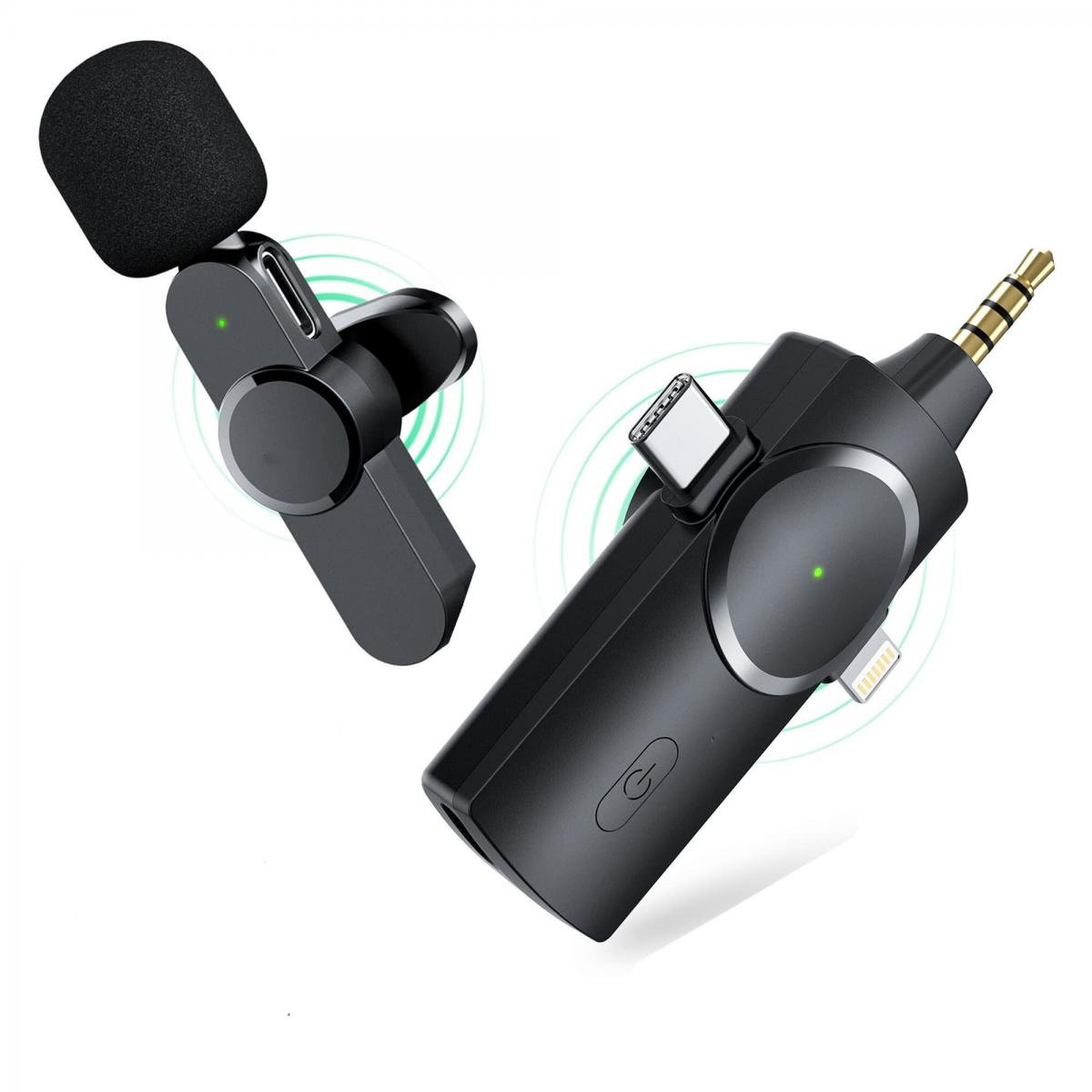
- Use External Microphones for Better Quality: If you need high-quality voice recording, invest in a good external microphone. Built-in microphones often pick up unwanted noise or deliver poor sound quality, especially in a noisy environment.

In summary, whether sound plays during a screen recording depends on a variety of factors, including the device you're using, the software you've selected, and the settings you configure. Both system and microphone audio can usually be captured, but the process might require additional tools or steps, especially for internal audio. For the best results, choose reliable screen recording software, adjust your settings appropriately, and always test your audio before recording a final video.

Leave your comment
Cancel reply
Note: HTML is not translated!
Related products
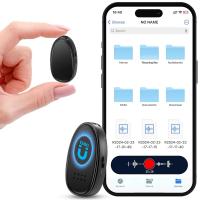
128G Mini Digital Voice Recorder with Color Screen Bluetooth Call Record 3072kbps Kentfaith
HOT Seller
128G Mini Digital Voice Recorder with Color Screen Bluetooth Call Record 3072kbps Kentfaith
15
$119.99 $83.99
Mini Sound Recorder 128GB 1600H Recording Capacity with 1.4" Screen, Voice Activated Mode Kentfaith
NEW Arrival
Mini Sound Recorder 128GB 1600H Recording Capacity with 1.4" Screen, Voice Activated Mode Kentfaith
12
$99.99 $79.99
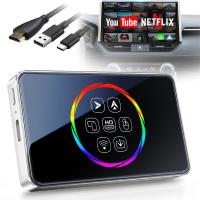
Wireless Carplay Adapter Android Auto Netflix YouTube Streaming Plug & Play Kentfaith
13
$137.49 $109.99
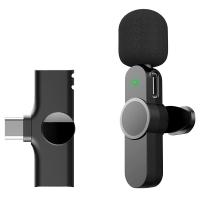
EP033 Mini Plug Play Microphone Wireless Lavalier Mic For Type-C Phones Laptop
6
$48.89
Mini Voice Recorder, Sound-activated & Magnetic, 128GB 1600H Capacity with AI Noise Cancelling Kentfaith
13
$94.99 $69.99
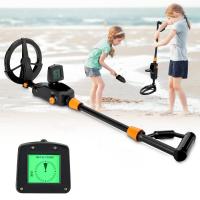
Children’s Entry-Level Metal Detector, High Sensitivity, With LCD Display and Sound Indication, Suitable for Beginners
TOP Best
Children’s Entry-Level Metal Detector, High Sensitivity, With LCD Display and Sound Indication, Suitable for Beginners
144
$64.49 $50.99
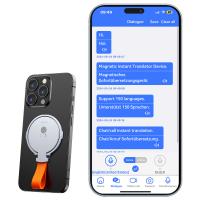
Instant Cross-APP Translator Device for Business & Trade, Video Call Translation, Record, & Transcription, Kentfaith AI Translator Devices
12
$124.99 $99.99
5K Video Camera with 75MP Photos, 8X Optical Zoom, WiFi Transfer, Wireless Mic, Dual Batteries, Support PIP Record, Kentfaith
16
$274.99 $239.99
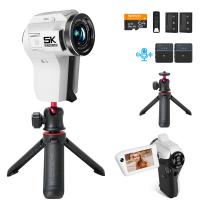
5K Video Camera with 75MP Photos, 8X Optical Zoom, WiFi Transfer, Foldable Tripod, Wireless Mic, Dual Batteries, Support PIP Record, Kentfaith
$312.49 $249.99
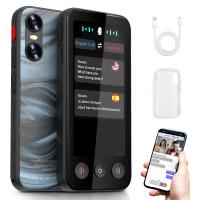
AI Translator Device for Business & Trade, 142 Languages Real-Time Online & Offline, Smart Office/Cross-App/Video/Photo Translation, Record & Transcription, Kentfaith
15
$182.49 $145.99
Products You May Like
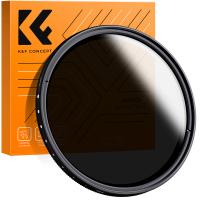
77mm ND2-ND400 (9 Stops) Variable ND Filter Neutral Density Adjustable Filter for Canon Nikon DSLR Cameras + Lens Cleaning Cloth
105
$48.99 $38.99
M42 Series Lens to Fuji X Series Mount Camera M42-FX FIT ART High Precision Lens Mount Adapter
100
$75.99 $43.99
DJI Drone Mini 3 Pro & Mini 3 Filter Set (CPL + ND8 + ND16 ) with Single-sided Anti-reflection Green Film and a Set of Paddles
121
$41.99 $26.99
K&F Concept 6.1 inch Magnetic Lens Filter Mount Adapter with 67mm CPL Filter for iPhone, Compatible with 16/15/14/13/12, 16/15/14/13/12 Pro
6
$36.99
49mm Magnetic ND1000 Filter, HD Waterproof Scratch-Resistant Anti-Reflection Nano-Xcel Series
43
$44.99 $35.99
43mm MCUV Lens Protection Filter with Lens Cap Optical Glass Ultra Slim 18 Multi-Layer Coatings UV Filter for Camera Lens Nano-Klear Series
82
$15.99 $11.99
Canon FD Lens to Micro Four Thirds M4/3 Olympus Pen and Panasonic Lumix Cameras Lens Mount Adapter Ring
130
$45.99 $28.99
best trail cameras for hunting
20
$135.99 $74.99
49mm CPL Filter 28 Layer Super Slim Circular Polarizing Filter Multi-coated Polarized MRC Filter Nano-Xcel Series
68
$57.99 $42.99
T2 Lenses to Canon EF/EF-S Lens Mount Adapter K&F Concept M28131 Lens Adapter
$36.99 $18.99
Related articles
Does Screen Record Include Sound?
Sound Not Working When Screen Recording?
How To Screen Record Internal Sound?
Bad Quality Sound When I Record?
When Screen Recording Does It Record Audio?
How To Record Phone Screen With Sound?
How To Put Screen Record With Sound?
How To Record Video On Screen With Sound?
How To Make A Screen Record Have Sound?
How To Find Value Of Old Cameras?
Blog You May Like
What To Look For In A Telescope?
Where To Get Wireless Earbuds?
What Type Of Mount Is Nikon D7100?
Can Film Camera Record Video?
What Is The Best Camera For Shooting Videos?
What Size Lens Filter For Sony A6000?
What Does Static Sound Like On A Record?
How Do I Choose Binoculars?
How To Protect Nikon Wifi Camera?
Can You Watch Cable On A Projector?
Related categories
trail camera with screen camera lens uv filter battery for camera Nikon Outdoor Security Camera Wifi beginner telescope square camera filter system Leica lens adapter ring flash nikon reflector for photography
Popular products
Mini Digital Voice Recorder​ digital voice recorder with usb video recording camera for youtube sony camera with microphone Bluetooth Earbuds With Noise Cancellation microphone plug to usb portable wireless lavalier microphone ai voice recorder device wireless microphone with usb mini microphone for iphone
Related searches
Plug And Play Webcam Cheap Camera To Record Videos Night Vision Binoculars That Record Projector To Play Video Games Plug And Play Condenser Microphone Best Camera To Record Time Lapse Plug And Play Microphone For Laptop Plug And Play Microphone For Pc Wireless Headphones That Play Music Without Phone Voice Activated Sound Recorder
Related Scenes
Best Digital Camera With Flip Screen The Best Outdoor Security Camera Best Action Photo Camera Top Binoculars For Hunting Best Wireless Home Camera Best Night Vision Binoculars For Bird Watching Best Backpack For Cameras Best Crossbody Camera Bag Best Size Binoculars For Bird Watching Best Microscope For Phone
Blog Category
  • Activities
  • Guide
    • Filter Guide
    • Lens Adapter
    • Product Review
  • News & Reviews
    • Camera Reviews
    • Sample Gallery
    • News
  • Tutorials
    • Solar eclipse photography
    • Photography Basics
    • Landscape Photography
  • Inspiration
    • Travel
    • Travel Stories
Search Article
Latest from the Blog
What Is The Best Trail Camera With Wifi?
How To Allow Camera And Microphone?
What Are The Uses Of A Compound Microscope?
Is the Sony A7M5 worth buying?
How To Put More Bass In Your Headphones?
How To Reduce Noise In Bluetooth Headphones?
How To Clean Cleaning Cloth For Glasses?
How To Choose A Lens For Your Camera?
What Is The Best Smartwatch For Heart Health?
How To Save A Video From Security Camera?
  • Easy Payment Multilple Payment Options

  • Free Shipping Global WareHouse Shipment

  • No Risk 30-Day No Reason Return

  • Limited Deals Buy More, Save More

  • Tax Free No any surcharges or tax fee

Information
  • About us
  • Contact Us
  • Site Map
  • Blog
  • Video
  • Gallery
  • VIP Membership Rewards
Service
  • Privacy Policy
  • Terms & Conditions
  • Shipping & Delivery
  • Payment Info
  • Warranty, Return & Refund
  • Intellectual Property Rights
  • Ambassador
  • Affiliates
  • Wholesale
Support
  • My account
  • Order History
  • FAQs
  • Extend Warranty
  • Logistics Tracking
Follow us
NewsLetter

Get the latest product, K&F Concept respects your privacy.

Powered By KENTFAITH © 2026