kfconcept

KENTFAITH
K&F Concept    Blog >

Enjoy Your Selected Digital Life

Recently Viewed
  • Recently Viewed
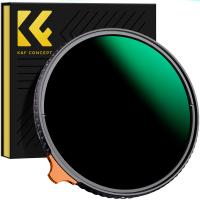
  • 77mm ND2-32 (1-5 Stop) Variable ND Filter and CPL Circular Polarizing Filter 2 in 1 for Camera Lens No X Spot Weather Sealed Nano-Xcel
    77mm ND2-32 (1-5 Stop) Variable ND Filter and CPL Circular Polarizing Filter 2 in 1 for Camera Lens No X Spot Weather Sealed Nano-Xcel
    $101.99 $73.08
Compare (0) 0
  • Compare
  • You have not chosen any products to compare.

  • Compare
Currency: USD
  • Currency
Shop by Scene Shop by Rank

Log Into Your Account

Account

Order History

Wish List

Login

Forgotten Password?

Or connect with

Register Account

Already have an Account?Log In

  • Shopping Cart
  • Your shopping cart is empty!

  • Register/Login to purchase, earn points
  • Favorite
  • Your wish list is empty.

  • Register/Login to like, earn points
  • Activities
  • Guide
    • Filter Guide
    • Lens Adapter
    • Product Review
  • News & Reviews
    • Camera Reviews
    • Sample Gallery
    • News
  • Tutorials
    • Solar eclipse photography
    • Photography Basics
    • Landscape Photography
  • Inspiration
    • Travel
    • Travel Stories
  • Home
  • Blog
  • How To Record Video On Screen With Sound?

How To Record Video On Screen With Sound?

Kentfaith 2024-09-12 03:10:52 0 Comments

Recording video on your screen with sound is a common requirement for many users, whether for creating tutorials, capturing gameplay, or recording video calls. This article will guide you through the process of screen recording with sound on various devices and platforms, including Windows, macOS, iOS, and Android. We will also cover some of the best software and tools available for this purpose, ensuring you can find a solution that fits your needs.

Understanding the Basics of Screen Recording
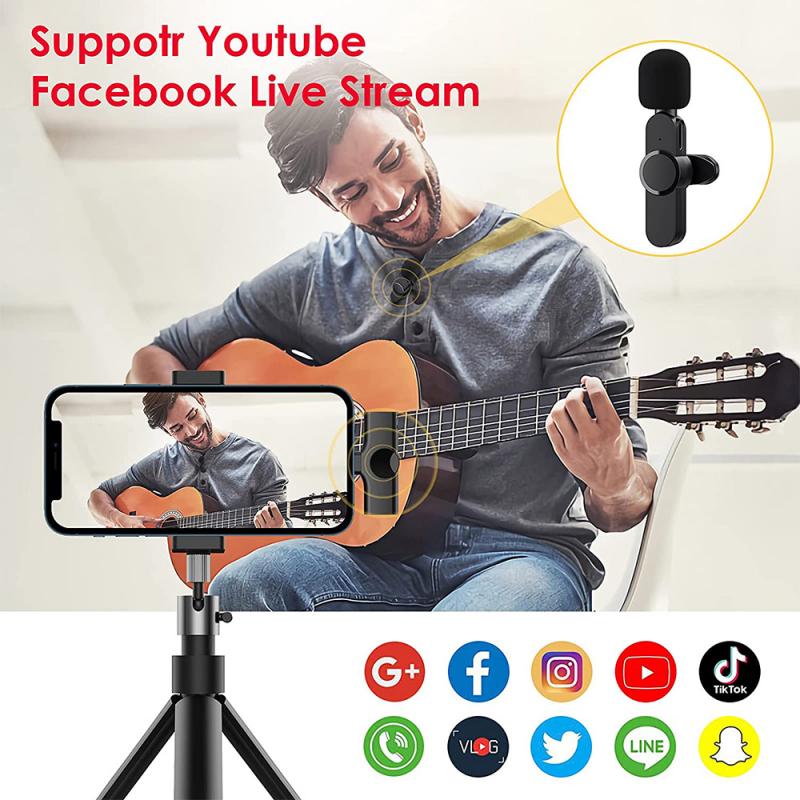
how to record video on screen with sound 1

Before diving into the specific methods for different devices, it's essential to understand the basic components of screen recording:

1. Screen Capture: This involves recording the visual content displayed on your screen.

2. Audio Capture: This includes recording system sounds, microphone input, or both.

Screen Recording on Windows
how to record video on screen with sound 2

Windows offers several options for screen recording, ranging from built-in tools to third-party software.

Using Xbox Game Bar
how to record video on screen with sound 3

Windows 10 and later versions come with the Xbox Game Bar, a built-in tool primarily designed for gamers but useful for general screen recording as well.

1. Open Xbox Game Bar: Press `Win + G` to open the Xbox Game Bar.

2. Start Recording: Click on the "Capture" widget and then the "Record" button (a circle icon). You can also press `Win + Alt + R` to start recording immediately.

3. Stop Recording: Click the "Stop" button or press `Win + Alt + R` again.

4. Access Recordings: Your recordings will be saved in the "Captures" folder within the "Videos" library.

Using OBS Studio
how to record video on screen with sound 4

OBS Studio is a free, open-source software that offers advanced screen recording and live streaming capabilities.

1. Download and Install OBS Studio: Visit the OBS Studio website and download the installer for Windows.

2. Set Up a New Scene: Open OBS Studio and create a new scene by clicking the "+" button under the "Scenes" box.

3. Add Sources: Click the "+" button under the "Sources" box and add "Display Capture" for screen recording and "Audio Input Capture" for microphone input.

4. Start Recording: Click the "Start Recording" button on the right side of the interface.

5. Stop Recording: Click the "Stop Recording" button when you're done.

Screen Recording on macOS

macOS also provides built-in tools for screen recording, along with third-party options.

Using QuickTime Player

QuickTime Player is a versatile media player that comes pre-installed on macOS and includes screen recording functionality.

1. Open QuickTime Player: Launch QuickTime Player from the Applications folder.

2. Start a New Screen Recording: Go to `File > New Screen Recording`.

3. Configure Audio: Click the drop-down arrow next to the record button and select your microphone if you want to include audio.

4. Start Recording: Click the red record button and choose whether to record the entire screen or a selected portion.

5. Stop Recording: Click the stop button in the menu bar or press `Cmd + Ctrl + Esc`.

6. Save the Recording: QuickTime will prompt you to save the recording to your desired location.

Using ScreenFlow

ScreenFlow is a professional screen recording and video editing software for macOS.

1. Download and Install ScreenFlow: Visit the ScreenFlow website and download the installer.

2. Create a New Recording: Open ScreenFlow and click "New Recording".

3. Configure Settings: Select the screen and audio sources you want to capture.

4. Start Recording: Click the red record button.

5. Stop Recording: Click the ScreenFlow icon in the menu bar and select "Stop Record".

6. Edit and Export: Use ScreenFlow's built-in editor to make any necessary edits and export your video.

Screen Recording on iOS

iOS devices have a built-in screen recording feature that is easy to use.

1. Enable Screen Recording: Go to `Settings > Control Center > Customize Controls` and add "Screen Recording" to the Control Center.

2. Start Recording: Swipe down from the top-right corner (iPhone X and later) or swipe up from the bottom (iPhone 8 and earlier) to open the Control Center. Tap the screen recording button (a circle within a circle).

3. Include Audio: Long-press the screen recording button and tap the microphone icon to enable audio recording.

4. Stop Recording: Tap the red status bar at the top of the screen and confirm to stop recording. The video will be saved to the Photos app.

Screen Recording on Android

Android devices may vary in their screen recording capabilities, but most modern devices have built-in options.

Using Built-in Screen Recorder

Many Android devices, especially those running Android 10 and later, come with a built-in screen recorder.

1. Open Quick Settings: Swipe down from the top of the screen to access the Quick Settings menu.

2. Start Recording: Look for the screen recording icon (a camera or a circle) and tap it. If it's not visible, you may need to edit the Quick Settings to add it.

3. Configure Audio: Choose whether to record audio from the device, microphone, or both.

4. Stop Recording: Swipe down to access the notification panel and tap the stop button. The recording will be saved to your gallery.

Using AZ Screen Recorder

AZ Screen Recorder is a popular third-party app for screen recording on Android.

1. Download and Install AZ Screen Recorder: Visit the Google Play Store and download the app.

2. Open the App: Launch AZ Screen Recorder and grant the necessary permissions.

3. Start Recording: Tap the record button in the app's overlay menu.

4. Configure Audio: Ensure that the microphone icon is enabled if you want to record audio.

5. Stop Recording: Tap the stop button in the notification panel. The video will be saved to your gallery.

Tips for High-Quality Screen Recordings

1. Plan Your Content: Outline what you want to record to ensure a smooth and coherent video.

2. Check Audio Levels: Test your microphone and system audio levels to avoid distortion or low volume.

3. Use a Quiet Environment: Minimize background noise to improve audio quality.

4. Edit Your Video: Use video editing software to trim unnecessary parts, add annotations, and enhance the overall quality.

Recording your screen with sound is a valuable skill for various purposes, from creating educational content to capturing memorable moments in games. By understanding the tools and methods available on different platforms, you can choose the best approach for your needs. Whether you use built-in features or third-party software, the key is to plan your recording, ensure good audio quality, and make any necessary edits to produce a polished final product. With these tips and techniques, you'll be well-equipped to create high-quality screen recordings with sound.

Leave your comment
Cancel reply
Note: HTML is not translated!
Related products
128G Mini Digital Voice Recorder with Color Screen Bluetooth Call Record 3072kbps Kentfaith
15
$119.99 $83.99
Mini Sound Recorder 128GB 1600H Recording Capacity with 1.4" Screen, Voice Activated Mode Kentfaith
12
$99.99 $79.99
5K Video Camera with 75MP Photos, 8X Optical Zoom, WiFi Transfer, Wireless Mic, Dual Batteries, Support PIP Record, Kentfaith
16
$274.99 $239.99
Instant Cross-APP Translator Device for Business & Trade, Video Call Translation, Record, & Transcription, Kentfaith AI Translator Devices
12
$124.99 $99.99
5K Video Camera with 75MP Photos, 8X Optical Zoom, WiFi Transfer, Foldable Tripod, Wireless Mic, Dual Batteries, Support PIP Record, Kentfaith
$312.49 $249.99
Mini Voice Recorder, Sound-activated & Magnetic, 128GB 1600H Capacity with AI Noise Cancelling Kentfaith
13
$94.99 $53.99
Children’s Entry-Level Metal Detector, High Sensitivity, With LCD Display and Sound Indication, Suitable for Beginners
144
$64.49 $50.99
67mm Clip-on CPL Phone Camera Lens Filter Kit Applicable to All Mobile Phone Models
24
$18.99
WiFi Solar Eclipse Telescope Camera with 1.5in Screen 1080P Video 1000mAh Battery for Monoculars Binoculars Microscopes Telescopes
13
$119.99 $83.99
67mm Clip-on ND2-32 Phone Camera Lens Filter Kit Applicable to All Mobile Phone Models
24
$37.99
Products You May Like
K&F Concept MCN1 67mm Lens Filter Kit ND1000 CPL with Multiple Layer Nano Coated
$48.99 $39.99
52mm  Black Pro-Mist Filter 1 Special Effects Filter Cinematic Look Black Diffusion Effect Filter for Camera Lens Nano-Xcel Series
52mm Black Pro-Mist Filter 1 Special Effects Filter Cinematic Look Black Diffusion Effect Filter for Camera Lens Nano-Xcel Series
134
$49.99 $39.99
64"/1.6m Carbon Fiber Lightweight Travel Tripod with 36mm Ball Head Load Capacity 8kg/17.6lbs,Quick Release Plate,for DSLR Cameras Indoor Outdoor Use K254C2+BH-36L
$119.99 $97.99
64"/1.6m Camera Tripod Lightweight Vlog Travel Tripod Compact  Flexible & Portable 17.6lbs/8kg Load with Portable, for DSLR Cameras O234A1+BH-36
64"/1.6m Camera Tripod Lightweight Vlog Travel Tripod Compact Flexible & Portable 17.6lbs/8kg Load with Portable, for DSLR Cameras O234A1+BH-36
154
$109.99 $49.99
Drone Propeller Silicone Holder Blade Guard for Mavic DJI Mavic Air 2/ 2S
$16.24 $12.99
Insite Air Trail Camera
10
$162.99 $106.99
Gift Certificate: $200 Value - Can Use with Any Discounts
$200.00 $190.00
6X Laser Rangefinder with Slope, ATuMan 800 Yard High Accuracy, Pin Lock, Pulse Vibration, Rechargeable, HD View, Golf Accessories for Men & Women
35
$285.59 $99.99
86mm Snap-On Center Pinch Lens Cap 9 in 1 with Anti-Loss Keeper Leash Compatible with Nikon, Canon, Sony, Fujifilm Camera Lenses
$12.99
62mm Filter Set (Graduated Orange, Blue, Grey, Red, Purple, Green, Pink, Brown, Yellow)
5
$47.99 $23.99
Related articles
How To Record Video With Sound On Pc?
How To Record Phone Screen With Sound?
How To Put Screen Record With Sound?
How To Record Online Video With Sound?
How To Record Messenger Video Call With Sound?
How Do You Get Sound With Screen Record?
How To Screen Record Including Sound?
How To Screen Record Internal Sound?
How Do You Have Sound On Screen Record?
Can You Save Facebook Videos To Camera Roll?
Blog You May Like
How Do You Carry Your Stabilizer For Camera?
Can Action Cameras Take Pictures?
How To Check Real Sd Card Capacity?
How To Turn On Camera And Microphone On Dell Laptop ?
How To Record Messenger Video Call With Sound?
How Far Back Do Security Cameras Record?
Camera Bag That Can Hold Cameras And Books?
How To Use Phone As Webcam For Pc?
What Is Polarized Filter Used For Camera?
Can I Add A Microphone To My Headphones?
Related categories
trail camera with screen On-Dash Camera Video Shooting lightweight video tripod C mount lens adapter m4/3 adapter
Popular products
Mini Digital Voice Recorder​ video recording camera for youtube sony camera with microphone digital voice recorder with usb security camera home surveillance ambient light for car infrared hd video camera high quality condenser microphone wireless microphone transmitter receiver Bluetooth Earbuds With Noise Cancellation
Related searches
Video Recorder With Sound Small Video Camera With Sound Digital Camera With Screen On Front Video Camera With Flip Screen Video Sound Recorder Best Microphones To Record Vocals Record Wifi Camera Telescope With Screen Binoculars With Screen Microscope With Screen
Popular searches
Softbox 120cm Canon Lens Mount Converter B Night Vision Motion Sensor Wildlife Camera Best Canon Fd Lens Adapter Helios 44-2 Canon Ef Mount Uv Filter 58mm Headset For Ps4 With Microphone Nikon Wu-1a Wireless Mobile Adapter Best Buy Iphone Holder On Tripod Nikonos Rs Lens Adapter
Blog Category
  • Activities
  • Guide
    • Filter Guide
    • Lens Adapter
    • Product Review
  • News & Reviews
    • Camera Reviews
    • Sample Gallery
    • News
  • Tutorials
    • Solar eclipse photography
    • Photography Basics
    • Landscape Photography
  • Inspiration
    • Travel
    • Travel Stories
Search Article
Latest from the Blog
How To Find Camera Roll On Iphone 5s?
How To Put Sd Card In Camera?
What Is The Best Camera To Record Videos?
What Is Nd Filter On Video Camera?
Which Binoculars To Buy?
Camera Use Which Lens?
How To Remove Memory Card From Nikon Camera?
How Much Storage For Security Camera?
How Big A Memory Card For Camera?
Black Friday 2025 Special at Kentfaith
  • Easy Payment Multilple Payment Options

  • Free Shipping Global WareHouse Shipment

  • No Risk 30-Day No Reason Return

  • Limited Deals Buy More, Save More

  • Tax Free No any surcharges or tax fee

Information
  • About us
  • Contact Us
  • Site Map
  • Blog
  • Video
  • Gallery
  • VIP Membership Rewards
Service
  • Privacy Policy
  • Terms & Conditions
  • Shipping & Delivery
  • Payment Info
  • Warranty, Return & Refund
  • Intellectual Property Rights
  • Ambassador
  • Affiliates
  • Wholesale
Support
  • My account
  • Order History
  • FAQs
  • Extend Warranty
  • Logistics Tracking
Follow us
NewsLetter

Get the latest product, K&F Concept respects your privacy.

Powered By KENTFAITH © 2025