How To Reduce Noise In Bluetooth Headphones?
If your Bluetooth headphones sound noisy, the fix depends on what kind of noise you’re hearing. A low hiss in a quiet room, crackling while walking outside, background chatter leaking through, and bad microphone noise during calls all come from different causes. Treating them the same usually leads to frustration.
The first thing I’d do is identify the noise:
- Outside noise leaking in: traffic, voices, fans, gym music.
- Electronic hiss or static: a faint shhh sound even when nothing is playing.
- Crackling or dropouts: sound cuts, pops, or breaks up.
- Call noise: the person on the other end hears wind, keyboard taps, or room echo.
- ANC pressure or whooshing: noise-cancelling feels odd or creates a low rushing sound.
Once you know which one you’re dealing with, the solution gets much easier.
Get the fit right before changing settings
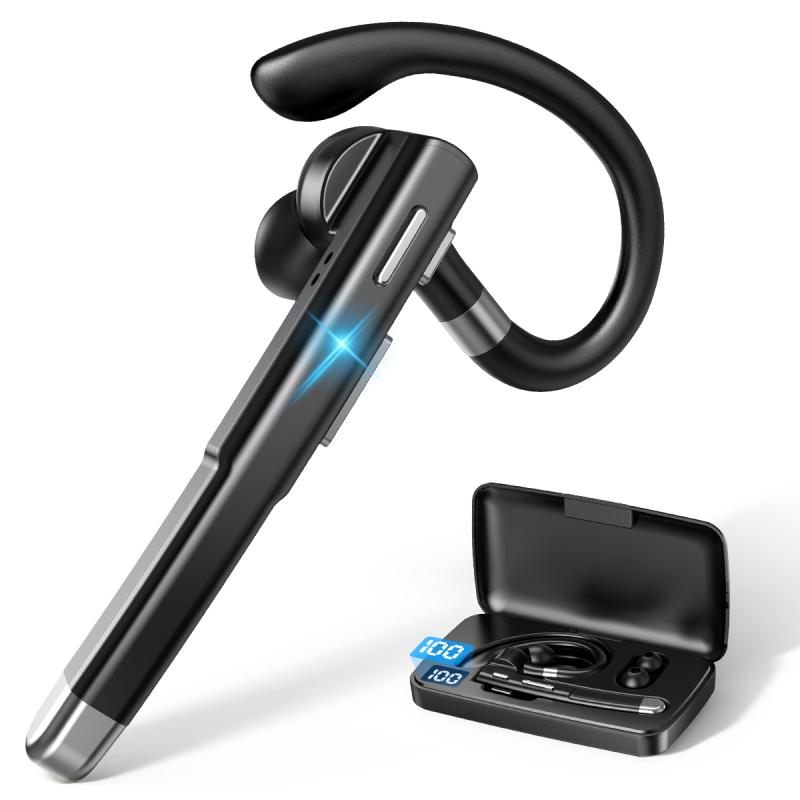
Poor fit is the most common reason Bluetooth headphones “don’t block noise,” especially with earbuds. Active noise cancellation can help with low, steady sounds like engines and air conditioners, but it can’t fully compensate for loose ear tips.
With in-ear Bluetooth earbuds, try all included ear tip sizes, even if you think you already know your size. Many people use tips that are too small because they feel more comfortable at first. A slightly larger tip often seals better and lets you listen at a lower volume.
A good seal should feel snug, not painful. If the bass sounds weak, the seal probably isn’t good. Bass is usually the first thing to disappear when earbuds don’t sit properly. Walk around, smile, talk, and move your jaw. If the sound changes or the earbud slowly works loose, try a different tip shape or material.
Foam tips can make a big difference for noise isolation. They compress before insertion and expand in the ear canal, which helps block voices and clatter better than many silicone tips. The downside is that foam wears out faster and can slightly soften treble. For commuting, flights, and shared offices, they’re often worth it.
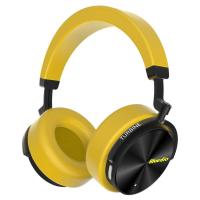
With over-ear headphones, check that glasses, hair, hats, or thick earrings aren’t breaking the seal around the ear pads. Even a small gap can let in a surprising amount of noise. Worn-out ear cushions also reduce isolation. If your headphones used to block noise better than they do now, the pads may simply be tired.
Use noise cancellation the right way
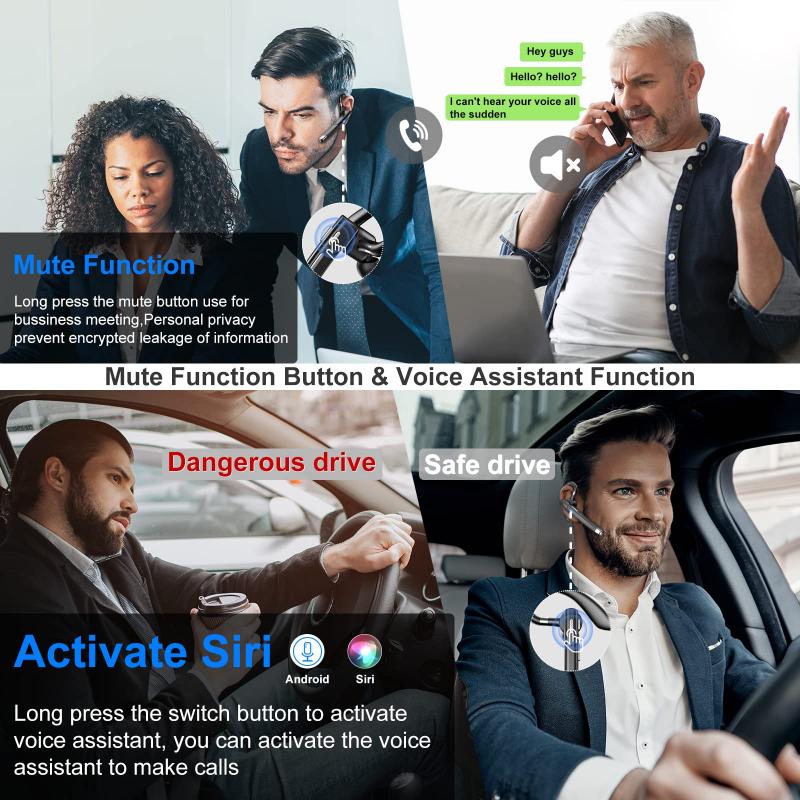
Active noise cancellation works best on consistent, low-frequency noise: airplane cabin rumble, bus engines, HVAC systems, road hum. It’s less impressive against sudden sounds, nearby voices, barking dogs, or dishes clanking.
If your headphones have adjustable ANC, don’t assume maximum is always best. Some models sound more natural at medium ANC, especially indoors. Max ANC can sometimes create a faint pressure sensation or low background whoosh. For office use, a moderate setting may reduce fatigue while still cutting fan noise and distant chatter.
Many headphones also have transparency or ambient mode. Make sure you haven’t left it on by accident. This sounds obvious, but it happens constantly. Ambient mode intentionally pipes outside sound through the microphones, so it can make background noise seem louder than normal headphones.
Also check for “adaptive” noise control. Some apps automatically switch between ANC, transparency, and wind reduction based on movement or location. Helpful in theory, annoying in practice if it keeps guessing wrong. If noise changes unpredictably while you walk, disable adaptive mode and choose the setting manually.
Reduce Bluetooth crackling and dropouts
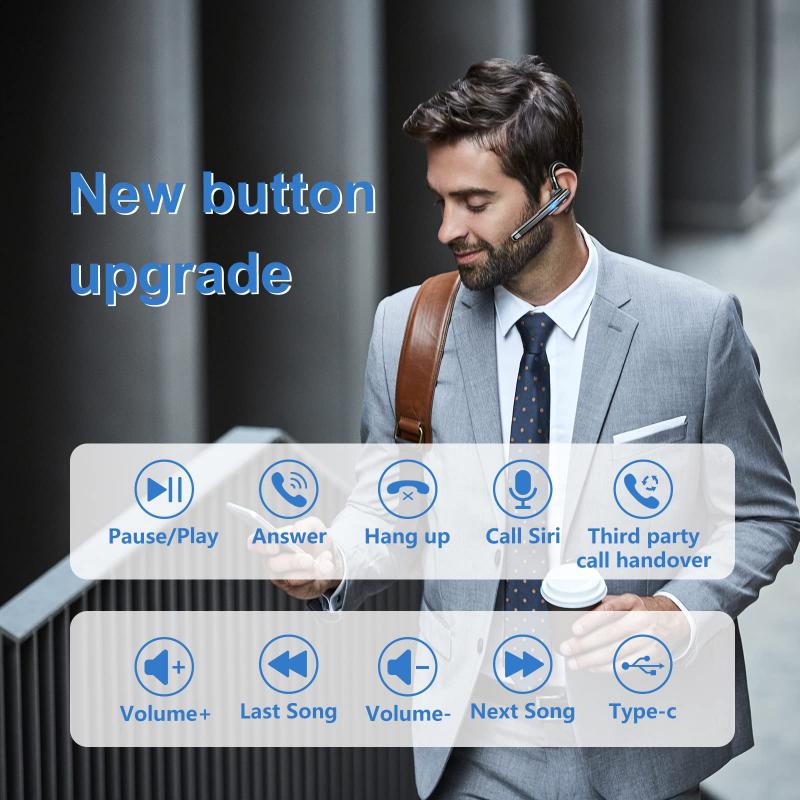
Crackling, skipping, or robotic audio usually points to a connection problem, not the headphones’ speakers.
Start with distance and obstacles. Bluetooth doesn’t like bodies, walls, metal objects, or crowded wireless environments. If your phone is in your back pocket and your earbuds’ main antenna is on the opposite side, your own body can weaken the signal. Try moving the phone to a front pocket, jacket pocket, or bag pocket on the same side as the primary earbud.
Crowded areas can also cause trouble. Train stations, gyms, offices, and apartment buildings are full of Bluetooth devices, Wi-Fi routers, laptops, and smartwatches. If your headphones only crackle in certain places, they may not be defective; they may just be struggling in a noisy wireless environment.
A few practical fixes help:
- Turn Bluetooth off and on again on your phone.
- Put the headphones back in pairing mode and reconnect.
- Forget the headphones in Bluetooth settings, then pair them again.
- Keep your phone and headphone firmware updated.
- Avoid using the headphones at the edge of their range.
- Disconnect from unused devices if multipoint is acting flaky.
Multipoint Bluetooth is convenient, but it can introduce odd behavior: stutters when your laptop wakes up, audio switching unexpectedly, or calls routing strangely. If you’re chasing crackles, temporarily disable multipoint or disconnect the second device and see if the problem disappears.
Change codec or sound settings if audio is unstable
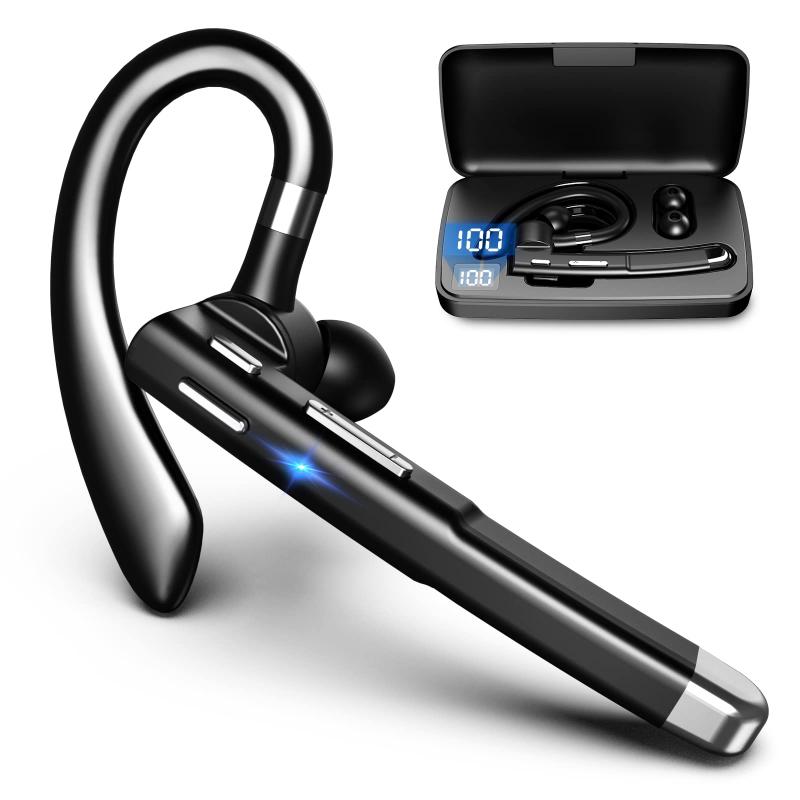
Some Bluetooth codecs prioritize sound quality; others prioritize stability. Higher-bitrate codecs can sound better in good conditions but may be more prone to dropouts in difficult environments.
On Android, some headphones let you choose codecs such as LDAC, aptX Adaptive, AAC, or SBC. If you’re using LDAC at the highest quality setting and hearing stutters, try switching to a more stable mode in the headphone app or Android developer settings. LDAC at 990 kbps can be great at home and annoying in busy places.
On iPhone, codec control is limited, but AAC is usually stable with well-made headphones. If you’re getting constant noise or breakup on iOS, it’s more likely a pairing issue, firmware bug, interference, or hardware fault.
Also check sound enhancement features. Spatial audio, surround modes, gaming modes, equalizer presets, hearing personalization, and volume normalization can all change how noise is perceived. A bright EQ boost can make hiss more noticeable. Heavy bass boost can cause distortion at higher volumes. If something sounds wrong, reset the headphone app’s sound settings to default and test again.
Deal with hiss and static
A faint hiss is common in some Bluetooth headphones, especially budget models. It’s usually the internal amplifier noise floor. You may notice it most when music is paused, at low volume, or while listening to podcasts in a quiet room.
Try lowering the headphone volume and raising the source volume, or the opposite, depending on how your device handles volume. Some headphones use independent volume steps, and one combination may produce less hiss than another.
If the hiss appears only with ANC on, switch ANC off and compare. Noise-cancelling circuitry and microphones can add a soft background noise. Good headphones keep it low; cheaper ones may not. If the hiss is obvious during normal listening, especially with speech or quiet music, there may not be much you can fix through settings.
Static in only one earbud is more suspicious. Clean the speaker mesh gently with a dry soft brush. Earwax or moisture can make one side sound distorted or muffled. Don’t push anything sharp into the mesh. If the issue started after rain, sweat, or a drop, let the earbuds dry fully before charging them again.
Improve microphone noise on calls
Bluetooth headphone microphones are limited by size and placement. Earbud mics sit far from your mouth and rely heavily on processing. Over-ear headphone mics are often better, but built-in mics still struggle in wind, traffic, and echoey rooms.
For clearer calls, reduce the noise around the microphone rather than only changing headphone settings. Face away from wind. Move away from kitchen fans, open windows, coffee machines, and mechanical keyboards. Even a few feet can help.
If your headphone app has call noise reduction, wind reduction, or sidetone control, experiment with those settings. Wind reduction can make outdoor calls much more usable, though it may slightly dull your voice. Sidetone lets you hear your own voice while talking; too much can make the call feel noisy even if the other person hears you fine.
For important work calls, test your setup before the meeting. Record a short voice memo or use a call test feature if your app has one. Many people judge mic quality from what they hear in the headphones, but the real question is what the other person hears.
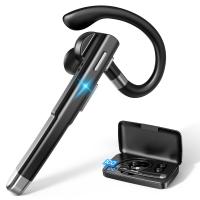
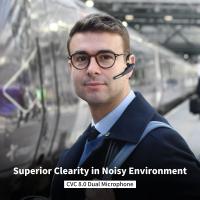
If you often take calls in loud places, a headset with a small boom microphone will usually beat stylish earbuds. There’s no magic in tiny microphones sitting near your ears. Placement matters.
Keep the headphones clean and maintained
Dirty headphones can sound noisier than they are. Earbud mesh clogged with wax reduces clarity, which makes people raise the volume. Higher volume makes background hiss, distortion, and outside noise more noticeable.
Wipe earbuds after use, especially after workouts. Clean silicone tips separately and let them dry before reinstalling. For over-ear headphones, clean the pads and check for cracks or flattening. Pads that look shiny, compressed, or peeling often don’t seal well anymore.
Moisture is another quiet troublemaker. Sweat can affect microphones, charging contacts, and speaker mesh. If your earbuds sound crackly after exercise, don’t put them straight into a closed charging case while damp. Let them air out first.
Reset if the noise started suddenly
If your headphones were fine yesterday and noisy today, reset them before assuming they’re broken. Bluetooth devices can get into strange states after firmware updates, low battery events, multipoint switching, or failed pairing.
Use the manufacturer’s reset process, then remove the headphones from your phone’s Bluetooth list and pair again. Also test them with a second device. If the noise happens on your phone but not your laptop, the issue is probably the phone, app, codec, or connection. If it happens everywhere, the headphones are more likely responsible.
Battery level can matter too. Some headphones behave poorly at very low charge, especially older earbuds with worn batteries. If noise appears only below 20%, charge fully and test again.
Know when the headphones are the limitation
Some noise can be reduced; some can’t. Cheap Bluetooth headphones may have audible hiss, weak isolation, poor microphone processing, or unstable antennas. Even expensive ANC headphones won’t erase nearby voices completely. Marketing makes noise cancellation sound like silence, but real life is messier.
If your main problem is commuting noise, prioritize fit, strong ANC, and good passive isolation. If it’s office chatter, over-ear ANC helps, but music or brown noise may still be needed. If it’s call quality, look for microphone samples before buying, not just headphone sound reviews. If it’s hiss during quiet listening, choose models known for a low noise floor rather than heavy bass or flashy features.
The quickest practical path is simple: fix the seal, turn off accidental ambient mode, update firmware, reconnect cleanly, reduce wireless interference, and test with default sound settings. Those steps solve most everyday Bluetooth headphone noise problems. If they don’t, the noise you’re hearing is probably baked into the hardware — and knowing that can save you hours of pointless setting changes.