How To Save A Video From Security Camera?
Most security cameras can save video in one of four places: a recorder, a memory card inside the camera, a cloud account, or the camera company’s mobile app. The exact steps depend on what kind of system you have, but the basic idea is the same: find the recording, choose the time range, export or download it, then copy it somewhere safe.
If the video matters — for example, a theft, accident, delivery dispute, or trespassing incident — don’t wait. Many cameras overwrite old footage automatically after a few days or weeks. Cloud clips can also expire, especially on free plans.
First, figure out where your camera stores footage
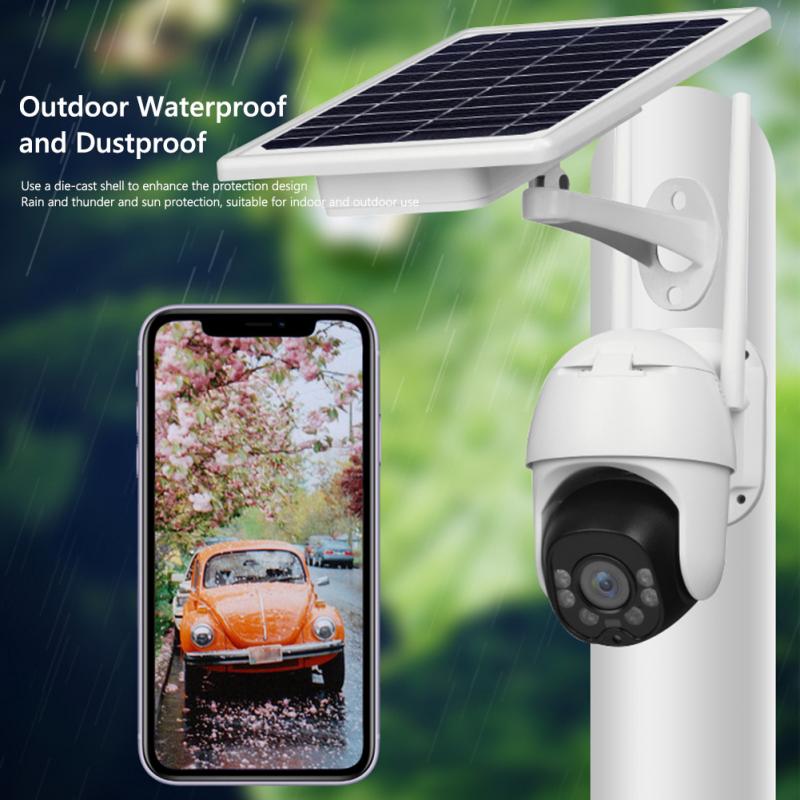
Before trying to save anything, check where the recording actually lives.
If you have a DVR or NVR system, the footage is usually stored on a hard drive inside the recorder. This is common with wired camera systems from brands like Hikvision, Dahua, Lorex, Swann, Reolink, Annke, Amcrest, and many business-style setups. You usually export footage using a monitor connected to the recorder, the recorder’s web interface, or its desktop software.
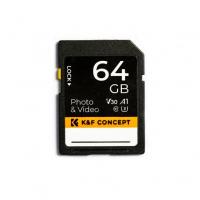
If your camera uses a microSD card, the footage is stored inside the camera itself. Many Wi-Fi cameras from Reolink, Tapo, Eufy, Wyze, and similar brands work this way. You can usually download clips through the app, or remove the card and copy files to a computer.
If your camera uses cloud storage, the recording is stored in your account with the camera provider. Ring, Arlo, Nest, Blink, Wyze, and others often work this way. You’ll normally save clips through the app or website.
If you only have live view and no recording plan, SD card, or recorder, there may not be any old footage to save. This catches people out all the time. A camera being “online” does not always mean it is recording.
Saving video from a DVR or NVR
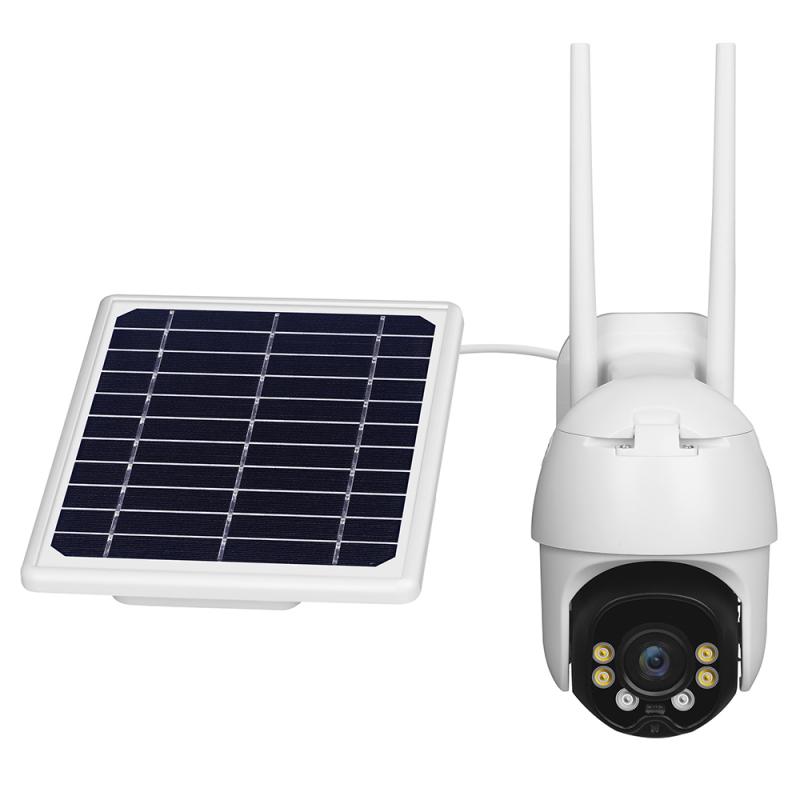
For a wired security system, the cleanest method is usually to export footage directly from the recorder.
Connect a monitor and mouse to the DVR or NVR if it isn’t already connected. Open the playback menu, choose the camera channel, then select the date and time. Most systems show a timeline with colored bars where motion or continuous recording exists.
Once you find the section you need, look for options such as “Export,” “Backup,” “Clip,” or “Download.” Insert a USB flash drive into the recorder and save the selected time range.
A practical detail: don’t export a huge block of time unless you truly need it. A full night of high-resolution footage can be many gigabytes and may take a long time to copy. If the incident happened around 2:14 a.m., export something like 2:05 to 2:25 first. You can always save a larger range later.
Some recorders export video in a proprietary format that only plays in the manufacturer’s player. If the system gives you a choice, MP4 is usually the easiest format to share and view. If it only offers a special format, export the player software too if the recorder gives that option. Police, insurance companies, and property managers often prefer files that play easily, but original files can be useful because they may preserve timestamps and authenticity.
After exporting, plug the USB drive into a computer and confirm the file opens. Don’t assume the export worked just because the recorder said it finished. I’ve seen plenty of exports fail because the USB drive was formatted wrong, too small, or removed too early.
Downloading footage from a security camera app
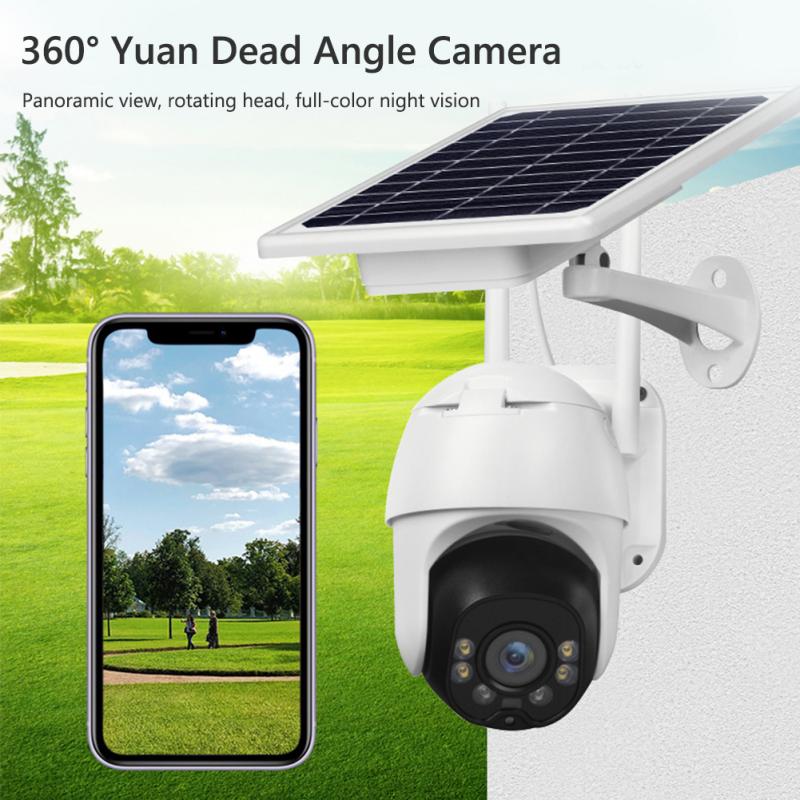
For many home cameras, the easiest way is through the mobile app.
Open the camera app, go to playback or history, choose the camera, and find the date and time. Look for a download icon, save button, share button, or clip icon. Some apps let you trim the video before saving. Others only allow downloading fixed motion clips.
Once downloaded, the video may save to your phone’s camera roll, the app’s internal folder, or your downloads folder. On iPhone, check Photos and Files. On Android, check Gallery, Google Photos, Downloads, or a folder named after the camera brand.
If you need to send the footage to someone, avoid sending only through a messaging app if quality matters. Texting or messaging apps can compress video heavily, making faces, plates, or small details harder to see. Save the original file first, then upload it to Google Drive, iCloud, Dropbox, OneDrive, or email it if the file is small enough.
Some apps only let you download if you have an active subscription. With Ring, Arlo, Nest, Blink, and similar cloud-based systems, recorded clips may not be available unless recording service was active at the time. A subscription started after the incident usually won’t recover older video.
Saving footage from a microSD card

If your camera records to a microSD card, you may be able to save footage two ways: through the app or by removing the card.
The app method is safer because you don’t have to disturb the camera. Open playback, select the time, then download the clip. This works well for short incidents.
For longer recordings, removing the card can be faster. Turn the camera off first if possible. Remove the microSD card, insert it into a card reader, and connect it to a computer. Then copy the video files to a folder on your computer or an external drive.
There are a few catches. Some cameras encrypt SD card recordings so the files won’t play outside the camera’s software. Others split recordings into many small files, such as one-minute or five-minute segments. In that case, copy the whole folder for the date you need rather than trying to guess which tiny file contains the incident.
Do not format the card until you are completely sure the footage is backed up. Camera apps sometimes prompt you to format a card when they detect a problem. If you’re trying to preserve evidence, formatting is the last thing you want to do.
Saving cloud camera clips
Cloud cameras usually make downloading simple, but retention periods matter.
Open the app or web portal, go to event history, choose the clip, and tap download or save. If the web version exists, it can be easier than using a phone, especially for longer clips or multiple downloads.
Cloud systems often keep recordings for a limited number of days. A plan might store clips for 7, 14, 30, or 60 days. Free plans may save snapshots only, short clips, or nothing at all. If an incident happened last week, save it now rather than assuming it will still be there tomorrow.
With doorbell cameras and battery cameras, remember that many of them record motion events, not continuous video. If the camera didn’t detect motion, there may be a gap. This is frustrating but normal for battery-powered cameras trying to conserve power.
If you need the video as evidence
Save the original file and make at least one copy. Don’t edit the only copy you have.
A good approach is to save:
- the original exported footage
- a shorter trimmed copy for easy viewing
- screenshots of key moments, if useful
- notes with the date, time, camera name, and location
Keep the original filename if possible, or rename it in a way that does not remove useful details. Something like Driveway_Camera_2026-05-22_0210-0225.mp4 is much more useful than video1.mp4.
If your camera system has the wrong time or time zone, write down what happened. Security systems often drift, especially after power outages or daylight saving changes. If the real incident happened at 8:10 p.m. but the camera shows 7:10 p.m., make a note before handing it to anyone.
For serious incidents, avoid repeatedly converting the video. Every conversion can reduce quality or strip metadata. Export once, copy the file, and work from the copy.
If the download or export does not work
A few problems come up often.
If the recorder does not recognize your USB drive, try a smaller drive formatted as FAT32 or exFAT. Some older DVRs are picky and won’t work with large modern drives.
If the file won’t play on your computer, try VLC Media Player. It handles many camera formats better than the default video player. If that fails, check whether the recorder exported a manufacturer player with the footage.
If the app says no footage is available, check the recording settings. The camera may have been set to live view only, motion recording may have been disabled, the subscription may have expired, or the SD card may have filled and overwritten the video.
If the clip is too dark, blurry, or distant, saving it won’t magically add detail. Export the highest-quality version available, not a screen recording if you can avoid it. Screen recording is fine as a last resort, but it usually captures lower quality than the original file.
If you can see the footage in the app but there is no download button, try the camera brand’s desktop app or web portal. Some brands hide better export tools on desktop.
Don’t rely on one saved copy
Once you have the footage, store it in at least two places. Keep one copy on your computer or phone and another on a USB drive, external hard drive, or cloud storage account. If it’s important, don’t leave the only copy on the same phone you carry around every day.
For homeowners, I usually recommend saving the original file to cloud storage and also keeping a local copy. For businesses, save the clip to a dedicated incident folder with the date and camera name so it can be found later.
Security footage is most useful when it’s saved quickly, kept in its original quality, and labeled clearly. The steps aren’t complicated, but timing matters. Find the recording, export the shortest useful time range, verify the file plays, then back it up before the system overwrites it.