kfconcept

KENTFAITH
K&F Concept    Blog >

Enjoy Your Selected Digital Life

Recently Viewed
  • Recently Viewed
  • Recently Viewed list is empty.

Compare (0) 0
  • Compare
  • You have not chosen any products to compare.

  • Compare
Currency: USD
  • Currency
Shop by Scene Shop by Rank

Log Into Your Account

Account

Order History

Wish List

Login

Forgotten Password?

Or connect with

Register Account

Already have an Account?Log In

  • Shopping Cart
  • Your shopping cart is empty!

  • Register/Login to purchase, earn points
  • Favorite
  • Your wish list is empty.

  • Register/Login to like, earn points
  • Activities
  • Guide
    • Filter Guide
    • Lens Adapter
    • Product Review
  • News & Reviews
    • Camera Reviews
    • Sample Gallery
    • News
  • Tutorials
    • Solar eclipse photography
    • Photography Basics
    • Landscape Photography
  • Inspiration
    • Travel
    • Travel Stories
  • Home
  • Blog
  • How To Use Video Camera On Laptop?

How To Use Video Camera On Laptop?

Kentfaith 2024-06-06 10:04:27 0 Comments

In today's digital age, the ability to use a video camera on a laptop is essential for various activities, including virtual meetings, online classes, content creation, and social interactions. Whether you're a professional looking to enhance your video conferencing setup or a content creator aiming to produce high-quality videos, understanding how to effectively use a video camera on your laptop can significantly improve your experience. This article will guide you through the process, covering everything from basic setup to advanced tips for optimizing video quality.

1. Understanding Your Laptop's Built-in Camera
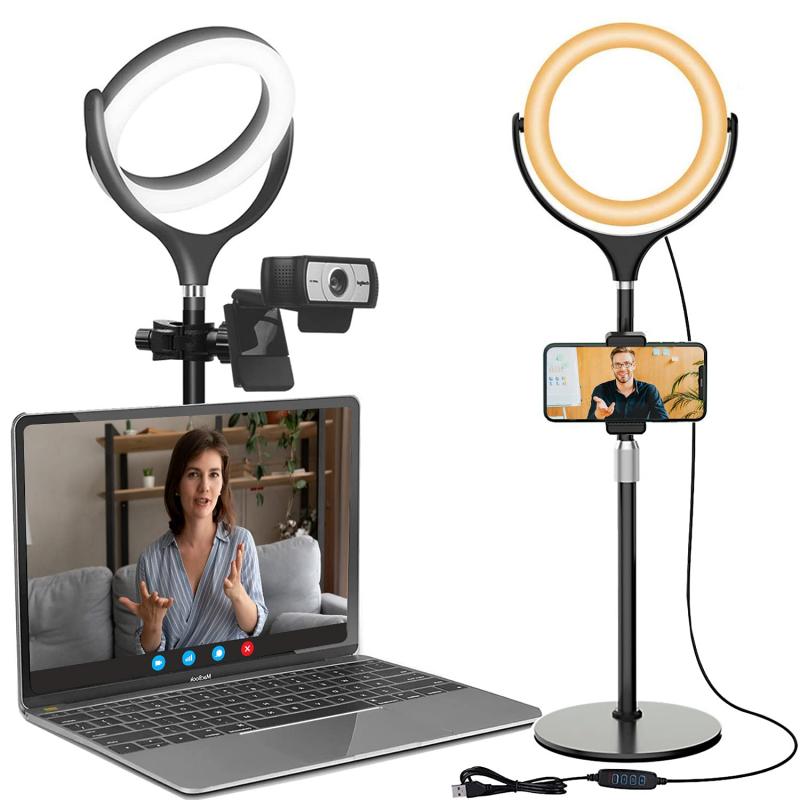

Most modern laptops come equipped with a built-in webcam, which is sufficient for basic video calls and meetings. To use your laptop's built-in camera, follow these steps:

1. Check Camera Availability: Ensure your laptop has a built-in camera. Look for a small lens at the top of your screen.

2. Open Camera App: On Windows, you can open the Camera app by searching for "Camera" in the Start menu. On macOS, use the "Photo Booth" app.

3. Test the Camera: Open the app and check if the camera is working. You should see a live feed from the camera.

2. Using an External Webcam

While built-in cameras are convenient, they often lack the quality and flexibility of external webcams. Here's how to set up and use an external webcam:

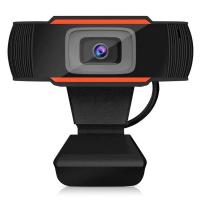
1. Choose the Right Webcam: Select a webcam that suits your needs. Popular options include Logitech C920, Razer Kiyo, and Microsoft LifeCam.

2. Connect the Webcam: Plug the webcam into a USB port on your laptop. Most webcams are plug-and-play, meaning they don't require additional software.

3. Install Drivers (if necessary): Some webcams may require you to install drivers. Follow the manufacturer's instructions to complete the installation.

4. Select the Webcam in Your Application: Open the application you want to use (e.g., Zoom, Skype, OBS Studio) and select the external webcam as the video source.

3. Optimizing Video Quality

To ensure you get the best video quality from your camera, consider the following tips:

1. Lighting: Good lighting is crucial for high-quality video. Use natural light or invest in a ring light or softbox to illuminate your face evenly.

2. Background: Choose a clean, uncluttered background. Virtual backgrounds can also be used in applications like Zoom.

3. Camera Position: Position the camera at eye level to create a natural and flattering angle. Use a tripod or stack books to achieve the right height.

4. Resolution and Frame Rate: Adjust the camera settings to the highest resolution and frame rate supported by your webcam and application.

4. Using Video Cameras for Content Creation

If you're a content creator, you might want to use a DSLR or mirrorless camera for superior video quality. Here's how to set it up:

1. Choose the Right Camera: Popular choices include Canon EOS M50, Sony A6400, and Panasonic Lumix G7.

2. Connect the Camera: Use an HDMI cable to connect the camera to a capture card (e.g., Elgato Cam Link 4K), then plug the capture card into your laptop's USB port.

3. Configure the Camera: Set your camera to video mode and adjust settings like resolution, frame rate, and focus.

4. Select the Camera in Your Application: Open your video recording or streaming software (e.g., OBS Studio, Streamlabs) and select the capture card as the video source.

5. Troubleshooting Common Issues

Even with the best setup, you might encounter issues. Here are some common problems and solutions:

1. Camera Not Detected: Ensure the camera is properly connected and drivers are installed. Try using a different USB port or restarting your laptop.

2. Poor Video Quality: Check your lighting and camera settings. Ensure your internet connection is stable if you're streaming or video calling.

3. Audio Sync Issues: Use an external microphone for better audio quality and sync. Adjust audio settings in your application if necessary.

4. Software Conflicts: Close other applications that might be using the camera. Restart the application you're using to refresh the camera feed.

6. Advanced Tips for Professional Use

For those looking to take their video setup to the next level, consider these advanced tips:

1. Green Screen: Use a green screen for professional virtual backgrounds. Ensure even lighting to avoid shadows.

2. Multiple Cameras: Set up multiple cameras for different angles. Use software like OBS Studio to switch between camera feeds.

3. External Microphone: Invest in a high-quality external microphone for clear audio. Popular options include Blue Yeti, Rode NT-USB, and Audio-Technica AT2020.

4. Video Editing Software: Use video editing software like Adobe Premiere Pro, Final Cut Pro, or DaVinci Resolve to enhance your videos post-production.

Using a video camera on your laptop can significantly enhance your virtual interactions and content creation. Whether you're using a built-in webcam, an external webcam, or a high-end DSLR, understanding the setup process and optimizing your video quality is crucial. By following the steps and tips outlined in this article, you'll be well on your way to achieving professional-grade video on your laptop. Remember, the key to great video is a combination of good lighting, proper camera positioning, and high-quality audio. Happy filming!
Leave your comment
Cancel reply
Note: HTML is not translated!
Related products
67mm Clip-on CPL Phone Camera Lens Filter Kit Applicable to All Mobile Phone Models
40
$18.99
67mm Clip-on ND2-32 Phone Camera Lens Filter Kit Applicable to All Mobile Phone Models
NEW Arrival
67mm Clip-on ND2-32 Phone Camera Lens Filter Kit Applicable to All Mobile Phone Models
13
$37.99
67mm Clip-on Black Mist 1/4 Phone Camera Lens Filter Kit Applicable to All Mobile Phone Models
7
$29.99
52mm Clip-on CPL Phone Camera Lens Filter Kit, Circular Polarizer Polarizing Filter Applicable to All Mobile Phone Models
24
$19.99
Real-time Translator Earbuds with 150 Languages, Offline Translation, Video & Voice Call Translation, 40H Battery Life, Clip-on Design, Kentfaith
16
$137.49 $109.99
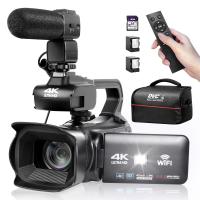
4K Video Camera Professional 60FPS UHD for Filmmaking, Movie & Photography, Video Recorder Camera with 18X Zoom, Digital Camera for Video Recording, 4.0" Flip Touchscreen, 64GB Card, Up To 6 Hours Work Time
TOP Best
4K Video Camera Professional 60FPS UHD for Filmmaking, Movie & Photography, Video Recorder Camera with 18X Zoom, Digital Camera for Video Recording, 4.0" Flip Touchscreen, 64GB Card, Up To 6 Hours Work Time
508
$404.99 $239.99
67mm Clip-on CPL&Black Mist 1/4 2-in-1 Phone Camera Lens Filter Kit Applicable to All Mobile Phone Models
3
$29.99
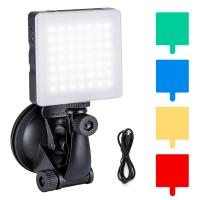
Touch Lighting Kit for Laptop Video Conference, K&F Concept 6500K Computer LED Video Light with Suction Cup, 4 Color Filters for Remote Working,Zoom Meeting, Self Broadcasting, Vlogging and Make Up
64
$39.99 $29.99
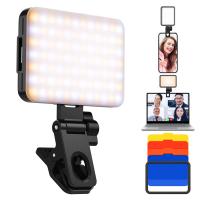
K&F Concept LED Video Light, Clip Fill Light with 4 Color Filter, 2000mAh Rechargeable Conference Light, CRI 95+, 3 Light Modes, Portable Fill Light for Cell Phone, Tablet, Laptop, TikTok Video
46
$26.99
Gift Certificate: $200 Value - Can Use with Any Discounts
$200.00 $190.00
Products You May Like
72mm Black Mist 1/8 Filter with Brass Frame, Ultra Low Reflection, Mist Soft Glow Diffuser Lens Filters with 36 Multi-Layer Coatings - Nano-X Pro Series
NEW Arrival
72mm Black Mist 1/8 Filter with Brass Frame, Ultra Low Reflection, Mist Soft Glow Diffuser Lens Filters with 36 Multi-Layer Coatings - Nano-X Pro Series
41
$167.99 $125.99
Fuji X100 Lens Hood+Lens Cap Compatible with Fuji X100, X100F, X100S, X100T, X100V, X100VI
6
$29.99
EU LTE 4G Trail Camera Free sim card Cellular Tracking Camera 30MP 4K Waterproof Game Hunting Camera
$228.99
62-77mm Brass Filter Adapter Ring, Step-Up Ring Compatible with All 62mm Camera Lens & 77mm Filters
32
$23.99
Wireless Digital Microscope for Kids, 50X-1000X Magnification with Adjustable Stand
58
$75.59 $57.99
49mm UV Filter Ultra Low Reflection Tempered Glass Protection Lens Filter, Slim Lens HD Optical Glass Scratch-resistant, Ultraviolet Filters for DSLR Cameras Nano-X Series
NEW Arrival
49mm UV Filter Ultra Low Reflection Tempered Glass Protection Lens Filter, Slim Lens HD Optical Glass Scratch-resistant, Ultraviolet Filters for DSLR Cameras Nano-X Series
19
$79.99 $59.99
58mm Snap-On Center Pinch Lens Cap 7 in 1 with Anti-Loss Keeper Leash Compatible with Nikon, Canon, Sony, Fujifilm Camera Lenses
$7.49
Birdhouse Trail Camera
10
$135.99 $74.99
2.7K 20MP Trail Camera 0.2s Fast Trigger Speed IP66 Waterproof Robust Hunting Camera with 120° Wide Flash Range for Wildlife Monitoring + 32GB Memory
5
$64.99
24MP 1296P HD Trail Camera with WiFi, 5 Million Sensor Outdoor Wildlife Monitoring Waterproof Night Infrared Vision Hunting Camera, 2PCS
2
$162.99
Related articles
How To Change Video Camera On Laptop?
How To Use Earphone Microphone On Laptop?
How To Record Video Using Laptop Camera?
How To Record With Sound On Laptop Camera?
How To Find Camera On Laptop Windows 7?
How To Turn On Microphone And Camera On Hp Laptop ?
How To Turn On Camera And Microphone On Dell Laptop ?
How To Run Sd Card On Laptop?
How To Take Video On Mac Camera?
How To Password Protect A Memory Card?
Blog You May Like
How Do You Voice Record A Phone Call?
How Much Sd Card For Switch?
How To Download Zoom Audio Recording?
How To Find The Depth Of Water?
Which T Mount For Pentax Cameras And Telescope?
How To Install Keyless Front Door Lock?
What Is A Good Wireless Security Camera?
What Is Monocular Camera?
What Is A Class 10 Sd Memory Card?
How To Connect Geeni Camera To New Wifi?
Related categories
On-Dash Camera streaming video camera C mount lens adapter digital camera for beginner Video Shooting Tripods lightweight video tripod
Popular products
light with power bank professional camera backpacks camera laptop backpacks Polarize Filter For Mobile Phone quadcopter drone with camera smart ai battery camera clip on phone camera lens camera backpack with tripod strap dslr camera backpack with laptop compartment 4K Camera For Streaming
Related searches
Adapter To Use Nikon Lens On Canon Adapter To Use Other Lens On Pentax Video Camera On Tripod On Camera Video Monitor Ring Light For Use With Laptop Use Other Lens Mounts On M42 Camera Video Camera On A Stick Digital Video Camera On Tripod Professional Video Camera On Sale On The Go Video Camera
Popular searches
Sony Radio Antenna Adapter Minolta Rokkor Md To Canon T6 Adapter Leica S Mamiya Adapter Sony Hi8 Tape Adapter Canon Adapter For Vivitar Lens Sony A6400 Lens Mount Remote Control Projector Screen M42 To Nikon F Adapter Infinity Focus Gimbal Camera For Drone Nd Filters Dji Pocket 2
Blog Category
  • Activities
  • Guide
    • Filter Guide
    • Lens Adapter
    • Product Review
  • News & Reviews
    • Camera Reviews
    • Sample Gallery
    • News
  • Tutorials
    • Solar eclipse photography
    • Photography Basics
    • Landscape Photography
  • Inspiration
    • Travel
    • Travel Stories
Search Article
Latest from the Blog
Kentfaith x ANACONDA: Capturing the Wild, Frame by Frame
UV Filter: Everything You Need to Know About UV Protection Lens Filters
Which Night Vision Monocular Is Best?
What Does A Uv Camera Filter Do?
What Are The Uses Of A Compound Microscope?
Can A Tripod Fit Any Camera?
Which Binoculars To Buy?
How Fast Is A Camera Flash?
What Power Binoculars For Long Distance Viewing?
Dash Cam That Can Connect To Phone?
  • Easy Payment Multilple Payment Options

  • Free Shipping Global WareHouse Shipment

  • No Risk 30-Day No Reason Return

  • Limited Deals Buy More, Save More

  • Tax Free No any surcharges or tax fee

Information
  • About us
  • Contact Us
  • Site Map
  • Blog
  • Video
  • Gallery
  • VIP Membership Rewards
Service
  • Privacy Policy
  • Terms & Conditions
  • Shipping & Delivery
  • Payment Info
  • Warranty, Return & Refund
  • Intellectual Property Rights
  • Ambassador
  • Affiliates
  • Wholesale
Support
  • My account
  • Order History
  • FAQs
  • Extend Warranty
  • Logistics Tracking
Follow us
NewsLetter

Get the latest product, K&F Concept respects your privacy.

Powered By KENTFAITH © 2026