kfconcept

KENTFAITH
K&F Concept    Blog >

Enjoy Your Selected Digital Life

Recently Viewed
  • Recently Viewed
  • Recently Viewed list is empty.

Compare (0) 0
  • Compare
  • You have not chosen any products to compare.

  • Compare
Currency: USD
  • Currency
Shop by Scene Shop by Rank

Log Into Your Account

Account

Order History

Wish List

Login

Forgotten Password?

or connect with

Register Account

Already have an Account?Log In

  • Shopping Cart
  • Your shopping cart is empty!

  • Register/Login to purchase, earn points
  • Favorite
  • Your wish list is empty.

  • Register/Login to like, earn points
  • Activities
  • Guide
    • Filter Guide
    • Lens Adapter
    • Product Review
  • News & Reviews
    • Camera Reviews
    • Sample Gallery
    • News
  • Tutorials
    • Solar eclipse photography
    • Photography Basics
    • Landscape Photography
  • Inspiration
    • Travel
    • Travel Stories
  • Home
  • Blog
  • How To Take Video On Mac Camera?

How To Take Video On Mac Camera?

Kentfaith 2024-08-26 01:08:32 0 Comments

Taking videos on a Mac using the built-in camera is a common task that many users need to accomplish for various reasons, such as creating content for social media, recording video messages, or conducting virtual meetings. This article will guide you through the process of recording videos on your Mac, covering different methods and tools available, as well as providing tips for achieving the best results.

Introduction to Mac's Built-in Camera
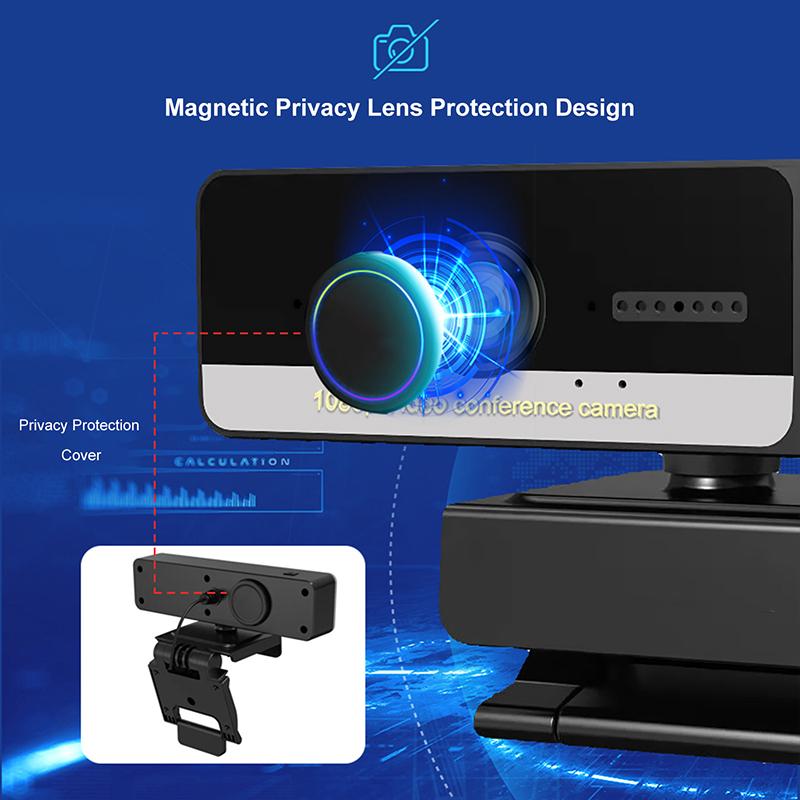
how to take video on mac camera 1

Most modern Mac computers come equipped with a built-in camera, commonly referred to as the FaceTime HD camera. This camera is integrated into the top bezel of the display and is capable of capturing both photos and videos. While the camera's quality may not match that of professional recording equipment, it is more than sufficient for everyday use.

Using QuickTime Player
how to take video on mac camera 2

QuickTime Player is a versatile media player that comes pre-installed on all Mac computers. It is not only capable of playing various media formats but also includes a simple and effective way to record videos using the built-in camera.

Steps to Record Video with QuickTime Player:
how to take video on mac camera 3

1. Open QuickTime Player: You can find QuickTime Player in the Applications folder or by using Spotlight search.

2. Start a New Movie Recording: From the menu bar, select `File` > `New Movie Recording`.

3. Select the Camera and Microphone: Click the small arrow next to the record button to choose the built-in camera and microphone. You can also adjust the quality of the recording from this menu.

4. Begin Recording: Click the red record button to start recording your video. You can see yourself on the screen as you record.

5. Stop Recording: Click the stop button when you are finished. The recorded video will automatically open in QuickTime Player.

6. Save the Video: Go to `File` > `Save` to save your video to your desired location.

Using Photo Booth
how to take video on mac camera 4

Photo Booth is another built-in application on Mac that allows you to take photos and record videos with the built-in camera. It is designed to be user-friendly and offers some fun effects that you can apply to your recordings.

Steps to Record Video with Photo Booth:

1. Open Photo Booth: You can find Photo Booth in the Applications folder or by using Spotlight search.

2. Switch to Video Mode: Click the video camera icon in the bottom-left corner of the Photo Booth window.

3. Start Recording: Click the red record button to begin recording your video. You can see yourself on the screen as you record.

4. Stop Recording: Click the stop button when you are finished. The recorded video will appear in the filmstrip at the bottom of the Photo Booth window.

5. Save the Video: Drag the video from the filmstrip to your desktop or another folder to save it.

Using iMovie

For users who need more advanced video editing capabilities, iMovie is an excellent choice. iMovie is a powerful video editing software that comes pre-installed on most Mac computers. It allows you to record videos directly from the built-in camera and provides a wide range of editing tools to enhance your recordings.

Steps to Record Video with iMovie:

1. Open iMovie: You can find iMovie in the Applications folder or by using Spotlight search.

2. Create a New Project: Click `Create New` and select `Movie` to start a new project.

3. Import Media: Click the `Import Media` button to open the import window.

4. Select the Camera: In the import window, select the built-in camera from the list of available devices.

5. Start Recording: Click the record button to begin recording your video. You can see yourself on the screen as you record.

6. Stop Recording: Click the stop button when you are finished. The recorded video will be added to your project’s media library.

7. Edit and Save the Video: Use iMovie’s editing tools to enhance your video. When you are satisfied with the result, go to `File` > `Share` > `File` to save your video.

Tips for Recording High-Quality Videos

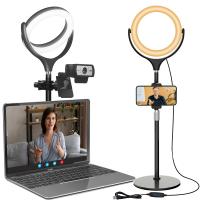
1. Lighting: Ensure you have good lighting. Natural light is ideal, but if that’s not possible, use a well-placed lamp or ring light to illuminate your face.

2. Background: Choose a clean, uncluttered background to keep the focus on you. Avoid backgrounds that are too busy or distracting.

3. Sound: Use an external microphone if possible, as it will provide better audio quality than the built-in microphone. If you must use the built-in microphone, make sure you are in a quiet environment.

4. Camera Position: Position the camera at eye level to create a more flattering angle. Avoid placing the camera too low or too high.

5. Framing: Frame yourself properly in the shot. Ensure there is enough headroom and that you are centered in the frame.

6. Practice: Do a few test recordings to get comfortable with the process and to check the quality of your video and audio.

Recording videos on a Mac using the built-in camera is a straightforward process, thanks to the various built-in applications like QuickTime Player, Photo Booth, and iMovie. Each of these tools offers different features and levels of complexity, allowing you to choose the one that best suits your needs. By following the steps outlined in this article and applying the tips for high-quality recordings, you can create professional-looking videos with ease. Whether you are recording a video message, creating content for social media, or conducting a virtual meeting, your Mac’s built-in camera and these applications have you covered.
Leave your comment
Cancel reply
Note: HTML is not translated!
Related products
67mm Clip-on CPL Phone Camera Lens Filter Kit Applicable to All Mobile Phone Models
40
$18.99
67mm Clip-on ND2-32 Phone Camera Lens Filter Kit Applicable to All Mobile Phone Models
NEW Arrival
67mm Clip-on ND2-32 Phone Camera Lens Filter Kit Applicable to All Mobile Phone Models
13
$37.99
Digital Camera for Microscopes 5 Megapixel Color CMOS for Windows Mac OS Android Phones Kentfaith
12
$99.99 $79.99
67mm Clip-on Black Mist 1/4 Phone Camera Lens Filter Kit Applicable to All Mobile Phone Models
7
$29.99
52mm Clip-on CPL Phone Camera Lens Filter Kit, Circular Polarizer Polarizing Filter Applicable to All Mobile Phone Models
24
$19.99
Real-time Translator Earbuds with 150 Languages, Offline Translation, Video & Voice Call Translation, 40H Battery Life, Clip-on Design, Kentfaith
16
$137.49 $109.99
AI Translation Earbuds Real-Time, 150 Languages/Accents, Free Offline Translation, Voice & Video Call Translation, LCD Touch Screen, Clip on Earphones, Kentfaith
$139.99 $109.99
Upgraded 6K Video Camera Professional 60FPS UHD for Filmmaking, Movie & Photography, Video Recorder Camera with 18X Zoom, Digital Camera for Video Recording, 4.0" Flip Touchscreen, 64GB Card, Up To 6 Hours Work Time
TOP Best
Upgraded 6K Video Camera Professional 60FPS UHD for Filmmaking, Movie & Photography, Video Recorder Camera with 18X Zoom, Digital Camera for Video Recording, 4.0" Flip Touchscreen, 64GB Card, Up To 6 Hours Work Time
508
$404.99 $259.99
67mm Clip-on CPL&Black Mist 1/4 2-in-1 Phone Camera Lens Filter Kit Applicable to All Mobile Phone Models
3
$29.99
DM9 7" LCD Digital Microscope 10X-1200X, 1080P Coin Microscope with 12MP Camera Sensor Work with Windows/Mac OS
HOT Seller
DM9 7" LCD Digital Microscope 10X-1200X, 1080P Coin Microscope with 12MP Camera Sensor Work with Windows/Mac OS
118
$149.99 $121.99
Products You May Like
K&F CONCEPT Magnetic Phone LED Light: Foldable Selfie Light with Makeup Mirror, 3000K-6500K Dimmable Vlog Fill Light for iPhone, Video Calls & Makeup (White)
42
$29.99
62mm Magnetic Metal Lens Cap 2-in-1
41
$41.99 $20.99
Gift Certificate: $30 Value - Can Use with Any Discounts
$30.00
TWS Bluetooth Headset 2000mah Wireless Charging Sports Headset Black
376
$15.99
77mm Solar Filter 16.6-Stops,ND100000 Solid Neutral Density Filter For Eclipse With 18 Multi-Layer Coatings Nano-Klear Series (Only Ship to US)
44
$28.99 $22.99
55mm Clear Natural Night Filter 28 Multi-Layer Coatings Light Pollution Reduction Filter for Night City Sky Star Shots, No Color Cast - Nano-X Series
26
$70.49 $46.99
62mm Black Diffusion Mist Effect 1/4 & Variable ND2-32(1-5 Stops) & Circular Polarizing Filter CPL 3 in 1 Lens Filter with 18 Multi-Coatings Nano-Klear Series
NEW Arrival
62mm Black Diffusion Mist Effect 1/4 & Variable ND2-32(1-5 Stops) & Circular Polarizing Filter CPL 3 in 1 Lens Filter with 18 Multi-Coatings Nano-Klear Series
58
$59.99 $47.99
no glow trail camera
10
$135.99 $106.99
82-86mm Step Up Ring Aviation-grade Aluminum Filter Adapter Ring 2-pack with a Cleaning Cloth
99
$9.59
AI Voice Recorder with ChatGPT Transcription, Summary, 107 Languages Voice Translation for Meetings, Interviews, Business Calls, Lectures, Kentfaith Personal AI Assistant
HOT Seller
AI Voice Recorder with ChatGPT Transcription, Summary, 107 Languages Voice Translation for Meetings, Interviews, Business Calls, Lectures, Kentfaith Personal AI Assistant
19
$223.19 $139.99
Related articles
How To Take Video Without Tripod?
How To Use Microphone On Mac?
How To Find My Canon Camera On Mac?
How To Find Camera Sd Card On Mac?
How To Find Mac Address On Ring Camera?
How To Record Voice Audio On Mac?
How To Find Camera In Mac?
How To Use Video Camera On Laptop?
How To Turn On Flip Video Camera?
Does Game Pass Console Include Xbox Live?
Blog You May Like
How To Watch Surveillance Camera Footage?
How Many Stops Is An Nd 8 Filter?
What Nd Filter For 60fps Outside?
How To See Plant Cells With A Microscope?
How To Make A Handheld Camera Stabilizer?
Can Bluetooth Headphones Be Used With Tv?
How To Find Cameras In A House?
How Do Trail Cameras Work? The Ultimate Guide to Trail Cameras
What Digital Cameras Look Like Film?
How To Wifi Transfer Videos From Camera Canon?
Related categories
On-Dash Camera streaming video camera C mount lens adapter digital camera for beginner Video Shooting Tripods lightweight video tripod
Popular products
on camera shotgun microphone quadcopter drone with camera pro wireless microphone system light with power bank digital video camera microscope body worn camera with audio pocket camera for video best digital microscope camera digital microscope 1000x magnification secure video camera
Related searches
Video Camera On Tripod On Camera Video Monitor Video Camera On A Stick Digital Video Camera On Tripod Professional Video Camera On Sale On The Go Video Camera Best Video Camera On A Phone Mac Compatible Microscope Mac Compatible Webcam Digital Microscope Mac
Related Scenes
Best Camera To Video Sports Best Carry On Camera Bag Best Video Camera To Record Sports Best Camera To Capture Wildlife Best Tripod To Travel With Best Easy To Use Compact Digital Camera Best Action Video Camera Best Digital Video Camera Best Sports Video Camera Best Compact Video Camera
Blog Category
  • Activities
  • Guide
    • Filter Guide
    • Lens Adapter
    • Product Review
  • News & Reviews
    • Camera Reviews
    • Sample Gallery
    • News
  • Tutorials
    • Solar eclipse photography
    • Photography Basics
    • Landscape Photography
  • Inspiration
    • Travel
    • Travel Stories
Search Article
Latest from the Blog
What Is The Best Rangefinder For Golf?
How To Buy A Flash For Your Camera?
What Is The Best Tripod For Landscape Photography?
Can You Wear A Smartwatch In The Shower?
How To Choose A Surveillance Camera System?
How To Choose Security Camera For Home?
Where To Find Coins With A Metal Detector?
How Secure Are Wifi Cameras?
How To Level Your Scope?
Where To Get Microscope Slides?
  • Easy Payment Multilple Payment Options

  • Free Shipping Global WareHouse Shipment

  • No Risk 30-Day No Reason Return

  • Limited Deals Buy More, Save More

  • Tax Free No any surcharges or tax fee

Information
  • About us
  • Contact Us
  • Site Map
  • Blog
  • Video
  • Gallery
  • VIP Membership Rewards
Service
  • Privacy Policy
  • Terms & Conditions
  • Shipping & Delivery
  • Payment Info
  • Warranty, Return & Refund
  • Intellectual Property Rights
  • Ambassador
  • Affiliates
  • Wholesale
Support
  • My account
  • Order History
  • FAQs
  • Extend Warranty
  • Logistics Tracking
Follow us
NewsLetter

Get the latest product, K&F Concept respects your privacy.
Powered By KENTFAITH © 2026