kfconcept

KENTFAITH
K&F Concept    Blog >

Enjoy Your Selected Digital Life

Recently Viewed
  • Recently Viewed
  • Recently Viewed list is empty.

Compare (0) 0
  • Compare
  • You have not chosen any products to compare.

  • Compare
Currency: USD
  • Currency
Shop by Scene Shop by Rank

Log Into Your Account

Account

Order History

Wish List

Login

Forgotten Password?

Or connect with

Register Account

Already have an Account?Log In

  • Shopping Cart
  • Your shopping cart is empty!

  • Register/Login to purchase, earn points
  • Favorite
  • Your wish list is empty.

  • Register/Login to like, earn points
  • Activities
  • Guide
    • Filter Guide
    • Lens Adapter
    • Product Review
  • News & Reviews
    • Camera Reviews
    • Sample Gallery
    • News
  • Tutorials
    • Solar eclipse photography
    • Photography Basics
    • Landscape Photography
  • Inspiration
    • Travel
    • Travel Stories
  • Home
  • Blog
  • How To Take Video On Mac Camera?

How To Take Video On Mac Camera?

Kentfaith 2024-08-26 01:08:32 0 Comments

Taking videos on a Mac using the built-in camera is a common task that many users need to accomplish for various reasons, such as creating content for social media, recording video messages, or conducting virtual meetings. This article will guide you through the process of recording videos on your Mac, covering different methods and tools available, as well as providing tips for achieving the best results.

Introduction to Mac's Built-in Camera
how to take video on mac camera 1

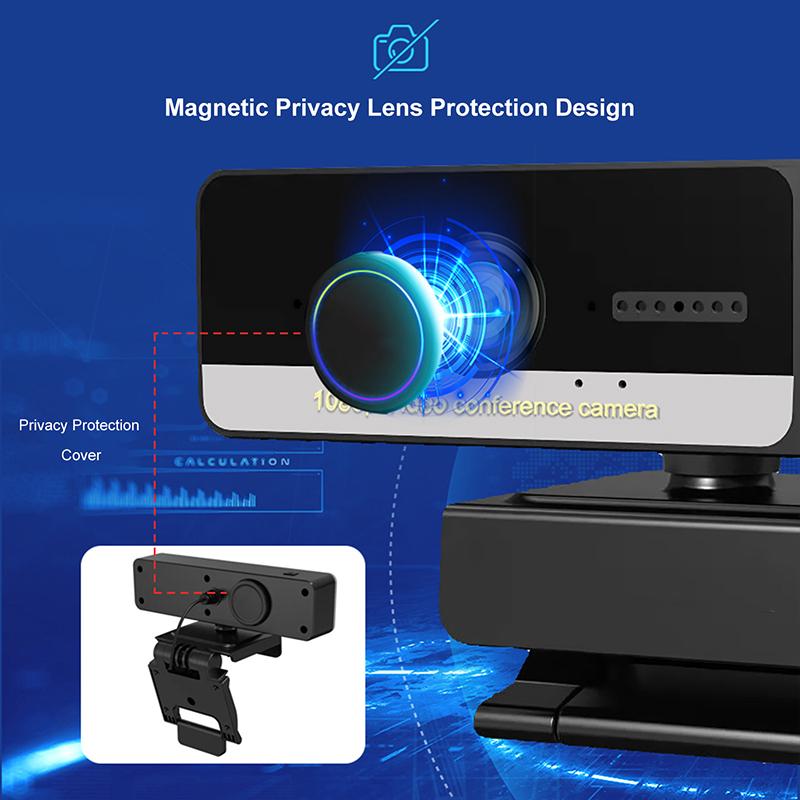
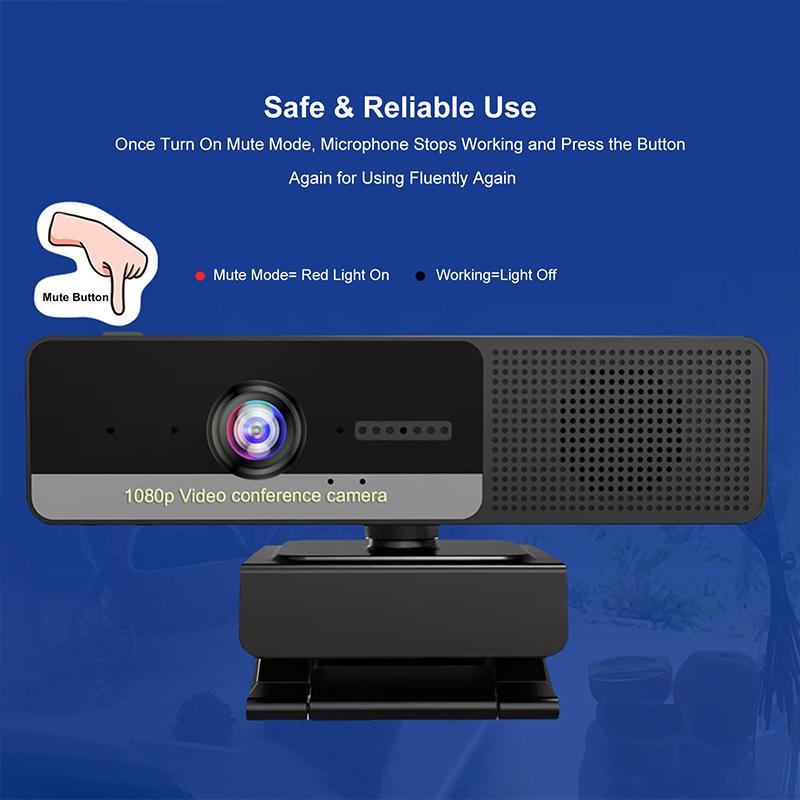
Most modern Mac computers come equipped with a built-in camera, commonly referred to as the FaceTime HD camera. This camera is integrated into the top bezel of the display and is capable of capturing both photos and videos. While the camera's quality may not match that of professional recording equipment, it is more than sufficient for everyday use.

Using QuickTime Player
how to take video on mac camera 2

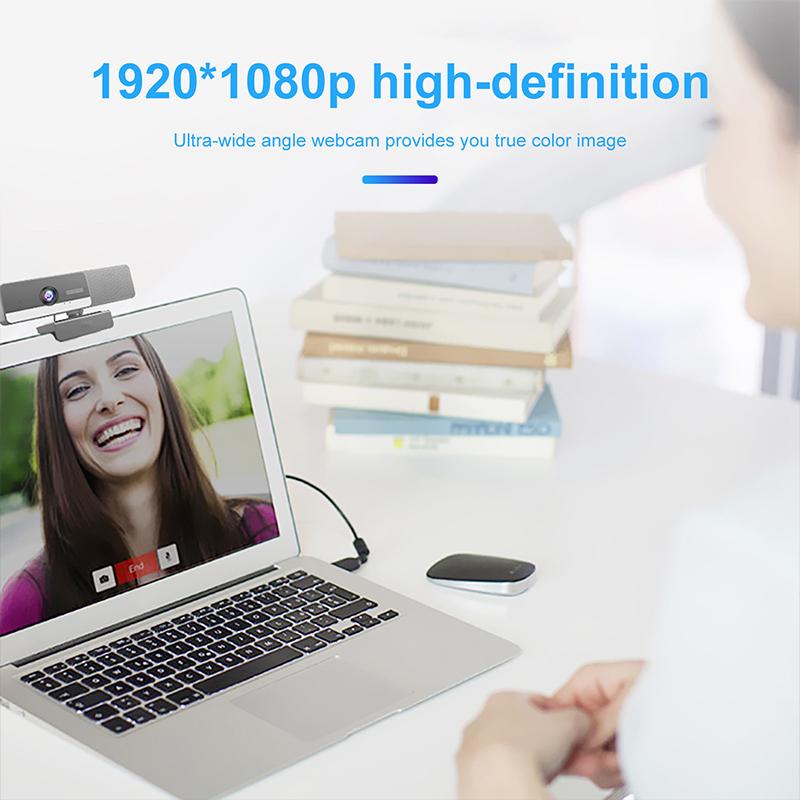
QuickTime Player is a versatile media player that comes pre-installed on all Mac computers. It is not only capable of playing various media formats but also includes a simple and effective way to record videos using the built-in camera.

Steps to Record Video with QuickTime Player:
how to take video on mac camera 3

1. Open QuickTime Player: You can find QuickTime Player in the Applications folder or by using Spotlight search.

2. Start a New Movie Recording: From the menu bar, select `File` > `New Movie Recording`.

3. Select the Camera and Microphone: Click the small arrow next to the record button to choose the built-in camera and microphone. You can also adjust the quality of the recording from this menu.

4. Begin Recording: Click the red record button to start recording your video. You can see yourself on the screen as you record.

5. Stop Recording: Click the stop button when you are finished. The recorded video will automatically open in QuickTime Player.

6. Save the Video: Go to `File` > `Save` to save your video to your desired location.

Using Photo Booth
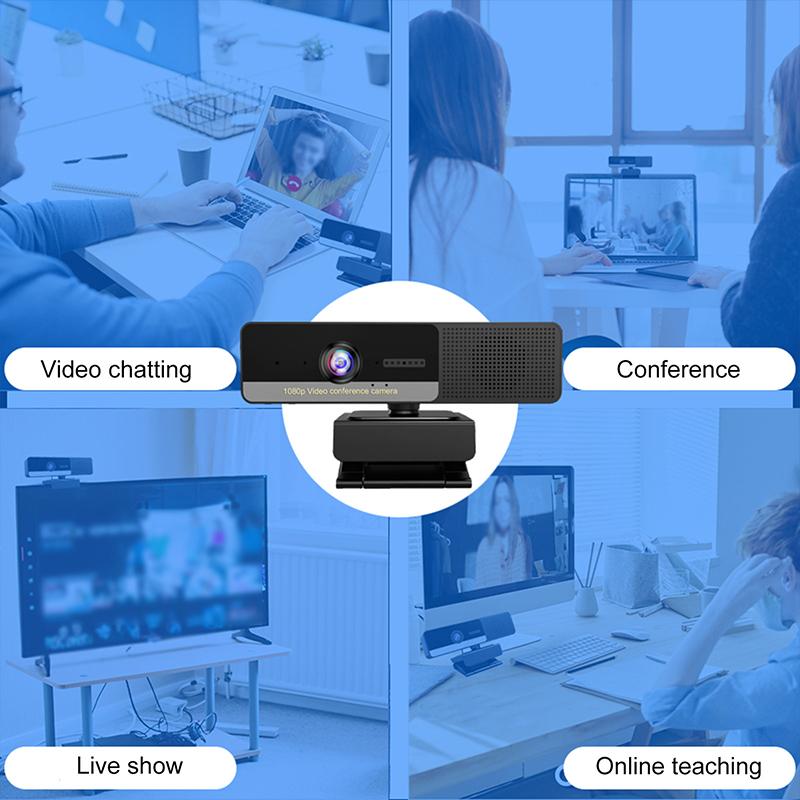
how to take video on mac camera 4

Photo Booth is another built-in application on Mac that allows you to take photos and record videos with the built-in camera. It is designed to be user-friendly and offers some fun effects that you can apply to your recordings.

Steps to Record Video with Photo Booth:

1. Open Photo Booth: You can find Photo Booth in the Applications folder or by using Spotlight search.

2. Switch to Video Mode: Click the video camera icon in the bottom-left corner of the Photo Booth window.

3. Start Recording: Click the red record button to begin recording your video. You can see yourself on the screen as you record.

4. Stop Recording: Click the stop button when you are finished. The recorded video will appear in the filmstrip at the bottom of the Photo Booth window.

5. Save the Video: Drag the video from the filmstrip to your desktop or another folder to save it.

Using iMovie

For users who need more advanced video editing capabilities, iMovie is an excellent choice. iMovie is a powerful video editing software that comes pre-installed on most Mac computers. It allows you to record videos directly from the built-in camera and provides a wide range of editing tools to enhance your recordings.

Steps to Record Video with iMovie:

1. Open iMovie: You can find iMovie in the Applications folder or by using Spotlight search.

2. Create a New Project: Click `Create New` and select `Movie` to start a new project.

3. Import Media: Click the `Import Media` button to open the import window.

4. Select the Camera: In the import window, select the built-in camera from the list of available devices.

5. Start Recording: Click the record button to begin recording your video. You can see yourself on the screen as you record.

6. Stop Recording: Click the stop button when you are finished. The recorded video will be added to your project’s media library.

7. Edit and Save the Video: Use iMovie’s editing tools to enhance your video. When you are satisfied with the result, go to `File` > `Share` > `File` to save your video.

Tips for Recording High-Quality Videos

1. Lighting: Ensure you have good lighting. Natural light is ideal, but if that’s not possible, use a well-placed lamp or ring light to illuminate your face.

2. Background: Choose a clean, uncluttered background to keep the focus on you. Avoid backgrounds that are too busy or distracting.

3. Sound: Use an external microphone if possible, as it will provide better audio quality than the built-in microphone. If you must use the built-in microphone, make sure you are in a quiet environment.

4. Camera Position: Position the camera at eye level to create a more flattering angle. Avoid placing the camera too low or too high.

5. Framing: Frame yourself properly in the shot. Ensure there is enough headroom and that you are centered in the frame.

6. Practice: Do a few test recordings to get comfortable with the process and to check the quality of your video and audio.

Recording videos on a Mac using the built-in camera is a straightforward process, thanks to the various built-in applications like QuickTime Player, Photo Booth, and iMovie. Each of these tools offers different features and levels of complexity, allowing you to choose the one that best suits your needs. By following the steps outlined in this article and applying the tips for high-quality recordings, you can create professional-looking videos with ease. Whether you are recording a video message, creating content for social media, or conducting a virtual meeting, your Mac’s built-in camera and these applications have you covered.

Leave your comment
Cancel reply
Note: HTML is not translated!
Related products
67mm Clip-on CPL Phone Camera Lens Filter Kit Applicable to All Mobile Phone Models
24
$18.99
Digital Camera for Microscopes 5 Megapixel Color CMOS for Windows Mac OS Android Phones Kentfaith
12
$99.99 $79.99
67mm Clip-on ND2-32 Phone Camera Lens Filter Kit Applicable to All Mobile Phone Models
24
$37.99
67mm Clip-on Black Mist 1/4 Phone Camera Lens Filter Kit Applicable to All Mobile Phone Models
24
$29.99
52mm Clip-on CPL Phone Camera Lens Filter Kit, Circular Polarizer Polarizing Filter Applicable to All Mobile Phone Models
24
$16.99
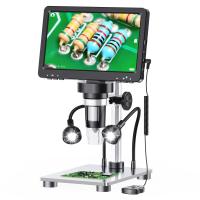
DM9 7" LCD Digital Microscope 10X-1200X, 1080P Coin Microscope with 12MP Camera Sensor Work with Windows/Mac OS
118
$149.99 $121.99
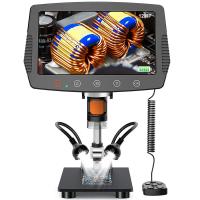
Digital Microscope with 9" LCD Screen, 1000X Magnification Coin Microscope with 12MP Camera for Adults, Work with Windows/Mac OS
45
$215.99 $167.99
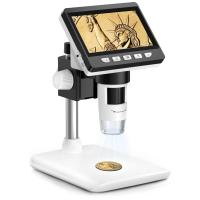
4.3" LCD Screen Digital Coin Microscope, 50X-1000X Magnification, Work with Windows/Mac iOS
24
$107.99 $88.99
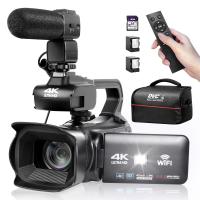
4K Video Camera Professional 60FPS UHD for Filmmaking, Movie & Photography, Video Recorder Camera with 18X Zoom, Digital Camera for Video Recording, 4.0" Flip Touchscreen, 64GB Card, Up To 6 Hours Work Time
508
$404.99 $239.99
67mm Clip-on CPL&Black Mist 1/4 2-in-1 Phone Camera Lens Filter Kit Applicable to All Mobile Phone Models
24
$29.99
Products You May Like
ND/PL Filter Set Compatible with DJI Avata 2, 4 Pack ND8/PL ND16/PL ND32/PL ND64/PL Polarizer Neutral Density Drone Lens Accessories,Multi Coated/HD Optical Glass/Gimbal Safe
59
$36.99
40 in 1 Square Graduated Color ND Filter Kit
99
$60.99 $29.99
Wide Angle Trail Camera
10
$162.99 $106.99
55mm UV Lens Filter HD MCUV Ultraviolet 28 Multi-Coated Filters (Nano-Xcel series Toughened Glass)
78
$41.99 $32.99
HC-801A 16MP 1080P Trail Camera 0.5s Trigger Speed Hunting 3 PIR HD Deer Camera Infrared Night Vision Game Camera
6
$57.99
Bluetooth Headset for Mobile Phone Wireless Headset with Microphone Bluetooth Headset 5.1 Hands-free Headset CVC8.0 Compatible with iPhone Android Business Office Driving with Charging Case
42
$26.99
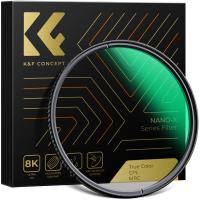
77mm CPL Filter True Color Circular Polarizers Filter with 28 Multi-Layer Coatings for Camera Lens Nano-Xcel Series
47
$68.99 $56.99
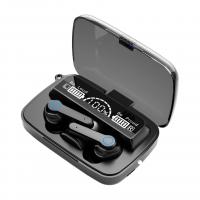
M19 TWS 2000mah Wireless Earbuds, Bluetooth 5.1 Stereo Rechargeable Earphone Wireless Earpieces for Phone with 2000mah Smart LED Display Charging Case
$23.74 $18.99
Invisible Trail Camera
10
$162.99 $106.99
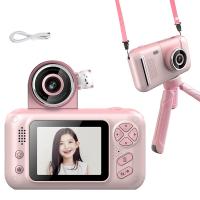
S9 Kids digital camera with reversible lens, tripod, 1080P, 40 megapixels, best kids camera for boys and girls from 3 years old Pink
$41.99
Related articles
How To Take Video Without Tripod?
How To Use Microphone On Mac?
How To Find My Canon Camera On Mac?
How To Find Camera Sd Card On Mac?
How To Find Mac Address On Ring Camera?
How To Record Voice Audio On Mac?
How To Find Camera In Mac?
How To Use Video Camera On Laptop?
How To Turn On Flip Video Camera?
How To Soften Flash On Camera?
Blog You May Like
How Do I Access Smart Lock Settings?
How To Make Lights For Photography At Home?
How To Find Hidden Cameras Outside Your Home?
Where Is The Depth Finder On A Boat?
What In Old Polaroid Camera Flash?
How To Transfer Photos By Wifi Via Camera?
How To Put The Battery In My Camera?
What Lens Mount Is My Camera?
How Much Does A Single Use Endoscope Cost?
How To Take Good Selfie Stick Photos?
Related categories
On-Dash Camera streaming video camera C mount lens adapter digital camera for beginner Video Shooting Tripods lightweight video tripod
Popular products
quadcopter drone with camera Polarize Filter For Mobile Phone usb digital coin microscope clip on phone camera lens high quality condenser microphone wireless microphone transmitter receiver digital microscope usb camera digital microscope for students 4K Camera For Streaming light with power bank
Related searches
Video Camera On Tripod On Camera Video Monitor On Camera Light For Video Mac Compatible Microscope Mac Compatible Webcam Digital Microscope Mac Best Video Camera On A Phone Video Cameras On Sale Microphone For Mac Mini External Webcam For Mac
Popular searches
E Mount To Nikon Adapter Reflector For Camera Order Custom Step-up Lens Adapter Ring Polaroid Instant Camera Case 46mm Wide Angle Lens Adapter K&f Concept Tm2515t1 Rv Solar Panel Kit Bowens Softbox Music Speakers For Home Dji Air 3 Nd Filter Set
Blog Category
  • Activities
  • Guide
    • Filter Guide
    • Lens Adapter
    • Product Review
  • News & Reviews
    • Camera Reviews
    • Sample Gallery
    • News
  • Tutorials
    • Solar eclipse photography
    • Photography Basics
    • Landscape Photography
  • Inspiration
    • Travel
    • Travel Stories
Search Article
Latest from the Blog
Can You Zoom In With Binoculars?
What Is Nd Filter On Video Camera?
Can I Charge Camera Battery With Power Bank?
What Is The Best Wireless Outdoor Security Camera?
How To Wear Monocular?
What Is Surveillance Camera Control System?
What Tripod To Buy?
UV Filter: Everything You Need to Know About UV Protection Lens Filters
How Do Night Vision Goggles Work?
How Big A Memory Card For Camera?
  • Easy Payment Multilple Payment Options

  • Free Shipping Global WareHouse Shipment

  • No Risk 30-Day No Reason Return

  • Limited Deals Buy More, Save More

  • Tax Free No any surcharges or tax fee

Information
  • About us
  • Contact Us
  • Site Map
  • Blog
  • Video
  • Gallery
  • VIP Membership Rewards
Service
  • Privacy Policy
  • Terms & Conditions
  • Shipping & Delivery
  • Payment Info
  • Warranty, Return & Refund
  • Intellectual Property Rights
  • Ambassador
  • Affiliates
  • Wholesale
Support
  • My account
  • Order History
  • FAQs
  • Extend Warranty
  • Logistics Tracking
Follow us
NewsLetter

Get the latest product, K&F Concept respects your privacy.

Powered By KENTFAITH © 2025