kfconcept

KENTFAITH
K&F Concept    Blog >

Enjoy Your Selected Digital Life

Recently Viewed
  • Recently Viewed
  • Recently Viewed list is empty.

Compare (0) 0
  • Compare
  • You have not chosen any products to compare.

  • Compare
Currency: USD
  • Currency
Shop by Scene Shop by Rank

Log Into Your Account

Account

Order History

Wish List

Login

Forgotten Password?

Or connect with

Register Account

Already have an Account?Log In

  • Shopping Cart
  • Your shopping cart is empty!

  • Register/Login to purchase, earn points
  • Favorite
  • Your wish list is empty.

  • Register/Login to like, earn points
  • Activities
  • Guide
    • Filter Guide
    • Lens Adapter
    • Product Review
  • News & Reviews
    • Camera Reviews
    • Sample Gallery
    • News
  • Tutorials
    • Solar eclipse photography
    • Photography Basics
    • Landscape Photography
  • Inspiration
    • Travel
    • Travel Stories
  • Home
  • Blog
  • How To Record With Sound On Laptop Camera?

How To Record With Sound On Laptop Camera?

Kentfaith 2024-09-03 01:03:55 0 Comments

Recording video with sound on a laptop camera is a common requirement for various purposes, such as creating content for social media, conducting virtual meetings, or recording personal vlogs. However, many users often face challenges in achieving high-quality audio and video recordings. This article aims to provide a comprehensive guide on how to record with sound on a laptop camera, addressing common issues and offering practical solutions.

Understanding Your Laptop's Capabilities
how to record with sound on laptop camera 1

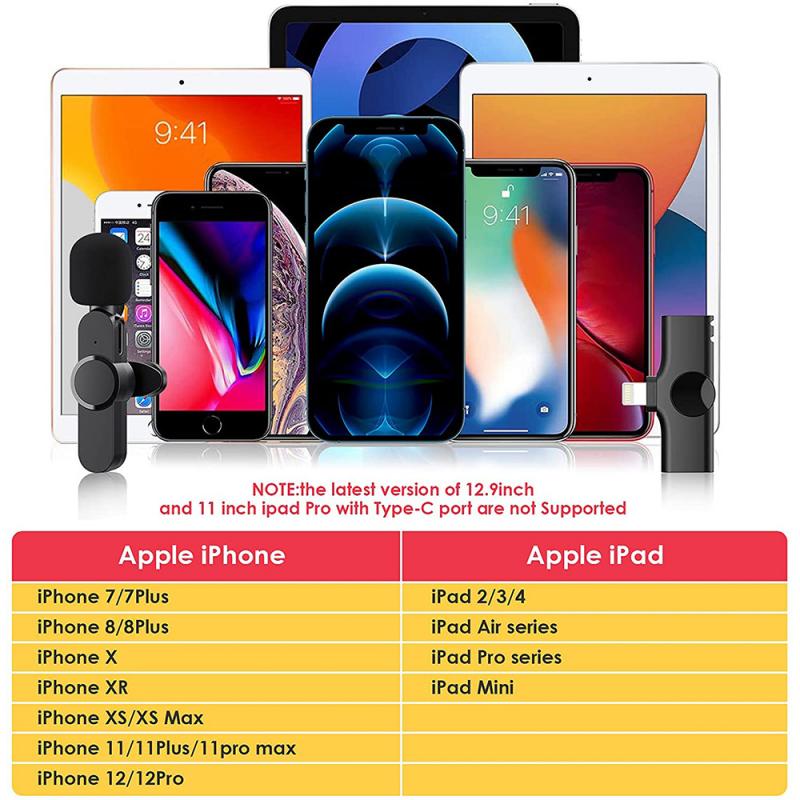
Before diving into the recording process, it's essential to understand the capabilities of your laptop. Most modern laptops come equipped with a built-in camera and microphone. However, the quality of these built-in components can vary significantly. Here are some preliminary steps to ensure your laptop is ready for recording:

1. Check Camera and Microphone Specifications: Look up the specifications of your laptop's camera and microphone. This information can usually be found on the manufacturer's website or in the user manual. Knowing the resolution of your camera and the sensitivity of your microphone can help set realistic expectations.

2. Update Drivers: Ensure that your camera and microphone drivers are up to date. Outdated drivers can cause compatibility issues and degrade the quality of your recordings. You can update drivers through the Device Manager on Windows or the System Preferences on macOS.

3. Test the Hardware: Open the camera application on your laptop to test the video quality. Similarly, use a voice recording application to test the microphone. This will help you identify any immediate issues with the hardware.

Choosing the Right Software
how to record with sound on laptop camera 2

The software you use for recording plays a crucial role in the quality of your final output. Here are some popular options:

1. Built-in Camera Apps: Both Windows and macOS come with built-in camera applications (Camera app on Windows and Photo Booth on macOS). These apps are straightforward to use but may lack advanced features.

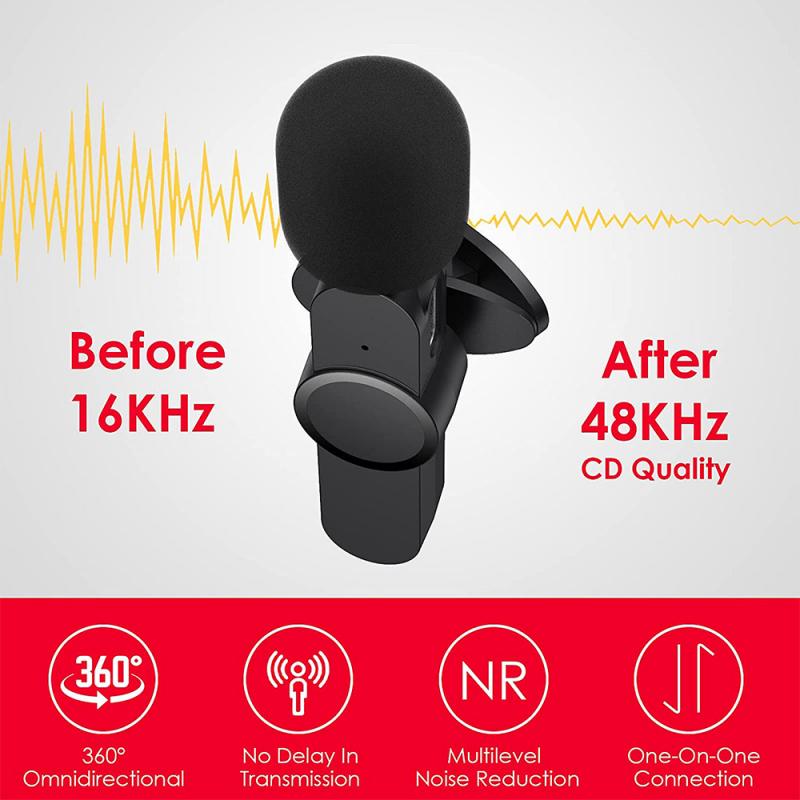
2. Third-Party Software: For more control over your recordings, consider using third-party software like OBS Studio, Camtasia, or Bandicam. These applications offer advanced features such as screen recording, multiple audio tracks, and video editing tools.

3. Online Tools: If you prefer not to install additional software, online tools like Clipchamp or Loom can be useful. These platforms allow you to record video and audio directly from your browser.

Setting Up for Recording
how to record with sound on laptop camera 3

Proper setup is crucial for achieving high-quality recordings. Here are some tips to optimize your recording environment:

1. Lighting: Good lighting can significantly improve the quality of your video. Use natural light where possible, or invest in affordable LED lights. Position the light source in front of you to avoid shadows.

2. Background: Choose a clean, uncluttered background to keep the focus on you. Virtual backgrounds can also be used if your recording software supports them.

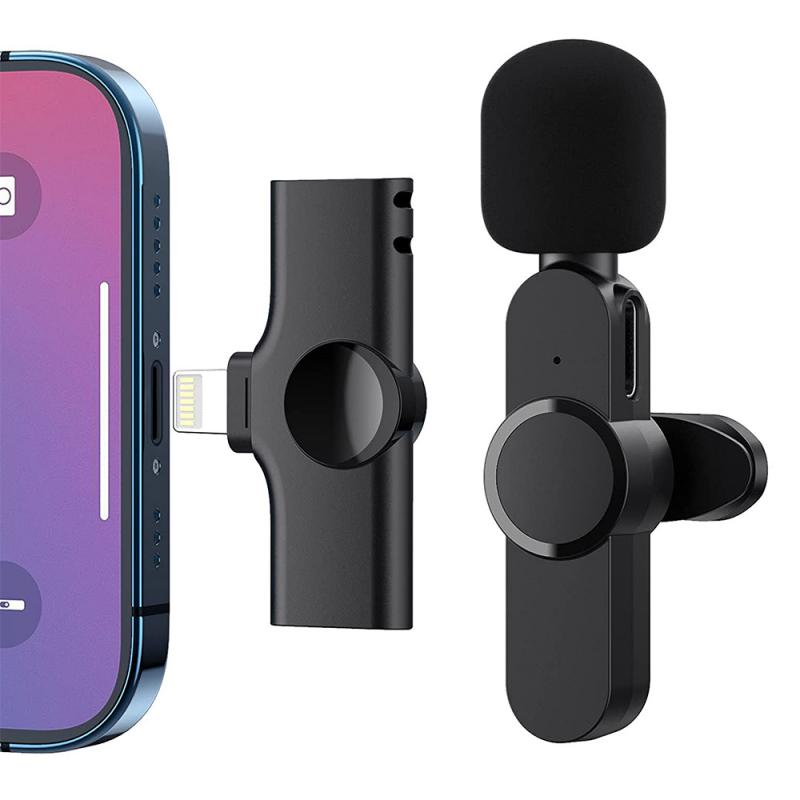
3. Microphone Placement: The built-in microphone on your laptop may not always provide the best audio quality. Consider using an external microphone for better sound. Place the microphone close to your mouth but out of the camera's view.

4. Camera Angle: Position your laptop camera at eye level to create a more engaging and professional appearance. You can use a stack of books or a laptop stand to achieve the desired height.

Recording Process
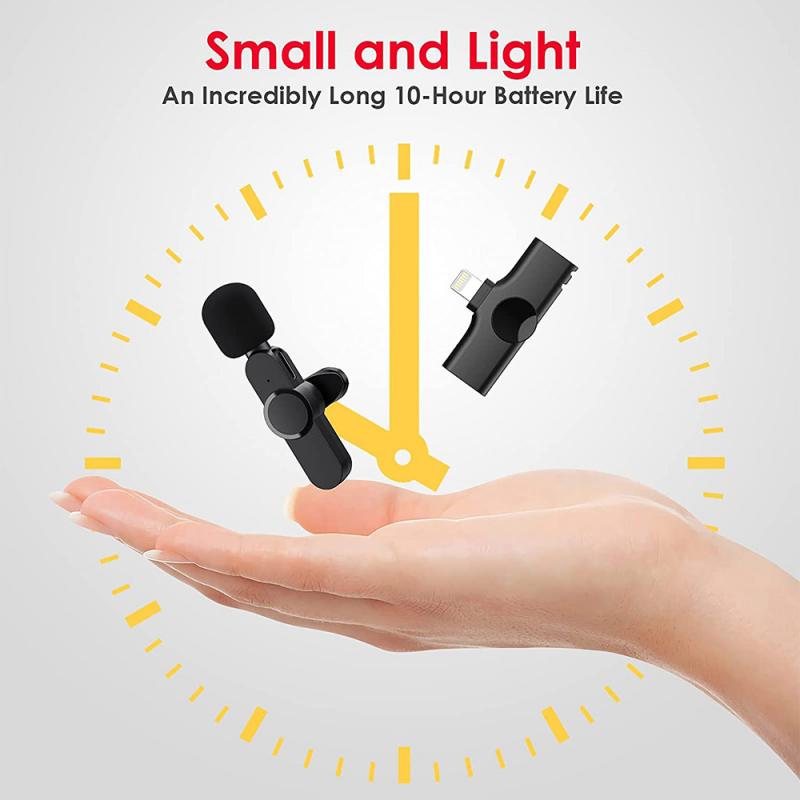
how to record with sound on laptop camera 4

Once your setup is complete, follow these steps to start recording:

1. Open Your Chosen Software: Launch the application you have chosen for recording. Ensure that both the camera and microphone are selected as the input sources.

2. Adjust Settings: Configure the video resolution and frame rate according to your needs. For most purposes, a resolution of 720p or 1080p at 30 frames per second is sufficient. Adjust the audio settings to ensure the microphone is capturing sound at an appropriate level.

3. Perform a Test Recording: Before starting your actual recording, perform a short test to check the audio and video quality. Play back the test recording to identify any issues and make necessary adjustments.

4. Start Recording: Once you are satisfied with the test, start your recording. Speak clearly and maintain eye contact with the camera to create a more engaging video.

5. Stop and Save: After completing your recording, stop the session and save the file. Most software will prompt you to choose a location to save the recording.

Post-Recording Tips

After recording, you may need to perform some post-production tasks to enhance the quality of your video and audio. Here are some tips:

1. Editing Software: Use video editing software like Adobe Premiere Pro, Final Cut Pro, or even free options like DaVinci Resolve to edit your recording. You can trim unwanted sections, add transitions, and include text overlays.

2. Audio Enhancement: If the audio quality is not up to par, consider using audio editing software like Audacity to clean up background noise and improve clarity.

3. File Format: Save your final video in a widely supported format like MP4 or MOV. These formats offer a good balance between quality and file size.

4. Backup: Always keep a backup of your original recording and the edited version. This ensures you have a copy in case of accidental deletion or corruption.

Troubleshooting Common Issues

Despite careful preparation, you may encounter some common issues while recording. Here are solutions to a few frequent problems:

1. No Sound: If your recording has no sound, check the microphone settings in your recording software. Ensure the correct microphone is selected and not muted. Also, check the system sound settings to ensure the microphone is enabled.

2. Poor Audio Quality: If the audio quality is poor, consider using an external microphone. Additionally, reduce background noise by recording in a quiet environment and using noise-canceling software.

3. Video Lag: If your video is lagging, reduce the resolution or frame rate in your recording software. Ensure your laptop is not running other resource-intensive applications during recording.

4. Sync Issues: If the audio and video are out of sync, use video editing software to manually align the audio track with the video.

Recording video with sound on a laptop camera can be a straightforward process with the right preparation and tools. By understanding your laptop's capabilities, choosing the appropriate software, setting up your recording environment, and following best practices, you can achieve high-quality recordings. Additionally, addressing common issues and performing post-production enhancements can further improve the final output. Whether you are creating content for social media, conducting virtual meetings, or recording personal vlogs, these tips will help you produce professional and engaging videos.


Leave your comment
Cancel reply
Note: HTML is not translated!
Related products
128G Mini Digital Voice Recorder with Color Screen Bluetooth Call Record 3072kbps Kentfaith
15
$119.99 $83.99
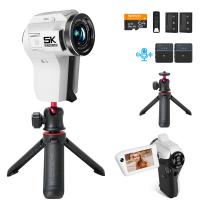
5K Video Camera with 75MP Photos, 8X Optical Zoom, WiFi Transfer, Wireless Mic, Dual Batteries, Support PIP Record, Kentfaith
16
$274.99 $239.99
67mm Clip-on CPL Phone Camera Lens Filter Kit Applicable to All Mobile Phone Models
24
$18.99
5K Video Camera with 75MP Photos, 8X Optical Zoom, WiFi Transfer, Foldable Tripod, Wireless Mic, Dual Batteries, Support PIP Record, Kentfaith
$312.49 $249.99
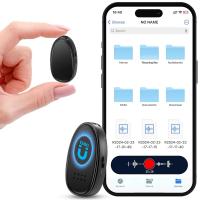
Mini Voice Recorder, Sound-activated & Magnetic, 128GB 1600H Capacity with AI Noise Cancelling Kentfaith
13
$94.99 $53.99
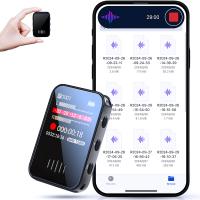
Mini Sound Recorder 128GB 1600H Recording Capacity with 1.4" Screen, Voice Activated Mode Kentfaith
12
$99.99 $79.99
67mm Clip-on ND2-32 Phone Camera Lens Filter Kit Applicable to All Mobile Phone Models
24
$37.99
Children’s Entry-Level Metal Detector, High Sensitivity, With LCD Display and Sound Indication, Suitable for Beginners
144
$64.49 $50.99
67mm Clip-on Black Mist 1/4 Phone Camera Lens Filter Kit Applicable to All Mobile Phone Models
24
$29.99
52mm Clip-on CPL Phone Camera Lens Filter Kit, Circular Polarizer Polarizing Filter Applicable to All Mobile Phone Models
24
$16.99
Products You May Like
K&F Concept XU08 58mm UV Protection Filter Multi Coated Ultra-Slim
$35.99 $19.99
T2 Lenses to Sony E Lens Mount Adapter K&F Concept M28101 Lens Adapter
147
$45.99 $23.99
6000mAh Power Bank Grip Supports Sony RX100 VII Canon G7X Mark III Compact Digital Camera, GoPro 10 9 8 Action Camera, DJI OSMO Pocket and iPhone 13 Samsung Google OnePlus Smartphone Black
$49.99 $36.99
37mm UV Lens Filter HD MCUV Ultraviolet 28 Multi-Coated Filters (Nano-Xcel series Toughened Glass)
78
$37.99 $29.99
2Pack Quick Release Adapter Mount for DJI Osmo Pocket 3 Create Combo, Tripod Mount Fit Arca-Swiss Standard, with 1/4 Screw Hole/Folding Finger,Aluminum Alloy Bracket
14
$27.99
Over Ear Headphones 7.1 Surround Sound Gaming Headset Works with PC, PS4 PRO, Xbox One S, Cell Phone SOMIC Active Noise Canceling with Mic HI-FI USB Jack Game Earphones
23
$65.99
K&F Concept Head Strap & Chest Mount Set for GoPro Hero 13 12 11 10 9 8 7 6 5 4 Session DJI Osmo Action Cameras, Quick Release Adjustable Action Camera Accessories Kit
19
$18.99
Live Feed Trail Cameras
10
$162.99 $106.99
60”/1.5m Carbon Fiber Camera Tripod Lightweight Travel Tripod 17.6lbs Load 360° Ball Head for Vlog,Travel & Work DSLR, A225C0+BH-25L
90
$189.99 $109.99
K&F Concept Push in Fit ND8 (3 Stop) Lens Filter for DJI Osmo Action 5 Pro/Osmo Action 4/Osmo Action 3, 28 Multi-Coated Neutral Density Light Reduction Filter, Optical Glass/Aluminum Alloy Frame
$19.99
Related articles
How To Record Sound From Laptop Speakers?
How To Record Video On Screen With Sound?
How To Record Video With Sound On Pc?
How To Record Phone Screen With Sound?
How To Put Screen Record With Sound?
How To Record Online Video With Sound?
How To Record Messenger Video Call With Sound?
How To Record Music Videos With Good Sound?
How To Record Sound On The Computer?
What Type Of Lens Mount Nikon D3300?
Blog You May Like
How To Search For Cameras In Your House?
When Did The Digital Camera Start Being Used?
Where To Get Camera Lens Cleaned?
What Are Microphone Covers For?
When Should I Use On Camera Flash?
How To Make Camera Surveillance Mount Function?
What Lens To Buy For Dslr Camera?
How To Make Your Eyes Flash On Camera?
What Camera Lens Do I Need?
How Do Metal Detectors Work? A Complete Guide for Beginners and Pros
Related categories
On-Dash Camera C mount lens adapter camera battery trail camera with screen m4/3 adapter
Popular products
Mini Digital Voice Recorder​ video recording camera for youtube sony camera with microphone professional camera backpacks camera laptop backpacks high quality condenser microphone Polarize Filter For Mobile Phone hidden camera detector finder camera backpack with tripod strap clip on phone camera lens
Related searches
Record Wifi Camera Wifi Camera With Sound Best Microphones To Record Vocals Camera Backpack With Laptop Compartment Camera Bag With Laptop Space Camera Bag Backpack With Laptop Security Camera With Alarm Sound Wireless Spy Camera With Sound Small Video Camera With Sound Wireless Security Camera With Sound
Popular searches
58mm Black Mist Filter Minolta Maxxum Lens Mount Action Camera Bag Wireless Security Camera With Solar Panel Variable Nd Filter For Video Best Lens Adapter For The Lumix G7 Screen Voice Recorder Security Camera With Recorder Star Filters Wireless Microphone For Android Phone
Blog Category
  • Activities
  • Guide
    • Filter Guide
    • Lens Adapter
    • Product Review
  • News & Reviews
    • Camera Reviews
    • Sample Gallery
    • News
  • Tutorials
    • Solar eclipse photography
    • Photography Basics
    • Landscape Photography
  • Inspiration
    • Travel
    • Travel Stories
Search Article
Latest from the Blog
How To Make A Camera Flash After Effects?
ND Filter: The Complete Guide to Neutral Density Filters for Photography and Video
What Is Surveillance Camera Control System?
What To Look For In A Dash Cam?
Best Metal Detector for Kids in 2025
Is the Sony A7M5 worth buying?
How To Stream Live From Surveillance Camera?
How Much Does It Cost For Security Cameras?
How To Wear Monocular?
Which Camera Is Best For Low Light Photography?
  • Easy Payment Multilple Payment Options

  • Free Shipping Global WareHouse Shipment

  • No Risk 30-Day No Reason Return

  • Limited Deals Buy More, Save More

  • Tax Free No any surcharges or tax fee

Information
  • About us
  • Contact Us
  • Site Map
  • Blog
  • Video
  • Gallery
  • VIP Membership Rewards
Service
  • Privacy Policy
  • Terms & Conditions
  • Shipping & Delivery
  • Payment Info
  • Warranty, Return & Refund
  • Intellectual Property Rights
  • Ambassador
  • Affiliates
  • Wholesale
Support
  • My account
  • Order History
  • FAQs
  • Extend Warranty
  • Logistics Tracking
Follow us
NewsLetter

Get the latest product, K&F Concept respects your privacy.

Powered By KENTFAITH © 2025