How To Pair Tws Bluetooth Earbuds?
Pairing true wireless earbuds is usually simple, but the first setup can be confusing because there are two earbuds, a charging case, pairing lights, touch controls, and sometimes an app involved. The good news: once they’re paired correctly, most TWS earbuds reconnect automatically when you open the case.
The exact steps vary slightly by brand, but the process is similar for AirPods-style earbuds, budget TWS models, Samsung-style buds, JBL, Soundcore, TOZO, boAt, Redmi, Realme, Skullcandy, and many generic Bluetooth earbuds.
Before you start
Charge the earbuds and the case first. Even if the earbuds light up, low battery can cause pairing failures or one earbud connecting while the other stays silent. I usually leave new earbuds in the case for 15–20 minutes before trying to pair them.
Also keep the earbuds close to your phone. Bluetooth can work across a room, but initial pairing is more reliable when the case and phone are within a foot or two.
If the earbuds have protective stickers on the charging pins, remove them. This is a surprisingly common issue with new earbuds. The earbuds may look like they’re charging, but they are not actually making contact with the case.
Basic method to pair TWS Bluetooth earbuds
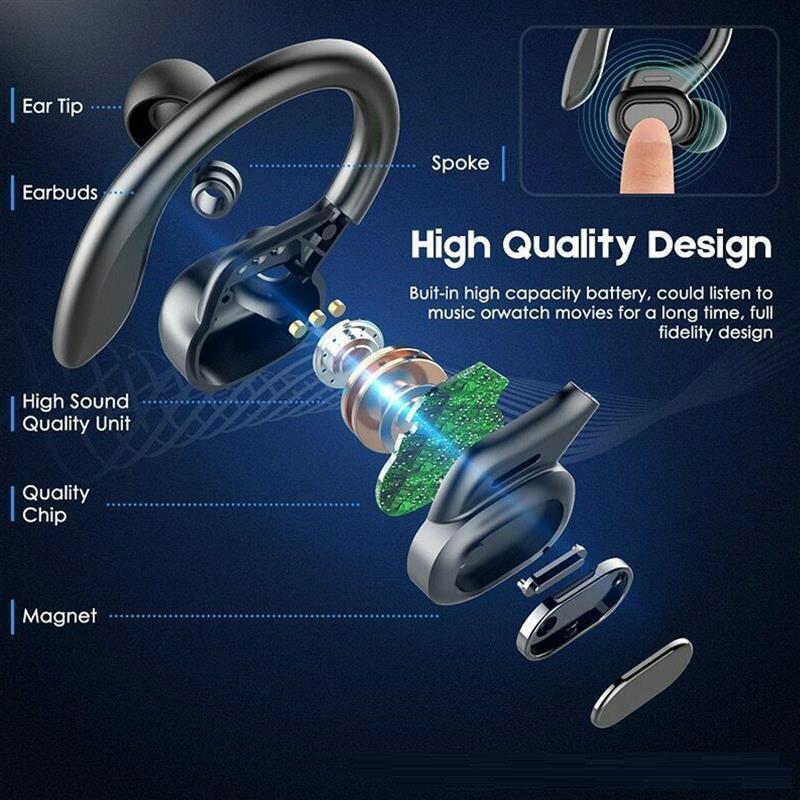
Open your phone’s Bluetooth settings first.
On iPhone:
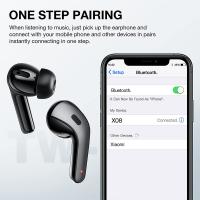
Go to Settings > Bluetooth and turn Bluetooth on.
On Android:
Go to Settings > Bluetooth or Settings > Connected devices > Pair new device. The wording depends on the phone brand.
Now open the earbuds case. For many earbuds, opening the lid automatically puts them into pairing mode if they have never been connected before.
Look for the earbuds’ name under available devices. It may appear as the brand name, model number, or something generic like “TWS,” “Wireless Earbuds,” “Air Buds,” or “Bluetooth Headset.”
Tap the name and wait for the connection confirmation.
After pairing, play music or a video and check both earbuds. If both sides work, you’re done.
If the earbuds do not appear in Bluetooth settings
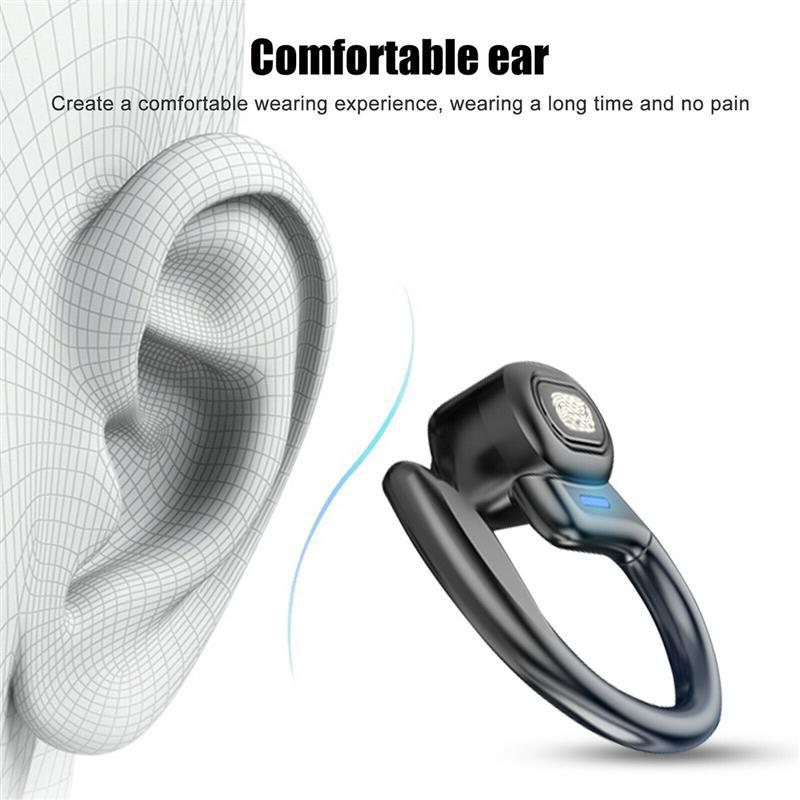
This usually means the earbuds are not in pairing mode.
Put both earbuds back into the case and close the lid for about 10 seconds. Open the lid again and watch the lights. Many earbuds flash white, blue, or red/blue when they are ready to pair.
If nothing appears on the phone, take both earbuds out of the case. Some TWS models enter pairing mode only after they are removed from the case.
Still nothing? Look for a button on the case. Many earbuds use a small pairing button on the back, bottom, or inside the case. Press and hold it for 3–10 seconds until the light starts flashing.
On earbuds without a case button, the pairing command may be on the earbuds themselves. Usually you press and hold the touch panels or physical buttons on both earbuds for a few seconds.
The mistake many people make is holding the button for too short a time. A quick tap might pause music or do nothing. Pairing mode often needs a long press.
How to pair earbuds that were already connected to another phone
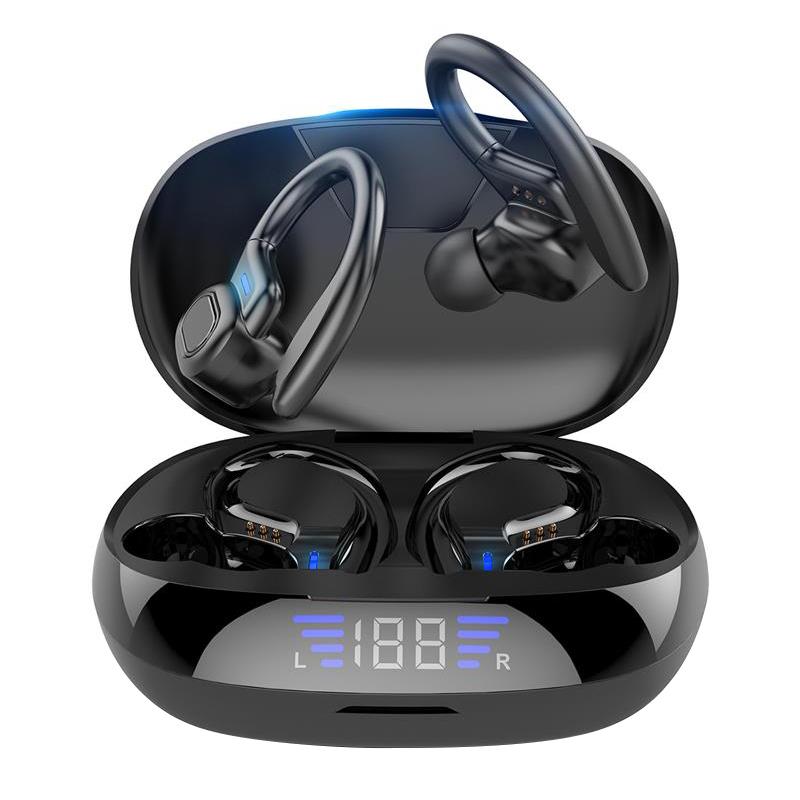
If your earbuds were previously paired with a different phone, tablet, laptop, or TV, they may automatically reconnect to that device instead of showing up on your new phone.
Turn Bluetooth off on the old device, or choose “Forget” / “Unpair” for the earbuds in that device’s Bluetooth settings.
Then put the earbuds back into pairing mode and search again from the new phone.
This matters a lot with budget TWS earbuds. Some models do not handle multiple saved devices gracefully. They keep trying to connect to the last device and never properly advertise themselves to the new one until the old connection is removed.
Pairing only one earbud by accident
A common problem with TWS earbuds is seeing two separate Bluetooth names, such as:
- TWS-L
- TWS-R
- Earbuds Left
- Earbuds Right
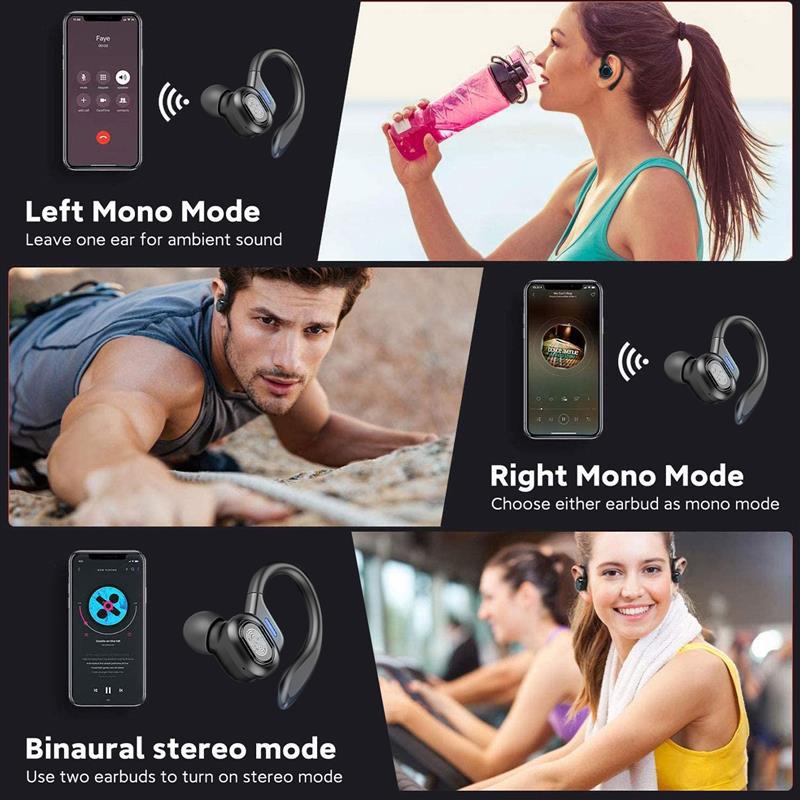
In most cases, you should not pair both separately. One earbud acts as the main earbud and links to the other earbud internally. Your phone should usually connect to a single combined device name.
If you accidentally pair only the left or right earbud, audio may come from one side only.
To fix it, go into your phone’s Bluetooth settings, tap the info icon or gear next to the earbud name, and choose Forget, Unpair, or Remove. Do this for every duplicate earbud entry you see.
Then put both earbuds back in the case, reset them if needed, and pair again from the beginning.
How to reset TWS earbuds
A reset is often the fastest fix if pairing is messy, one side is not working, or the earbuds keep connecting separately.
The exact reset method depends on the model, but these are the most common methods:
Put both earbuds in the charging case and leave the lid open. Press and hold the case button for 10–15 seconds until the indicator light flashes.
If there is no case button, take the earbuds out and press both earbud touch panels or buttons for 10–15 seconds.
Some models require the earbuds to be inside the case while you press and hold both touch areas. Others need you to remove the earbuds first. If one method does not work, try the other.
After the reset, delete the old Bluetooth entry from your phone before pairing again. This step is easy to miss. If the phone still has the old pairing record, it may try to reconnect using broken saved data.
Pairing TWS earbuds with Android
Android phones are usually straightforward, but the menu names differ.
Open Settings, then go to Bluetooth or Connected devices. Tap Pair new device if your phone does not automatically scan.
Open the earbud case or put the earbuds into pairing mode. Wait a few seconds. Do not keep tapping the earbud name repeatedly; sometimes Android needs a moment to negotiate the connection.
Once connected, check the Bluetooth device settings. Some Android phones let you enable or disable media audio and calls separately. If your earbuds connect but music still plays from the phone speaker, make sure Media audio is enabled.
For earbuds with a companion app, install it after the basic Bluetooth connection works. Apps are useful for firmware updates, EQ settings, noise cancellation modes, and touch control changes, but they usually are not required for basic pairing.
Pairing TWS earbuds with iPhone
On iPhone, go to Settings > Bluetooth and leave that screen open.
Open the earbuds case and wait for the earbuds to appear under Other Devices. Tap the name once.
If they do not show up, put the earbuds into pairing mode using the case button or touch controls.
For AirPods and some Beats models, the iPhone may show a pop-up card instead of requiring you to go through the normal Bluetooth list. Generic TWS earbuds will usually pair like standard Bluetooth headphones.
If your earbuds connect but sound is not coming through them, open Control Center, tap the audio output icon, and choose the earbuds as the playback device.
Pairing with a laptop
For Windows, open Settings > Bluetooth & devices > Add device > Bluetooth. Put the earbuds into pairing mode and select them when they appear.
If Windows shows two versions of the earbuds, choose the one that looks like headphones or audio, not a low-energy control device. Windows can sometimes display confusing Bluetooth entries.
For Mac, go to System Settings > Bluetooth, put the earbuds in pairing mode, and click Connect next to the earbud name.
One practical note: earbuds that work perfectly with phones can be slightly annoying with laptops, especially for calls. Windows may switch between “headphones” mode and “headset” mode, which can affect sound quality during meetings. That is normal Bluetooth behavior, not necessarily a fault with the earbuds.
Why only one earbud is connecting
If only one side works, start with the case. Put both earbuds back in and make sure both show a charging light. Clean the charging contacts gently with a dry cotton swab if one side does not respond.
Then remove both earbuds at the same time. Many TWS earbuds sync to each other during the first few seconds after leaving the case. If you take one out much earlier than the other, some cheap models can get confused.
If that does not fix it, forget the earbuds from your phone and reset them. One-sided audio is very often caused by the left and right earbuds losing their internal pairing, not by a Bluetooth problem with the phone.
Why pairing fails even when the earbuds show up
If your phone sees the earbuds but says pairing failed, try these fixes:
Turn Bluetooth off and on again on the phone.
Restart the phone if it has not been restarted in a while. Bluetooth stacks can get stuck, especially after connecting to cars, watches, speakers, and multiple headphones.
Forget any old entries for the same earbuds.
Move away from other Bluetooth devices for a minute. You do not need a perfectly empty room, but if the earbuds are trying to reconnect to a laptop or TV nearby, setup can fail.
Reset the earbuds and pair again.
If the earbuds have an app, check whether the brand recommends pairing through the app or through Bluetooth settings first. Most pair through Bluetooth first, but a few app-driven models behave better when the app guides the process.
After pairing: make reconnection easier
Once the earbuds are paired, you usually do not need to repeat the process. Leave Bluetooth on, open the case, and they should reconnect automatically.
If they do not reconnect, avoid deleting and resetting everything immediately. First, tap the earbuds name in Bluetooth settings. Sometimes the phone simply does not auto-connect after a long gap.
Also check whether the earbuds connected to another device nearby. This happens often if you use the same earbuds with a phone and laptop. Many basic TWS earbuds do not support true multipoint connection, so they can only stay connected to one device at a time.
The simplest reliable pairing routine
If you want the cleanest method, do this:
Forget old earbud entries from your phone.
Charge both earbuds in the case.
Open the case and put the earbuds into pairing mode.
Pair only the main combined earbud name, not separate left/right listings.
Test both earbuds with music.
If anything behaves strangely, reset the earbuds and start again.
Most TWS pairing problems come from old Bluetooth records, earbuds connecting separately, or one earbud not charging properly. Once those are sorted, pairing usually takes less than a minute.