kfconcept

KENTFAITH
K&F Concept    Blog >

Enjoy Your Selected Digital Life

Recently Viewed
  • Recently Viewed
  • Recently Viewed list is empty.

Compare (0) 0
  • Compare
  • You have not chosen any products to compare.

  • Compare
Currency: USD
  • Currency
Shop by Scene Shop by Rank

Log Into Your Account

Account

Order History

Wish List

Login

Forgotten Password?

Or connect with

Register Account

Already have an Account?Log In

  • Shopping Cart
  • Your shopping cart is empty!

  • Register/Login to purchase, earn points
  • Favorite
  • Your wish list is empty.

  • Register/Login to like, earn points
  • Activities
  • Guide
    • Filter Guide
    • Lens Adapter
    • Product Review
  • News & Reviews
    • Camera Reviews
    • Sample Gallery
    • News
  • Tutorials
    • Solar eclipse photography
    • Photography Basics
    • Landscape Photography
  • Inspiration
    • Travel
    • Travel Stories
  • Home
  • Blog
  • How To Fix My Lenovo Laptop Microphone ?

How To Fix My Lenovo Laptop Microphone ?

Kentfaith 2023-01-17 06:30:48 0 Comments

With the popularity of video conferencing and online communication, the microphone on laptops has become increasingly important. However, many Lenovo laptop users find that their microphone has problems at critical moments, affecting the normal usage experience. As an expertise blogger, I will detail how to fix Lenovo laptop microphone problems and provide some practical solutions.
1. Check hardware connections and settings

First of all, we need to make sure that there is no problem with the hardware connection and settings of the microphone. Here are some steps to check:

Check the physical connection: make sure the microphone is properly connected to the audio interface of your laptop. If using an external microphone, make sure it is plugged into the correct port.

Built-in microphone settings: Turn on your Lenovo laptop, find the volume control icon, right-click and select "Recording Device". In the pop-up window, make sure the built-in microphone is enabled and set as the default device.

Microphone Mute Check: Sometimes the microphone may be muted by mistake. Check the volume control of the microphone to make sure it is not muted.


2. System Settings and Driver Updates

System settings and driver updates are critical to the proper functioning of the microphone. Below are the steps to follow:

Update the driver: Open the "Device Manager", find the "Audio Input and Output" option, right-click on the microphone device and select "Update Driver". Select the software that automatically searches for newer drivers to make sure the driver is up-to-date.

System Settings Check: In the "Control Panel", select "Hardware and Sound", and then click "Sound". In the "Recording" tab, make sure the microphone is enabled and set as the default device.

Windows Update: Sometimes system updates contain patches to fix problems with audio devices. Check and install all available Windows Updates to make sure your system is up-to-date.


3. Application Settings and Privilege Management

Different applications may require separate settings for microphone permissions and configurations. Below are some common settings:

Application Permissions: In Windows Settings, select "Privacy" and click "Microphone". Ensure that apps are allowed to access the microphone, and check that specific apps have been granted permissions.

Application Settings: Open the application that uses the microphone, such as Skype, Zoom, or Microsoft Teams, go to the Settings menu, make sure the correct microphone device is selected, and adjust the volume setting.


4. Sound settings and troubleshooting

Sometimes, microphone problems can be related to sound settings. Here are some ways to troubleshoot:


Adjust sound settings: In the "Control Panel" in the "Sound" option, select the "Recording" tab, right-click on the microphone device and select "Properties". Properties". In the "Level" tab, adjust the microphone volume to make sure it is not muted.

Troubleshooting tool: Windows provides a built-in audio troubleshooting tool. Open Settings, select Update and Security, and then click Troubleshooting. Select "Record Audio" and run the troubleshooting tool, the system will automatically detect and fix common problems.


5. Common problems and solutions

Users may encounter some common problems when using the microphone on Lenovo notebooks. Below are the solutions:

Microphone is silent: check if the microphone volume is minimized or set to mute by mistake. Make sure all connections are correct and try restarting the computer.

Distorted or garbled sound: This may be a driver issue, try updating the driver or using an external microphone. It could also be excessive ambient noise, consider using a noise-canceling microphone or adjusting your environment.

The application cannot detect the microphone: Make sure you have granted the application microphone access rights and select the correct microphone device in the application settings.


6. Security and privacy

When using the microphone, users should pay attention to security and privacy protection:

Permission management: Grant microphone access only to trusted applications to avoid unnecessary privacy leakage.

Security software: Install and use reliable security software and scan the system regularly to prevent malware from eavesdropping through the microphone.


7. Customer support and technical service

If the above methods still cannot solve the problem, we recommend contacting Lenovo customer support or technical service team. They can provide more specialized help and arrange hardware repair or replacement if necessary.


To summarize, fixing Lenovo laptop microphone problems requires checking and adjusting several aspects such as hardware connection, system settings, application settings, sound troubleshooting and so on. By carefully following the above steps, users can effectively solve the microphone problem and return to normal use. I hope the guidance in this article can help you solve Lenovo laptop microphone problems and improve the overall experience.
Leave your comment
Cancel reply
Note: HTML is not translated!
Related products
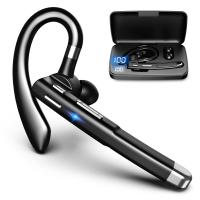
Mobile Phone Bluetooth Earphones Bluetooth V5.1 Earphone Hands-free Single Ear Earphone with CVC8.0 Noise-cancelling Microphone for Office/driving Compatible with Android/iPhone/laptop
1
$14.99
Cell Phone Bluetooth Headphones Bluetooth V5.1 Headphones with Charging Case Hands-Free Single Ear Headphones with CVC8.0 Noise Cancelling Microphone for Office/Driving Compatible with Android/iPhone/Laptop
57
$26.99
K3 One Drag Two Wireless Lavalier Microphone for iPhone 14 pro, 2.4G Noise Reduction, Plug and Play Wireless Lavalier Microphone for YouTube TikTok
33
$37.19 $31.99
Wireless Earbuds Bluetooth Headphones TWS Waterproof with Microphone
66
$31.99
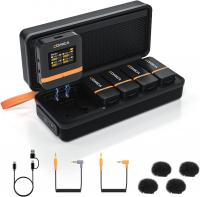
Wireless Lavalier Microphone System with 4 Transmitters and 1 Receiver
$434.99 $304.99
DJI Mic 2, Wireless Lavalier Microphone, Noise Cancelling, 48kHz 32-bit Float Internal Recording, 820 ft.(250m) Range, 18H Battery with Charging Case, Microphone for Camera/Phone, Vlog, Streaming
$704.99 $493.99
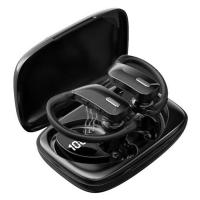
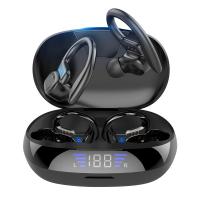
TWS Bluetooth Headset With Microphone Sports Ear Hook LED Display Earbuds
211
$29.99
Wireless Lavalier Microphone for iPhone & Android 48kHz 24bit HiFi Audio Noise Cancelling
16
$134.99 $94.99
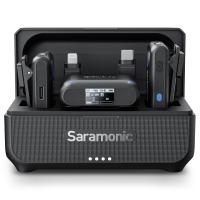
Saramonic Wireless Lavalier Microphone for Smartphone Camera 492ft Range 20h Battery Life
11
$224.99 $157.99
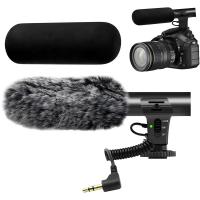
Camera Video Microphone Kit for YouTube, Vlog Windscreen 3.5mm for Phone and Camera
45
$34.99 $19.99
Products You May Like
82mm CPL Filter Circular Polarizer Filter with Lens Cap Optical Glass Ultra Slim 18 Multi-Layer for Camera Lens Nano-Klear Series
46
$29.99 $23.49
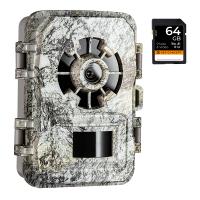
24MP*1296P Night VisionTrail Camera 120° Wide Angle*0.2s Trigger 2” Screen with AA Alkaline Battery and 64G High Speed SD Card
92
$79.99 $74.99
Leica M42 Screw Mount Lens to M4/3 M43 Micro Four Thirds Mount Camera with Matting Varnish Lens Mount Adapter
24
$55.99 $31.99
Canon EOS Lens to Canon EOS R Camera Body Lens Mount Adapter
49
$55.99 $31.99
82mm CPL+MCUV+ND1000+Lens Cap Circular Polarizing Filter MCUV Protection Neutral Density Lens Filters Kit with 24 Layer Coatings Nano-Dazzle Series
72
$78.99 $62.99
62mm White Pro Mist Filter Cinematic Effect Filter with 18 Multi-Layer Coatings for Portrait and Landscape Photography Nano-Klear Series
33
$31.99 $22.49
52mm Magnetic CPL Filter Circular Polarizer Lens Filter Optical Glass Ultra Slim with 18 Multi-Layer Coatings Nano-Klear Series
43
$27.99 $21.99
46mm MCUV Lens Protection Filter with Lens Cap Optical Glass Ultra Slim 18 Multi-Layer Coatings Nano-Klear Series
$8.99
200W webcam with fill light
13
$29.99
Cell Phone Tripod MS02 13.4''/34cm bluetooth selfie stick Desktop Stand Orange Gray
97
$29.99 $21.99
Related articles
How To Fix Microphone On Windows 11?
How To Use Earphone Microphone On Laptop?
How To Set Up Lavalier Microphone On Laptop?
How To Turn On Microphone And Camera On Hp Laptop ?
How To Turn On Camera And Microphone On Dell Laptop ?
Where Can I Find My Camera In Laptop?
Can I Add A Microphone To My Headphones?
How To Fix Camera Battery?
Can I Download A Microphone For My Computer?
Can One Ring Solar Panel Charge Two Cameras?
Blog You May Like
How To Zoom In On A Microscope?
How To Wifi Transfer Videos From Camera Canon?
How Can I Record Audio From The Internet?
How To Draw A Camera Flash?
How Big A Memory Card For Camera?
Can Film Camera Record Video?
How To Find Size For Camera Filter?
How To Find If Smart Tv Has Camera Or Microphone ?
How To Change Canon Camera Wifi Password?
How To Attach A Camera Lens?
Related categories
streaming video camera C mount lens adapter m4/3 adapter time lapse camera Black Pro Mist Filter Kit hard edge graduated neutral density GND filter​
Popular products
wireless microphone and transmitter mini microphone for recording wireless headphones and tv bluetooth headphones to tv external webcam for laptop professional camera backpacks camera laptop backpacks bluetooth phone earphones bluetooth earphone single ear bluetooth headphones with mic
Related searches
Laptop Microphone Usb External Laptop Microphone Laptop Headset With Microphone Laptop Speaker With Microphone Wireless Microphone For Laptop Best Microphone For A Laptop Earphones With Microphone For Laptop Usb Microphone Headset For Laptop Lens Adapter For Lenovo Explorer Wireless Headset With Microphone For Laptop
Popular searches
Amber Coated Lens Need Yellow Filter Battery Hidden Camera Canon Flash Sony Adapter M12 Lens Mount Cad Sony Zv E10 Ii Battery Solar Cctv Camera Wifi Tamron 18-200 Vs Sony 18-200mm E-mount Best Gold Metal Detectors Best Binoculars For Night Hunting Fujifilm X-t4 Lens Mount
Blog Category
  • Activities
  • Guide
    • Filter Guide
    • Lens Adapter
    • Product Review
  • News & Reviews
    • Camera Reviews
    • Sample Gallery
    • News
  • Tutorials
    • Solar eclipse photography
    • Photography Basics
    • Landscape Photography
  • Inspiration
    • Travel
    • Travel Stories
Search Article
Latest from the Blog
What Tripod To Buy?
Which Binoculars To Buy?
Best Metal Detector for Kids in 2025
What Does A Uv Camera Filter Do?
How To Find A Good Digital Camera?
Is the Sony A7M5 worth buying?
How Does a WiFi Trail Camera Work?
What Is The Difference Between Binoculars And Telescope?
How Do Cellular Trail Cameras Work? – The Complete Guide for Hunters and Wildlife Enthusiasts
How Much Storage For Security Camera?
  • Easy Payment Multilple Payment Options

  • Free Shipping Global WareHouse Shipment

  • No Risk 30-Day No Reason Return

  • Limited Deals Buy More, Save More

  • Tax Free No any surcharges or tax fee

Information
  • About us
  • Contact Us
  • Site Map
  • Blog
  • Video
  • Gallery
  • VIP Membership Rewards
Service
  • Privacy Policy
  • Terms & Conditions
  • Shipping & Delivery
  • Payment Info
  • Warranty, Return & Refund
  • Intellectual Property Rights
  • Ambassador
  • Affiliates
  • Wholesale
Support
  • My account
  • Order History
  • FAQs
  • Extend Warranty
  • Logistics Tracking
Follow us
NewsLetter

Get the latest product, K&F Concept respects your privacy.

Powered By KENTFAITH © 2025