kfconcept

KENTFAITH
K&F Concept    Blog >

Enjoy Your Selected Digital Life

Recently Viewed
  • Recently Viewed
  • Recently Viewed list is empty.

Compare (0) 0
  • Compare
  • You have not chosen any products to compare.

  • Compare
Currency: USD
  • Currency
Shop by Scene Shop by Rank

Log Into Your Account

Account

Order History

Wish List

Login

Forgotten Password?

or connect with

Register Account

Already have an Account?Log In

  • Shopping Cart
  • Your shopping cart is empty!

  • Register/Login to purchase, earn points
  • Favorite
  • Your wish list is empty.

  • Register/Login to like, earn points
  • Activities
  • Guide
    • Filter Guide
    • Lens Adapter
    • Product Review
  • News & Reviews
    • Camera Reviews
    • Sample Gallery
    • News
  • Tutorials
    • Solar eclipse photography
    • Photography Basics
    • Landscape Photography
  • Inspiration
    • Travel
    • Travel Stories
  • Home
  • Blog
  • How To Save Dash Cam Footage?

How To Save Dash Cam Footage?

Kentfaith 2026-08-10 00:57:48 0 Comments

Whether you need to secure footage after an accident or simply want to review a recent clip, there are several reliable ways to save dash cam footage. The method you use depends on your camera's connectivity options — micro SD card, Wi-Fi app, USB-C cable, or cloud — and how quickly you need access to the video.

Lock the Video Before It Gets Overwritten

Many dash cams have the ability to "lock" (protect) a video file from being overwritten. Some models even have a dedicated "lock" button. It's a good idea to learn where these buttons are or how to access the lock functionality before you need to actually use it.

  • When you capture something on video that you want to save or protect, immediately hit the button or perform the action identified for your model. Usually, you will see an on-screen confirmation that the video file is now locked and will not be overwritten.
  • If the video is especially critical — for example, you were involved in a car accident — lock the video file, then unplug and put your dash cam in a safe place until you can retrieve the video files.
  • If you are really worried about losing the video and aren't sure how to protect the file from being overwritten, the best thing to do is turn the dash cam off (via either the power button or by physically unplugging it) and store it in a safe place until you can retrieve the video.
  • On Garmin models, you can say "OK Garmin, save video" during the drive and it will be saved in the saved videos folder. You can also depress the lower button on the camera for a few seconds (until it bleeps) after the event, which saves the video clip and puts it in the saved video folder.
  • Most importantly, do not mess with your dash cam while you are driving. The video can wait until you are safely pulled off the road.
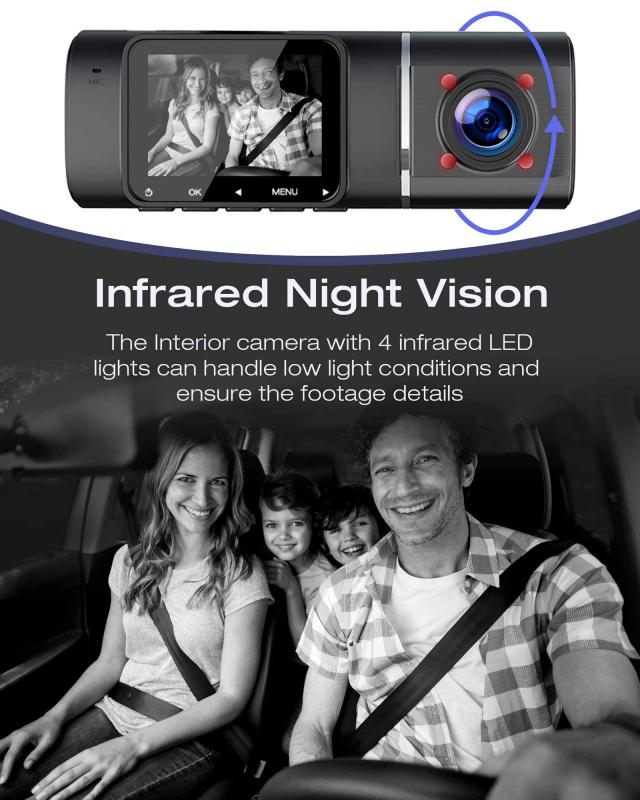
how to save dash cam footage 1

Remove the Micro SD Card and Copy to Your Computer

This is the simplest and highest-quality method. Most dash cams use a micro SD card. In many units you can press the card with your fingernail and it will spring out.

  1. Make sure your car is parked and that the dashcam is turned off before removing the memory card.
  2. Carefully insert your micro SD card into the SD adapter that came with your memory card. Some memory card readers can accept the micro SD card directly and don't need the adapter.
  3. Insert the memory card (or adapter containing the card) into the correct slot on the memory card reader. Some computers have an SD memory card reader built in; if your computer does not have a built-in card reader, you will need to use a USB memory card reader.
  4. Once the memory card is inserted, after a few moments an "AutoPlay" window should pop up. Select the option to "Open folder to view files."
  5. Use your mouse to select all the video files. Holding the left mouse-button down, drag the video files to your PC. It is recommended to drag them to the "Videos" folder in your documents.

Video files are typically MP4, which will play in most players. Older or some models may use AVI or proprietary formats; VLC Media Player or Windows Media Player can help. Many cameras separate event footage into folders — look for folders named RO, Event, Incident, or similar, as impact/locked clips are usually stored there. If you access the raw file on the card, you'll get the full original resolution (4K, 2K, etc.), which is the best source for evidence. If your computer (many Macs) only has USB-C, you'll need a USB-C card reader or adapter.
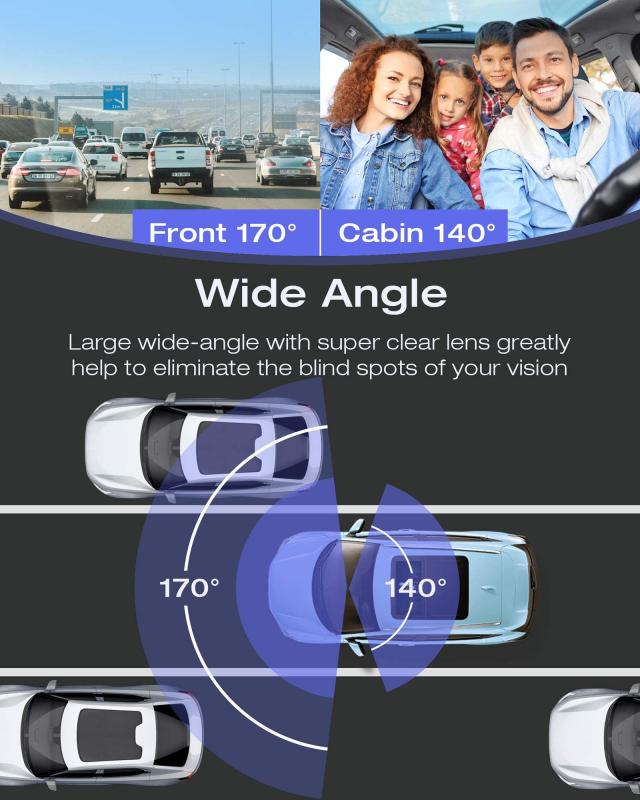
how to save dash cam footage 2

Use the Dash Cam's Smartphone App (Wi-Fi / Bluetooth)

If your dash cam has Wi-Fi (or Bluetooth + Wi-Fi), you can connect your phone directly to the camera and download clips through the manufacturer app. This is handy if you've just had an accident and want to show police or exchange evidence on the spot. Officers often accept evidence on the spot, and you avoid delays dealing with insurance later.

Step 1: Wake the camera's Wi-Fi
On many VIOFO models, press and hold the Wi-Fi button for approximately 5 seconds.
Step 2: Join the dash cam's Wi-Fi network
On your phone, join the dash cam's Wi-Fi network — not your home Wi-Fi.
Step 3: Download the clip
Open the dash cam app, browse to the event/locked folder, and download the clip to your phone. Remember to save the video file, not just a screenshot.

This method delivers a lower-resolution version of the clip compared to pulling the SD card directly. If you don't want to pull out the USB stick, you can buy a third-party accessory that allows download at full resolution.
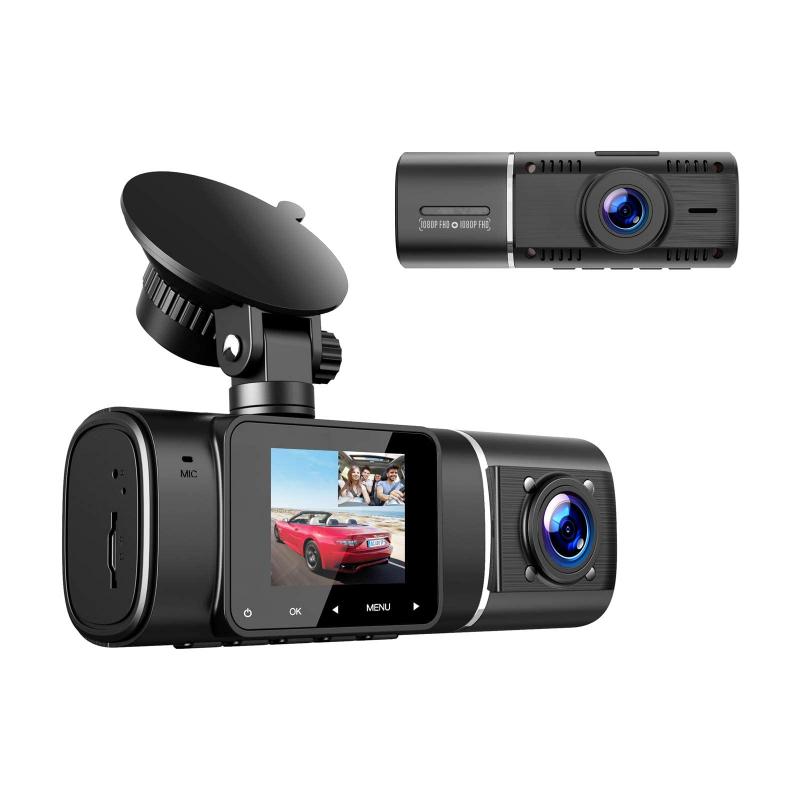
how to save dash cam footage 3

Plug the Dash Cam into Your Phone via USB-C

If you have a newer phone with USB-C (iPhone 15/16 or many Androids), you can plug the dash cam directly into your phone with a USB-C cable and access files via the Files app (or the phone's file browser).

  1. Connect the camera to the phone using the camera's USB-C cable.
  2. Open Files (or the dash cam app if prompted) and navigate to DCIM / Movie / RO (or the event folder).
  3. Select the clip and save/download it to your phone.

This is often easier than setting up Wi-Fi and avoids app pairing frustrations. It is a great option if you just want to "plug and pull" the footage.
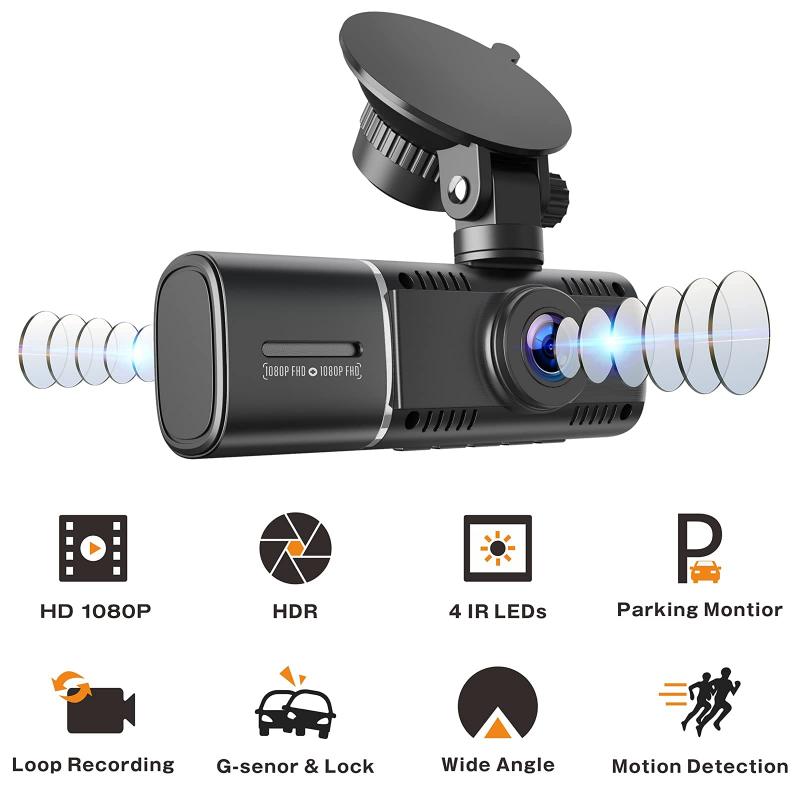
how to save dash cam footage 4

Plug the Dash Cam into Your Computer via USB-C

Many USB-C dash cams will appear directly on your computer when connected by cable. This works like reading the SD card without removing it.

  • Your camera will mount as a removable drive.
  • Navigate to the folders (DCIM, Movie, RO, Event) and drag the desired clip to your desktop.
  • No SD adapter is required, and you retain full file resolution.

Download from the Cloud

Some dash cams accept a SIM card or connect via a paired account to upload certain event videos to the cloud. You can then log in on your phone or desktop and download clips remotely.

  • Cloud downloads are convenient, but often delivered at reduced resolution compared with the original file on the SD card — for example, 4K camera footage may be downsampled to 1080p or 720p.
  • Cloud services typically carry a subscription cost.
  • If possible, always get the original file from the camera or card for best quality and as primary evidence.

Saving Dash Cam Footage on Tesla Vehicles

Tesla's Dashcam requires a properly formatted USB flash drive inserted in the vehicle's USB port to store and retrieve footage. Vehicles manufactured beginning approximately 2020 are equipped with a pre-formatted USB flash drive in the glove box. Enable Dashcam by touching Controls > Safety > Dashcam.

  • To save video footage while driving, touch the dashcam icon on the screen.
  • You can also save dashcam clips by touching the dashcam icon in the app launcher while driving.
  • On some models, the left scroll wheel button can be set to save dashcam on long-press — this is configurable in the menu. You can also keep "save on horn honk" enabled.
  • To view and save recent clips via the Tesla app, go to Security & Drivers > Dashcam Viewer > tap on the clip > tap on Save 30 Second Clip to Photos. This requires premium connectivity. For iOS devices, requires Tesla mobile app version 4.39.5 or newer; for Android, version 4.43.5 or newer.
  • The resolution is better from the USB stick, but the app method is useful in a pinch.

Avoid Screenshots — Download the Actual Video File

Screenshots are not the same resolution. A common mistake is taking screenshots from the app instead of downloading the video — that loses detail. Always download the actual video file to your phone or computer so you can pinch-zoom and extract the best quality. When sharing footage with police or insurers at the scene, show the downloaded clip from your phone.

If you can't find a clip, check alternate folders (RO, Event, Incident). Use VLC if a clip won't play in your default player — it handles more formats. Keep spare high-end micro SD cards (U3/A2 V30 recommended) for 4K recording to ensure reliable capture and retrieval of footage when you need it most.
Leave your comment
Cancel reply
Note: HTML is not translated!
Related products
CarPlay for Motorcycle Android Auto Dash Cam Front and Rear GPS Navigation
12
$299.99 $209.99
Motorcycle Dash Cam with 2K Resolution 140° Wide Angle WiFi Control USB Power Kentfaith
10
$84.99 $67.99
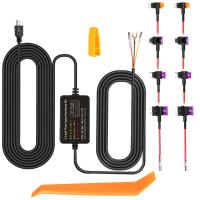
Dash Cam Hardwire Kit, Mini-USB Hard Wire Kit 11.5ft, 12-24V to 5V Car Dash Camera Charger Power Cord, Gift 5 Fuse Tap Cable with Battery Drain Protection for 24h Parking Monitor
$29.99 $20.99
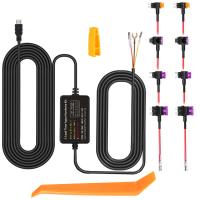
Dash Cam Hardwire Kit, Micro-USB Hard Wire Kit 11.5ft, 12-24V to 5V Car Dash Camera Charger Power Cord, Gift 5 Fuse Tap Cable with Battery Drain Protection for 24h Parking Monitor
$29.99 $20.99
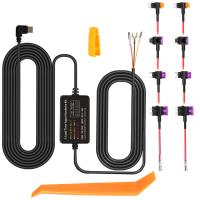
Dash Cam Hardwire Kit, Type-C Hard Wire Kit 11.5ft, 12-24V to 5V Car Dash Camera Charger Power Cord, Gift 5 Fuse Tap Cable with Battery Drain Protection for 24h Parking Monitor
NEW Arrival
Dash Cam Hardwire Kit, Type-C Hard Wire Kit 11.5ft, 12-24V to 5V Car Dash Camera Charger Power Cord, Gift 5 Fuse Tap Cable with Battery Drain Protection for 24h Parking Monitor
$29.99 $20.99
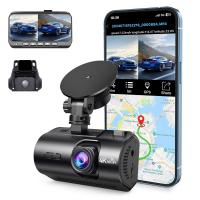
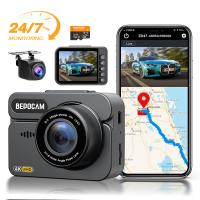
4K Dash Cam Front and Rear with GPS WiFi Night Vision 24H Parking Mode Kentfaith
13
$124.99 $99.99
3-Channel Dash Cam Front and Rear Inside 4K 5G WiFi GPS Night Vision G-Sensor Kentfaith
10
$187.49 $169.99
4K Dash Cam Front and Rear with GPS, 5G WiFi, Starlight Night Vision, G-Sensor, 24H Parking Mode Kentfaith
15
$149.99 $119.99
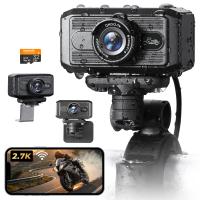
2.7K Motorcycle Dash Cam with 140° Wide Angle, Built-in WiFi, USB Power, Emergency Lock, 3 Types of Mounts, Kentfaith
13
$93.74 $74.99
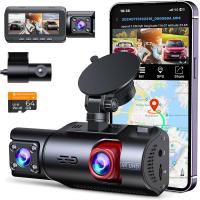
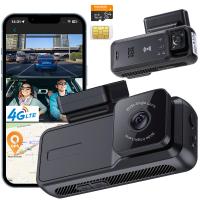
4G LTE Dash Cam Front Inside, Remote Live View, Instant Alert via App, 24/7 Parking Mode, GPS, 1080P IR Night Vision Kentfaith
11
$224.99 $179.99
Products You May Like
AI-NEX Lens Adapter Manual Focus Compatible Nikon F Lenses for Sony E Camera Body
149
$56.99 $31.99
Industrial Pipeline Endoscope, 8 LED Lights, 8mm Lightning Interface Snake Camera, for iPHONE14 13 12 11 X XR 8 7 6 Series IP67 Waterproof 10 Meters Rigid Cable
37
$79.19 $37.99
K&F Concept 24" x36”(60x90cm) 5-in-1 Oval Foldable Reflector with Carrying Bag, Gold, Silver, Black, White Reflective Fabric and Translucent Soft Fabric for Studio Lighting
13
$28.99
K&F Concept Canon EW53 bayonet hood with a vacuum cleaning cloth *1, suitable for EF-M 15-45 mm f/3.5-6.3 IS STM; RF-S 18-45 mm f/4.5-6.3 IS STM and other lenses
1
$7.99
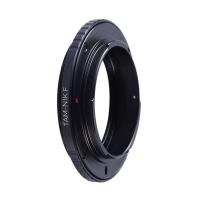
Tamron Adaptall 2 Lenses to Nikon F Lens Mount Adapter K&F Concept M23201 Lens Adapter
9
$53.99 $19.99
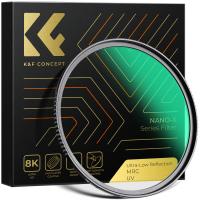
58mm UV Filter 0.1% Ultra-low Reflection (titanium coating ) with 28 Multi-Layer Coatings Nano-Xcel Series
76
$50.99 $33.99
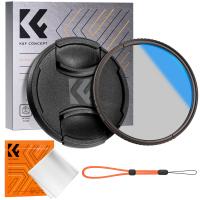
55mm CPL Filter Circular Polarizer Filter with Lens Cap Optical Glass Ultra Slim 18 Multi-Layer for Camera Lens Nano-Klear Series
23
$21.99 $16.99
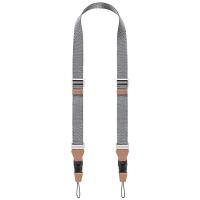
32mm Camera Neck Strap with Quick Release for Photographers, Adjustable Camera Shoulder Sling Strap Compatible for Nikon Canon Sony Olympus DSLR Camera - Strap URBAN WANDER 01 (Grey)
100
$54.99 $33.99
46mm Black Mist Filter 1/8 + 3pcs Cleaning Cloth with 18 Multi-Layer Coatings Nano-Klear Series
212
$32.99 $21.99
72mm White Pro Mist Filter Cinematic Effect Filter with 18 Multi-Layer Coatings for Portrait and Landscape Photography Nano-Klear Series
33
$44.99 $29.99
Related articles
How To Make Dash Cam Always On?
How To Hard Wire A Dash Cam?
Dash Cam Can Connect To Phone?
How Much Storage For Dash Cam?
How Does Car Dash Cam Work?
How Long Does Dash Cam Record?
Why Dash Cam Is Important?
Dash Cam Record When Parked?
How To Use Mobile As Car Dash Cam?
How To Setup V380 Wifi Smart Net Camera ?
Blog You May Like
Can You Use An Nd Filter Inside?
How Does A Digital Camera Sensor Work?
What Is A Macro Camera Lens Used For?
Can Alexa Record Audio For You?
What Is The Difference Between Binoculars And Telescope?
360 Degree Video Camera How Does It Work?
Can You Talk On Wireless Earbuds?
How To Mount Ring Security Camera?
Why Is My Samsung Smart Watch Battery Draining So Fast ?
What To Look For In Night Vision Goggles?
Related categories
On-Dash Camera C mount lens adapter m4/3 adapter ND8 filter ring flash nikon lightweight video tripod step up lens filter adapter rings
Popular products
dashcam 3 channel camera for inside car dash cam with front parking sensor wireless camera for vehicle dash cam hardwire kit hard wire kit dash cam car dash cam kit drive 4k dash cam 4k dash cam front rear car dash cam front and rear
Related searches
Dash Cam Recorder Best Wireless Dash Cam Gps Tracking Dash Cam Best Parking Dash Cam Dash Cam With Bluetooth Wireless Rear Dash Cam Best Dual Dash Cam Dash Cam Motion Detection Dash Cam With App Motion Sensor Dash Cam
Related Scenes
Best Car Camera Dash Cam Best Camera For Dash Cam The Best Dash Cam Camera Best Dash Cam Video Camera Best Camera To Video Sports Best Camera To Capture Wildlife Best Tripod To Travel With Best Video Camera To Record Sports Best Easy To Use Compact Digital Camera The Best Easy To Use Digital Camera
Blog Category
  • Activities
  • Guide
    • Filter Guide
    • Lens Adapter
    • Product Review
  • News & Reviews
    • Camera Reviews
    • Sample Gallery
    • News
  • Tutorials
    • Solar eclipse photography
    • Photography Basics
    • Landscape Photography
  • Inspiration
    • Travel
    • Travel Stories
Search Article
Latest from the Blog
What Headphones Have The Best Sound Quality?
What Can You Use A Microscope For?
How To Carry A Microscope?
Can Earbuds Be Used For Phone Calls?
Which Wireless Earbuds Sound The Best?
Which Security Camera System Is The Best?
How To Play Bass With Headphones?
How To Reset Earbuds Without Buttons?
Which Smart Watch Has Blood Pressure Monitor?
What Hifi Noise Cancelling Headphones?
  • Easy Payment Multilple Payment Options

  • Free Shipping Global WareHouse Shipment

  • No Risk 30-Day No Reason Return

  • Limited Deals Buy More, Save More

  • Tax Free No any surcharges or tax fee

Information
  • About us
  • Contact Us
  • Site Map
  • Blog
  • Video
  • Gallery
  • VIP Membership Rewards
Service
  • Privacy Policy
  • Terms & Conditions
  • Shipping & Delivery
  • Payment Info
  • Warranty, Return & Refund
  • Intellectual Property Rights
  • Ambassador
  • Affiliates
  • Wholesale
Support
  • My account
  • Order History
  • FAQs
  • Extend Warranty
  • Logistics Tracking
Follow us
NewsLetter

Get the latest product, K&F Concept respects your privacy.

Powered By KENTFAITH © 2026