How To Adjust Volume On Earbuds?
Adjusting the volume on earbuds depends on the brand and model you are using. Most earbuds support volume control through touch sensors on the earbuds themselves, through a companion app, or through your phone's volume controls.
Adjusting Volume on Sony Earbuds
The procedure to adjust the volume of the headphones varies depending on the version of the Sony | Headphones Connect app and the headphones software.
- WF-1000XM5
- You can adjust the volume by tapping the touch sensor.
- To increase the volume: quickly tap the touch sensor on the right earbud during music playback. As you repeatedly tap the touch sensor (with an interval of about 0.4 seconds or less between each tap), a notification sound is emitted and the volume increases by 1 step.
- To decrease the volume: quickly tap the touch sensor on the left earbud during music playback. As you repeatedly tap the touch sensor (with an interval of about 0.4 seconds or less between each tap), a notification sound is emitted and the volume decreases by 1 step.
- LinkBuds S, WF-1000XM4, WF-1000XM3, and WF-SP800N
- You can adjust the volume by changing the touch sensor function to volume control using the Sony | Headphones Connect app. The Sony | Headphones Connect app version 6.0.0 (or after) is needed. If your model is WF-1000XM3, update the software of the headphones to version 2.0.2 or after.
Note: Make sure the headphone software and the Sony | Headphones Connect app are updated to the latest version. On a device that can be linked with the headphones, you can change the headphones' volume level using that device. You can't change the headphone volume on a device that can't be linked with the headphones.
Adjusting Volume on Soundcore Earbuds
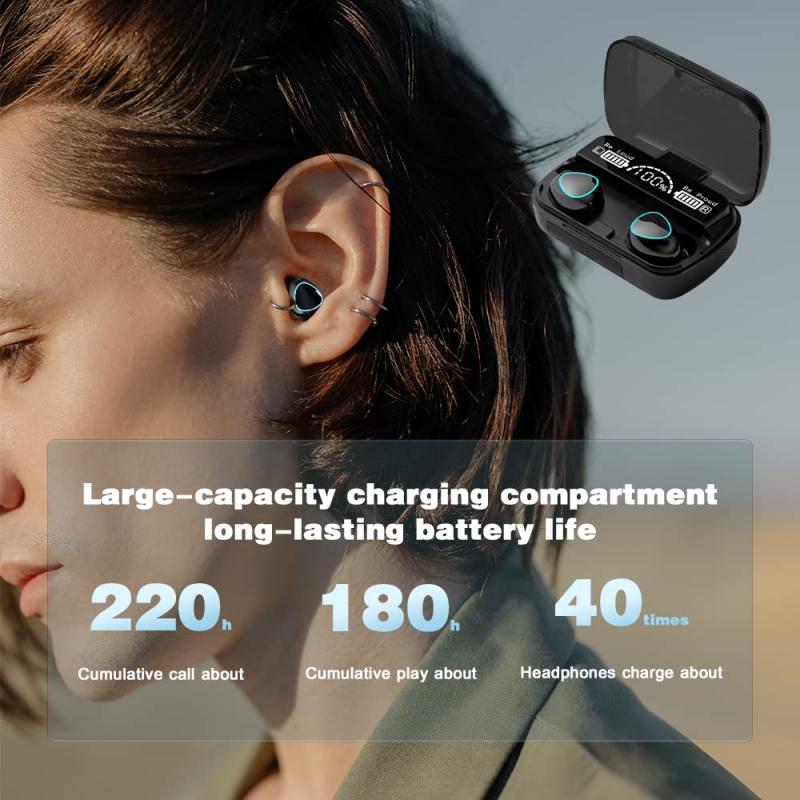
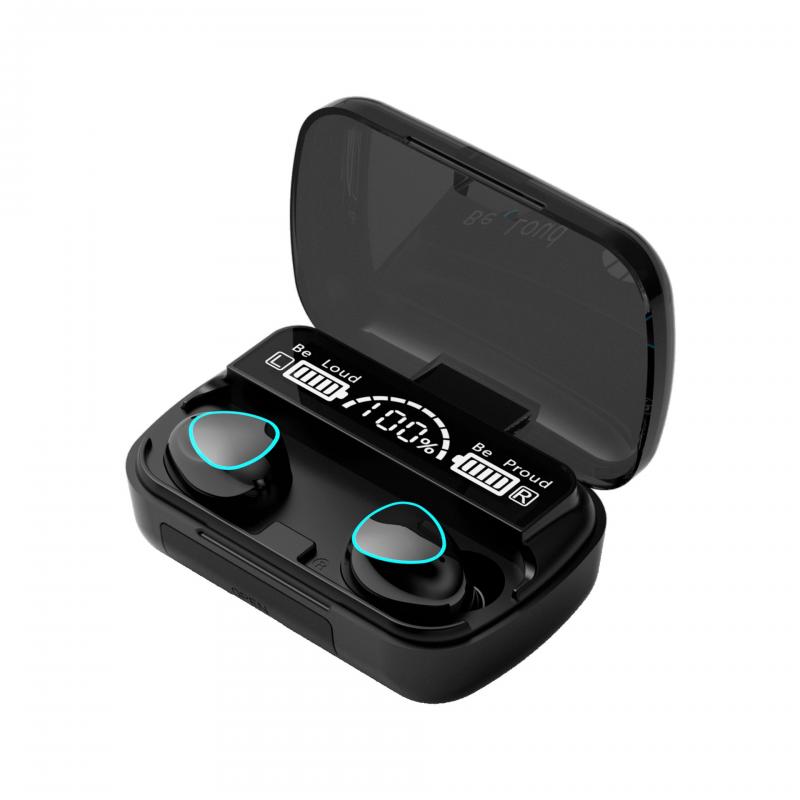
You can adjust the volume manually through the Soundcore app, or by tapping the earbuds.
- Binaural mode: triple-tap the left earbud to decrease the volume, and triple-tap the right earbud to increase the volume.
- You can also control the volume directly from the app.
- Note: in local mode, the volume cannot be adjusted using the volume buttons on your phone.
Customizing Headphone Audio Levels on iPhone or iPad
You can amplify soft sounds and adjust certain frequencies for your hearing needs with Headphone Accommodations in iOS and iPadOS 14 and later. Headphone Accommodations works with these headphones:
- AirPods 2, 3, and 4 (both models)
- AirPods Max (all models)
- AirPods Pro (all models)
- Apple EarPods (with 3.5 mm headphone plug or Lightning connector)
- Beats Fit Pro
- Beats Solo Pro
- Powerbeats
- Powerbeats Fit
- Powerbeats Pro
- Powerbeats Pro 2
Set Up Headphone Accommodations on iPhone or iPad
- Check that you have the latest version of iOS or iPadOS.
- Go to Settings, tap Accessibility, then select Audio & Visual.
- Tap Headphone Accommodations, then turn on Headphone Accommodations.
- Choose how you want to apply your custom audio settings:
- Turn on Phone to apply these settings to phone calls, FaceTime calls, and any third-party video call apps.
- Turn on Media to apply these settings to music, movies, podcasts, audiobooks, Siri, voicemail, and Live Listen.
- Customize your headphone audio settings using Custom Audio Setup or manually adjust audio settings.
Manually Adjust Audio Settings on iPhone or iPad
From the headphone audio screen, you can adjust tone and amplification settings manually. Tap Play Sample to hear an audio sample with your current settings. You can change these settings while listening to the sample to compare them.
You can also adjust the audio volume balance between left and right channels:
- Go to Settings, tap Accessibility, then choose Audio & Visual.
- Adjust the balance slider.
If you're using Transparency Mode on your AirPods Pro or AirPods Max, you can manually adjust audio settings — including adjusting the left-right balance — in the Headphones Accommodations settings on your device. When using automatic device switching with your headphones, your custom audio settings will transfer between your iPhone, your iPad, your paired Apple Watch (on watchOS 7), your Mac running macOS Sequoia, and your Apple Vision Pro.
Adjusting Volume on Android Devices Using Samsung Sound Assistant
Samsung Sound Assistant from the Galaxy Store provides additional volume control options. The trick is to enable "Volume Panel Theme" — that changes the volume widget that pops up when you press the volume button. The new slider has an option that the default one doesn't have: a volume setting for the currently open app. For apps like YouTube, you can reduce the volume individually, and for other apps keep it at full volume. Any time an app volume is in the wrong range, you can adjust the volume range for that app in a couple of quick clicks.
The Sound Assistant is built into the system settings on some Galaxy devices (such as Galaxy Note 9), and can also be found and opened from the Galaxy Store. Using the volume rocker to bring up the volume on-screen display and then using the touchscreen provides finer control over the volume level.
Another option is to turn off Dolby Atmos on Samsung phones. With Dolby Atmos disabled, volume can be turned down to even lower levels with more precise control. You can also try using a custom equalizer — decreasing the output gain through an equalizer app may work as an alternative volume reduction method.