kfconcept

KENTFAITH
K&F Concept    Blog >

Enjoy Your Selected Digital Life

Recently Viewed
  • Recently Viewed
  • Recently Viewed list is empty.

Compare (0) 0
  • Compare
  • You have not chosen any products to compare.

  • Compare
Currency: USD
  • Currency
Shop by Scene Shop by Rank

Log Into Your Account

Account

Order History

Wish List

Login

Forgotten Password?

Or connect with

Register Account

Already have an Account?Log In

  • Shopping Cart
  • Your shopping cart is empty!

  • Register/Login to purchase, earn points
  • Favorite
  • Your wish list is empty.

  • Register/Login to like, earn points
  • Activities
  • Guide
    • Filter Guide
    • Lens Adapter
    • Product Review
  • News & Reviews
    • Camera Reviews
    • Sample Gallery
    • News
  • Tutorials
    • Solar eclipse photography
    • Photography Basics
    • Landscape Photography
  • Inspiration
    • Travel
    • Travel Stories
  • Home
  • Blog
  • How To Fix Microphone On Windows 11?

How To Fix Microphone On Windows 11?

Kentfaith 2024-12-25 02:29:38 0 Comments

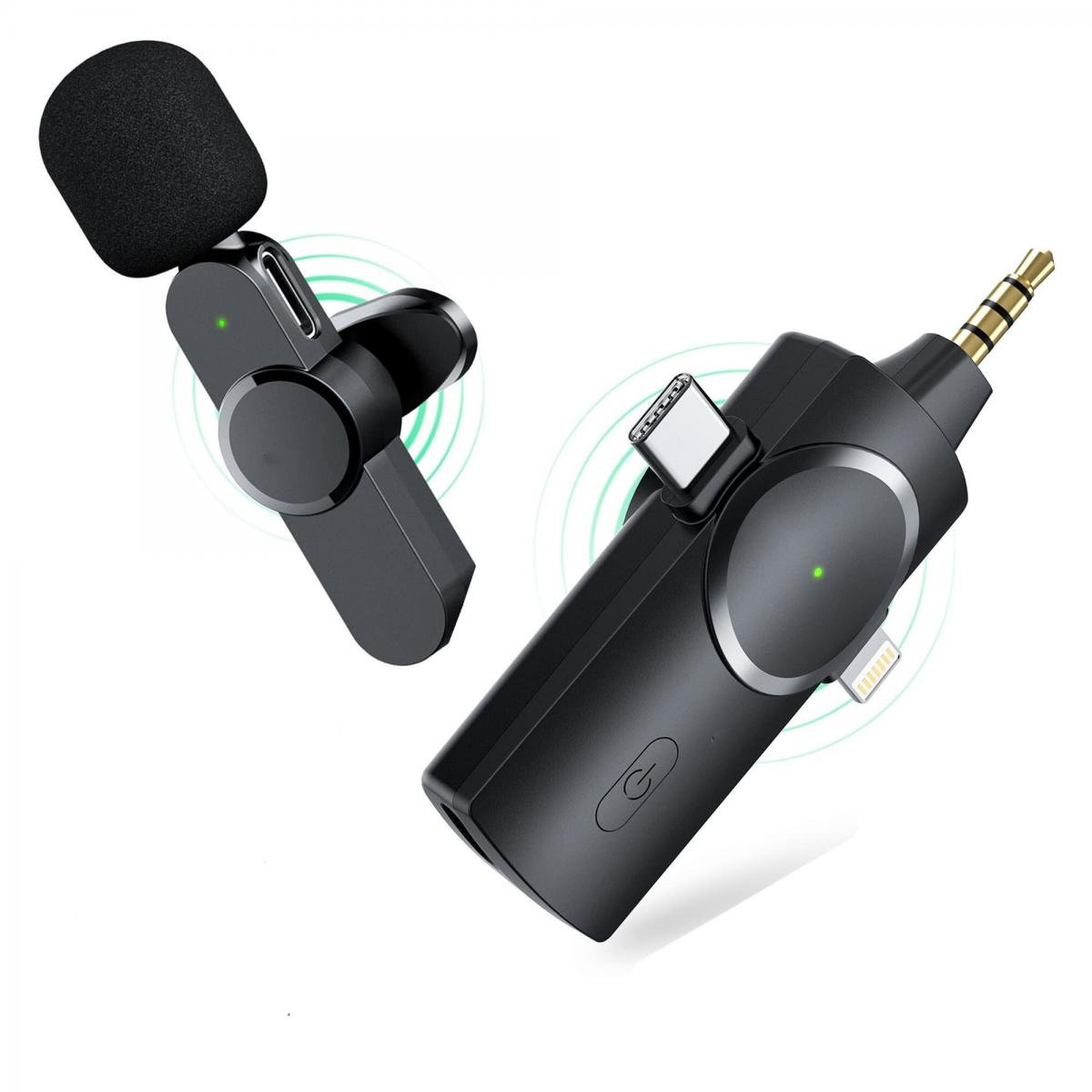
Microphones play an essential role in modern computing, from enabling communication during online meetings to recording audio for creative projects. However, encountering issues with your microphone on Windows 11 can be frustrating. This article aims to provide a comprehensive solution for diagnosing and fixing microphone problems in Windows 11.

---

Understanding the Root Causes of Microphone Issues

Before diving into the solutions, it’s important to understand the potential causes of microphone issues:

1. Hardware Malfunction: Physical damage or improper connection.

2. Driver Issues: Outdated or corrupt drivers can prevent functionality.

3. Software Conflicts: Incorrect application settings or conflicts between applications.

4. Operating System Settings: Misconfigured privacy settings or audio controls in Windows 11.

5. Compatibility Issues: External devices may not be compatible with your system.

Identifying the root cause can help streamline the troubleshooting process.

---

Step-by-Step Troubleshooting for Microphone Issues

1. Check the Physical Connection

- For External Microphones: Ensure the microphone is securely connected to the correct port (USB or 3.5mm jack).

- For Built-in Microphones: Check if the laptop or device's hardware is functional.

- Cable Inspection: Look for visible damage to the microphone cable or connector.

2. Verify Microphone Functionality

To confirm the microphone is not defective:

1. Plug the microphone into another device (e.g., a smartphone or another computer).

2. Test the built-in microphone using a voice recording application.

If the microphone works on other devices, the issue lies within your Windows 11 system.

---

3. Enable and Configure the Microphone in Windows Settings

Sometimes, the microphone is disabled by default. Follow these steps:

1. Open Settings by pressing `Windows + I`.

2. Navigate to System > Sound.

3. Scroll to Input and select your microphone under Choose a device for speaking or recording.

4. Speak into the microphone and check if the input meter responds.

Adjust Volume Levels:

- In the same settings window, increase the microphone volume to ensure it’s not too low.

---

4. Allow Microphone Access

Windows 11 has stringent privacy settings that might restrict microphone access. To adjust these:

1. Go to Settings > Privacy & Security > Microphone.

2. Ensure the Microphone access toggle is enabled.

3. Scroll down and ensure individual apps (like Teams, Zoom, or Skype) have permission to use the microphone.

---

5. Update or Reinstall Audio Drivers

Outdated or corrupt drivers can cause your microphone to malfunction. To update or reinstall drivers:

1. Press `Windows + X` and select Device Manager.

2. Expand Audio inputs and outputs.

3. Right-click your microphone and choose Update driver.

4. Select Search automatically for drivers and follow the prompts.

To reinstall drivers:

1. Right-click the microphone device and choose Uninstall device.

2. Restart your computer. Windows will automatically reinstall the default driver.

---

6. Run the Windows Troubleshooter

Windows 11 includes a built-in troubleshooter to diagnose audio issues:

1. Open Settings > System > Troubleshoot > Other troubleshooters.

2. Locate and run the Recording Audio troubleshooter.

3. Follow the on-screen instructions to resolve detected issues.

---

7. Adjust Advanced Audio Settings

For finer control over microphone settings:

1. Open Control Panel and navigate to Hardware and Sound > Sound.

2. Switch to the Recording tab, select your microphone, and click Properties.

3. Under the Levels tab, ensure the volume is set appropriately.

4. In the Advanced tab, experiment with different sample rates (e.g., 44100 Hz or 48000 Hz).

Disable Audio Enhancements:

Some enhancements may interfere with your microphone. In the same Properties window, go to the Enhancements tab and check Disable all enhancements.

---

8. Resolve Application-Specific Issues

If the microphone works in some applications but not others, the issue could be app-specific:

1. Check the application’s audio settings to ensure the correct microphone is selected.

2. Update the application to the latest version.

3. Look for conflicting settings, such as push-to-talk, in communication apps.

---

9. Test with Third-Party Tools

To verify microphone functionality, use third-party applications or websites:

1. Websites like [Online Mic Test](https://www.onlinemictest.com/) can quickly confirm functionality.

2. Download voice recording or audio diagnostic software to identify advanced issues.

---

Common Pitfalls and How to Avoid Them

1. Ignoring Updates: Regularly update your system and applications to avoid compatibility issues.

2. Using Faulty Adapters: When using adapters for external microphones, ensure they are high-quality and compatible.

3. Not Restarting: After making major changes, always restart your computer to apply settings.

4. Overlooking Permissions: Many users forget to enable app-specific microphone permissions.

---

When to Seek Professional Help

If none of the steps above resolve the issue, it might indicate hardware damage or a deeper system problem. Consider:

1. Contacting the microphone manufacturer for support.

2. Consulting a professional technician to diagnose hardware issues.

3. Reinstalling Windows 11 if the problem appears to be OS-related.

---

Preventative Tips for Long-Term Functionality

1. Handle Microphones with Care: Prevent physical damage by avoiding pulling or twisting cables.

2. Use High-Quality Equipment: Invest in durable microphones compatible with Windows 11.

3. Regular Maintenance: Periodically clean your microphone and ensure drivers are updated.

4. Check Compatibility Before Updates: Ensure external devices are compatible with the latest Windows 11 updates.

---

Conclusion

Fixing microphone issues in Windows 11 requires a systematic approach, from verifying hardware functionality to fine-tuning software settings. By following the steps outlined in this guide, most users can diagnose and resolve microphone problems efficiently. For persistent issues, seeking professional support ensures that both hardware and software are functioning optimally.

Whether you’re using your microphone for work, gaming, or creative pursuits, this guide equips you with the knowledge to get it working seamlessly again.
Leave your comment
Cancel reply
Note: HTML is not translated!
Related products
52mm Clip-on ND2-400 Phone Camera Lens Filter Kit, Adjustable Neutral Density Filter Compatible models: iPhone 15 series / 14 series / 13 series / 12 series / 11 series
113
$25.99
4.3" LCD Screen Digital Coin Microscope, 50X-1000X Magnification, Work with Windows/Mac iOS
24
$107.99 $88.99
67mm Clip-on CPL Phone Camera Lens Filter Kit Applicable to All Mobile Phone Models
24
$18.99
Digital Camera for Microscopes 5 Megapixel Color CMOS for Windows Mac OS Android Phones Kentfaith
12
$99.99 $79.99
67mm Clip-on ND2-32 Phone Camera Lens Filter Kit Applicable to All Mobile Phone Models
24
$37.99
K3 One Drag Two Wireless Lavalier Microphone for iPhone 14 pro, 2.4G Noise Reduction, Plug and Play Wireless Lavalier Microphone for YouTube TikTok
33
$37.19 $31.99
Wireless Earbuds Bluetooth Headphones TWS Waterproof with Microphone
66
$31.99
Wireless WiFi Microscope with Foldable Stand, 50X-1000X Magnification, Work with iPhone, iPad, Android, Mac, Windows
11
$47.99
Action Camera Waterproof Set 21 in 1 for GOPRO Hero 9/10/11/12 (Only Ship to US)
104
$37.99 $22.99
67mm Clip-on Black Mist 1/4 Phone Camera Lens Filter Kit Applicable to All Mobile Phone Models
24
$29.99
Products You May Like
ND16&PL Filter Compatible with DJI Mini 4 Pro, Fixed 4 Stops Light Reduction and Polarizing 2-in-1 Filter, Multi-Function HD Optical Glass Filter
$24.99
Pentax PK Mount Lens to Fujifilm Fuji X-Series X FX Mount Cameras with Matting Varnish Design Compatible for Fuji XT2 XT20 XE3 XT1 X-T2 K&F Concept Lens Mount Adapter
58
$64.99 $35.99
6X Laser Rangefinder with Slope, ATuMan 800 Yard High Accuracy, Pin Lock, Pulse Vibration, Rechargeable, HD View, Golf Accessories for Men & Women
35
$285.59 $99.99
Expansion Adapter Mount Compatible with DJI Osmo Pocket 3, Extended Mounting Bracket Frame with Cold Shoe Mount/ 1/4" Screw Hole, Fit Action Camera Port
29
$14.99
Night Vision Trail Camera No Flash
10
$162.99 $106.99
Beta Camera Backpack 20L DSLR/SLR Camera Bag Fits 15.6" Laptop, Tripod, Waterproof for Men/Women Outdoor Photography/Hiking/Travel  - Backpack 20L Urban Wander 01 (Dark brown)
Beta Camera Backpack 20L DSLR/SLR Camera Bag Fits 15.6" Laptop, Tripod, Waterproof for Men/Women Outdoor Photography/Hiking/Travel - Backpack 20L Urban Wander 01 (Dark brown)
105
$153.99 $86.99
Microscope Camera 4K 30fps Clarity HDMI + Type C Output Sony 1/1.8" Color CMOS Kentfaith
$212.49 $169.99
82mm Black Mist 1/8 Filter + Lens Cap, Mist Cinematic Effect Filter with 18 Multi-Layer Coatings for Video, Vlog, Portrait Photography Nano-Klear Series
20
$58.99 $39.37
Insite Air Smart Trail Camera
10
$162.99 $106.99
Beschoi L541 Speedlite Flash Universal On-camera Flash with LCD Display for Canon Nikon Panasonic Olympus Pentax and Other DSLR Cameras with Standard Hot Shoe
$44.99
Related articles
How To Change Camera Lens On Iphone 11?
How To Use Microphone With Camera Windows 10?
How To Fix My Lenovo Laptop Microphone ?
How To Find Camera On Laptop Windows 7?
How To Fix Strap On Canon Camera?
How To Fix Camera On Tripod Stand?
How To Fix Memory Card Error On Camera?
How To Fix Night Vision On Security Camera?
How To Fix The Straps On A Camera?
Where To Buy Telescopes?
Blog You May Like
How To Charge Crosstour Action Camera?
How To Make Sound Recorder Record Computer?
What Is Nikon Dx Mount?
When To Use Nd Filter On Dslr?
What Do Indoor Security Cameras Look Like?
Can Projector Work On Wall?
How To Choose The Best Digital Camera?
Where To Position Lights For Photography?
Where To Look At Camera For Video?
How To Find Camera In Mirror?
Related categories
On-Dash Camera streaming video camera C mount lens adapter m4/3 adapter filter matte box Lens Filter Holder
Popular products
high quality condenser microphone nd filter for iphone 17 pro wireless microphone transmitter receiver Polarize Filter For Mobile Phone clip on phone camera lens digital microscope for coins Iphone Lens Filter Kit lens filter step down ring nd filter for dji osmo action best digital coin microscope
Related searches
Microphone On Iphone 11 Mini Microphone For Iphone 11 Iphone 11 Pro Max Microphone Clip On Lavalier Microphone Microphone On Ipad Air On Camera Wireless Microphone Clip On Mini Microphone Bluetooth Clip On Microphone Bluetooth Clip On Wireless Microphone Microphone For Recording On Iphone
Popular searches
Sony A74 Battery M42 Screw Mount Adapter Sony A7s 4k Adapter M42 To Nikon F Leica R Mount Lenses List Optical Lens Camera Best Pl To Mft Adapter Best 2 Camera Baby Monitor No Wifi High Resolution Wifi Security Camera Canon Eos 70d Compatible With Ef Mount
Blog Category
  • Activities
  • Guide
    • Filter Guide
    • Lens Adapter
    • Product Review
  • News & Reviews
    • Camera Reviews
    • Sample Gallery
    • News
  • Tutorials
    • Solar eclipse photography
    • Photography Basics
    • Landscape Photography
  • Inspiration
    • Travel
    • Travel Stories
Search Article
Latest from the Blog
How Does a WiFi Trail Camera Work?
How To Remove Memory Card From Nikon Camera?
Which Bluetooth Earphones?
What Is The Best Camera To Record Videos?
How To Place Cameras Around Your House?
Neutral Density Filter: The Ultimate Guide for Photographers and Videographers
How To Fix The Straps On A Camera?
How To Find A Good Digital Camera?
Where Can I Find Hidden Cameras?
What Power Binoculars For Long Distance Viewing?
  • Easy Payment Multilple Payment Options

  • Free Shipping Global WareHouse Shipment

  • No Risk 30-Day No Reason Return

  • Limited Deals Buy More, Save More

  • Tax Free No any surcharges or tax fee

Information
  • About us
  • Contact Us
  • Site Map
  • Blog
  • Video
  • Gallery
  • VIP Membership Rewards
Service
  • Privacy Policy
  • Terms & Conditions
  • Shipping & Delivery
  • Payment Info
  • Warranty, Return & Refund
  • Intellectual Property Rights
  • Ambassador
  • Affiliates
  • Wholesale
Support
  • My account
  • Order History
  • FAQs
  • Extend Warranty
  • Logistics Tracking
Follow us
NewsLetter

Get the latest product, K&F Concept respects your privacy.
Powered By KENTFAITH © 2025