kfconcept

KENTFAITH
K&F Concept    Blog >

Enjoy Your Selected Digital Life

Recently Viewed
  • Recently Viewed
  • Recently Viewed list is empty.

Compare (0) 0
  • Compare
  • You have not chosen any products to compare.

  • Compare
Currency: USD
  • Currency
Shop by Scene Shop by Rank

Log Into Your Account

Account

Order History

Wish List

Login

Forgotten Password?

Or connect with

Register Account

Already have an Account?Log In

  • Shopping Cart
  • Your shopping cart is empty!

  • Register/Login to purchase, earn points
  • Favorite
  • Your wish list is empty.

  • Register/Login to like, earn points
  • Activities
  • Guide
    • Filter Guide
    • Lens Adapter
    • Product Review
  • News & Reviews
    • Camera Reviews
    • Sample Gallery
    • News
  • Tutorials
    • Solar eclipse photography
    • Photography Basics
    • Landscape Photography
  • Inspiration
    • Travel
    • Travel Stories
  • Home
  • Blog
  • How To Find Camera In Mac?

How To Find Camera In Mac?

Kentfaith 2024-07-02 03:18:48 0 Comments

Finding and using the camera on a Mac can be a straightforward process, but it can also present some challenges for users who are not familiar with macOS. This article aims to provide a comprehensive guide on how to locate and use the camera on your Mac, addressing common issues and offering practical solutions.

Understanding the Built-in Camera
how to find camera in mac 1

Most modern Mac computers come with a built-in camera, commonly referred to as the FaceTime HD camera. This camera is typically located at the top center of the screen on MacBooks, iMacs, and some external Apple displays. The camera is designed to work seamlessly with macOS and various applications that require video input.

Checking Camera Availability
how to find camera in mac 2

Before diving into how to use the camera, it's essential to ensure that your Mac has a built-in camera. Here’s how you can check:

1. Physical Inspection: Look at the top center of your Mac’s screen. You should see a small lens, which is the built-in camera.

2. System Information: Go to the Apple menu and select "About This Mac." Click on "System Report" and then select "Camera" from the list of hardware components. If a camera is listed, your Mac has a built-in camera.

Using the Camera with Applications
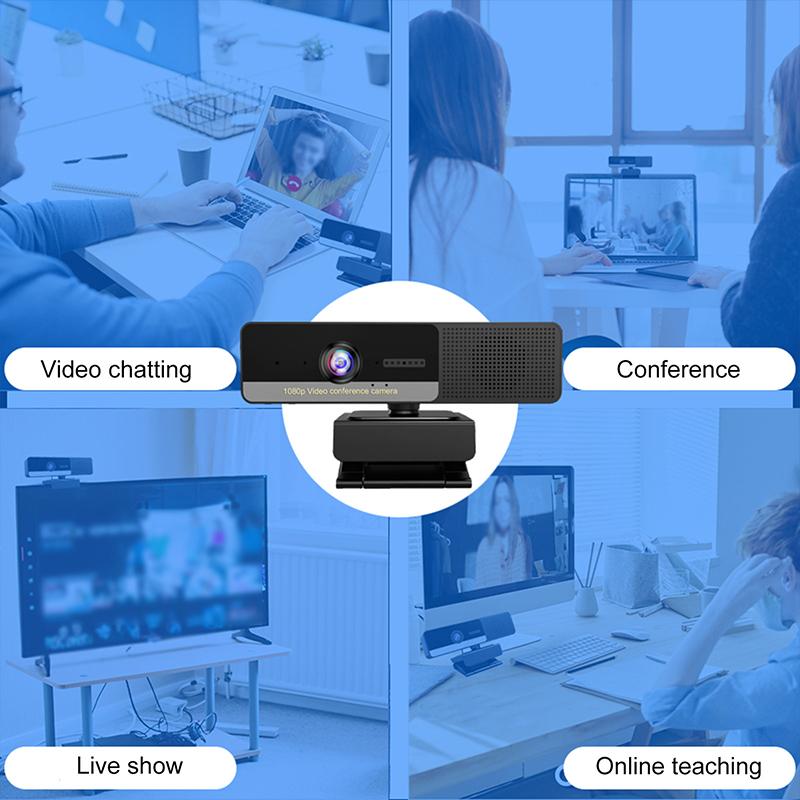
how to find camera in mac 3

The built-in camera can be used with various applications, including FaceTime, Photo Booth, and third-party apps like Zoom and Skype. Here’s how to access the camera through some of these applications:

FaceTime
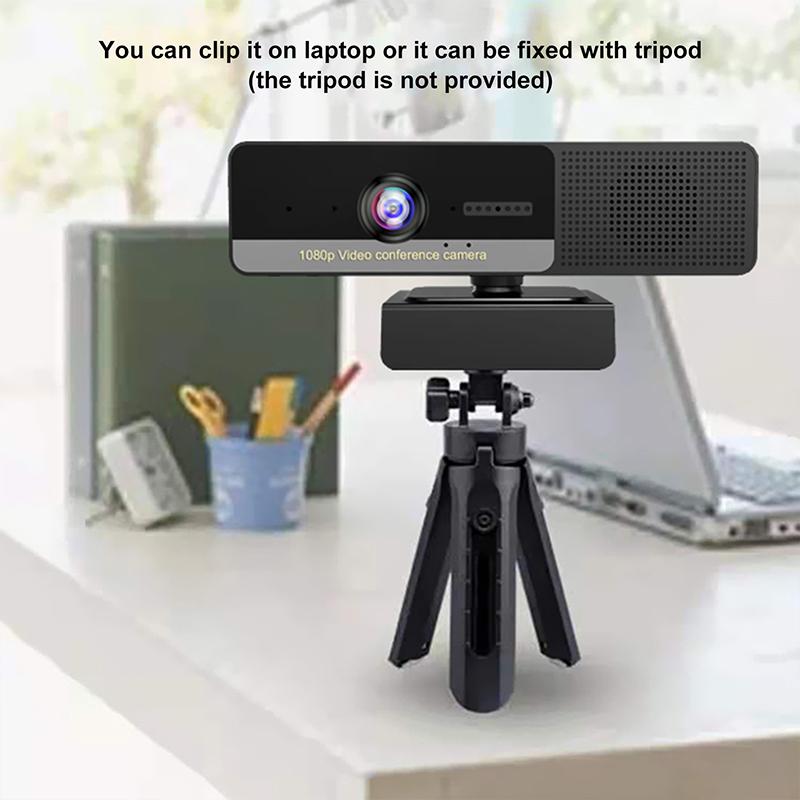
how to find camera in mac 4

FaceTime is Apple’s video calling application, and it’s one of the most common ways to use the built-in camera.

1. Open the FaceTime app from the Applications folder or use Spotlight to search for it.

2. Sign in with your Apple ID if prompted.

3. Click on the Video button to start a video call. The camera should activate automatically.

Photo Booth

Photo Booth allows you to take photos and record videos using the built-in camera.

1. Open the Photo Booth app from the Applications folder or use Spotlight to search for it.

2. The camera should activate automatically, and you will see a live preview.

3. Click the Camera button to take a photo or the Record button to start recording a video.

Third-Party Applications

Many third-party applications also use the built-in camera. Here’s how to use it with Zoom as an example:

1. Open the Zoom app.

2. Sign in to your account.

3. Click on New Meeting or join an existing meeting.

4. The camera should activate automatically. If it doesn’t, click on the Start Video button.

Troubleshooting Camera Issues

Sometimes, the camera may not work as expected. Here are some common issues and how to resolve them:

Camera Not Detected

If your Mac doesn’t detect the camera, try the following steps:

1. Restart Your Mac: A simple restart can often resolve hardware detection issues.

2. Check for Updates: Ensure that your macOS is up to date by going to System Preferences > Software Update.

3. Reset SMC: The System Management Controller (SMC) controls various hardware functions. Resetting it can sometimes resolve camera issues. Instructions for resetting the SMC vary depending on your Mac model, so refer to Apple’s official guide.

Camera In Use by Another Application

If you see a message that the camera is in use by another application, close any apps that might be using the camera. You can also check which apps have camera access:

1. Go to System Preferences.

2. Click on Security & Privacy.

3. Select the Privacy tab and then click on Camera.

4. Ensure that the apps you want to use the camera with have permission.

Poor Camera Quality

If the camera quality is poor, consider the following tips:

1. Lighting: Ensure you are in a well-lit environment. Natural light is often the best.

2. Clean the Lens: Use a soft, lint-free cloth to clean the camera lens.

3. Check Settings: Some applications have settings that can improve video quality. For example, in Zoom, go to Settings > Video and enable HD.

Using External Cameras

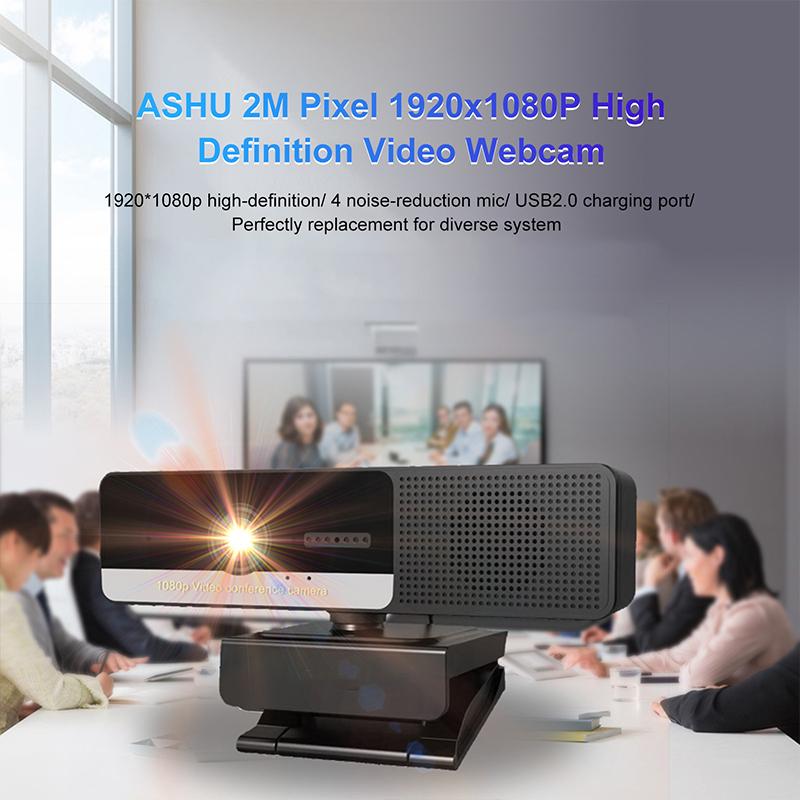
If you need higher quality video or additional features, you might consider using an external camera. Here’s how to set it up:

1. Connect the Camera: Plug the external camera into a USB port on your Mac.

2. Install Drivers: Some cameras require additional drivers or software. Follow the manufacturer’s instructions.

3. Select the Camera: In the application you are using, go to the video settings and select the external camera as the video source.

Privacy Considerations

Using a camera on your Mac raises some privacy concerns. Here are some tips to ensure your privacy:

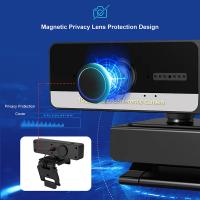
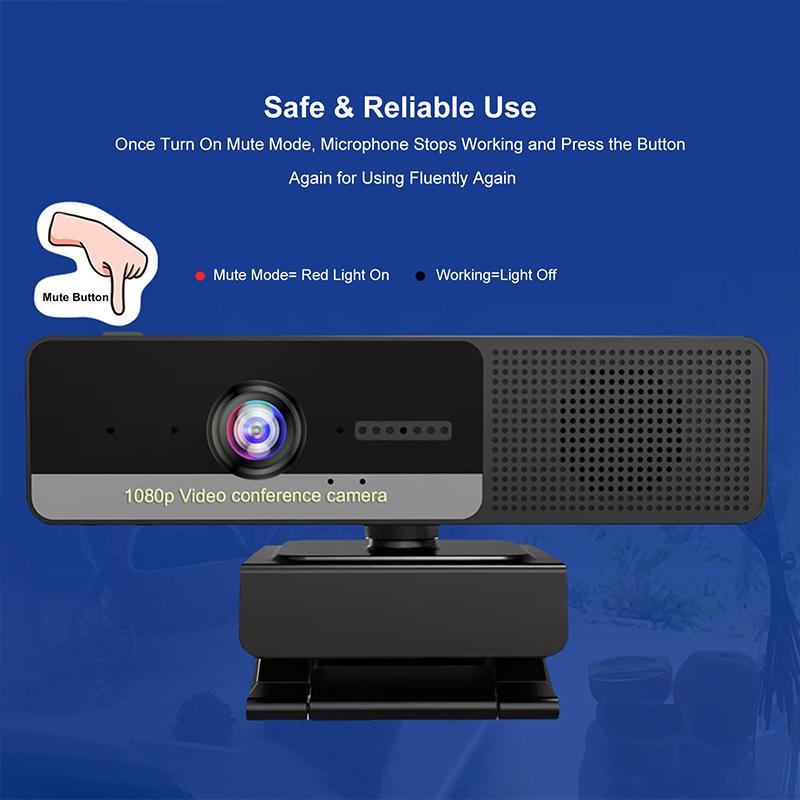
1. Camera Cover: Use a physical camera cover when the camera is not in use.

2. App Permissions: Regularly review which apps have access to your camera in System Preferences > Security & Privacy > Privacy > Camera.

3. Indicator Light: The built-in camera has a green indicator light that turns on when the camera is active. If you see this light on unexpectedly, investigate which application is using the camera.

Finding and using the camera on a Mac is generally straightforward, but it can present some challenges. By understanding how to check for a built-in camera, use it with various applications, troubleshoot common issues, and consider privacy implications, you can make the most of this feature. Whether you’re using FaceTime for a video call, Photo Booth for fun photos, or a third-party app for professional meetings, this guide should help you navigate the process with ease.
Leave your comment
Cancel reply
Note: HTML is not translated!
Related products
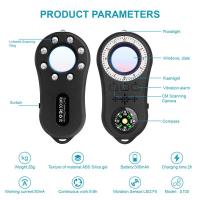
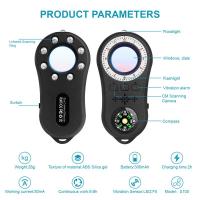
Anti-Spy Detector Scan & Disconnect for 24/7 Protection Find Bugs Hidden Cams
15
$89.99 $59.99
Digital Camera for Microscopes 5 Megapixel Color CMOS for Windows Mac OS Android Phones Kentfaith
12
$99.99 $79.99
Metal Detectors for Adults and Kids, Gold Detector Kit with LCD Display & IP68 Waterproof Search Coil for Find Valuables
285
$215.99 $151.99
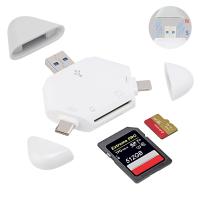
SD Card Reader for iPhone/iPad/Android/Mac/Computer/Camera, 4 in 1 Micro SD Card Reader Tracking Camera Viewer, Portable Memory Card Reader SD Card Adapter Compatible with SD and Micro SD Card/TF Card ( black)
$14.99
DM9 7" LCD Digital Microscope 10X-1200X, 1080P Coin Microscope with 12MP Camera Sensor Work with Windows/Mac OS
118
$149.99 $121.99
Digital Microscope with 9" LCD Screen, 1000X Magnification Coin Microscope with 12MP Camera for Adults, Work with Windows/Mac OS
45
$215.99 $167.99
4.3" LCD Screen Digital Coin Microscope, 50X-1000X Magnification, Work with Windows/Mac iOS
24
$107.99 $88.99
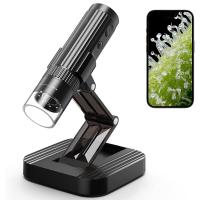
Wireless WiFi Microscope with Foldable Stand, 50X-1000X Magnification, Work with iPhone, iPad, Android, Mac, Windows
11
$47.99
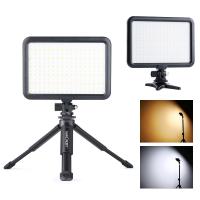
Camera Light LED Video Light Panel for Camera Camcorder Lighting in Studio or Outdoors 3200K to 5500K Variable Color Temperature (Only ship to us)
26
$44.99 $39.99
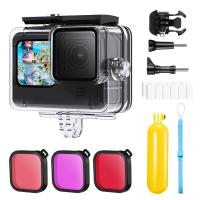
Action Camera Waterproof Set 21 in 1 for GOPRO Hero 9/10/11/12 (Only Ship to US)
104
$37.99 $22.99
Products You May Like
K&F Concept Premium Microfiber Cleaning Cloths, Lens Cleaning Cloth for Camera Lenses, Eyeglasses, Screens, Cameras, Tablets -Washable, 30 Pack, 6 x 7 inches (15 x 18 cm)
$22.99
best batteries for trail cameras
10
$135.99 $106.99
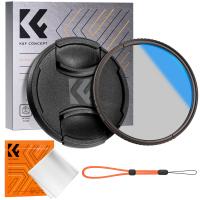
62mm CPL Filter Circular Polarizer Filter with Lens Cap Optical Glass Ultra Slim 18 Multi-Layer for Camera Lens Nano-Klear Series
23
$22.99 $17.99
Gift Certificate: $800 Value - Can Use with Any Discounts
$800.00 $760.00
43mm MCUV Lens Protection Filter with Lens Cap Optical Glass Ultra Slim 18 Multi-Layer Coatings Nano-Klear Series
$8.99
Leica M39 35mm/135mm Lenses to Leica M Lens Mount Adapter K&F Concept M19151 Lens Adapter Non-SLR port M39
33
$37.99 $19.99
37mm ND2-ND400 (9 Stops) Variable ND Filter Neutral Density Adjustable Filter for Canon Nikon DSLR Cameras + Lens Cleaning Cloth
86
$32.99 $25.99
17.6lbs/8KG Load Capacity Fluid Head Tripod Camera Tripod Maximum Height 75.2"/1.91m Video Tripod VA3+BV10
11
$362.99 $149.99
E39 Interface 50W High-Power LED Corn Lamp Bulbs AC85-265V Wide Voltage 3300LM -  Warm White
E39 Interface 50W High-Power LED Corn Lamp Bulbs AC85-265V Wide Voltage 3300LM - Warm White
$29.99
Gopro Waterproof Floating Handgrip Buoyancy Selfie Stick,Quick Release System,Silicone Grip Handle And Orange Anti-Loss Rope,For Gopro, Action, Insta,Bottom 1/4 Interface For Most Other Action Cameras
10
$19.99 $12.99
Related articles
How To Find Camera Plugged Into Mac?
How To Find My Canon Camera On Mac?
How To Find Camera Sd Card On Mac?
How To Find Mac Address On Ring Camera?
How To Find Camera In Mirror?
How To Find Camera In Hotel?
How To Find Camera In Smart Tv?
How To Find A Camera In Your Home?
How To Take Video On Mac Camera?
Is Metal Detector Can Detect Gold?
Blog You May Like
What Binoculars To Buy For Astronomy?
Where Does The Slide Go On A Microscope?
Which Class Is Better In Memory Card?
Are Iphone Camera Lens Protectors Worth It ?
What Lens Filter Should I Buy?
How To Make A Screen Record Have Sound?
How To Get Your Voice On Screen Recording?
How To Use A Range Finding Scope?
Type C Earphones How To Use?
How To Clean Earphone Plug?
Related categories
C mount lens adapter 2 in 1 Filter Screw-In Filter m4/3 adapter Camera Parts | Studio Camera Accessories streaming video camera digital camera for beginner Solar Cellular Trail Camera
Popular products
no spy hidden camera detector Gold Detector Kit sd card reader for mac digital microscope for students external webcam for laptop trinocular microscope digital camera portable sd card reader soldering microscope with camera and led digital microscope for coins LCD Digital Microscope
Related searches
Find Hidden Camera Detector Mac Compatible Microscope Mac Compatible Webcam Digital Microscope Mac Metal Detector Find Bag Microphone For Mac Mini External Webcam For Mac 4k Webcam For Mac In Wall Camera In House Camera
Popular searches
Moment Lens Filter Adapter Canon T7 Flash Adapter Hoya Circular Polarizing Camera Lens Filter Anamorphic Lens For Nikon F Mount Sony Nex Adapter Sony Vaio Pcg 235l Adapter Tamron 28-105mm F/2.8 Nikon Mount Light Tent For Photography Bent Nikon Lens Mount Nikon 50mm F1.8 Ai Mount
Blog Category
  • Activities
  • Guide
    • Filter Guide
    • Lens Adapter
    • Product Review
  • News & Reviews
    • Camera Reviews
    • Sample Gallery
    • News
  • Tutorials
    • Solar eclipse photography
    • Photography Basics
    • Landscape Photography
  • Inspiration
    • Travel
    • Travel Stories
Search Article
Latest from the Blog
How To Put Sd Card In Camera?
What Tripod To Buy?
Camera Use Which Lens?
How To Make Your Eyes Flash On Camera?
Can Security Cameras Detect Motion Through Glass?
Where Can I Buy Samsung Camera Battery?
What Is A Good Quality Dash Cam?
Where Can I Find Hidden Cameras?
What Is The Difference Between Binoculars And Telescope?
How Big A Memory Card For Camera?
  • Easy Payment Multilple Payment Options

  • Free Shipping Global WareHouse Shipment

  • No Risk 30-Day No Reason Return

  • Limited Deals Buy More, Save More

  • Tax Free No any surcharges or tax fee

Information
  • About us
  • Contact Us
  • Site Map
  • Blog
  • Video
  • Gallery
  • VIP Membership Rewards
Service
  • Privacy Policy
  • Terms & Conditions
  • Shipping & Delivery
  • Payment Info
  • Warranty, Return & Refund
  • Intellectual Property Rights
  • Ambassador
  • Affiliates
  • Wholesale
Support
  • My account
  • Order History
  • FAQs
  • Extend Warranty
  • Logistics Tracking
Follow us
NewsLetter

Get the latest product, K&F Concept respects your privacy.

Powered By KENTFAITH © 2025