kfconcept

KENTFAITH
K&F Concept    Blog >

Enjoy Your Selected Digital Life

Recently Viewed
  • Recently Viewed
  • Recently Viewed list is empty.

Compare (0) 0
  • Compare
  • You have not chosen any products to compare.

  • Compare
Currency: USD
  • Currency
Shop by Scene Shop by Rank

Log Into Your Account

Account

Order History

Wish List

Login

Forgotten Password?

Or connect with

Register Account

Already have an Account?Log In

  • Shopping Cart
  • Your shopping cart is empty!

  • Register/Login to purchase, earn points
  • Favorite
  • Your wish list is empty.

  • Register/Login to like, earn points
  • Activities
  • Guide
    • Filter Guide
    • Lens Adapter
    • Product Review
  • News & Reviews
    • Camera Reviews
    • Sample Gallery
    • News
  • Tutorials
    • Solar eclipse photography
    • Photography Basics
    • Landscape Photography
  • Inspiration
    • Travel
    • Travel Stories
  • Home
  • Blog
  • How To Get Your Voice On Screen Recording?

How To Get Your Voice On Screen Recording?

Kentfaith 2024-10-29 04:23:39 0 Comments

Getting your voice on a screen recording is a common requirement whether you're creating tutorials, recording meetings, or making presentations. Successfully capturing both your screen and your voice can make your recordings more engaging and effective. In this article, we will delve into the practical steps to achieve this using various tools and software applications available across different platforms.

Understanding Your Requirements
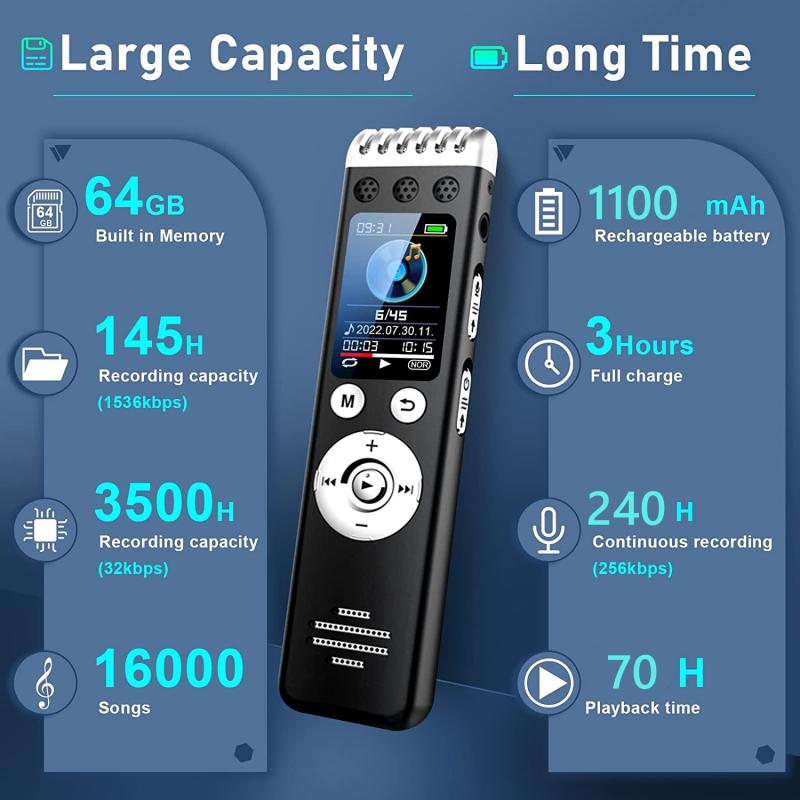
how to get your voice on screen recording 1

Before diving into the methods, it’s essential to understand your specific needs:

1. Purpose: Identifying the purpose of your screen recording—be it for educational purposes, business presentations, or personal use—helps determine the kind of software and tools required.

2. Platform: Are you using Windows, macOS, or other platforms? Each has different capabilities and software compatibility.

3. Hardware: Ensure you have a functional microphone for capturing your voice. Built-in microphones can suffice, but an external mic often provides better audio quality.

Step-by-Step Guide to Recording Voice with Screen on Different Platforms
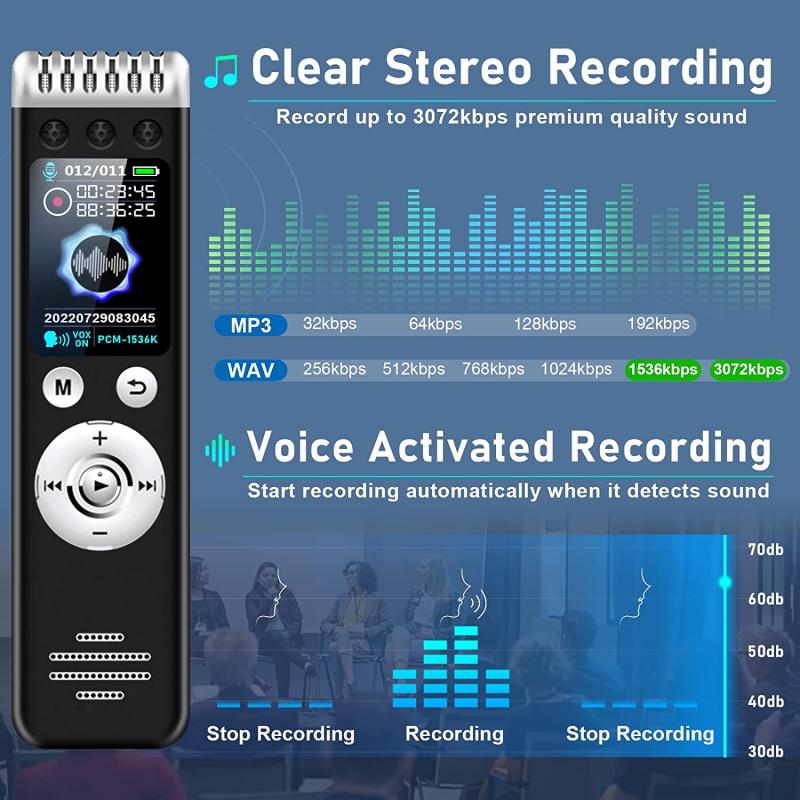
how to get your voice on screen recording 2

Windows

how to get your voice on screen recording 3

Using Built-in Game Bar (Windows 10 and later)
how to get your voice on screen recording 4

1. Enable Game Bar: Go to `Settings > Gaming > Xbox Game Bar` and toggle it on.

2. Open Game Bar: Press `Win + G` to launch the Game Bar overlay.

3. Start Recording:

- Click on the microphone icon to ensure your voice is recorded.

- Click on the recording icon to start capturing your screen and voice simultaneously.

4. Save Recording: Once done, click the stop button. Your recording will be saved in the Videos > Captures folder.

Using OBS Studio

1. Install OBS Studio: Download and install OBS Studio from the official website.

2. Configure Settings:

- Open OBS and go to `Settings > Audio` to ensure your microphone is selected.

- Click on `Sources`, then `+`, and select `Display Capture` to record your screen.

3. Start Recording: Click `Start Recording` on the main interface.

4. Stop and Save Recording: Click `Stop Recording` and OBS will save the file to the designated output location.

macOS

Using QuickTime Player

1. Open QuickTime Player: Launch QuickTime from the Applications folder.

2. New Screen Recording: Go to `File > New Screen Recording`.

3. Microphone Selection: Click the arrow next to the record button and select your microphone.

4. Start Recording: Click the record button to begin.

5. Stop and Save: Click the stop button in the menu bar and save your recording.

Using ScreenFlow (for advanced features)

1. Install ScreenFlow: Download and install ScreenFlow from the official website.

2. Configure Audio and Video:

- Open ScreenFlow, then choose `Configure Recording`.

- Enable `Record Computer Audio`, `Record Desktop from`, and select your microphone under `Record Audio From`.

3. Start Recording: Hit the record button.

4. Editing and Exporting: Once recording finishes, you can edit the video and audio before exporting the final product.

Mobile Devices

iOS and iPadOS

1. Enable Screen Recording: Go to `Settings > Control Center > Customize Controls` and add Screen Recording.

2. Start Recording:

- Open Control Center by swiping down from the top-right corner of the screen.

- Long press the Screen Recording button and tap the microphone icon to enable it.

3. Begin and End Recording: Press `Start Recording`. To stop, open Control Center again and press the stop button. The recording will be saved in the Photos app.

Android

Different Android manufacturers have different built-in screen recording tools. Here’s a general approach:

1. Enable Screen Recording:

- Swipe down to access Quick Settings.

- Find and tap `Screen Recorder`.

- Enable microphone recording.

2. Start Recording: Tap the record button.

3. Stop and Save: End the recording from the notification panel. The video is saved in the gallery.

Advanced Tips

1. Audio Quality: Using a high-quality external microphone can significantly improve your audio clarity.

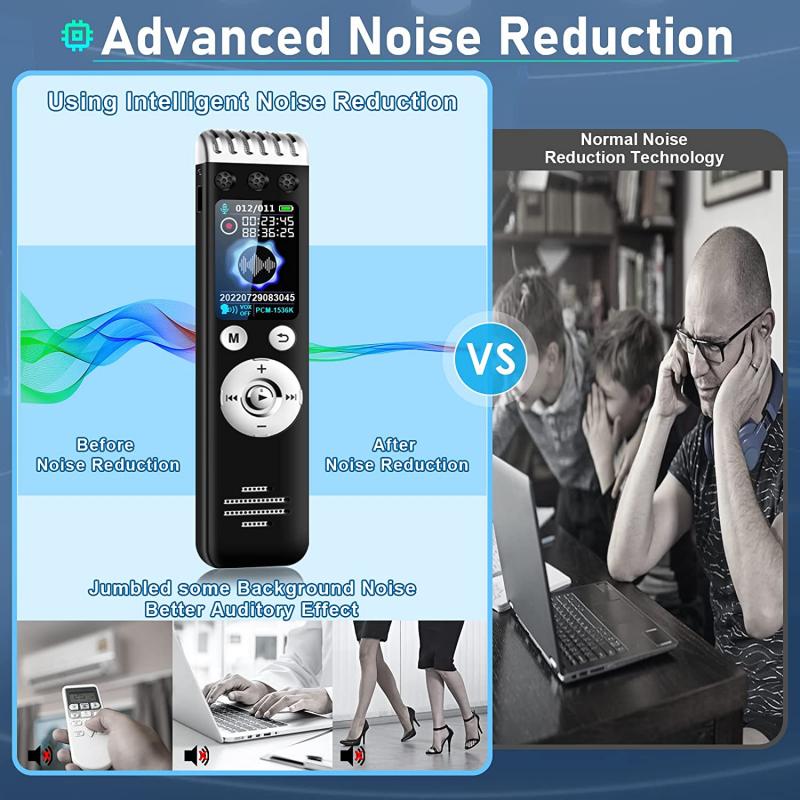
2. Noise Reduction: Select a quiet recording environment to minimize background noise.

3. Script and Practice: Pre-plan and practice your speech to ensure a smooth recording session.

4. Editing Software: Post-processing your video with software like Adobe Premiere Pro or Final Cut can enhance both visual and audio elements of your recording.

Troubleshooting Common Problems

1. No Sound: Ensure your microphone is selected in the recording software settings.

2. Poor Audio Quality: Check for interference or background noise. Use noise-canceling features if available.

3. Software Crashes: Keep your recording software and operating system updated to the latest versions for optimal stability.

Recording your voice along with your screen has never been easier with the plethora of tools available today. Whether you are using built-in features like the Windows Game Bar and macOS QuickTime or advanced solutions like OBS Studio and ScreenFlow, you can seamlessly create high-quality screen recordings with clear audio. By understanding your needs, selecting the right tools, and following best practices, you can produce professional-grade recordings for any purpose. Happy recording!
Leave your comment
Cancel reply
Note: HTML is not translated!
Related products
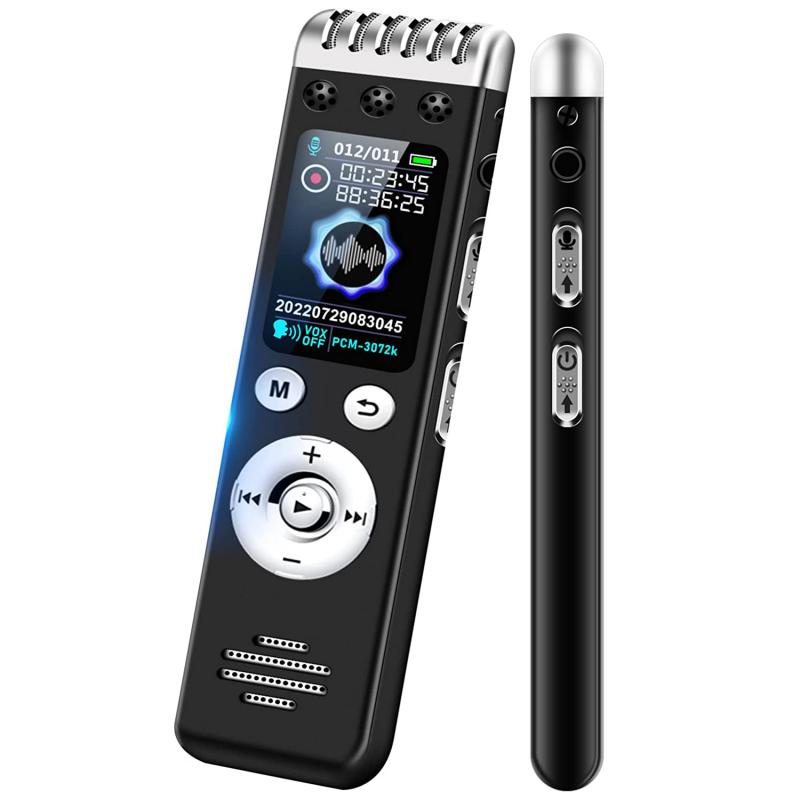
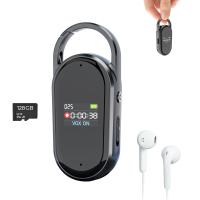
Mini Sound Recorder 128GB 1600H Recording Capacity with 1.4" Screen, Voice Activated Mode Kentfaith
12
$99.99 $79.99
Digital Voice Recorder with Ultra-long 1000H Continuous Recording, Voice-Activated & Magnetic 128G
11
$134.99 $89.99
128G Small Digital Voice Recorder with Ultra-long 1000H Continuous Recording, Voice-Activated & Magnetic, Kentfaith
17
$118.74 $94.99
Mini Voice Recorder Magnetic & Voice-activated, 800H Recording with Noise Cancelling, Kentfaith Voice Recorder for Meetings, Lectures, Studying, Interviews 64G
621
$68.99 $49.99
Mini Voice Recorder Magnetic & Voice-activated, 1600H Recording with Noise Cancelling, Kentfaith Voice Recorder for Meetings, Lectures, Studying, Interviews 128G
621
$82.49 $59.99
AI Voice Recorder, Transcribe Summarize Translation, App Control, 40H Recording Time, 64GB Memory, Kentfaith
21
$137.49 $109.99
128G Small Digital Voice Recorder with Ultra-long 1536H Recording, Voice-Activated & DSP Noise Reduction, Conference/Lecture/Classroom Learning, Keychain Portable Gifts, Kentfaith
18
$106.24 $84.99
AI Voice Recorder Voice-to-Text & Transcription for Meetings, Calls, Interviews, 64G Kentfaith Mini & Magnetic
26
$119.99 $69.99
Offline Voice Translator Device with 144 Languages 5" Touch Screen ChatGPT Integrated
62
$149.99 $99.99
128G Mini Digital Voice Recorder with Color Screen Bluetooth Call Record 3072kbps Kentfaith
15
$119.99 $83.99
Products You May Like
top rated trail cameras
10
$135.99 $106.99
K&F Concept 46mm Variable ND Filter ND8-128 (3-7 Stop) HD Hydrophobic VND Filter for Camera Lens No X Cross Nano-Xcel
39
$66.99 $42.49
DJI Avata 2 MCUV Filter UV Protection Filter with 28 Multi-Coated DJI Drone UV Filter
59
$19.99
Cellular Security Camera Support 4G & WiFi, 10X Optical Zoom, Dual Lens, Solar Powered Kentfaith
$324.99 $259.99
52mm Filter Set (ND2, ND4, ND8, Graduated Blue, Orange, Grey)
36
$41.99 $20.99
52mm Black Mist 1/8 Filter + Lens Cap, Mist Cinematic Effect Filter with 18 Multi-Layer Coatings for Video, Vlog, Portrait Photography Nano-Klear Series
20
$39.99 $29.99
58mm Fisheye Lens 0.35X HD Wide Angle with Macro Close Up
27
$25.99
77mm Circular Polarizing Filter Ultra-Thin Trapezoidal Frame  Blue-Coated Film with a Piece of Vacuum Cleaning Cloth CPL Filter Nano-Klear Series
77mm Circular Polarizing Filter Ultra-Thin Trapezoidal Frame Blue-Coated Film with a Piece of Vacuum Cleaning Cloth CPL Filter Nano-Klear Series
64
$26.99 $20.99
77mm Fader ND2-ND32 (1-5 Stop) Variable ND Lens Filter Neutral Density Filter for Camera Lens NO X Spot Nanotec Ultra-Slim Weather-Sealed
$94.99 $62.99
1080P 20MP Wildlife Trail  Camera with Night Vision 0.2S Trigger Motion Activated IP66 Waterproof, 64G SD Card, Tree Spike, Card Reader
1080P 20MP Wildlife Trail Camera with Night Vision 0.2S Trigger Motion Activated IP66 Waterproof, 64G SD Card, Tree Spike, Card Reader
77
$154.99 $79.99
Related articles
How To Change Your Voice On Screen Recording?
How To Get Voice In Screen Recording?
How To Have Your Voice In Screen Recording?
Can You Record Your Voice While Screen Recording?
How Do I Get Sound On Screen Recording?
How To Get Sound In Screen Recording?
How To Sound Good When Recording Your Voice?
How Do You Get Sound In Screen Recording?
How To Get Sound On Screen Recordings?
Can I Download A Microphone For My Computer?
Blog You May Like
How To Setup Light Ring For Vlogs?
What Canon Full Frame Camera For Wildlife?
Can One Ring Solar Panel Charge Two Cameras?
How Do I Adjust Microphone Sensitivity ?
What Do You Need In A Dash Cam?
Where Can I Sell My Video Camera?
How Many Wireless Ip Cameras On A Network?
Which Bluetooth Earphone Is Best For Calling?
How Gold Metal Detector Works?
Can You Change Lens While Film In Camera?
Related categories
On-Dash Camera trail camera with screen C mount lens adapter m4/3 adapter DJI Mini 4 Pro Filter 86mm Lens Filters black pro mist square filter lens filter cap​ Star Filters
Popular products
digital voice recorder with usb digital voice recording smart digital voice recorder infrared hd video camera small voice activated audio recorder mini sound recorder device mini magnetic voice recorder small hidden audio recorder phone voice call recording Offline Translator Device
Related searches
Screen Voice Recorder Voice Recording Microphone Always On Voice Recorder Usb Microphone For Voice Recording Microphone For Recording On Iphone Get Stuck Filter Off Lens Digital Camera With Screen On Front Tripod For Your Phone Cheap Security Cameras That Connect To Your Phone Camera Lens For Your Iphone
Popular searches
Gfx 100 Lens Adapter 72mm Nd Filter Variable Trail Cameras Without Flash Nikon L330 Lens Adapter Osmo Action 4 Nd Filters Set Redrock M2 Cinema Lens Adapter Best Nikon F-mount Cameras Lens Filter Mamiya C330 80mm Lens Home Security Trail Camera 82mm Nd Filter Kit
Blog Category
  • Activities
  • Guide
    • Filter Guide
    • Lens Adapter
    • Product Review
  • News & Reviews
    • Camera Reviews
    • Sample Gallery
    • News
  • Tutorials
    • Solar eclipse photography
    • Photography Basics
    • Landscape Photography
  • Inspiration
    • Travel
    • Travel Stories
Search Article
Latest from the Blog
How Big A Memory Card For Camera?
UV Filter: Everything You Need to Know About UV Protection Lens Filters
How To Make Your Eyes Flash On Camera?
How Do Trail Cameras Work? The Ultimate Guide to Trail Cameras
Where Can I Buy Samsung Camera Battery?
How To Stream Live From Surveillance Camera?
How To Make A Camera Flash After Effects?
How Many Stops Is An Nd 8 Filter?
How Much Does It Cost For Security Cameras?
Can Security Cameras Detect Motion Through Glass?
  • Easy Payment Multilple Payment Options

  • Free Shipping Global WareHouse Shipment

  • No Risk 30-Day No Reason Return

  • Limited Deals Buy More, Save More

  • Tax Free No any surcharges or tax fee

Information
  • About us
  • Contact Us
  • Site Map
  • Blog
  • Video
  • Gallery
  • VIP Membership Rewards
Service
  • Privacy Policy
  • Terms & Conditions
  • Shipping & Delivery
  • Payment Info
  • Warranty, Return & Refund
  • Intellectual Property Rights
  • Ambassador
  • Affiliates
  • Wholesale
Support
  • My account
  • Order History
  • FAQs
  • Extend Warranty
  • Logistics Tracking
Follow us
NewsLetter

Get the latest product, K&F Concept respects your privacy.

Powered By KENTFAITH © 2025