kfconcept

KENTFAITH
K&F Concept    Blog >

Enjoy Your Selected Digital Life

Recently Viewed
  • Recently Viewed
  • Recently Viewed list is empty.

Compare (0) 0
  • Compare
  • You have not chosen any products to compare.

  • Compare
Currency: USD
  • Currency
Shop by Scene Shop by Rank

Log Into Your Account

Account

Order History

Wish List

Login

Forgotten Password?

or connect with

Register Account

Already have an Account?Log In

  • Shopping Cart
  • Your shopping cart is empty!

  • Register/Login to purchase, earn points
  • Favorite
  • Your wish list is empty.

  • Register/Login to like, earn points
  • Activities
  • Guide
    • Filter Guide
    • Lens Adapter
    • Product Review
  • News & Reviews
    • Camera Reviews
    • Sample Gallery
    • News
  • Tutorials
    • Solar eclipse photography
    • Photography Basics
    • Landscape Photography
  • Inspiration
    • Travel
    • Travel Stories
  • Home
  • Blog
  • How To Find Camera In Mac?

How To Find Camera In Mac?

Kentfaith 2024-07-02 03:18:48 0 Comments

Finding and using the camera on a Mac can be a straightforward process, but it can also present some challenges for users who are not familiar with macOS. This article aims to provide a comprehensive guide on how to locate and use the camera on your Mac, addressing common issues and offering practical solutions.

Understanding the Built-in Camera
how to find camera in mac 1

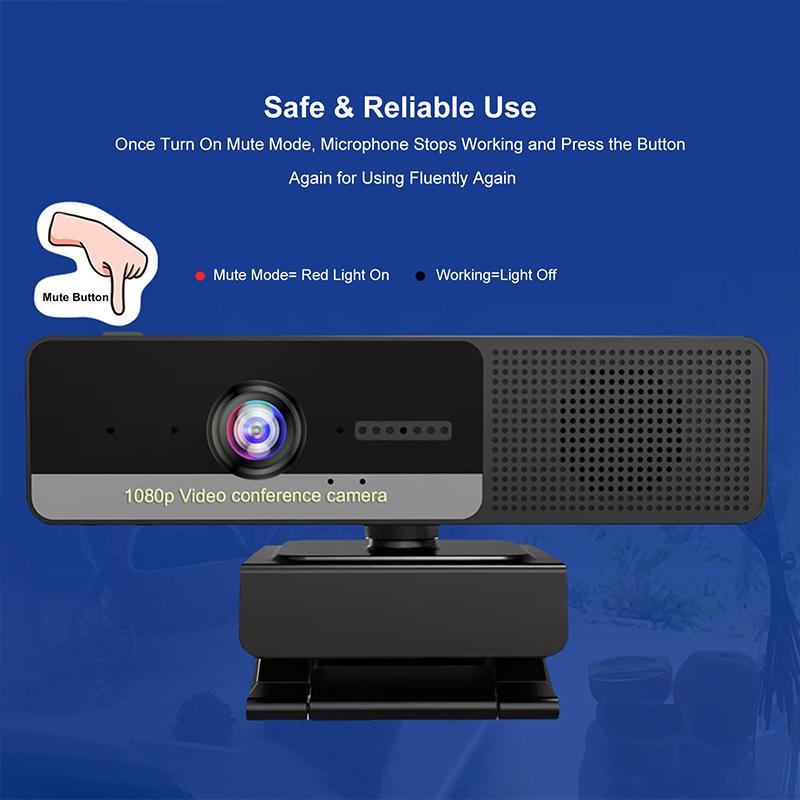
Most modern Mac computers come with a built-in camera, commonly referred to as the FaceTime HD camera. This camera is typically located at the top center of the screen on MacBooks, iMacs, and some external Apple displays. The camera is designed to work seamlessly with macOS and various applications that require video input.

Checking Camera Availability
how to find camera in mac 2

Before diving into how to use the camera, it's essential to ensure that your Mac has a built-in camera. Here’s how you can check:

1. Physical Inspection: Look at the top center of your Mac’s screen. You should see a small lens, which is the built-in camera.

2. System Information: Go to the Apple menu and select "About This Mac." Click on "System Report" and then select "Camera" from the list of hardware components. If a camera is listed, your Mac has a built-in camera.

Using the Camera with Applications
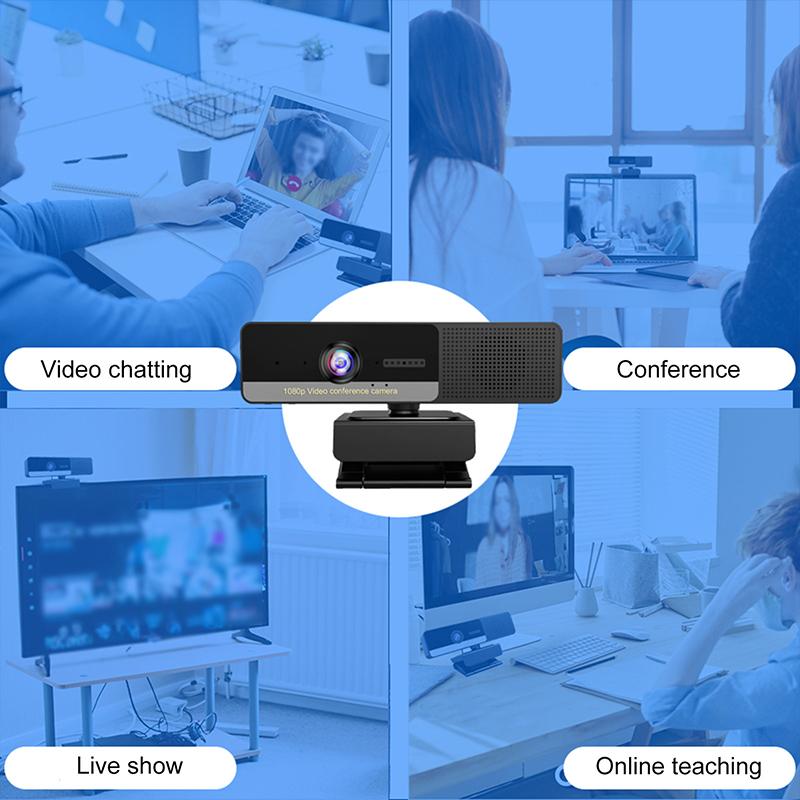
how to find camera in mac 3

The built-in camera can be used with various applications, including FaceTime, Photo Booth, and third-party apps like Zoom and Skype. Here’s how to access the camera through some of these applications:

FaceTime
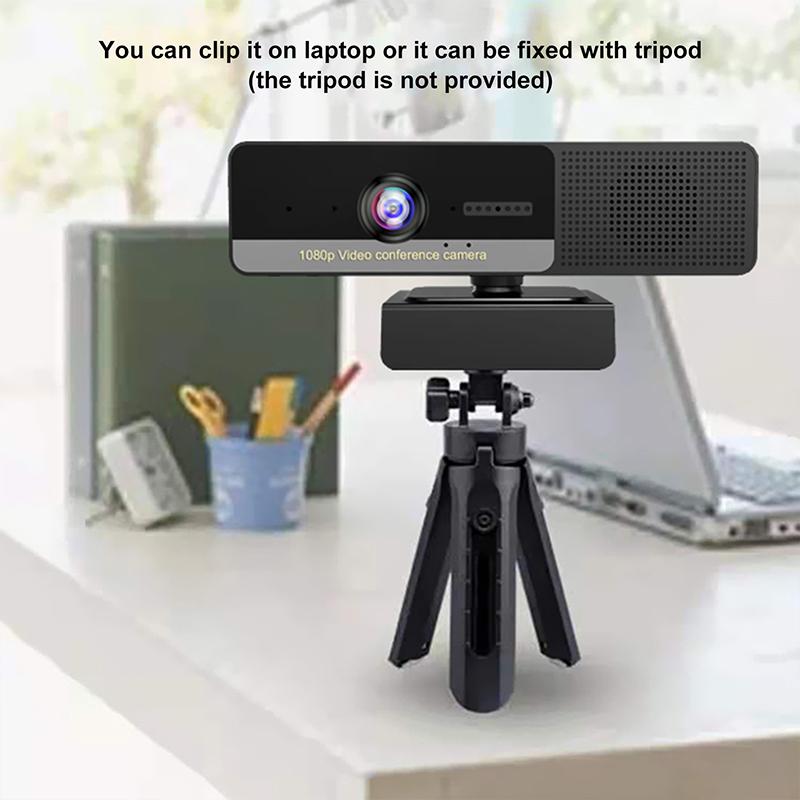
how to find camera in mac 4

FaceTime is Apple’s video calling application, and it’s one of the most common ways to use the built-in camera.

1. Open the FaceTime app from the Applications folder or use Spotlight to search for it.

2. Sign in with your Apple ID if prompted.

3. Click on the Video button to start a video call. The camera should activate automatically.

Photo Booth

Photo Booth allows you to take photos and record videos using the built-in camera.

1. Open the Photo Booth app from the Applications folder or use Spotlight to search for it.

2. The camera should activate automatically, and you will see a live preview.

3. Click the Camera button to take a photo or the Record button to start recording a video.

Third-Party Applications

Many third-party applications also use the built-in camera. Here’s how to use it with Zoom as an example:

1. Open the Zoom app.

2. Sign in to your account.

3. Click on New Meeting or join an existing meeting.

4. The camera should activate automatically. If it doesn’t, click on the Start Video button.

Troubleshooting Camera Issues

Sometimes, the camera may not work as expected. Here are some common issues and how to resolve them:

Camera Not Detected

If your Mac doesn’t detect the camera, try the following steps:

1. Restart Your Mac: A simple restart can often resolve hardware detection issues.

2. Check for Updates: Ensure that your macOS is up to date by going to System Preferences > Software Update.

3. Reset SMC: The System Management Controller (SMC) controls various hardware functions. Resetting it can sometimes resolve camera issues. Instructions for resetting the SMC vary depending on your Mac model, so refer to Apple’s official guide.

Camera In Use by Another Application

If you see a message that the camera is in use by another application, close any apps that might be using the camera. You can also check which apps have camera access:

1. Go to System Preferences.

2. Click on Security & Privacy.

3. Select the Privacy tab and then click on Camera.

4. Ensure that the apps you want to use the camera with have permission.

Poor Camera Quality

If the camera quality is poor, consider the following tips:

1. Lighting: Ensure you are in a well-lit environment. Natural light is often the best.

2. Clean the Lens: Use a soft, lint-free cloth to clean the camera lens.

3. Check Settings: Some applications have settings that can improve video quality. For example, in Zoom, go to Settings > Video and enable HD.

Using External Cameras

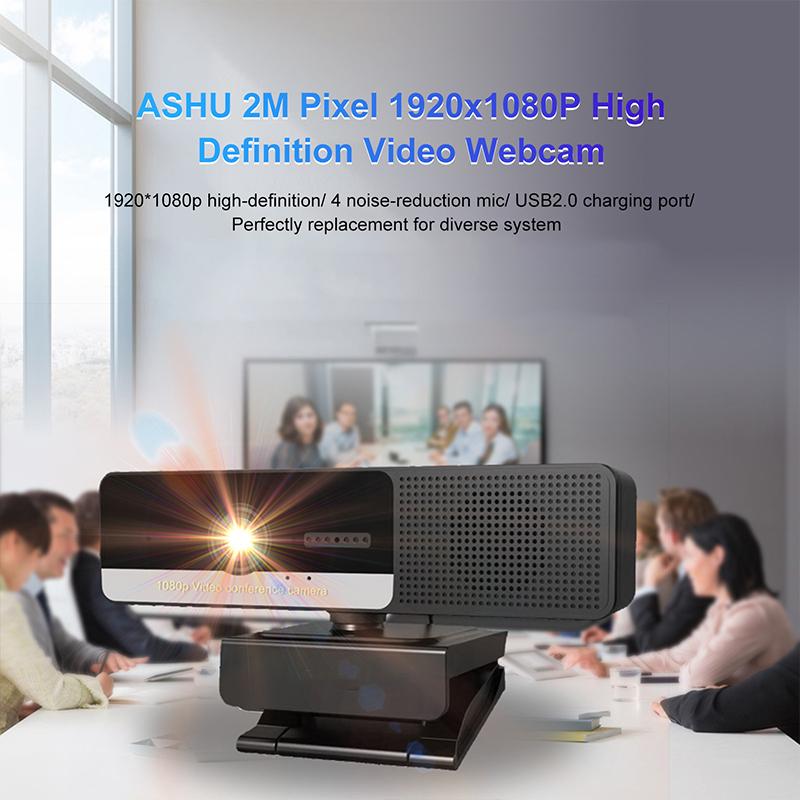
If you need higher quality video or additional features, you might consider using an external camera. Here’s how to set it up:

1. Connect the Camera: Plug the external camera into a USB port on your Mac.

2. Install Drivers: Some cameras require additional drivers or software. Follow the manufacturer’s instructions.

3. Select the Camera: In the application you are using, go to the video settings and select the external camera as the video source.

Privacy Considerations

Using a camera on your Mac raises some privacy concerns. Here are some tips to ensure your privacy:

1. Camera Cover: Use a physical camera cover when the camera is not in use.

2. App Permissions: Regularly review which apps have access to your camera in System Preferences > Security & Privacy > Privacy > Camera.

3. Indicator Light: The built-in camera has a green indicator light that turns on when the camera is active. If you see this light on unexpectedly, investigate which application is using the camera.

Finding and using the camera on a Mac is generally straightforward, but it can present some challenges. By understanding how to check for a built-in camera, use it with various applications, troubleshoot common issues, and consider privacy implications, you can make the most of this feature. Whether you’re using FaceTime for a video call, Photo Booth for fun photos, or a third-party app for professional meetings, this guide should help you navigate the process with ease.
Leave your comment
Cancel reply
Note: HTML is not translated!
Related products
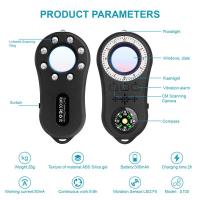
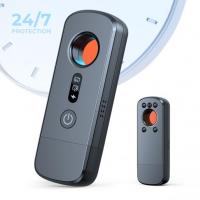
Anti-Spy Detector Scan & Disconnect for 24/7 Protection Find Bugs Hidden Cams
15
$89.99 $59.99
Digital Camera for Microscopes 5 Megapixel Color CMOS for Windows Mac OS Android Phones Kentfaith
12
$99.99 $79.99
Metal Detectors for Adults and Kids, Gold Detector Kit with LCD Display & IP68 Waterproof Search Coil for Find Valuables
NEW Arrival
Metal Detectors for Adults and Kids, Gold Detector Kit with LCD Display & IP68 Waterproof Search Coil for Find Valuables
285
$215.99 $151.99
SD Card Reader for iPhone/iPad/Android/Mac/Computer/Camera, 4 in 1 Micro SD Card Reader Tracking Camera Viewer, Portable Memory Card Reader SD Card Adapter Compatible with SD and Micro SD Card/TF Card ( black)
$14.99
DM9 7" LCD Digital Microscope 10X-1200X, 1080P Coin Microscope with 12MP Camera Sensor Work with Windows/Mac OS
HOT Seller
DM9 7" LCD Digital Microscope 10X-1200X, 1080P Coin Microscope with 12MP Camera Sensor Work with Windows/Mac OS
118
$149.99 $121.99
Digital Microscope with 9" LCD Screen, 1000X Magnification Coin Microscope with 12MP Camera for Adults, Work with Windows/Mac OS
HOT Seller
Digital Microscope with 9" LCD Screen, 1000X Magnification Coin Microscope with 12MP Camera for Adults, Work with Windows/Mac OS
45
$215.99 $167.99
4.3" LCD Screen Digital Coin Microscope, 50X-1000X Magnification, Work with Windows/Mac iOS
24
$107.99 $88.99
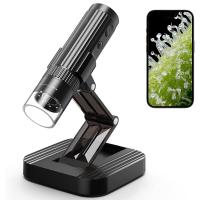
Wireless WiFi Microscope with Foldable Stand, 50X-1000X Magnification, Work with iPhone, iPad, Android, Mac, Windows
11
$47.99
67mm Clip-on CPL&Black Mist 1/4 2-in-1 Phone Camera Lens Filter Kit Applicable to All Mobile Phone Models
3
$29.99
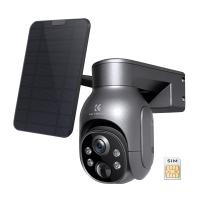
4G Solar Security Camera System Wireless LTE cctv Solar Camera PIR Human Sensor + AI human Detection 2-Way Audio Built-in Battery 9000mAh 2K Infrared Night Vision (Only ship to US)
58
$129.99 $89.99
Products You May Like
JD900 Cardioid Condenser Microphone Plug & Play With USB 3.5mm Jack
15
$30.99
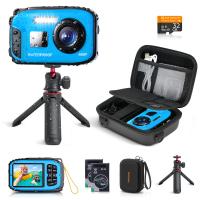
Waterproof Digital Camera for Kids 5m Underwater 48MP, for Snorkeling Swimming, Includes EVA Storage Case & Tripod Kentfaith
12
$169.99 $109.99
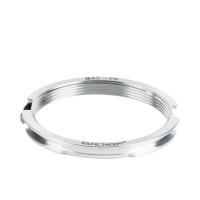
M42 Screw Lenses to Pentax K Lens Mount Adapter K&F Concept M10221 Lens Adapter
15
$28.99 $16.99
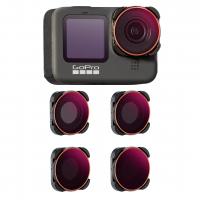
GOPRO Hero 9/10/11/12/13 Action Camera Filter Set ND8&PL + ND16&PL + ND32&PL + ND64&PL 4 Pack 2-in-1 Filter Kit Protector with Anti-reflection Green Film Action Camera Accessories
105
$58.99
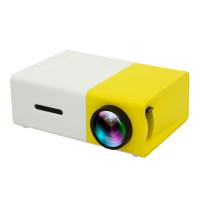
Mini Pocket LED Projector 1080P Full HD Work With TV Stick (EU Plug)
2
$57.99
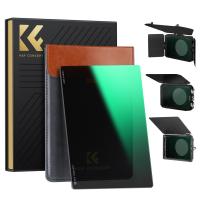
ND16 (4 Stops) Square ND Filter, 4"x5.65" Neutral Density Filter Compatible with Tilta Compatible with SmallRig Matte Box, Slim Multi Coated HD Optical Glass
64
$83.99 $55.99
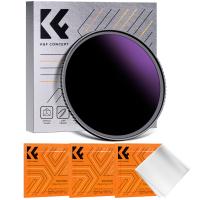
55mm Solar Filter 20-Stops,ND1000000 Solid Neutral Density Filter Solar Filter For Eclipse With 18 Multi-Layer Coatings Nano-Klear Series (Only Ship to US)
34
$24.99 $19.99
No Glow Trail Cameras
10
$162.99 $106.99
AT-G20G Kids Camera Waterproof 1080P HD Action Camera for Birthday Holiday Gift Camera Toy 2.0'' LCD Screen (blue)
41
$29.99
DJI Mavic 3 Classic Filter ND64 with Single-sided Anti-reflection Green Film Waterproof and Scratch-resistant
27
$29.99 $17.99
Related articles
How To Find Camera Plugged Into Mac?
How To Find My Canon Camera On Mac?
How To Find Camera Sd Card On Mac?
How To Find Mac Address On Ring Camera?
How To Find Camera In Mirror?
How To Find Camera In Smart Tv?
How To Find A Camera In Your Home?
How To Take Video On Mac Camera?
How To Find Cameras In A House?
Can You Use Any Webcam On Ps5 ?
Blog You May Like
What Backpacks To Use For Cameras?
Can I Use Ef Lens On Rf Camera?
When Did The Digital Camera Start Being Used?
How To Install Wireless Cameras At Home?
Can You Use Nikon Lens With Canon Camera?
What Mount Is The Nikon D3200?
How To Make Solar Filter For Lens?
Backpack That Can Double As Camera Bag?
How To Install Secret Camera In House?
How To Charge Wireless Earbuds Without A Case?
Related categories
C mount lens adapter 2 in 1 Filter Screw-In Filter m4/3 adapter Camera Parts | Studio Camera Accessories streaming video camera digital camera for beginner Solar Cellular Trail Camera
Popular products
sd card reader for mac 1080p webcam for streaming portable sd card reader best digital microscope camera digital microscope 1000x magnification LCD Digital Microscope digital coin microscope best digital coin microscope led light panel photography Digital Wifi Microscope
Related searches
Plug In Microphone For Mac Metal Detector Find Bag Mac Compatible Microscope Mac Compatible Webcam Digital Microscope Mac Microphone For Mac Mini External Webcam For Mac Metal Detectors That Find Gold And Silver In Wall Camera Best Digital Microscope For Mac
Related Scenes
Best Camera To Video Sports Best Camera To Capture Wildlife Best In House Camera Best Tripod To Travel With Best Video Camera To Record Sports Best In Home Video Camera Best In Car Dash Camera Best Easy To Use Compact Digital Camera Best Video Camera In Low Light Best In Home Wifi Security Camera
Blog Category
  • Activities
  • Guide
    • Filter Guide
    • Lens Adapter
    • Product Review
  • News & Reviews
    • Camera Reviews
    • Sample Gallery
    • News
  • Tutorials
    • Solar eclipse photography
    • Photography Basics
    • Landscape Photography
  • Inspiration
    • Travel
    • Travel Stories
Search Article
Latest from the Blog
Can You Clean Camera Lens With Glasses Cloth?
Which Smartwatch Is Compatible With Iphone?
Which Smartwatch Is Best For Blood Pressure?
How To Record Clear Audio Without A Microphone?
How To Get Noise Cancellation On Any Headphones?
How Does A Wireless Surveillance Camera Work?
How To Measure Microns With A Microscope?
How To Detect Trail Cameras At Night?
How To Insert Headphones In Ear?
Can You Wear A Smartwatch In The Shower?
  • Easy Payment Multilple Payment Options

  • Free Shipping Global WareHouse Shipment

  • No Risk 30-Day No Reason Return

  • Limited Deals Buy More, Save More

  • Tax Free No any surcharges or tax fee

Information
  • About us
  • Contact Us
  • Site Map
  • Blog
  • Video
  • Gallery
  • VIP Membership Rewards
Service
  • Privacy Policy
  • Terms & Conditions
  • Shipping & Delivery
  • Payment Info
  • Warranty, Return & Refund
  • Intellectual Property Rights
  • Ambassador
  • Affiliates
  • Wholesale
Support
  • My account
  • Order History
  • FAQs
  • Extend Warranty
  • Logistics Tracking
Follow us
NewsLetter

Get the latest product, K&F Concept respects your privacy.
Powered By KENTFAITH © 2026