Where Is The Microphone On Iphone 8 Plus?
The iPhone 8 Plus, like other iPhones, is designed with multiple microphones positioned strategically to optimize audio capture for various functions such as phone calls, Siri, voice memos, video recording, and noise cancellation. Identifying their exact locations is essential for troubleshooting audio issues or understanding how to get the best sound quality during use. This article will guide you through each microphone’s location, function, and how to maintain them to ensure they function properly.
Microphone Locations on the iPhone 8 Plus
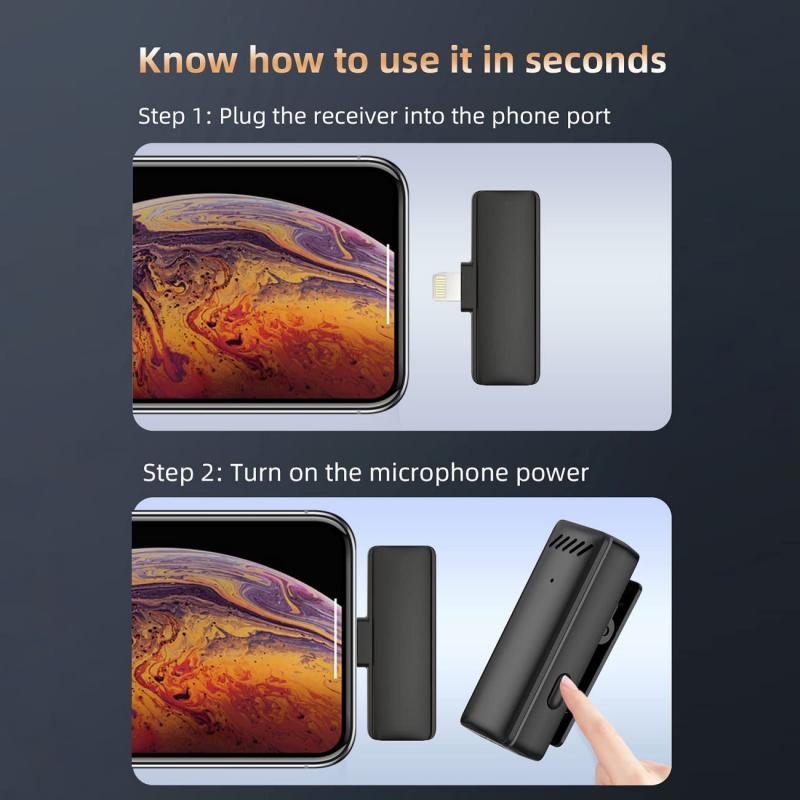
The iPhone 8 Plus has three microphones located at different parts of the device:
1. Bottom Microphone (Primary Microphone):
- The bottom microphone is located next to the Lightning port on the underside of the iPhone. You’ll find small holes on either side of the Lightning connector. Among these, one side is dedicated to the speaker, and the other side contains the primary microphone.
- This microphone is used during phone calls when you hold the phone to your ear, as well as for audio input in apps like Voice Memos and native functions like Siri.
2. Front Microphone:
- The front microphone is positioned near the front-facing camera at the top of the device. It is embedded within the bezel near the earpiece speaker.
- This microphone supports tasks such as FaceTime calls, recording videos using the front camera, and ensures quality audio input for voice commands via Siri when the phone is not held to your ear.
3. Rear Microphone:
- The rear microphone is located near the back-facing camera system on the rear of the phone. When you record videos or take pictures with the rear camera that require sound, this microphone captures audio.
- It also plays a role in noise cancellation, ensuring that unwanted background sounds are filtered out during calls or voice recordings.
Understanding Their Functions
Each of the three microphones performs a specialized task, and Apple ensures seamless cooperation between them to deliver an efficient audio experience to users. Here’s a breakdown of their uses:
Call Quality and Audio Capture:
The bottom microphone handles most of the audio input during phone calls. Combined with additional microphones, it helps reduce background noise, ensuring your voice is clear on the other end of the call.
Video and Photo Recording:
The rear microphone captures audio while recording videos on the back camera. Whether you’re creating a home video or filming in noisy environments, it is tuned to deliver optimal sound quality synchronized with visuals.
Assistant Commands:
The front-facing microphone ensures that Siri can hear and process your commands clearly, especially when you’re closer to the screen or holding the phone upright.
Noise Cancellation:
The combination of microphones works dynamically to reduce ambient noise. The rear and bottom microphones are key players here, helping you have a crisp audio experience during calls and video recordings even in bustling areas.
Troubleshooting Microphone Issues

If you’re experiencing issues with the microphones, such as poor sound quality during calls or low volume when recording videos, here are some steps to troubleshoot and improve performance:
1. Clean Microphone Ports:
- Dust and debris can clog the microphone ports, leading to distorted or blocked sounds. Use a soft toothbrush or compressed air to gently clean the ports. Avoid using sharp objects that can damage the microphones.
2. Remove Cases and Screen Protectors:
- Some cases or screen protectors can block microphone holes or earpiece openings, especially if they’re not designed specifically for the iPhone 8 Plus. Temporarily remove them and test the audio quality again.
3. Check Settings:
- Go to the iPhone’s settings and check if microphone permissions are enabled for the apps you use. Navigate to *Settings > Privacy > Microphone* and confirm that relevant apps have permission to use the microphones.
4. Test Each Microphone:
- You can test each microphone independently. Use the Voice Memos app to test the bottom microphone by speaking into it. Test the front microphone by recording a video using the front-facing camera, and test the rear microphone by recording a video with the back camera.
5. Software Updates:
- Ensure your iOS is updated to the latest version. Software bugs can sometimes affect microphone functionality, and updating your phone can resolve these issues.
6. Perform a Restart or Reset:
- Restart your device to resolve minor glitches. If problems persist, consider resetting settings (*Settings > General > Reset > Reset All Settings*). Be sure to back up your data before performing any reset.
7. Contact Apple Support:
- If microphone problems continue after trying all troubleshooting steps, you might need professional assistance. Visit an Apple Store or authorized service provider to diagnose potential hardware issues.
Optimizing Audio Capture and Maintenance Tips
Even if you aren’t currently experiencing microphone problems, it’s essential to follow best practices for maintaining the microphones on your iPhone 8 Plus. Doing so will preserve their functionality over time and ensure you’re always capturing the best sound quality.
1. Handle With Care:
- Avoid exposing the phone to extreme temperatures, moisture, or physical shocks, which could damage its internal components, including the microphones.
2. Use High-Quality Accessories:
- Invest in cases and screen protectors that are compatible with the iPhone 8 Plus, ensuring all microphone ports remain unobstructed.
3. Protect from Dust and Debris:
- Store your phone in clean environments and use a dust cover when the phone is not in use. Regularly check the microphone slots for any accumulated dirt or lint.
4. Make Regular Tests:
- Test all microphones periodically, especially if you rely on the device for professional calls or video recordings.
5. Keep Firmware Updated:
- Regularly install updates to iOS. Apple often addresses software issues or improves performance related to audio capture in new updates.
The iPhone 8 Plus features a sophisticated microphone system designed to cater to different audio needs, whether it’s for calls, Siri commands, or video recording. The microphones are strategically placed near the Lightning port, the front-facing camera, and the rear camera, allowing seamless and high-quality audio capture under varying scenarios.
Knowing their locations and functions can help enhance your overall iPhone experience. If you ever encounter issues, you now have the tools to troubleshoot problems or pursue professional help. By maintaining and optimizing your microphones with care, you’ll ensure your iPhone 8 Plus continues to deliver superior audio performance for years to come. Whether capturing memories while on vacation or ensuring clear phone calls during hectic schedules, understanding your phone's microphone placement and functionality is a key step toward mastering its capabilities.