How To Remove Memory Card From Nikon Camera?
Removing a memory card from a Nikon camera is a simple process, but since there are different models of Nikon cameras, the location and mechanism for removing the memory card may slightly vary. In this guide, we will cover the generic steps and provide insights into best practices to safely and efficiently remove the card to avoid any damage or data loss. Whether you're a beginner or an experienced photographer, following these steps ensures proper handling of your gear.
Steps to Remove a Memory Card from a Nikon Camera

1. Turn off the Camera
Before you attempt to remove the memory card, it is crucial to power off your camera. Removing the memory card while the camera is still on may lead to corruption of data or even damage to the card or camera.
- Look for the power switch on your Nikon camera and set it to the "OFF" position.
- Double-check to ensure the camera is no longer operating by ensuring the LCD screen and any indicator lights are completely off.
_Pro tip: For added precaution, wait a few seconds after turning off the camera before interacting with the memory card._
2. Locate the Memory Card Slot
Nikon cameras generally have their memory card slots in two common places:
Entry-Level or Mid-Range DSLR/Mirrorless Cameras: The memory card slot is often located on the right side of the camera, behind a small door or cover.
Professional DSLR Cameras: The memory card slot is typically placed on the back or side panel behind a lockable door. In some cases, there may be support for dual card slots.
Consult your user manual if you're unsure where the memory card slot is located on your specific Nikon model.
3. Open the Memory Card Compartment

Once you've located the slot:
- On entry-level cameras, slide or push the external cover to open the compartment. The specific design varies slightly by model, but there is usually a clear labeled latch or sliding mechanism.
- For higher-end models, you may encounter a locking latch. Unlock the door gently to expose the memory card slots.
_Note: Avoid forcing the slot open. If it doesn’t open easily, double-check if there is a locking mechanism in place._
4. Eject the Memory Card
Nikon camera memory card slots often use a spring-loaded mechanism. Here's how you can eject the card safely:
- Gently press the card inward with your finger. You will hear or feel a small click as the spring mechanism pushes the card out.
- Only apply light pressure! If it feels stuck, stop and check the orientation of the card or the slot's condition.
- Remove the card completely from the slot once it pops out.
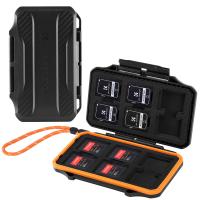
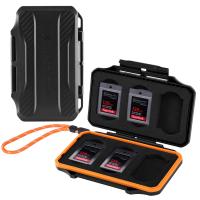
_Pro tip: Handle the memory card carefully and avoid touching the metal contact points to prevent damage or data transfer issues. Always store it in a protective case when not in use._
5. Close the Memory Card Slot Cover
After successfully removing the card, close the card slot cover securely. This ensures dust and debris don’t enter the compartment and keeps the camera ready for future use.
Important Precautions When Handling Memory Cards
To avoid damaging your memory card or losing your precious photos, keep the following points in mind:
1. Wait Before Removal: After turning off the camera, wait a few seconds before removing the memory card. The camera may still be writing data to the card.
2. Handle with Care: Memory cards are delicate, especially the contact points. Always hold the card by the edges to avoid scratches or dirt on the connectors.
3. Avoid Forced Removal: If the card doesn’t eject smoothly, don’t force it. Instead, inspect the compartment for blockages or check that the card isn’t inserted incorrectly.
4. Store Safely: When not in use, keep memory cards in a protective case to minimize the risk of physical damage.
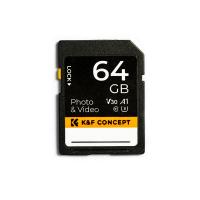
5. Use the Correct Format: Before removing an SD card from your camera, make sure all files are safely saved. Once removed, avoid using the card across multiple types of devices interchangeably without reformatting, as this can cause compatibility issues.
Common Issues When Removing Memory Cards
It’s not unusual to face a few issues during removal or subsequent use of the card. Here are some common problems and how to address them:
1. Memory Card Doesn't Eject Properly
Solution: Double-check the orientation of the card. It should align with the directions indicated near the slot. If there’s dirt or debris inside the slot, use an air blower to remove it.
2. Files Become Corrupted After Removal
Solution: Always turn off the camera before removing the card. If files are already corrupted, try using data recovery software to restore lost images.
3. Card Feels Hot After Removal
Solution: It’s normal for the card to feel warm after prolonged camera usage. However, if it feels excessively hot, there may be maintenance issues with your camera. Have it checked by a professional.
4. The Slot Door Won’t Close After Reinserting the Card
Solution: Ensure the card is correctly and fully inserted. The wrong orientation or halfway insertion can prevent the cover from closing securely.
5. Getting Card Errors After Reinsertion
Solution: If your camera displays an error message, check for a dirty card or bent metal contacts. In some cases, reformatting the card in the camera may resolve these errors. Remember to back up all your data before formatting.
What to Do After Removing the Memory Card
After safely removing the memory card, you'll likely either replace it with a fresh card or connect it to another device to access your photos. Here are some tips for each scenario:
When Inserting a New Card
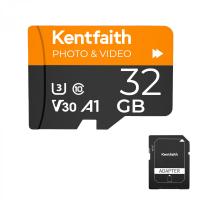
- Ensure the new memory card is compatible with your Nikon camera. Look up your camera’s specifications (such as SD, SDHC, or XQD card compatibility) before purchasing new media.
- Insert the card in the correct orientation. The card’s label usually faces outward, but this may vary slightly between models.
- Format the card in the camera. A fresh format ensures optimal performance and avoids compatibility issues.
When Transferring Files to a Device
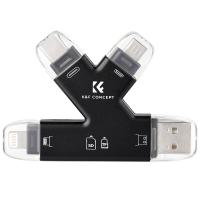
- Use a high-quality memory card reader to transfer images to your computer. This is often faster and safer than connecting the camera directly via a USB cable.
- Safely eject the card from your computer after transferring files to avoid corruption.
- Once you’ve backed up and verified files, use your camera to format the card. Regularly formatting your SD card after backing up data keeps the file system organized, improving performance and longevity.
How Often Should I Remove My Memory Card?
The frequency of removing and reinserting the memory card depends on your workflow. If you shoot often and need regular file transfers, the card will need frequent removal. To reduce wear and tear or potential damage, consider using a wireless file transfer system (if your Nikon camera supports Wi-Fi or Bluetooth) or directly connecting your camera to a computer to transfer images. However, using memory cards appropriately and not being overly forceful when removing or inserting them will reduce the risk of wear or issues.
Final Thoughts
Removing a memory card from your Nikon camera doesn’t have to be a challenge. By following the simple steps of turning off the camera, handling the card carefully, and ensuring a secure card slot closure, you can safely transfer and store your precious photos without any mishaps. As always, treat your memory cards as fragile items, and take proactive measures to back up your data after every project or shooting session.
By applying these practices consistently, you’ll ensure the longevity of your memory cards and minimize the risk of data loss. With a little care and attention to detail, your photography workflow can remain smooth and efficient. Happy shooting!