How To Play Video On Smart Watch?
Smartwatches have evolved significantly over the years, transforming from simple timekeeping devices into powerful mini-computers that can perform a variety of tasks. One of the more intriguing features of modern smartwatches is their ability to play videos. While the small screen size may not make them ideal for extended viewing, the ability to play videos on a smartwatch can be incredibly useful in certain scenarios, such as quickly reviewing a clip, watching a tutorial, or even showing off a short video to a friend. In this article, we’ll explore how to play videos on a smartwatch, the limitations you might encounter, and some practical tips to enhance your experience.
Understanding the Basics: Can Your Smartwatch Play Videos?
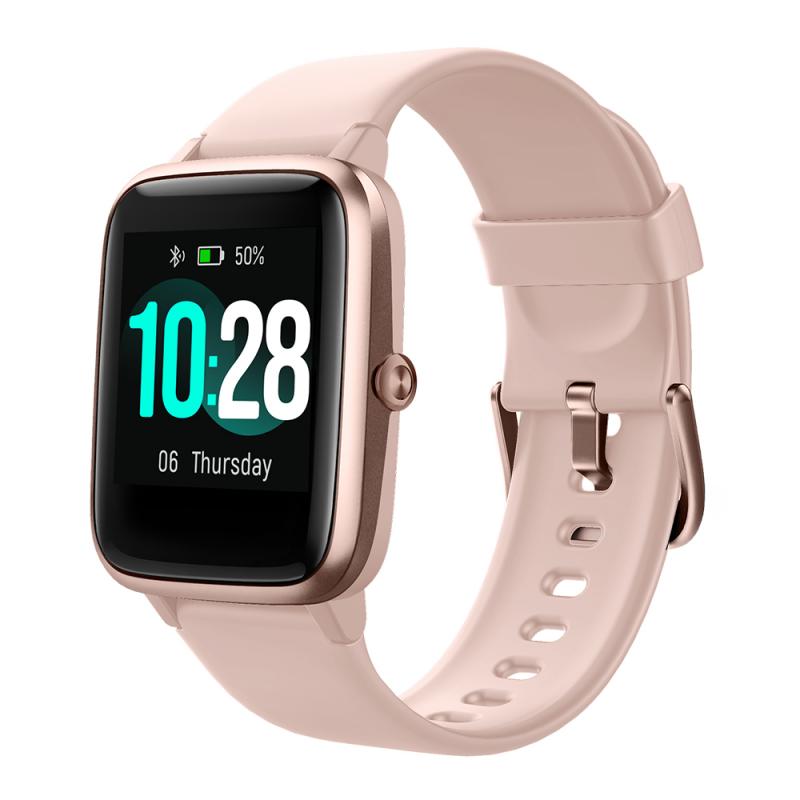
Before diving into the "how-to," it’s important to determine whether your smartwatch is capable of playing videos. Not all smartwatches are designed with video playback in mind, as their primary focus is often fitness tracking, notifications, and other utility-based features. Here are some factors to consider:
1. Operating System: Smartwatches running on advanced operating systems like Wear OS (formerly Android Wear), watchOS (Apple Watch), or Tizen (Samsung Galaxy Watch) are more likely to support video playback. Basic fitness trackers or proprietary systems may not have this capability.
2. Screen and Hardware: Video playback requires a certain level of hardware capability, including a color touchscreen, sufficient processing power, and adequate storage. If your smartwatch has a high-resolution display and decent specs, it’s more likely to support videos.
3. App Support: Some smartwatches rely on third-party apps to enable video playback. Check whether your smartwatch has access to apps like YouTube, VLC, or other media players.
Once you’ve confirmed that your smartwatch can play videos, you can proceed with the steps to make it happen.
---
Step-by-Step Guide to Playing Videos on a Smartwatch
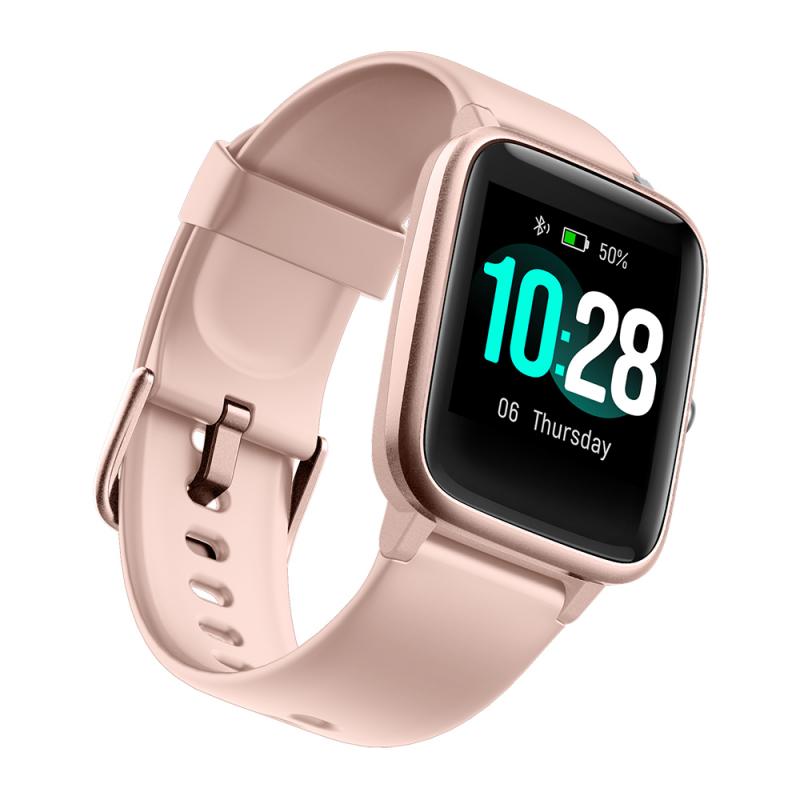
1. Transfer Videos to Your Smartwatch
If you want to play a video file stored on your phone or computer, you’ll need to transfer it to your smartwatch. Here’s how:
- For Android-based Smartwatches (Wear OS):
- Connect your smartwatch to your phone via Bluetooth or Wi-Fi.
- Use a file transfer app like Google Drive, Dropbox, or a dedicated smartwatch file manager to upload the video file.
- Download the file onto your smartwatch using the same app.
- For Apple Watch:
- Apple Watch doesn’t natively support video file transfers, but you can sync video content through apps like Photos or third-party streaming apps.
- Use the Watch app on your iPhone to sync a video album or app that supports playback.
- For Samsung Galaxy Watch (Tizen):
- Use the Galaxy Wearable app to transfer video files.
- Alternatively, use a third-party app like VLC for Tizen to play videos directly.
2. Use a Compatible Video Player
Not all smartwatches come with a built-in video player. If your device doesn’t have one, you’ll need to download a compatible app. Here are some popular options:
- YouTube: Some smartwatches, like those running Wear OS, allow you to install the YouTube app. You can stream videos directly from the app.
- VLC Media Player: VLC is a versatile media player that supports a wide range of video formats. It’s available for many smartwatch platforms.
- MX Player or Other Third-Party Apps: Depending on your smartwatch’s operating system, you may find other apps that support video playback.
Once the app is installed, open it, locate the video file, and start playback.
3. Stream Videos Online
If you don’t want to store videos locally, you can stream them directly from the internet. This requires a stable Wi-Fi or cellular connection. Here’s how:
- Open a browser or video streaming app on your smartwatch.
- Navigate to the video you want to watch (e.g., on YouTube, Vimeo, or another platform).
- Tap the play button to start streaming.
Keep in mind that streaming videos can quickly drain your smartwatch’s battery, so use this feature sparingly.
4. Control Playback
Once the video is playing, you can control playback using the touchscreen or physical buttons (if available). Common controls include play, pause, rewind, fast-forward, and volume adjustment. Some smartwatches also support voice commands for hands-free control.
---
Limitations of Playing Videos on a Smartwatch
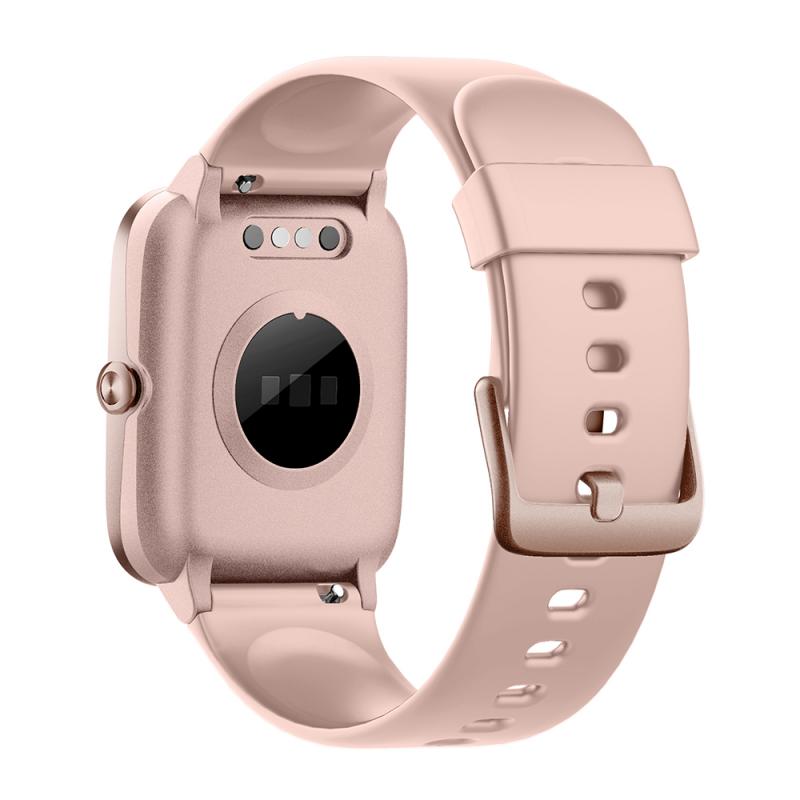
While playing videos on a smartwatch is a cool feature, it’s not without its limitations. Here are some challenges you might face:
1. Screen Size: The small screen size of a smartwatch can make it difficult to enjoy videos, especially those with intricate details or subtitles.
2. Battery Life: Video playback is a power-intensive task that can quickly drain your smartwatch’s battery. If you plan to watch videos, make sure your device is fully charged.
3. Storage Space: Smartwatches typically have limited storage, so you may not be able to store many video files. Streaming can help mitigate this issue, but it requires an internet connection.
4. Format Compatibility: Not all video formats are supported by every smartwatch. Check the specifications of your device and use a video converter if necessary.
5. Performance: Older or less powerful smartwatches may struggle with video playback, leading to lag or crashes.
---
Tips for a Better Video Playback Experience
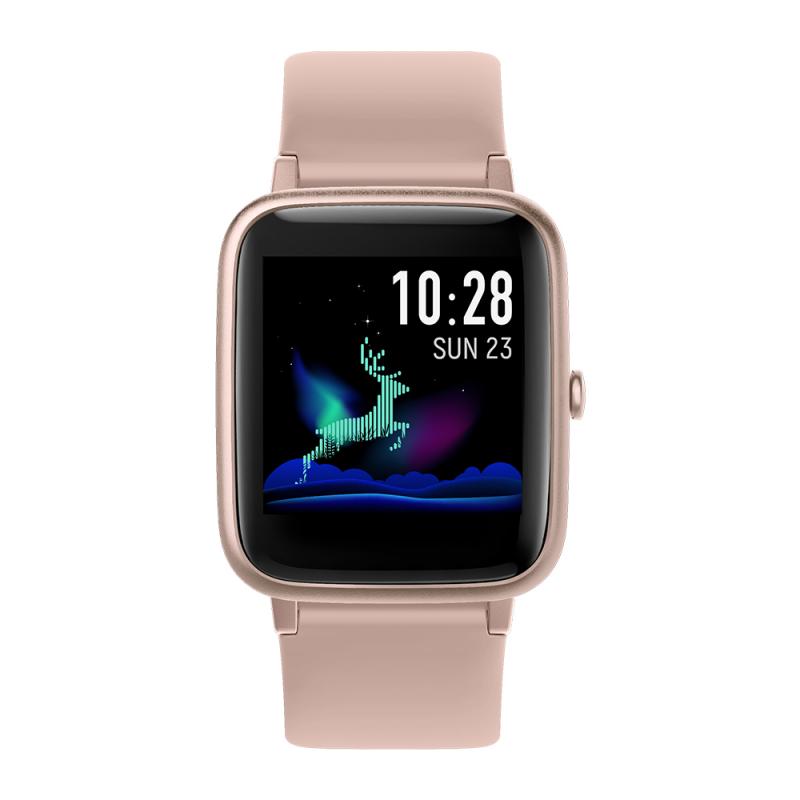
To make the most of your smartwatch’s video playback capabilities, consider the following tips:
1. Optimize Video Resolution: Convert your videos to a lower resolution (e.g., 240p or 360p) to save storage space and reduce strain on your smartwatch’s processor.
2. Use Headphones: Most smartwatches have small, low-quality speakers. Pairing your smartwatch with Bluetooth headphones can significantly improve the audio experience.
3. Keep Videos Short: Due to the small screen and limited battery life, short videos (e.g., under 5 minutes) are more practical for smartwatch viewing.
4. Update Your Apps and Firmware: Ensure that your smartwatch’s operating system and video playback apps are up to date for the best performance and compatibility.
5. Manage Storage Wisely: Delete videos you no longer need to free up space for new content.
---
Practical Use Cases for Video Playback on a Smartwatch
While you’re unlikely to watch a full-length movie on your smartwatch, there are several practical scenarios where video playback can be useful:
1. Quick Tutorials: Need to follow a quick how-to guide? Watching a short tutorial on your smartwatch can be convenient.
2. Fitness Videos: Some fitness apps include video demonstrations of exercises, which can be viewed directly on your smartwatch during a workout.
3. Video Messages: If someone sends you a short video message, you can view it on your smartwatch without needing to pull out your phone.
4. Entertainment on the Go: Whether you’re waiting in line or taking a short break, a quick video can provide a moment of entertainment.
---
Playing videos on a smartwatch is a fun and occasionally useful feature that showcases the versatility of these devices. While the experience may not rival that of a smartphone or tablet, it’s a handy option for quick video viewing in certain situations. By following the steps outlined in this article and keeping the limitations in mind, you can make the most of your smartwatch’s video playback capabilities. Whether you’re watching a tutorial, reviewing a video message, or simply exploring what your smartwatch can do, this feature adds another layer of functionality to your wearable tech.