kfconcept

KENTFAITH
K&F Concept    Blog >

Enjoy Your Selected Digital Life

Recently Viewed
  • Recently Viewed
  • Recently Viewed list is empty.

Compare (0) 0
  • Compare
  • You have not chosen any products to compare.

  • Compare
Currency: USD
  • Currency
Shop by Scene Shop by Rank

Log Into Your Account

Account

Order History

Wish List

Login

Forgotten Password?

Or connect with

Register Account

Already have an Account?Log In

  • Shopping Cart
  • Your shopping cart is empty!

  • Register/Login to purchase, earn points
  • Favorite
  • Your wish list is empty.

  • Register/Login to like, earn points
  • Activities
  • Guide
    • Filter Guide
    • Lens Adapter
    • Product Review
  • News & Reviews
    • Camera Reviews
    • Sample Gallery
    • News
  • Tutorials
    • Solar eclipse photography
    • Photography Basics
    • Landscape Photography
  • Inspiration
    • Travel
    • Travel Stories
  • Home
  • Blog
  • How To Get Voice In Screen Recording?

How To Get Voice In Screen Recording?

Kentfaith 2024-08-23 01:22:24 0 Comments

Screen recording has become an essential tool for many professionals, educators, and content creators. Whether you're creating tutorials, recording gameplay, or capturing a video call, adding voice to your screen recordings can significantly enhance the value and clarity of your content. In this article, we will explore various methods and tools to help you effectively capture voice in your screen recordings, ensuring that your audience receives a comprehensive and engaging experience.

Understanding the Basics
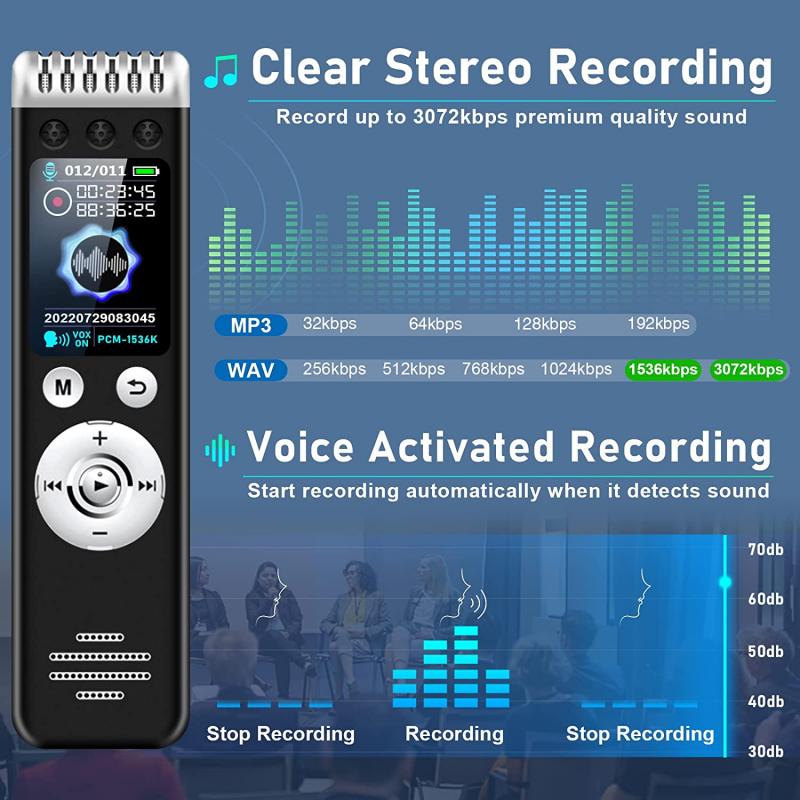
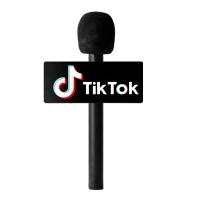
how to get voice in screen recording 1

Before diving into the specifics, it's important to understand the basic requirements for capturing voice in screen recordings. The primary components include:

1. Screen Recording Software: This is the tool that captures the visual content on your screen.

2. Microphone: An external or built-in microphone to capture your voice.

3. Audio Settings: Proper configuration of audio settings to ensure clear and synchronized voice recording.

Choosing the Right Screen Recording Software
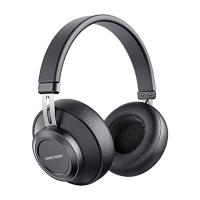
how to get voice in screen recording 2

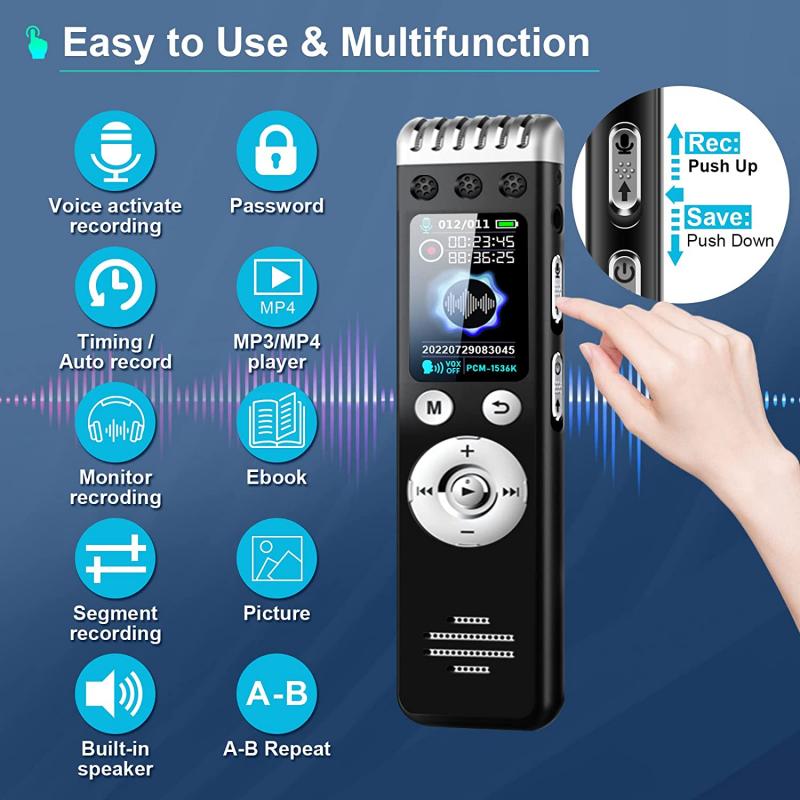
The first step in capturing voice in your screen recordings is selecting the right software. There are numerous options available, each with its own set of features. Here are some popular choices:

1. OBS Studio: Open Broadcaster Software (OBS) is a free and open-source tool that offers extensive customization options. It supports multiple audio sources, making it ideal for capturing both system audio and microphone input.

2. Camtasia: A user-friendly screen recording and video editing software that allows you to record your screen and voice simultaneously. It also offers advanced editing features to enhance your recordings.

3. Screencast-O-Matic: A simple and affordable option that provides basic screen recording and voice capture capabilities. It’s suitable for quick and straightforward recordings.

4. QuickTime Player: For Mac users, QuickTime Player offers a built-in screen recording feature with the option to capture audio from your microphone.

5. ShareX: Another free and open-source tool that provides robust screen recording features along with the ability to capture audio from multiple sources.

Setting Up Your Microphone
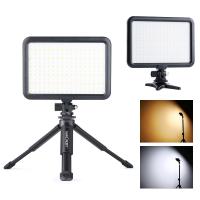
how to get voice in screen recording 3

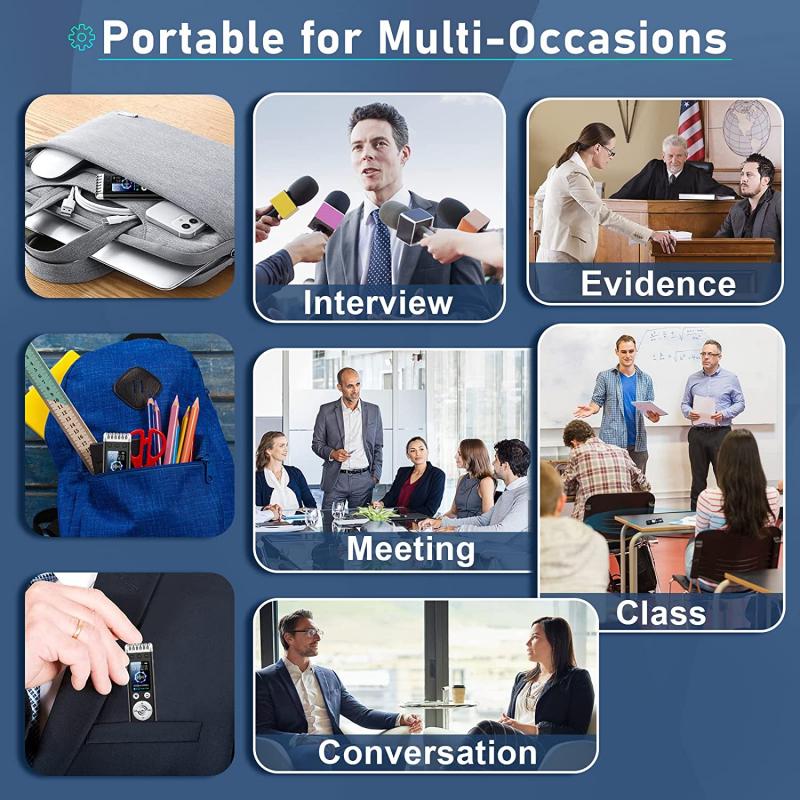
Once you have chosen your screen recording software, the next step is to set up your microphone. Here are some tips to ensure optimal audio quality:

1. Choose the Right Microphone: While built-in microphones can suffice for basic recordings, investing in an external microphone can significantly improve audio quality. USB microphones like the Blue Yeti or Audio-Technica AT2020 are popular choices.

2. Position Your Microphone: Place your microphone at an appropriate distance from your mouth to avoid distortion and ensure clear audio. A pop filter can help reduce plosive sounds.

3. Check Your Environment: Record in a quiet environment to minimize background noise. Using soundproofing materials or recording in a smaller room can help achieve better audio quality.

4. Test Your Setup: Before starting your screen recording, test your microphone setup to ensure that the audio levels are appropriate and that your voice is being captured clearly.

Configuring Audio Settings
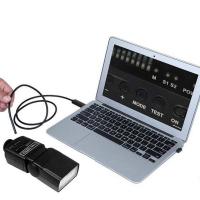
how to get voice in screen recording 4

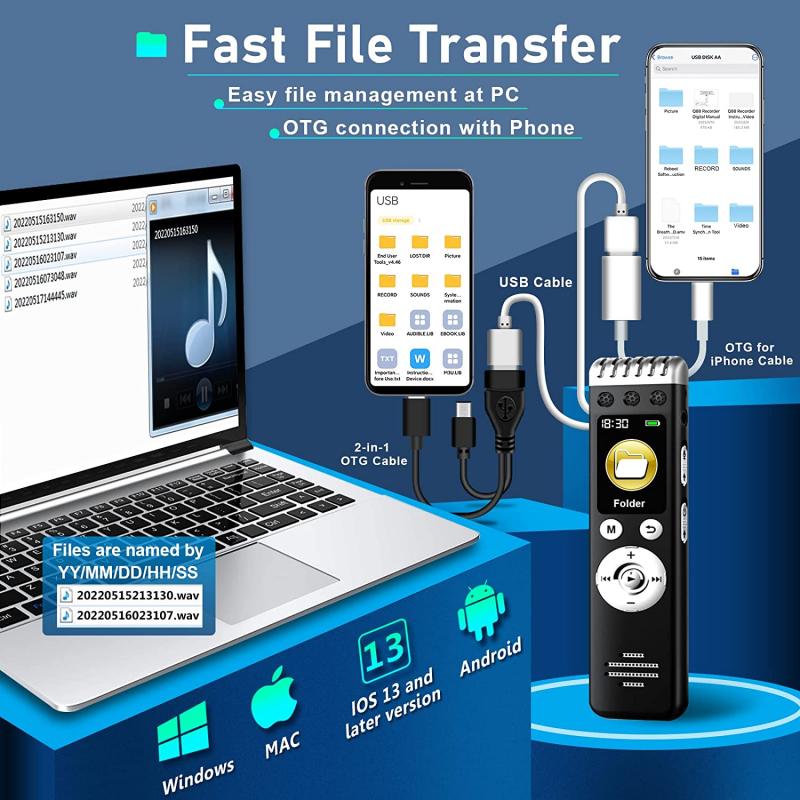
Properly configuring your audio settings is crucial for capturing high-quality voice recordings. Here’s how to do it in some of the popular screen recording software:

OBS Studio

1. Add Audio Source: In the OBS interface, click on the "+" button under the "Sources" panel and select "Audio Input Capture." Choose your microphone from the list of available devices.

2. Adjust Audio Levels: Use the audio mixer to adjust the volume levels of your microphone. Ensure that the levels are not too high to avoid clipping.

3. Enable Monitoring: If you want to hear your voice while recording, enable audio monitoring by right-clicking on the audio source and selecting "Advanced Audio Properties." Set the "Audio Monitoring" option to "Monitor and Output."

Camtasia

1. Select Audio Input: In the Camtasia recorder, click on the "Audio" button and select your microphone from the dropdown menu.

2. Adjust Volume: Use the volume slider to adjust the input level of your microphone. Make sure the levels are not peaking into the red zone.

3. Test Audio: Use the built-in audio test feature to ensure that your voice is being captured clearly.

QuickTime Player

1. Open Screen Recording: Launch QuickTime Player and select "New Screen Recording" from the "File" menu.

2. Select Microphone: Click on the dropdown arrow next to the record button and choose your microphone from the list of available audio sources.

3. Start Recording: Click the record button to start your screen recording with voice.

Recording Tips and Best Practices

To ensure that your screen recordings with voice are of the highest quality, consider the following tips and best practices:

1. Plan Your Content: Outline the key points you want to cover in your recording. This will help you stay organized and ensure that you don’t miss any important information.

2. Speak Clearly: Enunciate your words and speak at a moderate pace. This will make it easier for your audience to understand and follow along.

3. Use Headphones: If you’re recording system audio along with your voice, use headphones to prevent audio feedback and ensure that the system sounds don’t interfere with your voice recording.

4. Edit Your Recording: After capturing your screen and voice, use video editing software to trim any unnecessary parts, enhance audio quality, and add annotations or captions if needed.

5. Practice: Like any skill, practice makes perfect. The more you record, the more comfortable you will become with the process, leading to better quality recordings over time.

Troubleshooting Common Issues

Even with the best preparation, you may encounter some common issues when recording voice in screen recordings. Here are some troubleshooting tips:

1. Audio Sync Issues: If your voice is not synchronized with the video, try adjusting the audio delay settings in your recording software. OBS Studio, for example, allows you to set an audio delay to match the video.

2. Background Noise: If you’re experiencing background noise, consider using noise reduction features available in your recording or editing software. Additionally, recording in a quieter environment can help.

3. Low Audio Quality: If your voice sounds muffled or distorted, check your microphone settings and ensure that it is properly positioned. Using an external microphone can also improve audio quality.

4. Software Crashes: If your recording software crashes frequently, ensure that you are using the latest version and that your computer meets the software’s system requirements. Closing unnecessary applications can also help improve performance.

Capturing voice in screen recordings is a valuable skill that can enhance the effectiveness and engagement of your content. By choosing the right software, setting up your microphone correctly, configuring audio settings, and following best practices, you can create high-quality screen recordings with clear and synchronized voice. Whether you’re a professional, educator, or content creator, these tips will help you deliver compelling and informative recordings to your audience. Happy recording!
Leave your comment
Cancel reply
Note: HTML is not translated!
Related products
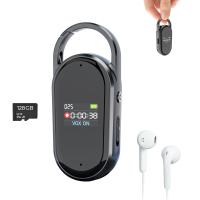
Mini Sound Recorder 128GB 1600H Recording Capacity with 1.4" Screen, Voice Activated Mode Kentfaith
12
$99.99 $79.99
Digital Voice Recorder with Ultra-long 1000H Continuous Recording, Voice-Activated & Magnetic 128G
11
$134.99 $89.99
128G Small Digital Voice Recorder with Ultra-long 1000H Continuous Recording, Voice-Activated & Magnetic, Kentfaith
17
$118.74 $94.99
Mini Voice Recorder Magnetic & Voice-activated, 800H Recording with Noise Cancelling, Kentfaith Voice Recorder for Meetings, Lectures, Studying, Interviews 64G
621
$68.99 $49.99
Mini Voice Recorder Magnetic & Voice-activated, 1600H Recording with Noise Cancelling, Kentfaith Voice Recorder for Meetings, Lectures, Studying, Interviews 128G
621
$82.49 $53.99
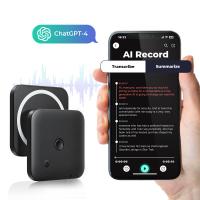
AI Voice Recorder, Transcribe Summarize Translation, App Control, 40H Recording Time, 64GB Memory, Kentfaith
21
$137.49 $109.99
128G Small Digital Voice Recorder with Ultra-long 1536H Recording, Voice-Activated & DSP Noise Reduction, Conference/Lecture/Classroom Learning, Keychain Portable Gifts, Kentfaith
18
$106.24 $84.99
AI Voice Recorder Voice-to-Text & Transcription for Meetings, Calls, Interviews, 64G Kentfaith Mini & Magnetic
26
$119.99 $69.99
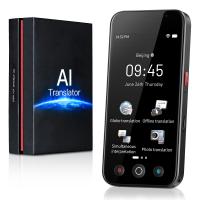
Offline Voice Translator Device with 144 Languages 5" Touch Screen ChatGPT Integrated
62
$149.99 $99.99
128G Mini Digital Voice Recorder with Color Screen Bluetooth Call Record 3072kbps Kentfaith
15
$119.99 $83.99
Products You May Like
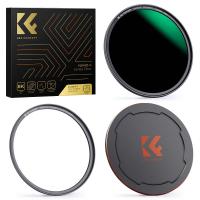
72mm Magnetic ND1000 Filter, HD Waterproof Scratch-Resistant Anti-Reflection Nano-Xcel Series
29
$62.99 $49.99
Incandescent Flash Trail Cameras
10
$162.99 $106.99
K&F Concept Phone Tripod, Extendable Flexible Tripod with Remote 24in Small Tripod for iPhone, Mini Tripod Max Load 4.4lb for iPhone 16 15 14 Pro Max XS Max X 8 Samsung Canon Nikon Sony Cameras.
3
$53.99 $29.99
24*7 Continuous Recording 4G Solar Security Camera System 4G Wireless LTE cctv Solar Camera PIR Human Sensor + 2-Way Audio Built-in Battery 28800mAh 2K Infrared Night Vision 20m/66ft US Version
78
$299.99 $249.99
BETAFPV Cetus Pro FPV Drone Kit with 3 Flight Modes Altitude Hold Emergency Landing Self Protection Turtle Mode with Radio Transmitter Goggles for FPV Beginners Player-to-Pilot Teenager Girls Boys
$337.49 $269.99
10Pcs Double-Headed Cleaning Stick Set, CMOS APS-C Frame Cleaning Stick 16mm Cleaning Cloth Sticks Set
1
$34.99 $17.99
K/AR-NIK Z Manual Focus Compatible with Konica Auto-Reflex (AR) SLR Lens to Nikon Z Mount Camera Body K&F Concept Lens Mount Adapter
27
$66.99 $36.99
62mm Black Mist 1/4 & ND8-128 Variable ND Filter with Double-sided 28-layer Anti-reflection Green Film and Lever Nano-Xcel Series
13
$163.99 $85.99
72mm CPL Filter 28 Layer Super Slim Circular Polarizing Filter Multi-coated Polarized MRC Filter NANO-X Series
$64.99 $59.99
K&F Concept XK43 52mm Natural Night Filter Nano-Xcel
28
$49.99 $39.99
Related articles
How To Get Your Voice On Screen Recording?
How To Get Sound In Screen Recording?
How To Have Your Voice In Screen Recording?
How Do You Get Sound In Screen Recording?
How To Change Your Voice On Screen Recording?
How To Make Sound In Screen Recording?
How Do I Get Sound On Screen Recording?
Can You Record Your Voice While Screen Recording?
Recording How To Get That Open Sound?
Can I Add A Microphone To My Headphones?
Blog You May Like
How To Capture Video On Pc From Camcorder?
How To Filter Uv From Laptop Screen?
How To Change A Smart Watch Time?
How Many Pictures Fit On A Memory Card?
How To Remove Read Only Sd Card?
How To Check If Camera Battery Is Bad?
What Is A Ring Light With Stand?
How To Use A Mic With Action Camera?
How To Install Wireless Video Cameras?
What Does A House Camera Look Like?
Related categories
trail camera with screen 2 in 1 Filter Screw-In Filter C mount lens adapter m4/3 adapter digital microscope GPS monitor detector 49mm Filters
Popular products
digital voice recorder with usb digital voice recording smart digital voice recorder small voice activated audio recorder mini sound recorder device mini magnetic voice recorder small hidden audio recorder phone voice call recording Offline Translator Device microphone for pc gaming
Related searches
Screen Voice Recorder Voice Recording Microphone Voice Recorder In Car Built In Projector Screen In Store Projector Screen Usb Microphone For Voice Recording Get Stuck Filter Off Lens Voice Recorder Voice Data Recorder Bluetooth Voice Recorder
Popular searches
Speakers For A Projector Yellow Lens Filter For Colorphptps Class 1 Laser Rangefinder Tripod With Clamp Ge X500 Lens Adapter Canon Flash Sony Adapter Canon Remote Shutter Release Adapter Usb Lavalier Microphone Sun Filter For Camera White Lavalier Microphone
Blog Category
  • Activities
  • Guide
    • Filter Guide
    • Lens Adapter
    • Product Review
  • News & Reviews
    • Camera Reviews
    • Sample Gallery
    • News
  • Tutorials
    • Solar eclipse photography
    • Photography Basics
    • Landscape Photography
  • Inspiration
    • Travel
    • Travel Stories
Search Article
Latest from the Blog
Is the Sony A7M5 worth buying?
How Does a WiFi Trail Camera Work?
How To Wear Monocular?
Where Can I Find Hidden Cameras?
Dash Cam That Can Connect To Phone?
Can You Zoom In With Binoculars?
Where Can I Buy Samsung Camera Battery?
How To Make A Camera Flash After Effects?
Can I Charge Camera Battery With Power Bank?
Which Binoculars To Buy?
  • Easy Payment Multilple Payment Options

  • Free Shipping Global WareHouse Shipment

  • No Risk 30-Day No Reason Return

  • Limited Deals Buy More, Save More

  • Tax Free No any surcharges or tax fee

Information
  • About us
  • Contact Us
  • Site Map
  • Blog
  • Video
  • Gallery
  • VIP Membership Rewards
Service
  • Privacy Policy
  • Terms & Conditions
  • Shipping & Delivery
  • Payment Info
  • Warranty, Return & Refund
  • Intellectual Property Rights
  • Ambassador
  • Affiliates
  • Wholesale
Support
  • My account
  • Order History
  • FAQs
  • Extend Warranty
  • Logistics Tracking
Follow us
NewsLetter

Get the latest product, K&F Concept respects your privacy.

Powered By KENTFAITH © 2025