kfconcept

KENTFAITH
K&F Concept    Blog >

Enjoy Your Selected Digital Life

Recently Viewed
  • Recently Viewed
  • Recently Viewed list is empty.

Compare (0) 0
  • Compare
  • You have not chosen any products to compare.

  • Compare
Currency: USD
  • Currency
Shop by Scene Shop by Rank

Log Into Your Account

Account

Order History

Wish List

Login

Forgotten Password?

or connect with

Register Account

Already have an Account?Log In

  • Shopping Cart
  • Your shopping cart is empty!

  • Register/Login to purchase, earn points
  • Favorite
  • Your wish list is empty.

  • Register/Login to like, earn points
  • Activities
  • Guide
    • Filter Guide
    • Lens Adapter
    • Product Review
  • News & Reviews
    • Camera Reviews
    • Sample Gallery
    • News
  • Tutorials
    • Solar eclipse photography
    • Photography Basics
    • Landscape Photography
  • Inspiration
    • Travel
    • Travel Stories
  • Home
  • Blog
  • How To Change Wifi On Wyze Cameras ?

How To Change Wifi On Wyze Cameras ?

Kentfaith 2023-05-05 09:19:25 0 Comments

In today's era of connectivity, smart home devices have become part of our lives, and Wyze cameras are favoured by the majority of users due to their cost-effective and good performance. However, in the process of using it, it is inevitable that you will encounter situations where you need to change your WiFi network. This article will delve into how to change Wyze camera's WiFi and provide users with detailed steps and solutions.
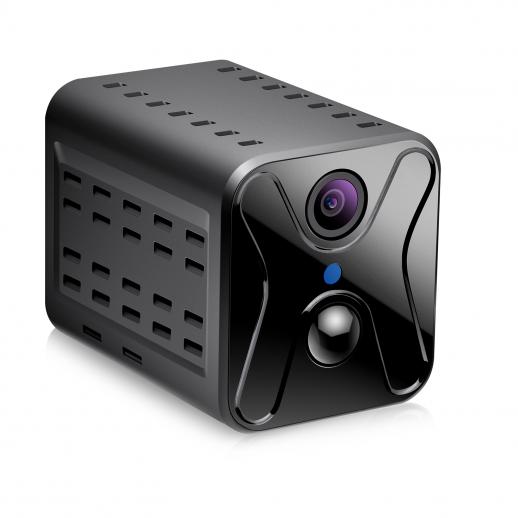

Reconnect Wyze camera to a new WiFi network

Changing Wyze camera's WiFi connection is the most common problem many users encounter, whether it's due to changing router or moving to a new place, here are the steps:

1. Preparation

Make sure the name (SSID) and password of your new WiFi network are available.

Open the Wyze app and make sure you're logged into your Wyze account.

2. Go to Camera Settings

In the main Wyze app screen, select the camera you need to change the WiFi for.

Tap the settings icon in the top right corner to enter the camera settings screen.

3. Start the WiFi change process

In the settings menu, select "Device Information".

Tap "Change WiFi Network".

4. Connect to the new WiFi

Follow the prompts of the app to select a new WiFi network and enter the password.

After confirming the connection, the camera will reboot and connect to the new WiFi network.

With the above steps, users can easily connect Wyze camera to a new WiFi network. However, sometimes we may encounter some unexpected situations that lead to connection failure, which requires troubleshooting.

Solve the problem of Wyze camera can't connect to WiFi

When Wyze camera can't connect to WiFi, it may be due to a variety of reasons. Here are some common solutions:

Check the WiFi signal

Make sure the camera is in an area with good WiFi signal strength.

If the signal is weak, consider using a WiFi signal amplifier.

Confirm the WiFi band

Wyze cameras only support the 2.4GHz WiFi band, not the 5GHz band.

Confirm that your router's settings support the 2.4GHz band.

Reboot the devices

Reboot your router and Wyze camera, this usually resolves most connectivity issues.

Update the firmware

Ensure that the firmware on the camera and app is the latest version.

Check for updates in the Wyze app and update as required.

Reset the camera

If the above doesn't work, try resetting the camera to factory settings.

Press and hold the reset button on the back of the camera until you hear a voice prompt.


Troubleshooting common Wyze camera WiFi connection problems

Even if you follow the correct steps, you may still encounter some connection failures. Here are some common faults and their solutions:

Unable to find WiFi network

Check if your router is working properly and make sure the WiFi network is not hidden.

Switch off and switch back on the WiFi network.

Wrong password

Make sure the WiFi password entered is correct and case sensitive.

Reset the router password and reconnect.

Camera not synchronised with apps

Make sure the phone and camera are connected to the same WiFi network.

Log out and log back into the Wyze app.

Connection timeout

Retry the connection close to the router to reduce interference.

Check if the network is stable and there are no frequent dropouts.


Steps to set up Wyze camera when changing WiFi

When changing WiFi, apart from the basic connection steps, there are a few more details you need to take care of to ensure the whole process goes smoothly:

Backup Settings

Before changing WiFi, record the current settings in case you need to restore them.

You can take a screenshot of the settings page in the Wyze app to save it.

Change devices one by one

If you have more than one Wyze camera at home, it is recommended to make changes one by one to avoid confusion caused by operating them at the same time.

Check other devices

After changing the WiFi, check whether other smart home devices are connected properly.

Make sure the router settings are compatible with all devices.

Setting Static IP Address

To avoid IP conflicts, you can set a static IP address for the Wyze camera.

Set it in the router management page and record the IP address.


Ensure the stability of Wyze camera WiFi connection

To ensure that Wyze camera works stably after changing WiFi, the following points are worth noting:

Regularly check the network

Regularly check the stability of your WiFi network to avoid frequent drops.

You can use a network monitoring tool to monitor the network status in real time.

Optimise router settings

Adjust the channel of your router to avoid interference with neighbouring WiFi signals.

Ensure the router firmware is the latest version to optimise performance.

Use high-quality network equipment

Choose routers and signal boosters with stable performance.

Avoid using cheap devices that affect network quality.

Reasonable layout of network equipment

Place the router and camera in a location with good signal coverage.

Avoid obstacles to block the signal, such as thick walls and metal objects.

With the above methods, you can not only change the Wyze camera's WiFi connection smoothly, but also ensure its stable operation. In practice, if you encounter any unsolvable problems, it is recommended to consult Wyze official customer service or check the help document on the official website.


Overall, the process of changing WiFi connection of Wyze camera is not complicated, just follow the steps and pay attention to some details. I hope this article will help users when changing WiFi and improve their experience.


Leave your comment
Cancel reply
Note: HTML is not translated!
Related products
67mm Clip-on CPL Phone Camera Lens Filter Kit Applicable to All Mobile Phone Models
40
$18.99
67mm Clip-on ND2-32 Phone Camera Lens Filter Kit Applicable to All Mobile Phone Models
NEW Arrival
67mm Clip-on ND2-32 Phone Camera Lens Filter Kit Applicable to All Mobile Phone Models
13
$37.99
4K 75MP Digital Cameras for Photography, 20X Optical Zoom, WiFi Youtube Vlogging Camera with Autofocus & Dual Lens for Selfie, 4in Touchscreen Kentfaith
12
$299.99 $239.99
67mm Clip-on Black Mist 1/4 Phone Camera Lens Filter Kit Applicable to All Mobile Phone Models
7
$29.99
Olympus OM Mount Lens to M4/3 MFT Olympus Pen Cameras Lens Mount Adapter
24
$64.99 $35.99
PL-L Mount Lens Adapter, Compatible with PL Lens Converter to L Mount Cameras
$99.99
52mm Clip-on CPL Phone Camera Lens Filter Kit, Circular Polarizer Polarizing Filter Applicable to All Mobile Phone Models
24
$19.99
Compound Microscope for Kids with 4.3in Screen, 80X to 800X, WiFi Connection, Dual Light Sources, 1080P Videos, 32GB Card Included, Kentfaith
12
$237.49 $189.99
PL-RF Mount Lens Adapter, Compatible with PL Mount Lens Converter to RF Mount Cameras Adapter
$89.99
67mm Clip-on CPL&Black Mist 1/4 2-in-1 Phone Camera Lens Filter Kit Applicable to All Mobile Phone Models
3
$29.99
Products You May Like
5" LCD Panda Video Baby Monitor with Night Vision Camera Temperature Monitoring 2 Way Talk Lullaby Vox Function Connect Up to 4 Cameras EU Power Plug
$129.99
Variable ND64-1000 Filter for DJI Mavic 3 / Mavic 3 Cine, Neutral Density Filter with 28 Multi-Layer Coatings Waterproof/Scratch Resistant
4
$51.99 $33.99
Gift Certificate: $500 Value  -Can Use with Any Discounts
Gift Certificate: $500 Value -Can Use with Any Discounts
$500.00 $450.00
Camera Lens Filter Set for Mavic Mini 1 / Mini 2 / SE Drone - UV / CPL / ND8 / ND16 / ND32 / ND64 with 2 Set Propellers
16
$93.99 $62.99
Lightweight Camera Tripod for Phone, 16.7"(42.5cm) Folded with Quick Release Plate, Phone Holder & Strap, Max 62.2"(158cm) Height, 3kg Load, Camera Stand for Photography & DSLR/iPhone K&F CONCEPT
$27.99
M9 Pro Wireless Lavalier Microphone Plug-Play Noise Reduction Auto-Sync
40
$29.99
49mm Black Mist 1/4 and ND2-32 (1-5 Stop) Variable ND Lens Filter 2 in 1 with 28 Multi-Layer Coatings Nano-Xcel Series
36
$91.99 $72.99
K&F Concept LP-E17 Battery 3-Pack and Upgraded 3-Slot LCD Charger for Canon EOS R50 RP R10 R8,Rebel T8i T7i T6i T6s SL2 SL3 EOS M3 M5 M6 200D 77D 750D 760D 800D 8000D Camera
HOT Seller
K&F Concept LP-E17 Battery 3-Pack and Upgraded 3-Slot LCD Charger for Canon EOS R50 RP R10 R8,Rebel T8i T7i T6i T6s SL2 SL3 EOS M3 M5 M6 200D 77D 750D 760D 800D 8000D Camera
17
$32.99
Retro Camera Shoulder Straps, Adjustable Neck Strap Suitable for All Slr Cameras (Nikon Canon Sony Pentax) Classic Brown Woven
2
$12.99
100*100*2mm Full Color ND64 Square Filter with Protective Frame, HD Optical Glass Waterproof ND Light Reduction Filter Nano-Xcel Pro Series
25
$137.99 $119.99
Related articles
How To Change Ring Camera Wifi Network ?
How To Change Canon Camera Wifi Password?
How To View Cameras On Wifi Network?
Smart Life Camera How To Change Wifi Network?
How To View Multiple Wifi Cameras On One Screen ?
How To Change Language On Bluetooth Headphones ?
How To Change Video Camera On Laptop?
How To Change Battery On Selfie Stick L01?
How To Change Your Voice On Screen Recording?
How To Make Your Recording Sound Clear?
Blog You May Like
Skype Can T Find Video Camera?
How To Charge Camera With Battery Inside It?
How To Use Iphone As A Security Camera?
How To Install A Wireless Security Camera?
How To Find Camera Wifi Password ?
Can You Put Trail Cameras On Public Land?
How To Get A Filter On Iphone Camera?
How To Fix Microphone On Windows 11?
How To Find Megapixels Of Camera?
What Are Flash Memory Cards Used For?
Related categories
Wifi Trail Cameras Outdoor Security Camera Wifi On-Dash Camera Baby Movement Monitor 4G Cameras C mount lens adapter m4/3 adapter endoscope cameras
Popular products
trail vision cameras wifi night trail cameras wifi capable trail cameras Polarize Filter For Mobile Phone clip on phone camera lens no wifi outdoor security camera high quality condenser microphone nd filter for dji osmo action protective lens cap dslr nikon lens with 72mm filter
Related searches
Change Mount On Sigma Lens Bluetooth Wifi Cameras Wifi Wildlife Cameras Security Cameras On Sale Surveillance Cameras With Wifi Wifi Bird Box Cameras Outdoor Security Cameras Wifi No Wifi Security Cameras Bluetooth Or Wifi Cameras Security Cameras Without Wifi
Related Scenes
Best Carry On Camera Bag Best Backpack For Cameras Best Batteries For Cameras Best Camera To Video Sports Best Camera To Capture Wildlife Best Batteries For Canon Cameras Best Video Camera To Record Sports Best Outdoor Wifi Camera Best Wifi Surveillance Camera Best Home Camera Wifi
Blog Category
  • Activities
  • Guide
    • Filter Guide
    • Lens Adapter
    • Product Review
  • News & Reviews
    • Camera Reviews
    • Sample Gallery
    • News
  • Tutorials
    • Solar eclipse photography
    • Photography Basics
    • Landscape Photography
  • Inspiration
    • Travel
    • Travel Stories
Search Article
Latest from the Blog
Which Smartwatch Is Most Accurate For Calories?
Can You Drive With Headphones?
How To Choose A Home Security Camera System?
How To Setup A Tripod?
How Accurate Are Smart Watch Blood Oxygen Monitor?
Can Trail Cameras Be Used For Home Security?
Which Memory Card For Dash Cam?
How Expensive Is A Metal Detector?
What Is The Field Diameter Of A Microscope?
What Projector For Outdoor Movies?
  • Easy Payment Multilple Payment Options

  • Free Shipping Global WareHouse Shipment

  • No Risk 30-Day No Reason Return

  • Limited Deals Buy More, Save More

  • Tax Free No any surcharges or tax fee

Information
  • About us
  • Contact Us
  • Site Map
  • Blog
  • Video
  • Gallery
  • VIP Membership Rewards
Service
  • Privacy Policy
  • Terms & Conditions
  • Shipping & Delivery
  • Payment Info
  • Warranty, Return & Refund
  • Intellectual Property Rights
  • Ambassador
  • Affiliates
  • Wholesale
Support
  • My account
  • Order History
  • FAQs
  • Extend Warranty
  • Logistics Tracking
Follow us
NewsLetter

Get the latest product, K&F Concept respects your privacy.
Powered By KENTFAITH © 2026