How To Connect Wireless Cctv Cameras?
Wireless CCTV cameras have become increasingly popular due to their ease of installation, flexibility, and ability to provide real-time surveillance without the need for extensive wiring. Whether you're setting up a security system for your home or business, understanding how to connect wireless CCTV cameras is essential for ensuring optimal performance and reliability. In this article, we’ll walk you through the process step-by-step, address common challenges, and provide tips to maximize the effectiveness of your wireless CCTV system.
---
Step 1: Understand the Components of a Wireless CCTV System

Before diving into the setup process, it’s important to familiarize yourself with the key components of a wireless CCTV system. These typically include:
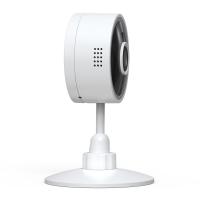
1. Wireless CCTV Cameras: These cameras transmit video signals over Wi-Fi or other wireless protocols.
2. Wi-Fi Router: Acts as the central hub for connecting the cameras to your network.
3. Power Source: While the cameras are wireless in terms of data transmission, they still require power, either through batteries or a power adapter.
4. Monitoring Device: This could be a smartphone, tablet, computer, or dedicated monitor where you can view the camera feed.
5. Mobile App or Software: Most wireless cameras come with a companion app or software for configuration and monitoring.
---
Step 2: Choose the Right Location for Your Cameras
The placement of your wireless CCTV cameras is critical for both security coverage and signal strength. Here are some tips to consider:
- Coverage Area: Identify the areas you want to monitor, such as entry points, driveways, or backyards. Ensure the camera’s field of view covers these areas effectively.
- Wi-Fi Signal Strength: Wireless cameras rely on a strong Wi-Fi connection. Test the signal strength in the intended location using a smartphone or Wi-Fi analyzer app. If the signal is weak, consider using a Wi-Fi extender or mesh network.
- Height and Angle: Mount the cameras at a height that prevents tampering but still provides a clear view of the area. Angling the camera slightly downward can help capture more detail.
- Weather Protection: For outdoor cameras, ensure they are weatherproof and positioned to avoid direct exposure to rain or sunlight.
---
Step 3: Power Up the Cameras

Wireless cameras require a power source to function. Depending on the type of camera, you may need to:
- Plug into a Power Outlet: Many wireless cameras come with a power adapter that needs to be connected to an electrical outlet.
- Install Batteries: Some cameras are battery-powered, offering greater flexibility in placement. Ensure the batteries are fully charged before installation.
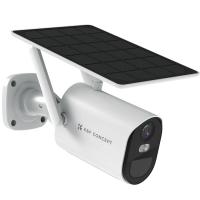
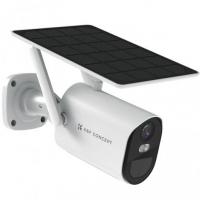
- Solar Panels: Certain outdoor cameras support solar panels for continuous power. This is a great option for remote areas.
---
Step 4: Connect the Cameras to Your Wi-Fi Network

Once the cameras are powered, the next step is to connect them to your Wi-Fi network. The process may vary slightly depending on the brand and model, but the general steps are as follows:
1. Download the Companion App: Most wireless cameras come with a dedicated app that you can download from the App Store or Google Play Store.
2. Create an Account: Open the app and create an account if required. This will allow you to access your camera feed remotely.
3. Add the Camera: Follow the app’s instructions to add a new camera. This usually involves scanning a QR code on the camera or entering its serial number.
4. Connect to Wi-Fi: Select your Wi-Fi network from the list and enter the password. Ensure the camera is within range of your router during this step.
5. Test the Connection: Once connected, test the camera feed through the app to ensure it’s working correctly.
---
Step 5: Configure Camera Settings
After successfully connecting the cameras to your network, take some time to configure the settings to suit your needs. Common settings include:
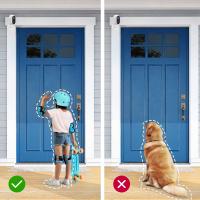
- Motion Detection: Enable motion detection to receive alerts when movement is detected in the camera’s field of view. Adjust the sensitivity to minimize false alarms.
- Recording Options: Choose whether to record continuously, on a schedule, or only when motion is detected. Some cameras offer cloud storage, while others use local storage like an SD card.
- Resolution and Frame Rate: Set the video quality to balance clarity and bandwidth usage. Higher resolutions provide better detail but require more storage and bandwidth.
- Night Vision: If your camera supports night vision, ensure it’s enabled for low-light conditions.
---
Step 6: Mount the Cameras
Once the cameras are configured and tested, it’s time to mount them in their final locations. Use the mounting hardware provided with the cameras and follow these steps:
1. Mark the Mounting Points: Use a pencil or marker to indicate where the screws will go.
2. Drill Holes: If mounting on a wall or ceiling, drill holes for the screws.
3. Secure the Mounting Bracket: Attach the bracket to the surface using screws and anchors if necessary.
4. Attach the Camera: Secure the camera to the bracket and adjust its angle for optimal coverage.
---
Step 7: Test and Optimize
After installation, thoroughly test your wireless CCTV system to ensure it meets your expectations. Here’s what to check:
- Live Feed: Verify that you can view the live feed from all cameras on your monitoring device.
- Motion Alerts: Test the motion detection feature by walking through the camera’s field of view.
- Night Vision: Check the camera’s performance in low-light conditions.
- Signal Strength: Monitor the Wi-Fi signal strength and address any connectivity issues.
If you encounter problems, consider the following solutions:
- Reposition the Camera: Move the camera closer to the router or use a Wi-Fi extender.
- Update Firmware: Check for firmware updates in the app to ensure your camera has the latest features and bug fixes.
- Reset the Camera: If all else fails, reset the camera to factory settings and repeat the setup process.
---
Common Challenges and How to Overcome Them
1. Weak Wi-Fi Signal: Use a Wi-Fi extender or upgrade to a mesh network to improve coverage.
2. Interference: Avoid placing cameras near devices that emit electromagnetic interference, such as microwaves or cordless phones.
3. Power Outages: Consider using a UPS (uninterruptible power supply) for cameras that rely on a power outlet.
4. Limited Storage: If using local storage, regularly back up and delete old footage to free up space.
---
Tips for Maintaining Your Wireless CCTV System
- Regular Updates: Keep the camera firmware and app updated to ensure security and performance.
- Clean the Lenses: Dust and debris can affect image quality. Clean the lenses periodically with a soft cloth.
- Check Battery Levels: For battery-powered cameras, monitor the battery levels and recharge or replace them as needed.
- Review Footage: Periodically review recorded footage to ensure the system is capturing events as expected.
---
Setting up wireless CCTV cameras may seem daunting at first, but with the right approach, it’s a straightforward process. By carefully selecting camera locations, ensuring a strong Wi-Fi connection, and configuring the system to meet your needs, you can create a reliable and effective surveillance solution. Regular maintenance and troubleshooting will help you get the most out of your investment, providing peace of mind and enhanced security for your property. Whether you’re a homeowner or a business owner, a well-installed wireless CCTV system is a valuable tool for protecting what matters most.








-200x200.jpg "Can You Point Phone Camera At Solar Eclipse?")