kfconcept

KENTFAITH
K&F Concept    Blog >

Enjoy Your Selected Digital Life

Recently Viewed
  • Recently Viewed
  • 67mm CPL Filter 28 Layer Super Slim Circular Polarizing Filter Multi-coated Polarized MRC Filter NANO-X Series
    67mm CPL Filter 28 Layer Super Slim Circular Polarizing Filter Multi-coated Polarized MRC Filter NANO-X Series
    $57.99
    55mm Shimmer Diffusion 1 Filter Effect Filter Optical Glass 18 Multi-Coated Glimmer Glass Effect Filter for Camera Lens Nano-Klear Series
    55mm Shimmer Diffusion 1 Filter Effect Filter Optical Glass 18 Multi-Coated Glimmer Glass Effect Filter for Camera Lens Nano-Klear Series
    $27.99 $21.84
Compare (0) 0
  • Compare
  • You have not chosen any products to compare.

  • Compare
Currency: USD
  • Currency
Shop by Scene Shop by Rank

Log Into Your Account

Account

Order History

Wish List

Login

Forgotten Password?

Or connect with

Register Account

Already have an Account?Log In

  • Shopping Cart
  • Your shopping cart is empty!

  • Register/Login to purchase, earn points
  • Favorite
  • Your wish list is empty.

  • Register/Login to like, earn points
  • Activities
  • Guide
    • Filter Guide
    • Lens Adapter
    • Product Review
  • News & Reviews
    • Camera Reviews
    • Sample Gallery
    • News
  • Tutorials
    • Solar eclipse photography
    • Photography Basics
    • Landscape Photography
  • Inspiration
    • Travel
    • Travel Stories
  • Home
  • Blog
  • How To Connect Wireless Camera With Pc?

How To Connect Wireless Camera With Pc?

Kentfaith 2024-12-19 01:56:40 0 Comments

How to Connect a Wireless Camera with Your PC: A Comprehensive Guide

In today’s world of smart technology, wireless cameras have become increasingly popular for both security and personal use. One of the most common uses of these cameras is to monitor your home or workplace, but what if you want to view and control the camera from your computer? Whether you’re setting up a security system or just curious about how to integrate your wireless camera with your PC, understanding the process can make things a lot easier.

In this article, we'll walk through how to connect a wireless camera to your PC. We'll cover everything from the basics of wireless camera types to step-by-step instructions on how to establish a reliable connection, including troubleshooting tips for common issues.

Types of Wireless Cameras
how to connect wireless camera with pc 1

Before diving into the specifics of connecting your wireless camera to your PC, it's important to understand the types of wireless cameras available. Broadly speaking, wireless cameras come in two main categories:

1. Wi-Fi Cameras: These cameras connect directly to your home or office Wi-Fi network. They usually come with apps that allow you to access the video feed from your smartphone, tablet, or computer. Wi-Fi cameras are commonly used for home security and monitoring.

2. IP Cameras (Internet Protocol Cameras): These cameras are connected to a network and can be accessed from anywhere in the world, provided you have the correct credentials. IP cameras are often used for professional surveillance and require a bit more technical setup than simple Wi-Fi cameras.

For the purpose of this article, we will assume you are working with either a Wi-Fi or an IP camera, both of which can be connected to a PC. Now, let’s walk through the steps involved in connecting these cameras to your computer.

Requirements for Connecting a Wireless Camera to a PC
how to connect wireless camera with pc 2

Before we go into the steps, you’ll need to gather a few things:

1. The Camera’s User Manual: Always refer to the camera's manual or the manufacturer’s website for the most accurate instructions. Different brands and models may have varying requirements.

2. Wi-Fi Network: For Wi-Fi cameras, make sure your wireless network is up and running, with the camera within range of your router.

3. PC with Compatible Software: Ensure that your PC has compatible software for viewing the camera feed. Some cameras come with proprietary software, while others may support third-party apps. Make sure your computer meets the software’s system requirements.

4. Internet Connection: If your camera requires cloud access or remote viewing, an internet connection is essential.

5. Cable (Optional): If your camera is Wi-Fi-enabled but has an Ethernet port for setup, you might need an Ethernet cable for the initial configuration.

Step-by-Step Guide: How to Connect a Wireless Camera to Your PC
how to connect wireless camera with pc 3

Now that we know the essentials, let's look at how to connect a wireless camera to your PC, using both a direct method (local network) and a cloud-based method (remote access).

1. Connecting via Local Wi-Fi Network

For cameras that connect via your home Wi-Fi, follow these steps:

1. Set Up Your Camera:

- Plug in the camera and follow the initial setup instructions provided by the manufacturer. This often involves connecting the camera to your Wi-Fi network, which is usually done through a mobile app or the camera’s web interface.

- If the camera has an Ethernet port, you might need to connect it to your router initially to configure the wireless settings.

2. Install the Camera Software on Your PC:

- Most cameras come with software that you can install on your PC. This software will allow you to view the live feed and sometimes control the camera.

- If the camera supports third-party apps (such as VLC or OpenIPC), you can use those for monitoring.

- Alternatively, you can access the camera through a web browser if it supports web-based viewing. You’ll need the IP address of the camera to do this.

3. Connect the Camera to Your PC:

- Open the installed software or go to the camera’s web interface using the camera's IP address.

- Enter the login credentials, typically a username and password. These should have been set up during the initial configuration or come with the camera.

- The camera feed should now appear on your screen.

4. Adjust Settings (Optional):

- Depending on the software, you may have the option to adjust the camera settings, such as motion detection, alert notifications, or video resolution.

5. Test the Connection:

- Check the feed to ensure the connection is stable and the quality is good.

- If you're using an IP camera, make sure the port forwarding settings are correct on your router to allow for uninterrupted viewing.

2. Connecting via IP Camera to Remote Cloud Service

If you're using an IP camera with a cloud service for remote access, the process differs slightly:

1. Set Up the Camera on the Network:

- Similar to the Wi-Fi setup, connect the camera to your network using an Ethernet cable. For wireless configurations, connect the camera to the Wi-Fi as per the manufacturer’s instructions.

- Set up the camera’s unique IP address and port on the camera’s configuration page. This is typically done via a browser interface.

2. Create an Account with the Camera's Cloud Service:

- Many IP cameras require you to set up an online account with the manufacturer’s cloud service (e.g., Nest, Ring, etc.).

- During this setup, you'll be able to configure settings like motion detection, recording schedules, and more.

3. Install the Viewing Software on Your PC:

- Some cameras allow you to install proprietary software that can view the camera feed from your PC. If not, you can access the camera feed through a web browser by logging into the cloud service.

4. Access the Camera Feed:

- Open the camera's software or go to the cloud service's website.

- Log in with your username and password, and you'll be able to see your camera's live feed on your PC.

5. Use Additional Features:

- Depending on the camera, you might have additional features such as PTZ (pan-tilt-zoom), cloud recording, or event notifications. Configure these as needed.

3. Using Third-Party Software

For more advanced users or cameras that don't come with their own viewing software, third-party software like VLC Media Player, Blue Iris, or IP Camera Viewer can be used to connect your camera to your PC.

1. Find the Camera’s RTSP Stream URL:

- Many wireless cameras (especially IP cameras) allow for RTSP (Real-Time Streaming Protocol) streaming. You’ll need to get the stream URL from the camera’s settings or manual.

- The RTSP URL is typically in the format: `rtsp://[username]:[password]@[camera_ip]:[port]/[stream_path]`

2. Set Up the Third-Party Software:

- Download and install a compatible software like VLC or Blue Iris.

- Open the software and add a new network camera using the RTSP URL you obtained earlier.

- Once added, you should be able to view the camera’s live feed in the third-party application.

Troubleshooting Common Issues
how to connect wireless camera with pc 4

Even when following all the steps correctly, you may face some connection issues. Here are a few common problems and how to fix them:

1. Camera Not Connecting to the Wi-Fi Network:

- Double-check that your camera is within range of the router.

- Make sure you’re entering the correct Wi-Fi password.

- Ensure that the router’s settings allow new devices to connect, and that there’s no firewall blocking the connection.

2. Poor Camera Feed Quality:

- Try lowering the video resolution in the camera’s settings if the feed is lagging or pixelated.

- Check your internet speed if you're viewing the camera remotely. A slow connection may cause buffering.

3. Software Not Detecting Camera:

- If the camera is not showing up in the camera software, check if the camera’s IP address has changed. This can happen if the camera was reset or if your router assigns new IP addresses dynamically.

- Make sure the camera and the PC are on the same network.

4. Camera Offline:

- If your camera is offline, check your internet connection. If you're using an IP camera, ensure that port forwarding is set up correctly on the router.

Connecting a wireless camera to your PC is a straightforward process, but it can vary slightly depending on the type of camera and the features it offers. By understanding the different types of cameras and their respective connection methods—whether via Wi-Fi, IP, or third-party software—you can easily set up a reliable surveillance system.

If you encounter problems, remember that many cameras have troubleshooting guides, and don’t hesitate to refer to the manufacturer’s website for support. With these steps, you can enjoy seamless viewing and monitoring of your wireless camera on your PC, ensuring peace of mind and better security for your home or office.
Leave your comment
Cancel reply
Note: HTML is not translated!
Related products
Handheld Microcsope, 500X Zoom, 1080P Videos,  PC Connect, with Large 5X Magnifier, Autofocus, Kentfaith
Handheld Microcsope, 500X Zoom, 1080P Videos, PC Connect, with Large 5X Magnifier, Autofocus, Kentfaith
15
$87.49 $69.99
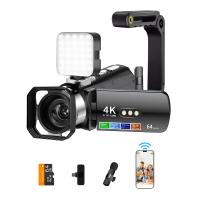
4K Video Camera, 64MP Photos, WiFi Connect, 28X Zoom, Wireless Mic, Full Color NV, Kentfaith
18
$212.49 $169.99
Wireless USB Inspection Camera, Waterproof Endoscope Inspection Camera with 6 LED Lights, 3 in 1 HD Endoscope Camera, Suitable for PC, Laptop, Computer, Android
9
$17.99
Camera Sunglasses, HD 1080P, EIS Stabilization, WiFi Connect, Translation, 4H Playtime, Kentfaith
16
$119.99 $95.99
Smart Camera Glasses, HD 1080P, EIS Stabilization, WiFi Connect, Translation, 4H Playtime, Kentfaith
16
$119.99 $95.99
DM101 Digital USB Microscope Camera Coin Magnifier, 10X-500X Magnification, PC Compatible
41
$77.99 $59.99
Compound Microscope with 4K Camera, 40X-2500X Magnification, PC Connection, Plan Optical System, Mechanical Stage, Kentfaith
$824.99 $659.99
500X Handheld Digital Microscope with 8 LEDs 2" IPS Screen PC Compatible
12
$97.49 $68.99
4G 3 Lens Solar Security Camera Wireless Outdoor, 6MP Full HD Video, 360° View Pan/Tilt Home Security Camera with Color Night Vision, Easy to Install, PIR Alarm, Kentfaith
15
$187.49 $149.99
WiFi 3 Lens Solar Security Camera Wireless Outdoor, 6MP Full HD Video, 360° View Pan/Tilt Home Security Camera with Color Night Vision, Easy to Install, PIR Alarm, Kentfaith
15
$156.24 $124.99
Products You May Like
Adult Professional Metal Detector, Professional Treasure Hunting Gold Detector, IP68 Waterproof 10 Inch Detection Plate, High-Precision
21
$219.59 $96.99
72mm Solar Filter 16.6-Stops,ND100000 Solid Neutral Density Filter For Eclipse With 18 Multi-Layer Coatings Nano-Klear Series (Only Ship to US)
44
$28.99 $22.99
95MM Circular Polarizer Optical Glass Lens Filter Ultra-Slim 18 Multi-Layer Coatings Circular Polarizing Filters for Camera Lens Nano-Klear Series
62
$31.99 $24.99
Live Streaming Trail Cameras
10
$162.99 $106.99
Kingston 32GB microSDHC Memory Card Class 10 UHS-I 80MB/s
54
$14.99
52mm 6-Point Fine-Line Star Effect Filter, Cine & Dreamlike Special Filter 18-Layer Coated Optical Glass with 3 Vacuum Cleaning Cloths - Nano-Klear Series
4
$31.99 $20.39
100x100mm Filter Protection Frame 2 Pack Nano-Xcel Pro Series
11
$24.99 $19.99
Aluminum Hot Shoe Thumb Grip for Ricoh GR II, GR III, GR IIIx, GR IIIx HDF with 2 Pack Ultra Clear Tempered Screen Protector
$18.99
Camera Leveler Tripod Leveling Base Tri-Wheel Head for Macro Photography Aluminum Bubble Level 3 Axis Level with +/-5 Degree Precision Adjustment for DSLR Camera Rotator Panoramic Head 1/4'' To 3/8'' Adapter Braces
24
$76.99 $41.99
Camera Lens Backpack for Photographers Large Capacity Camera Case with Raincover 15-15.6 Inch Laptop Compartment Compatible for Canon/Nikon/Sony/DJI Mavic Drone - Backpack 20L Urban Wander 01 (Black)
103
$140.99 $74.99
Related articles
How To Connect Wireless Cctv Cameras?
Camera Which Will Connect By Wifi To Pc?
How To Record On Pc With Audio?
How To Listen With 2 Headphones On Pc ?
How To Record Video With Sound On Pc?
How To Connect Smart Watch With Android?
How To Connect Smart Watch With Earbuds?
Can I Connect Iphone To Projector With Usb?
How Wireless Camera Works?
How To Delete From An Sd Card?
Blog You May Like
How To Watch Iphone On Lg Smart Tv?
When To Use Cpl Filter?
Which Car Dash Camera Is Best?
How Good Is Wireless Back Up Camera?
Can You Combine Nd Filter And Polarizer?
How To Make A Screen Record Have Sound?
How To Use Light Works For Video Editing?
Can You Get Binoculars That Take Pictures?
Can You Use Go Pro For Dash Cam?
Osmo Mobile 2 How To Record Sound?
Related categories
streaming video camera C mount lens adapter Floodlight Camera Wireless camera battery trail camera with screen
Popular products
500x portable handheld digital microscope 8K Camcorder USB endoscope waterproof inspection camera baby monitor with screen and app baby monitor 2 cameras best baby monitor with screen and app Camera Glasses With Wifi 1600x usb digital microscope Bluetooth mesh intercom digital microscope for students
Related searches
Wireless Pc Camera Camera Connect With Wifi Pc Camera With Microphone White Wireless Pc Speakers Pc Speakers With Microphone Pc Video Camera Bluetooth Connect Earphone Headset For Pc With Microphone Pc Gaming Headset With Microphone Pc Usb Headset With Microphone
Popular searches
105mm Cpl Filter Leica M To Olympus Om Adapter Ef Lens On Fd Mount Lens Adapter Nikon Full Frame Minolta Cle Lens Mount Tilt Shift Objektiv Für Sony E Mount A Mount To Ef Adapter Action Camera With Long Battery Life Fed 5b Lens Mount Top Down Camera Tripod
Blog Category
  • Activities
  • Guide
    • Filter Guide
    • Lens Adapter
    • Product Review
  • News & Reviews
    • Camera Reviews
    • Sample Gallery
    • News
  • Tutorials
    • Solar eclipse photography
    • Photography Basics
    • Landscape Photography
  • Inspiration
    • Travel
    • Travel Stories
Search Article
Latest from the Blog
How Many Stops Is An Nd 8 Filter?
Can You Save Facebook Videos To Camera Roll?
What Power Binoculars For Long Distance Viewing?
Camera Use Which Lens?
How To Wear Monocular?
What Is The Difference Between Binoculars And Telescope?
How Do Cellular Trail Cameras Work? – The Complete Guide for Hunters and Wildlife Enthusiasts
Which Bluetooth Earphones?
What Is Nd Filter On Video Camera?
How To Make A Camera Flash After Effects?
  • Easy Payment Multilple Payment Options

  • Free Shipping Global WareHouse Shipment

  • No Risk 30-Day No Reason Return

  • Limited Deals Buy More, Save More

  • Tax Free No any surcharges or tax fee

Information
  • About us
  • Contact Us
  • Site Map
  • Blog
  • Video
  • Gallery
  • VIP Membership Rewards
Service
  • Privacy Policy
  • Terms & Conditions
  • Shipping & Delivery
  • Payment Info
  • Warranty, Return & Refund
  • Intellectual Property Rights
  • Ambassador
  • Affiliates
  • Wholesale
Support
  • My account
  • Order History
  • FAQs
  • Extend Warranty
  • Logistics Tracking
Follow us
NewsLetter

Get the latest product, K&F Concept respects your privacy.

Powered By KENTFAITH © 2025