kfconcept

KENTFAITH
K&F Concept    Blog >

Enjoy Your Selected Digital Life

Recently Viewed
  • Recently Viewed
  • Recently Viewed list is empty.

Compare (0) 0
  • Compare
  • You have not chosen any products to compare.

  • Compare
Currency: USD
  • Currency
Shop by Scene Shop by Rank

Log Into Your Account

Account

Order History

Wish List

Login

Forgotten Password?

or connect with

Register Account

Already have an Account?Log In

  • Shopping Cart
  • Your shopping cart is empty!

  • Register/Login to purchase, earn points
  • Favorite
  • Your wish list is empty.

  • Register/Login to like, earn points
  • Activities
  • Guide
    • Filter Guide
    • Lens Adapter
    • Product Review
  • News & Reviews
    • Camera Reviews
    • Sample Gallery
    • News
  • Tutorials
    • Solar eclipse photography
    • Photography Basics
    • Landscape Photography
  • Inspiration
    • Travel
    • Travel Stories
  • Home
  • Blog
  • How To Adjust Microphone Sensitivity?

How To Adjust Microphone Sensitivity?

Kentfaith 2026-07-31 01:24:05 0 Comments

Windows 10

  1. Expand the system tray and right-click the speakers icon.
  2. Select "Open Sound Settings".
  3. Under Input, select "Device Properties".
  4. Under Device Properties, select "Additional Device Properties".
  5. On the top menu, select "Levels".
  6. Move the vertical bars to adjust the "Microphone"and "Microphone Boost"accordingly.
how to adjust microphone sensitivity 1

Windows 11

  1. Right-click the volume icon in the taskbar and select “Sound Settings”.
  2. Select “More sound settings” under “Advanced”.
  3. Select “Recording”.
  4. Right-click on the “Microphone” tile and select “Properties”.
  5. Click “Levels”.
  6. Adjust the slider under “Microphone Boost” accordingly.
  7. Click “OK”.

how to adjust microphone sensitivity 2

Input Volume Settings

Windows 11
SelectStartSettingsSystemSound.
InInputInInput VolumeIf it doesn't, go toTest your microphoneStart testThis will help you troubleshoot any issues with your microphone.
Windows 10
SelectStartSettingsSystemSoundInInputChoose your input deviceDevice PropertiesOn theLevelsMicrophoneMicrophone BoostOK.
Speak into your microphone while checking underTest your Microphoneto make sure your settings work.
If you see the line moving from left to right, your microphone is working.
If you see no change, the microphone is not picking up sound.
Mac via System Preferences
Open System Preferences and choose "Sound".
Select your sound input device and use the slider to change the volume.
Mac via Audio MIDI Setup
Open Audio MIDI Setup and select the corresponding input device.
Change the input volume using the slider.
how to adjust microphone sensitivity 3

Microphone Boost and Background Noise

perhaps you have set the boost level to +30 db. lower it.

search "system sound" into windows search bar, click on the microphone and click properties.

this is the way to control the mic in windows.

it was set to 20, i set it to no boost

this fixed it thanks (:

background noise is simply just having the mic too far away from your mouth and boosting volume to compensate. you need to move the mic right up until you can almost kiss the mic.

breathing sounds are natural. if you listen to pop music, pay attention to how the singer breaths. it doesn't stand out but it's there.
how to adjust microphone sensitivity 4

Gain and Distance

  • microphone for what ? in the recording studio ? reduce the gain on the mic.
  • or simply increase the distance between yourself and the microphone , that's what those barriers are for that you see of people in the studio, looks like a modified clothes hanger covered with a women's pantyhose!
  • on your phone, simply don't speak so close to the microphone in your phone, i doubt phones have microphone level control !
  • sounds like you have a very sensitive mic.
  • turning down the gain to the mic will help a lot, and with a little volume take back it should help, but if you have a super sensitive mic, you might want too look into putting gates on your inputs.
  • that way the mic won’t pick up anything until it hits a threshold that you set.
  • the other way around this would be too get another mic that isn’t so sensitive.
  • that or really watch what you’re doing in front of the mic.
  • sometimes you don’t need a mic that sensitive to be right in front of you, pull it back a bit and maybe to the side, that way it’s not getting everything.
  • just play around with it and you’ll find something that works.

Gate and Volume Envelopes

  • set up a gate effect.
  • in its simplest terms, a gate is a processor that will cut everything below a certain db level.
  • so, low volume sounds will be cut out.
  • be aware that you will have to fiddle with attack and release times to make it sound natural.
  • use volume envelopes in your daw to weed out unwanted noise.
  • as the swallowing/breathing doesn’t happen at the same time as the singing/speaking, you could draw an envelope that lowers the volume during these unwanted noises.
  • pros vs a gate: more control.
  • cons: much more manual work.

Microphone Sensitivity and Gain

microphone sensitivity is a characteristic that can help you decide which preamp to choose or where to set the gain.

typically measured in millivolts per pascal (mv/pa), microphone sensitivity measures the efficiency of a microphone in converting sound pressure into an electrical signal.

a higher sensitivity rating means more electrical signal is produced for a given sound pressure level.

conversely, a lower sensitivity rating indicates that a weaker electrical signal is produced for the same sound pressure level.

microphones with lower sensitivity require more gain to raise the signal to line level.

microphone sensitivity is measured in specific decibels of sound pressure level (db spl) using a specific tone.

typically, the output signal is measured using a 1 khz sine wave at 1 pascal (pa), which is equivalent to 94 db spl at the microphone capsule.

Driver Troubleshooting

  1. open run box by pressing windows key + r and type devmgmt.msc then hit enter
  2. locate and expand audio inputs and outputs (do this also to sound, video and game controllers)
  3. right-click on the driver and select update driver
  4. select browse my computer for drivers
  5. select let me pick from a list of available drivers on my computer
  6. select any older driver from the list and click next
  7. wait for the process to complete, once completed, restart your computer and check if it resolves your issue.
  8. open run-box by pressing windows key + r, type msinfo32 and hit enter.
  9. look for your system model and system manufacturer, take note of them.
  10. go to your manufacturer's website and search for your driver using the information that you noted.
  11. download and install the driver, restart your computer and check if the issue still persists.
Leave your comment
Cancel reply
Note: HTML is not translated!
Related products
Professional Metal Detector, Gold Detection, High Sensitivity, With Identification Mode, Waterproof
HOT Seller
Professional Metal Detector, Gold Detection, High Sensitivity, With Identification Mode, Waterproof
285
$179.99 $115.99
Metal Detector, 360 ° Scanning, Waterproof, Handheld, High Sensitivity, Supporting Precise Positioning and Searching
HOT Seller
Metal Detector, 360 ° Scanning, Waterproof, Handheld, High Sensitivity, Supporting Precise Positioning and Searching
20
$35.99 $25.99
Children’s Entry-Level Metal Detector, High Sensitivity, With LCD Display and Sound Indication, Suitable for Beginners
TOP Best
Children’s Entry-Level Metal Detector, High Sensitivity, With LCD Display and Sound Indication, Suitable for Beginners
144
$64.49 $50.99
Wireless Earbuds Bluetooth Headphones TWS Waterproof with Microphone
66
$31.99
Wireless Lavalier Microphone System with 4 Transmitters and 1 Receiver
$434.99 $304.99
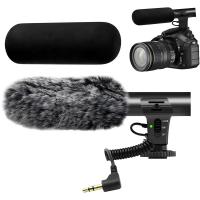
Camera Microphone, Super Cardioid  Shotgun Mic for DSLR Close Interview, Noise Reduction Video Microphone for Canon Nikon Sony Fuji with Windscreen, Compatible with Camera with 3.5mm TRS Plug, Kentfaith
Camera Microphone, Super Cardioid Shotgun Mic for DSLR Close Interview, Noise Reduction Video Microphone for Canon Nikon Sony Fuji with Windscreen, Compatible with Camera with 3.5mm TRS Plug, Kentfaith
11
$62.49 $49.99
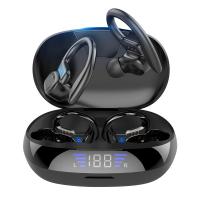
TWS Bluetooth Headset With Microphone Sports Ear Hook LED Display Earbuds
HOT Seller
TWS Bluetooth Headset With Microphone Sports Ear Hook LED Display Earbuds
211
$29.99
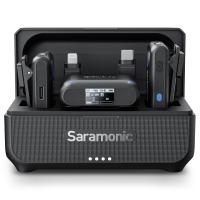
Saramonic Wireless Lavalier Microphone for Smartphone Camera 492ft Range 20h Battery Life
11
$224.99 $157.99
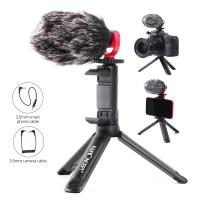
Camera Video Microphone Kit for YouTube, Vlog Windscreen 3.5mm for Phone and Camera
45
$34.99 $19.99
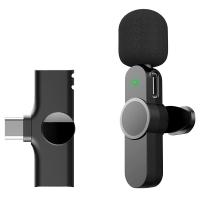
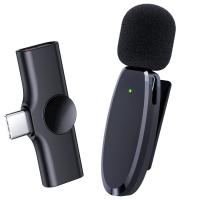
EP033 Mini Plug Play Microphone Wireless Lavalier Mic For Type-C Phones Laptop
6
$48.89
Products You May Like
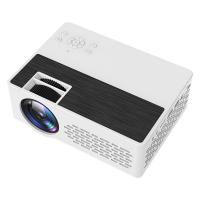
J12 1080P Mini Projector Outdoor Movie Projector 100" Projector Screen, Work with TV Stick Video Games HDMI USB TF VGA AUX AV UK Standard
3
$88.99
Gift Certificate: $300 Value  - Can Use with Any Discounts
Gift Certificate: $300 Value - Can Use with Any Discounts
$300.00 $285.00
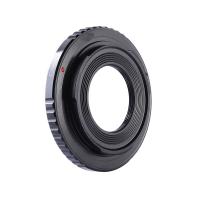
C Mount Lenses to Fuji X Lens Mount Adapter K&F Concept M25111 Lens Adapter
$36.99 $18.99
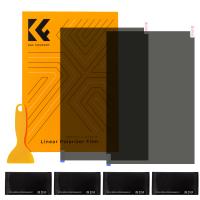
Polarized Film 300*200mmx2, with a Film Scraper, 4 Dry and Wet Cloth Alcohol Bags, with Packaging
28
$24.99 $23.99
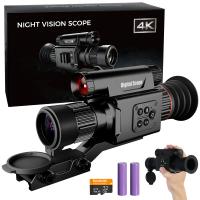
4K Night Vision Scope for Hunting, Infrared Scope with 300m Range, 5–20X Zoom  & PIP Mode, Zero-Calibration Crosshair, Support max. 512GB, Kentfaith
4K Night Vision Scope for Hunting, Infrared Scope with 300m Range, 5–20X Zoom & PIP Mode, Zero-Calibration Crosshair, Support max. 512GB, Kentfaith
$474.99 $379.99
Motion Sensor Trail Camera
10
$162.99 $106.99
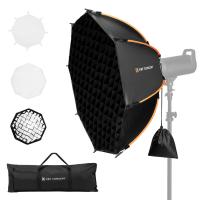
K&F CONCEPT Octagonal Softbox, 35.4"/90cm, Grid Pouch, Quick Release | Bowens Mount Softbox with Honeycomb, Carrying Bag, for Studio Portraits, Photography Studio, Live Streaming Key Lights LK08
$79.99
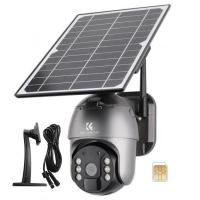
4G Solar Security Camera System Wireless LTE cctv Solar Camera PIR Motion Detection 2-Way Audio Built-in Battery 10400mAh 2K Infrared Night Vision 20m/65.6ft US Version + Stand + 2m Extension Cable + Sim Card Without Contract
118
$229.99 $166.99
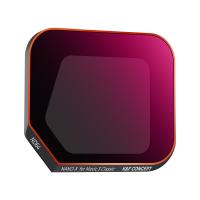
DJI Mavic 3 Classic Filter ND64 with Single-sided Anti-reflection Green Film Waterproof and Scratch-resistant
27
$29.99 $17.99
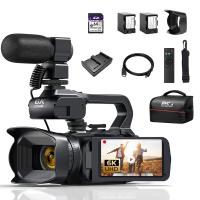
Upgraded 6K Video Camera Professional 60FPS UHD for Filmmaking, Movie & Photography, Video Recorder Camera with 18X Zoom, Digital Camera for Video Recording, 4.0" Flip Touchscreen, 64GB Card, Up To 6 Hours Work Time
TOP Best
Upgraded 6K Video Camera Professional 60FPS UHD for Filmmaking, Movie & Photography, Video Recorder Camera with 18X Zoom, Digital Camera for Video Recording, 4.0" Flip Touchscreen, 64GB Card, Up To 6 Hours Work Time
508
$404.99 $259.99
Related articles
How Do I Adjust Microphone Sensitivity ?
How To Adjust Binoculars?
How To Adjust Tripod?
How To Adjust Nikon Binoculars?
How To Adjust Binoculars With Glasses?
How To Adjust Scope For Range?
How To Adjust Eyepiece On A Microscope?
How To Test The Microphone?
Bluetooth Microphone How To Use?
How To Mount Ring Security Camera?
Blog You May Like
Android Video Player That Can Record From Camera?
How To Install Secret Camera In House?
How To Mount Security Cameras Outdoor?
What Is An Adapter Ring For Cameras?
How Deep Can Metal Detectors Detect Gold?
How To Install Outdoor Web Camera?
Skype Can T Find Video Camera?
How To Remove Ring Light Reflection In Eyes?
How To Remove Outdoor Camera From Base?
How To Make A Camera Detector?
Related categories
streaming video camera C mount lens adapter m4/3 adapter filter adapter ring hard edge graduated neutral density GND filter​ canon lens filters
Popular products
pir sensitivity trail camera finding gold with a metal detector handheld waterproof metal detector gold detector for jewelry metal detector for beach metal detector best for gold gold detector for jewelry microphone for iphone wireless uhf wireless microphone system handheld microphone for recording
Related searches
Quick Adjust Tripod Bluetooth Microphone To Speaker Usb Microphone To Audio Interface Wireless Lavalier Microphone To Computer Usb C To Microphone Jack Microphone Audio Jack To Usb Light Stand To Microphone Adapter 3.5 Mm Microphone To Usb C Wireless Microphone To Use With Iphone 3.5 Mm Microphone Jack To Usb
Related Scenes
Best Compact Camera Microphone Best Vlogging Camera Microphone Best Camera To Video Sports Best Camera To Capture Wildlife Best Tripod To Travel With Best Camera Microphone For Vlogging Best Vlogging Camera And Microphone Best Vlogging Camera With Microphone Best Video Camera To Record Sports Best Camera And Microphone For Streaming
Blog Category
  • Activities
  • Guide
    • Filter Guide
    • Lens Adapter
    • Product Review
  • News & Reviews
    • Camera Reviews
    • Sample Gallery
    • News
  • Tutorials
    • Solar eclipse photography
    • Photography Basics
    • Landscape Photography
  • Inspiration
    • Travel
    • Travel Stories
Search Article
Latest from the Blog
Can Trail Cameras Record Video?
How To Ship Lithium Batteries?
How To Build Your Own Security Camera System?
Which Screen Color Is Best For Projector?
How To Get Night Vision Goggles?
How To Record Your Voice Without A Microphone?
How To Zoom Out Webcam?
How To Take Off Camera Lens?
Where To Find Coins With A Metal Detector?
What Is The Range Of A Trail Camera?
  • Easy Payment Multilple Payment Options

  • Free Shipping Global WareHouse Shipment

  • No Risk 30-Day No Reason Return

  • Limited Deals Buy More, Save More

  • Tax Free No any surcharges or tax fee

Information
  • About us
  • Contact Us
  • Site Map
  • Blog
  • Video
  • Gallery
  • VIP Membership Rewards
Service
  • Privacy Policy
  • Terms & Conditions
  • Shipping & Delivery
  • Payment Info
  • Warranty, Return & Refund
  • Intellectual Property Rights
  • Ambassador
  • Affiliates
  • Wholesale
Support
  • My account
  • Order History
  • FAQs
  • Extend Warranty
  • Logistics Tracking
Follow us
NewsLetter

Get the latest product, K&F Concept respects your privacy.

Powered By KENTFAITH © 2026