How To Record Your Voice Without A Microphone?
Recording your voice without a professional microphone is entirely possible with the right techniques and tools. Whether you're creating podcasts, voiceovers, or recording vocals over beats, achieving decent sound quality can be done using everyday devices like your smartphone or laptop.
Choosing the Best Recording Device You Already Own
The first step is to choose the best device for recording audio among the ones you have. If you have a smartphone, a tablet, a laptop, and a camera, compare their audio capabilities and see which one has the best built-in microphone, the lowest noise level, and the highest sound resolution. You can also use a free app or software to test the audio quality of each device and adjust the settings accordingly.
- Phone mic is the best bet for recording vocals — smartphones these days have more capability than many people expect.
- The iPhone microphone can capture rich, detailed sound directly from the source and often supports stereo recording, enhancing the depth and realism of captured audio.
- You can use a webcam mic if that is all you have — quality won't be as high as many other mics, but you can set your recording preferences in the DAW.
- Use several devices where possible — a smartphone, an old dictaphone, and a laptop microphone are three accessible options. Having several recording devices running will give you the option of editing audio tracks at a later date.
- Wired earphones with a microphone plugged into your phone are another option — they won't be great, but they won't cost much.
Reducing Background Noise Before You Record
The second step is to reduce the background noise as much as possible before you start recording. This means finding a quiet location, closing the windows and doors, turning off any fans or appliances, and asking anyone else in the room to be silent.
- Use acoustic materials such as blankets, curtains, carpets, or foam panels to absorb the sound and prevent echo or reverb.
- Any vocalist or voiceover artist who doesn't have a studio has a kind-of-a-studio in their home: their wardrobe. Put the recording device in front of the hanging clothes and speak in the direction of the clothes. They will work as acoustic treatments, reducing noise, reverb and echo. You'll also end up with sound that has more depth and is richer to the ear.
- Try recording just the vocals on the phone — cover the mic with a sock or maybe a thin latex material — and have a padded room for no reverb.
- Record in a room with soft furnishings like carpets, curtains, and cushions to absorb sound.
- If you can't eliminate all the noise, you can use a noise reduction tool or filter in your editing software to remove it later. Popular audio noise cancellation software includes Audacity, Adobe Audition, Sony Vegas and Pro Tools.
Positioning and Device Placement
The third step is to position yourself correctly in relation to the device you're using. Ideally, you want to be as close as possible to the microphone, without being too loud or distorted.
- Distance from microphone
- Keep a consistent distance of 6–12 inches from your device's microphone and speak directly into it. Varying distances from the microphone can result in inconsistent audio levels.
- Stabilizing the device
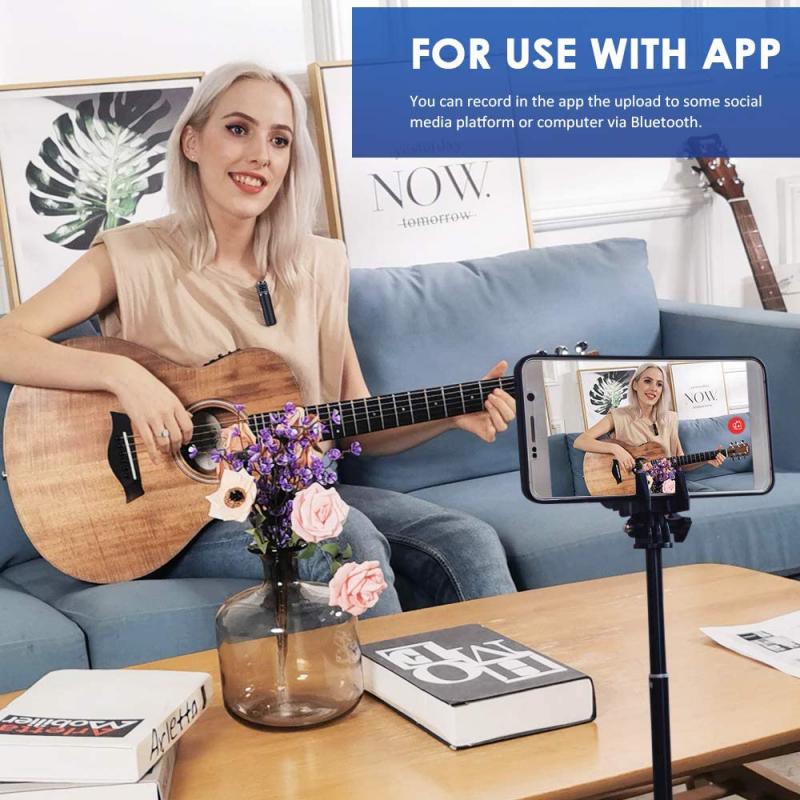
- Use a tripod, a stand, or a mount to stabilize the device and keep it at a consistent distance from your mouth. Avoid any movement or interference that could affect the audio quality, such as touching the device, covering the microphone, or bumping into something.
- Close recording for phone vocals
- Use your phone's microphone to record all your voice dialogue close to your mouth with no background noise. Then you can simply add that audio recording track to your timeline and line it up with the speech.
- Sync with a tap
- Put in headphones and tap loud when you hit record so it's picked up on the phone mix as well. When you record you can just cut the clip at that tap point so it'll be in sync. You can also count like 1, 2, 3, 4 — do a count off with the metronome so you can line it up later.
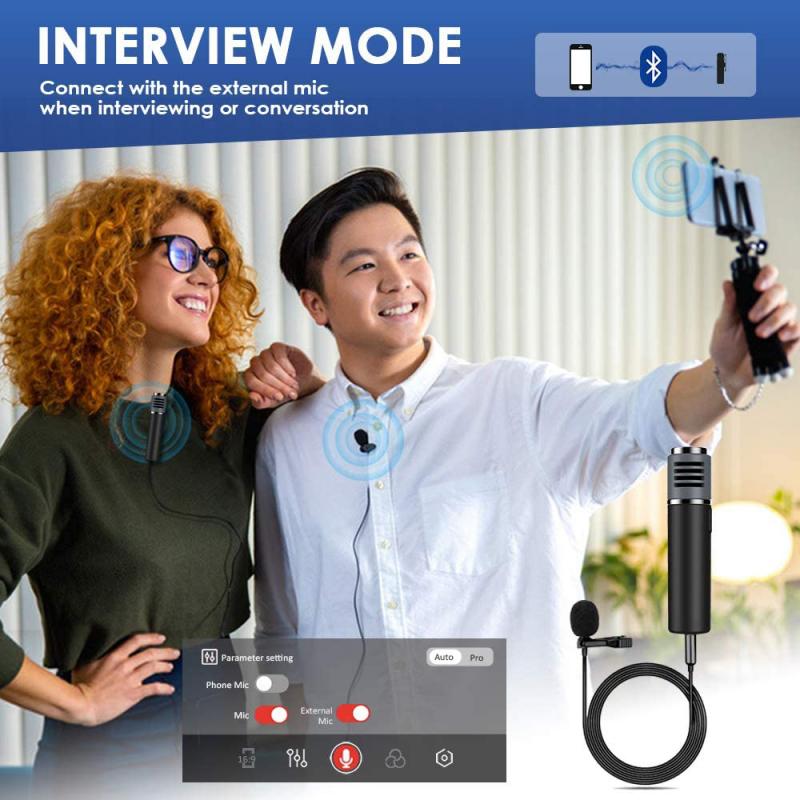
Using Headphones or Earbuds as a Makeshift Microphone
The fourth step is to use a headphone or earbud as a makeshift microphone. This is a simple and effective way to improve your audio quality, especially if you don't have a good built-in microphone on your device.
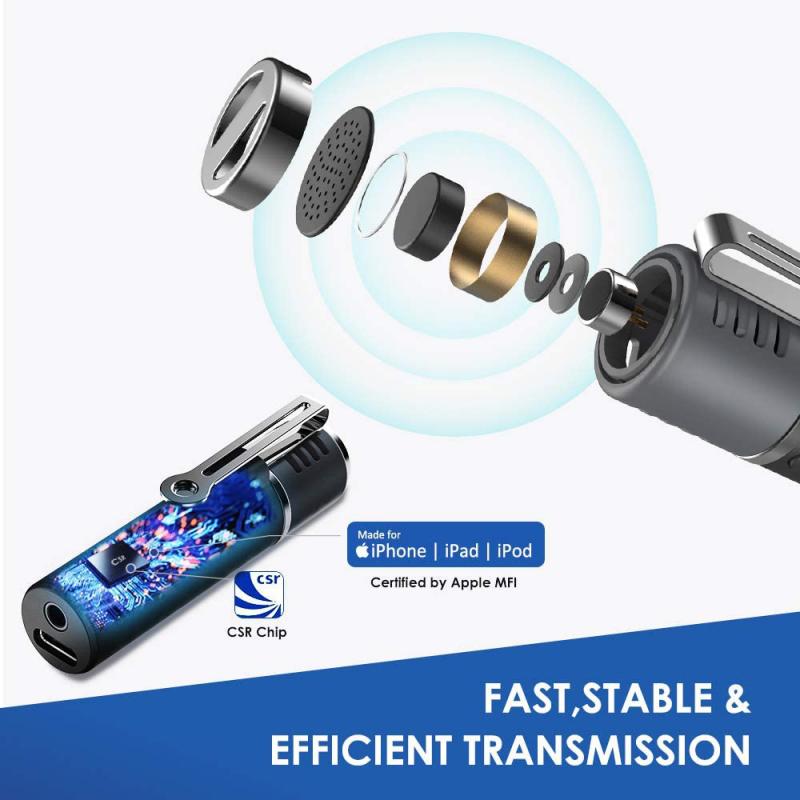
- Choose a pair of headphones with an inline or built-in mic.
- Plug the headphones into the microphone jack of your recording device.
- Clip it to your shirt or collar, near your mouth, or position the inline microphone close to your mouth to capture clearer audio.
- You can also use a splitter or an adapter to connect two headphones or earbuds — one for listening and one for speaking.
- Adjust the input settings on your recording device and test different distances and angles for the headphone's microphone to optimise audio quality.
The audio quality might vary based on the headphone's specifications and the recording environment. Get the cheapest wired earphones from the market and keep it near to your neck, have a silent room, and use a voice recorder — record separately and then synchronize.
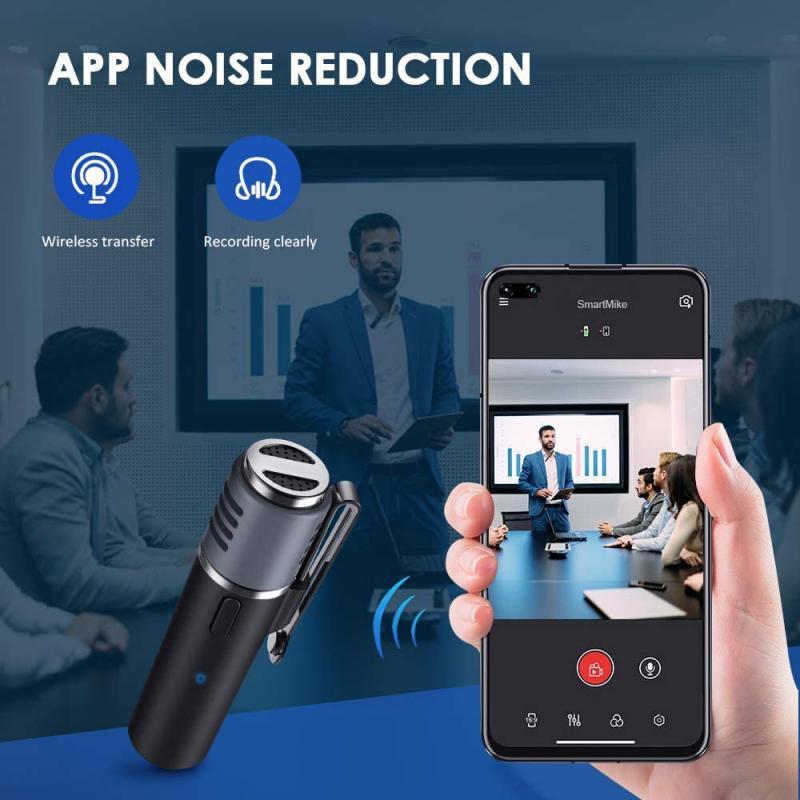
Recording a Test Audio First
The fifth step is to record a test audio before you start recording your vocals. This will help you check the audio quality, the volume level, the clarity, and the noise level of your recording. Listen to the test audio with headphones or speakers and make any adjustments or corrections if needed. Never hesitate to test the sound in various enclosed spaces and listen to whether the sound is diffused correctly. Try not to clip the audio — there are some good phone audio apps that will assist you with this.
Editing and Enhancing Your Audio in Post-Production
The final step is to edit and enhance your audio after you finish recording. You can use free or paid software to trim, cut, splice, or merge your audio clips, as well as apply effects or filters.
- Drop the WAV file into your DAW and clip gain manually to level out the vocal.
- Edit your vocal by removing any unnecessary breaths and silencing dead spaces.
- Engage the high pass filter.
- EQ the vocal — if the audio is recorded on your smartphone, it's likely not going to be radio quality, so add some EQ and make sure the track is mono not stereo. This way the voice cuts right through the middle.
- Add some compression to bring the vocal out.
- Use a noise reduction tool in your editing software to further clean up audio by targeting and eliminating specific unwanted sounds without compromising the overall quality of the recording.
- There is also Adobe AI that filters much of the noise and makes your voice sound better — it can work well for cleaning up recordings made without professional equipment.
It's also worth noting that you need headphones so you can hear your voice without speakers — speakers will bleed the voice back into the microphone, potentially causing a feedback loop. Many apps can work fine for recording: Mac computers come with GarageBand for free; Cakewalk for Windows is currently free and a well-regarded option; Audacity is a free, open source, multi-track audio editor and recorder for Windows, macOS, and GNU/Linux. When you are able to upgrade, redo the vocals properly with a dedicated microphone and audio interface.