kfconcept

KENTFAITH
K&F Concept    Blog >

Enjoy Your Selected Digital Life

Recently Viewed
  • Recently Viewed
  • Recently Viewed list is empty.

Compare (0) 0
  • Compare
  • You have not chosen any products to compare.

  • Compare
Currency: USD
  • Currency
Shop by Scene Shop by Rank

Log Into Your Account

Account

Order History

Wish List

Login

Forgotten Password?

or connect with

Register Account

Already have an Account?Log In

  • Shopping Cart
  • Your shopping cart is empty!

  • Register/Login to purchase, earn points
  • Favorite
  • Your wish list is empty.

  • Register/Login to like, earn points
  • Activities
  • Guide
    • Filter Guide
    • Lens Adapter
    • Product Review
  • News & Reviews
    • Camera Reviews
    • Sample Gallery
    • News
  • Tutorials
    • Solar eclipse photography
    • Photography Basics
    • Landscape Photography
  • Inspiration
    • Travel
    • Travel Stories
  • Home
  • Blog
  • Smart Life Camera How To Change Wifi Network?

Smart Life Camera How To Change Wifi Network?

Kentfaith 2025-02-25 01:33:25 0 Comments

In today’s connected world, smart home devices like cameras are essential for monitoring security and keeping an eye on your property. The Smart Life camera, which integrates with platforms like Tuya, offers users the ability to monitor their homes remotely through their smartphones or tablets. However, there may come a time when you need to change the Wi-Fi network your Smart Life camera is connected to. Whether you’ve upgraded your router, changed your ISP, or simply need to move your camera to a different location with a different network, understanding how to switch the Wi-Fi network on your Smart Life camera is important.
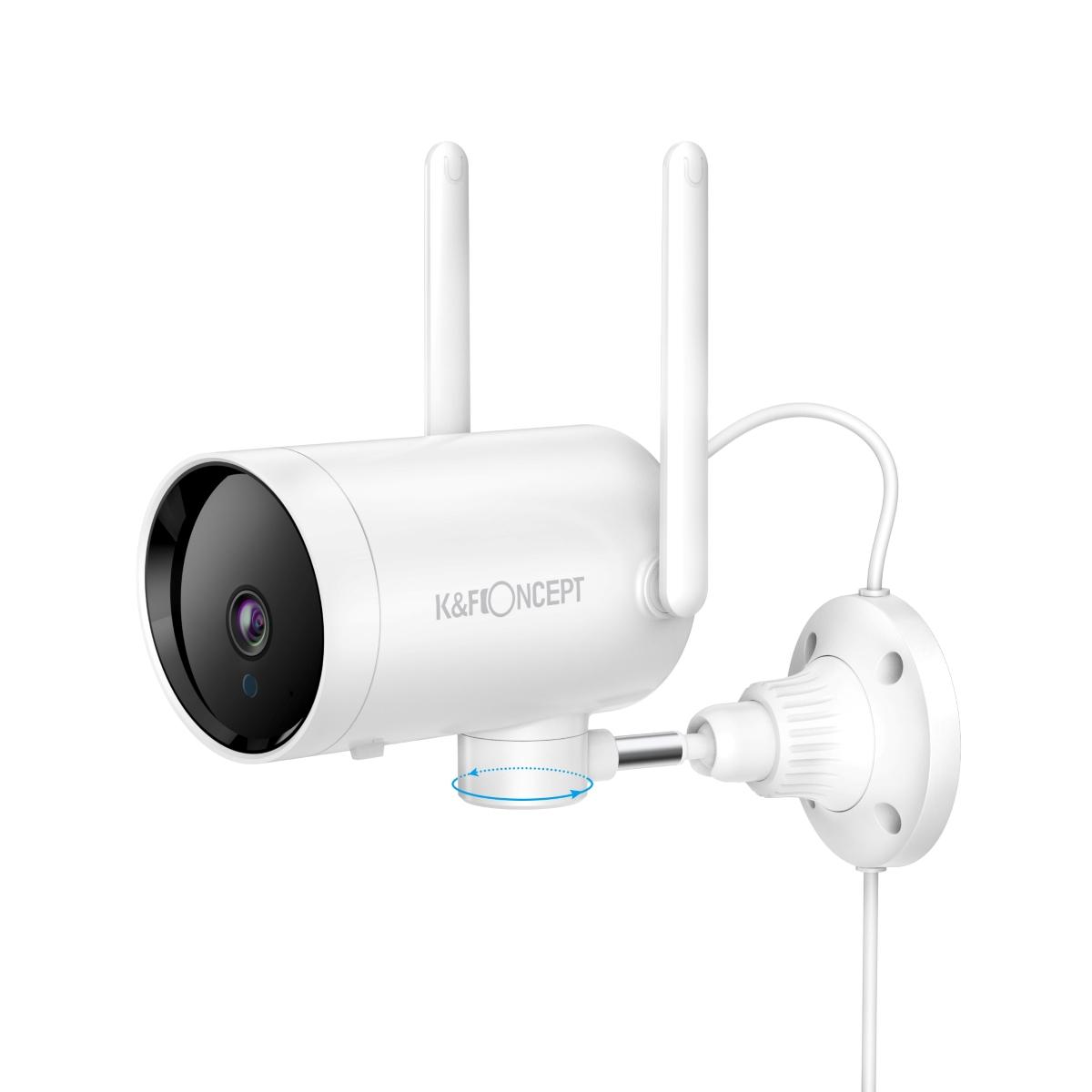

This guide walks you through the steps involved in changing the Wi-Fi network on your Smart Life camera. We’ll also discuss common issues users face and provide troubleshooting tips to ensure that the process goes smoothly.

Why You Might Need to Change the Wi-Fi Network

Before we dive into the "how," let’s briefly discuss why this may be necessary. There are a few scenarios in which you might want to change the Wi-Fi network on your Smart Life camera:

1. Router Upgrade or Change: If you’ve upgraded your router or changed to a new Wi-Fi provider, the Smart Life camera will be connected to your old router settings and will no longer work unless you update the Wi-Fi credentials.

2. Relocation: If you move your camera to a different area of your home or office that has a separate Wi-Fi network, you’ll need to connect it to that new network.

3. Wi-Fi Signal Issues: If your current network’s signal strength is weak, moving to a new network with a stronger signal might improve the camera’s connectivity and performance.

4. Security Concerns: If you suspect that your network is compromised or that you need to improve the security settings, changing the camera’s Wi-Fi network might be a necessary step.

Step-by-Step Guide to Changing the Wi-Fi Network on a Smart Life Camera

Step 1: Open the Smart Life App

The first step is to open the Smart Life app on your smartphone or tablet. If you haven’t already installed the app, you can download it from the Google Play Store or Apple App Store.

Once the app is installed, open it and log in to your account. If you don’t have an account, you’ll need to create one.

Step 2: Access the Device Settings

Once logged in, locate your Smart Life camera in the app. It should appear on the main dashboard under the "Devices" section. Tap on the camera you wish to change the Wi-Fi settings for to enter the camera’s settings page.

Step 3: Reset the Camera (If Necessary)

In most cases, when you change the Wi-Fi network, your camera will need to be re-paired with the new network. To do this, you may need to perform a reset on the camera. Here’s how:

- Soft Reset: Press and hold the reset button on the camera for about 5–10 seconds until you hear a chime or see an indicator light flash. This resets the Wi-Fi settings on the camera without affecting other settings.

- Hard Reset: If the soft reset doesn’t work, perform a hard reset by pressing and holding the reset button for a longer period (usually around 15–20 seconds). This will restore the camera to its factory settings, which may be necessary if you can’t access the camera’s settings from the app.

Step 4: Connect the Camera to the New Wi-Fi Network

Once the camera is reset, you’ll need to reconnect it to the new Wi-Fi network. Here’s how to do that:

1. Enter Pairing Mode: After resetting, the camera should automatically enter pairing mode. If it doesn’t, follow the on-screen instructions in the Smart Life app to manually put the camera into pairing mode.

2. Select Wi-Fi Network: In the Smart Life app, select the “Add Device” option. The app will scan for available devices, and your camera should appear in the list. Follow the instructions to select the new Wi-Fi network that you want to connect to.

3. Enter Network Details: You’ll be prompted to enter the Wi-Fi network’s name (SSID) and password. Make sure to enter the correct details, including case sensitivity for the password. If you are using a 5GHz network, ensure the camera supports 5GHz connections, as some cameras only support 2.4GHz Wi-Fi.

4. Confirm Connection: Once you enter the correct Wi-Fi credentials, the camera should connect to the network. After a few moments, the app will confirm that the camera has successfully connected. You may see a success message or an indicator light on the camera itself confirming the connection.

Step 5: Test the Camera’s Connection

After the camera has successfully connected to the new network, it’s essential to test the camera’s functionality. Ensure that:

- The camera’s live feed is accessible from the Smart Life app.

- There is no delay or buffering when streaming video.

- You can control other settings like motion detection, recording options, or notifications as you did before.

If the camera is not responding correctly, try rebooting both the camera and your router to resolve any connectivity issues.

Common Problems and Troubleshooting Tips

While the process is straightforward, users may encounter some issues when trying to change the Wi-Fi network on their Smart Life camera. Here are a few common problems and how to fix them:

1. Unable to Find the Camera in the App

If the camera doesn’t appear in the app after you’ve reset it, make sure you’ve put the camera in pairing mode correctly. You may need to reset it again and ensure it is within the range of the new Wi-Fi network.

2. Camera Won’t Connect to Wi-Fi

If the camera won’t connect to the new network, double-check the Wi-Fi credentials to make sure you’ve entered the correct network name (SSID) and password. Also, ensure that the Wi-Fi network is working and that the camera is within range of the router. If you're using a 5GHz network, try switching to 2.4GHz since some cameras do not support 5GHz Wi-Fi.

3. Weak Wi-Fi Signal

If the camera is connecting but the feed is buffering or the image quality is poor, it might be due to a weak Wi-Fi signal. Consider moving the camera closer to the router or using a Wi-Fi extender to boost the signal strength.

4. Error Messages

If you see error messages in the Smart Life app, such as “Wi-Fi connection failed,” try restarting both the camera and the router. Sometimes, routers need to be rebooted for new devices to connect properly.

Additional Tips for a Smooth Wi-Fi Switch

- Check Your Internet Speed: Ensure that your new Wi-Fi network has sufficient speed and bandwidth for the camera. Some cameras require a stable connection with good upload speeds to stream video smoothly.

- Set Up Static IP: If you’re having trouble with connectivity or want to prevent the camera from losing its connection in the future, consider setting up a static IP address for the camera in your router’s settings. This ensures the camera will always use the same IP address.

- Update Firmware: Before changing the Wi-Fi network, make sure your camera’s firmware is up to date. Firmware updates often contain bug fixes and performance improvements that may resolve connection issues.

- Use a 2.4GHz Network for Better Coverage: While many newer routers offer dual-band (2.4GHz and 5GHz) networks, 2.4GHz tends to have better range, which is beneficial for smart devices like cameras that might be placed farther from the router.

Changing the Wi-Fi network on your Smart Life camera doesn’t have to be complicated. With the right steps, you can ensure that your camera reconnects to a new network and continues to provide reliable security monitoring for your home or business. Always remember to follow the app’s instructions carefully and perform resets when necessary. If you run into issues, the troubleshooting tips above should help you resolve common connection problems.

By understanding how to change the Wi-Fi network and being aware of potential issues, you can keep your Smart Life camera functioning smoothly and ensure your security system remains operational no matter where you decide to place it or change your network.
Leave your comment
Cancel reply
Note: HTML is not translated!
Related products
Smart Camera Glasses, HD 1080P, EIS Stabilization, WiFi Connect, Translation, 4H Playtime, Kentfaith
16
$119.99 $95.99
Mini WiFi Body Camera 1080P with Audio, 180° Rotatable Lens, 2 LED Fill Lights & Smart Motion Detection & 64G Memory Card
13
$74.99 $62.99
Smart Glasses with Camera, 8MP Sony Camera for 1080P POVs, 13MP Photos, Dual Lenses, EIS Stabilization, WiFi Transfer, 32GB Storage, 10H Playtime, Kentfaith
12
$137.49 $109.99
4G Surveillance Camera Dedicated Tri-network Compatible Data SIM Card - US Standard
$10.90
Smart Glasses with Camera, 8MP Sony Camera for 1080P POVs, 4 Tint Levels for Indoor Outdoor, EIS Stabilization, WiFi Transfer, 32GB Storage, 10H Playtime, Kentfaith
12
$162.49 $129.99
Pocket Action Camera 4K 30FPS Videos EIS Stabilization 210min Battery Life 64GB
15
$149.99 $125.99
Saramonic Wireless Lavalier Microphone for Smartphone Camera 492ft Range 20h Battery Life
11
$224.99 $157.99
Time Lapse Camera Outdoor Construction/Plant/Weather/Life 1080P, 2.4" HD TFT LCD, Waterproof Level IP66, 3000mAh battery 6 Month Battery Life, 32GB TF Card Included,Macro adjustable focus
11
$284.99 $199.99
4.5in Camera Suction Cup Mount on Car Windshield Dash with 1/4" & 3/8" Mounting Holes & NATO Rail, Auto-Revacuum, 72H Battery Life, Kentfaith
14
$119.99 $95.99
Smart Glasses with Camera, 8MP Sony Sensor, Capture 30MP Photos & 1080P Videos, With 3600mAh Charging Case, Clear Music & Calls, Kentfaith
16
$174.99 $139.99
Products You May Like
67mm ND4-64 (2-6 Stop) Variable ND Filter and CPL Circular Polarizing Filter 2 in 1,28 Layers Coated Nano-Xcel Series
71
$112.99 $89.99
58mm Black mist filter 1/8 28 layers of anti-reflection green film waterproof and scratch-resistant with metal lens cover Nano-X series
32
$61.99 $39.99
52mm ND4-64 (2-6 Stop) Variable ND Filter and CPL Circular Polarizing Filter 2 in 1,28 Layers Coated Nano-Xcel Series
68
$99.99 $79.99
Panoramic Trail Camera
10
$162.99 $106.99
55mm True Color Variable ND2-32 (1-5 Stops) ND Lens Filter, Adjustable Neutral Density Filter with 28 Multi-Layer Coatings Nano-Xcel Series
83
$99.99 $79.99
Hohem iSteady X 3 Axis Gimbal Stabilizer for Smartphone - Hohem Lightweight Foldable Phone Gimbal with Auto Start Dolly-Zoom Time Lapse, Handheld Gimbal for iPhone 12 pro max/11/Xs Max/Samsung
46
$71.99 $67.99
Biological Compound Microscope 0-50℃/32-122℉ Constant Temperature 7" Display 40X-2500X
HOT Seller
Biological Compound Microscope 0-50℃/32-122℉ Constant Temperature 7" Display 40X-2500X
27
$599.99 $419.99
52mm Solar Filter 16.6-Stops,ND100000 Solid Neutral Density Filter For Eclipse With 18 Multi-Layer Coatings Nano-Klear Series(Shipped only to the USA)
44
$22.99 $17.99
67mm MCUV Lens Protection Filter with Lens Cap Optical Glass Ultra Slim 18 Multi-Layer Coatings Nano-Klear Series
55
$20.99 $10.99
K&F CONCEPT 50x50cm Photo Studio Light Box, 40W LED Light Box Photography Tent, CRI 97+ Dimmable 3000K–5600K, Portable Foldable Photo Box with 6 Backdrops for Product Photography/Shoes/Laptop/Camera
$62.99
Related articles
How To Change Ring Camera Wifi Network ?
How To View Cameras On Wifi Network?
How To Change Canon Camera Wifi Password?
How To Change Wifi On Wyze Cameras ?
How To Change A Smart Watch Time?
How To Connect A Wifi Smart Camera?
How To Connect Wifi Camera To Smart Tv ?
How To Setup V380 Wifi Smart Net Camera ?
How To Change Polaroid Camera Battery?
What's The Best Telescope?
Blog You May Like
Best Bluetooth Game Cameras 2024
How To Install Security Cameras Front Of House?
Where Is Microphone?
Which Camera Is Best For Action Shots?
Can I Use Indoor Camera As Baby Monitor?
How The Memory Card Works?
What Mounts Do Nikon Cameras Use?
Sony Camera How To Download Time Lapse?
Travel Tripod That Can Go Low?
How To Protect Nikon Wifi Camera?
Related categories
Outdoor Security Camera Wifi Floodlight Camera Wireless camera feeder C mount lens adapter Wifi Trail Cameras Baby Movement Monitor m4/3 adapter
Popular products
security camera home surveillance mini web camera wifi sim card with unlimited data Camera Glasses With Wifi full hd camera 1080p hd video audio recorder full hd time lapse camera microphone for android smartphone precision camera & video full frame pocket camera
Related searches
Sports Life Smart Watch Smart Life Fitness Watch Smart Camera Without Wifi Camera Wifi Ip Outdoor Smart Wireless Smart Wifi Camera 360 Wifi Smart Camera Sd Card Smart Wifi Hd Security Camera Smart Home Wifi Ip Camera Sony Network Adapter Ps2 Smart Security Outdoor Hd Wifi Camera
Related Scenes
Best Camera To Video Sports Best Camera To Capture Wildlife Best Battery Life Camera Best Video Camera To Record Sports Best Battery Life Trail Camera Camera With Best Battery Life Best Camera For Battery Life Best Action Camera For Battery Life Trail Camera With Best Battery Life Action Camera With Best Battery Life
Blog Category
  • Activities
  • Guide
    • Filter Guide
    • Lens Adapter
    • Product Review
  • News & Reviews
    • Camera Reviews
    • Sample Gallery
    • News
  • Tutorials
    • Solar eclipse photography
    • Photography Basics
    • Landscape Photography
  • Inspiration
    • Travel
    • Travel Stories
Search Article
Latest from the Blog
What Is The Zoom On Binoculars?
How Expensive Is A Metal Detector?
How To Use Your Phone As A Microphone?
What Size Screen For Projector?
How To Clean Cleaning Cloth For Glasses?
How To Reduce Noise In Bluetooth Headphones?
What Is The Field Diameter Of A Microscope?
Where To Buy A Microphone?
How Long To Charge Bluetooth Headphones?
How To Allow Camera And Microphone?
  • Easy Payment Multilple Payment Options

  • Free Shipping Global WareHouse Shipment

  • No Risk 30-Day No Reason Return

  • Limited Deals Buy More, Save More

  • Tax Free No any surcharges or tax fee

Information
  • About us
  • Contact Us
  • Site Map
  • Blog
  • Video
  • Gallery
  • VIP Membership Rewards
Service
  • Privacy Policy
  • Terms & Conditions
  • Shipping & Delivery
  • Payment Info
  • Warranty, Return & Refund
  • Intellectual Property Rights
  • Ambassador
  • Affiliates
  • Wholesale
Support
  • My account
  • Order History
  • FAQs
  • Extend Warranty
  • Logistics Tracking
Follow us
NewsLetter

Get the latest product, K&F Concept respects your privacy.

Powered By KENTFAITH © 2026