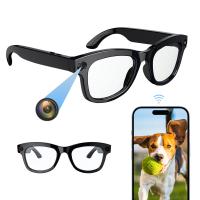
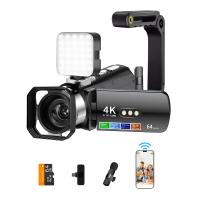
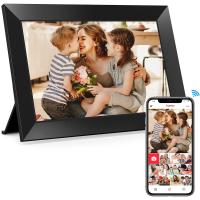
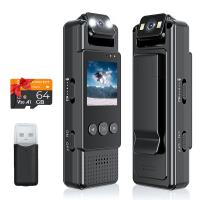
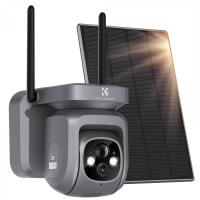
How To Connect A Wifi Smart Camera?
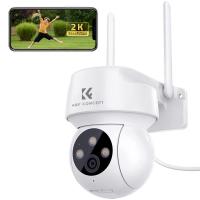
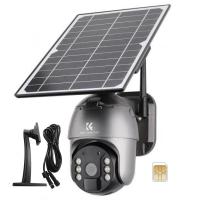
Connecting a WiFi smart camera to your network and devices is a straightforward process if you follow the instructions carefully. Whether you’re setting up a home security camera, a baby monitor, or simply a device to keep an eye on your pets, understanding the setup process can save you time and frustration. In this article, I’ll guide you through the essentials of connecting your WiFi smart camera, troubleshooting common issues, and getting the most out of your device.
Understanding the Basics

Before you start, make sure you are familiar with your WiFi network credentials (SSID and password) and have downloaded the appropriate app for your smart camera. Most smart cameras rely on proprietary apps to configure their connectivity and manage features. Check if your WiFi smart camera supports the 2.4 GHz band, the 5 GHz band, or both. Many smart cameras only support 2.4 GHz networks due to better range and stability.
Also, ensure that your device (e.g., smartphone or tablet) is connected to the same WiFi network that the camera will be using during the setup process.
Step-by-Step Guide to Connecting a WiFi Smart Camera
1. Unbox and Prepare Your Camera
- Unpack your smart camera and ensure all required accessories (such as cables, chargers, or batteries) are available.
- Place the camera in the location where you plan to install it, but keep it within reach of your router during the initial setup.
Tip: Do not mount the camera permanently until you confirm the connection works properly.
2. Power On Your Camera
- Plug in the camera and turn it on. Some cameras will automatically enter pairing mode; others may require you to press a designated button (e.g., "Setup" or "Reset") to activate pairing mode.
3. Download the Manufacturer's App
- Search for the app recommended by the camera manufacturer on your smartphone’s app store (e.g., Google Play Store or Apple App Store). Common apps include "EZVIZ," "Arlo," "Ring," or "Wyze."
- Install the app and create an account, if required.
Tip: Ensure your app permissions are enabled to access your WiFi network, camera, and notifications.
4. Follow In-App Setup Instructions
- Open the app and select the option to add a device. Choose the type of smart camera you are setting up, such as indoor, outdoor, or a specific model number.
- The app will usually prompt you to connect to your WiFi network. Select your network and enter the password.
- If the camera has a QR code, the app may ask you to scan it using your phone’s camera to pair the device.
- Some cameras use Bluetooth for initial setup and alternative pairing methods. Follow the instructions exactly as presented.
5. Wait for the Camera to Connect
- After entering the necessary details, the camera will attempt to connect to your network. This process can take a few seconds to a couple of minutes.
- If successful, the app will notify you, and you should see the live feed from your camera.
6. Adjust Settings and Preferences
- Once connected, customize the camera’s settings through the app. Settings you may want to adjust include video quality, motion detection sensitivity, and notification preferences.
- Test the camera’s connection to confirm it’s working properly. Move the camera to different areas and check signal strength to ensure clarity and reliable performance.
7. Secure Permanent Installation
- If you've successfully connected the camera and verified its wireless performance, mount or place the camera in its final location.
- Use any screws, adhesive pads, or mounts provided in the packaging to ensure secure installation.
Troubleshooting Common Problems
Despite following the steps above, you might encounter challenges during setup. Here are common issues and their solutions:
Problem 1: Camera Won’t Connect to WiFi
Solution: Double-check that your WiFi network is active and using the correct frequency (2.4 GHz). Ensure that your password is entered correctly, including any case-sensitive letters.
- If your WiFi network has strong security settings (e.g., firewall or VPN), temporarily disable these while setting up the camera.
Problem 2: App Fails to Detect Camera
Solution: Make sure your smartphone is connected to the same WiFi network as the camera. Restart both the camera and your phone, and deactivate Bluetooth if not required for setup.
Problem 3: Poor Signal Strength
Solution: If the camera is too far from the router, relocate it closer. Alternatively, use a WiFi range extender or mesh network system to boost signal strength in larger homes.
Problem 4: Camera Disconnects Frequently
Solution: Check for overcrowding on your WiFi network. If multiple devices are hogging bandwidth, consider upgrading your router or prioritizing essential devices.
Problem 5: App Crashes or Freezes
Solution: Update your app to the latest version or reinstall it to resolve compatibility issues with your device's operating system.
Enhancing Your WiFi Smart Camera’s Performance
Once your smart camera is fully functional, there are additional steps you can take to optimize performance and increase its utility:
1. Regular Firmware Updates
- Check your camera’s app for firmware updates from the manufacturer. Updates can enhance performance, improve security, and add new features.
2. Set Motion Detection Zones
- If your smart camera supports motion-detection zones, configure these tailored to your needs. For example, exclude high-traffic areas to minimize false alerts.
3. Enable Cloud Storage or Local Storage
- Depending on your smart camera model, you may have options for saving video footage. Cloud storage is convenient but often requires a subscription. Alternatively, insert a microSD card for local storage.
4. Integrate Into a Smart Home System
- Many WiFi smart cameras can connect to platforms like Alexa, Google Home, or Apple HomeKit. Pair your camera with these systems to enable voice commands or automate functions.
5. Educate Household Members
- Ensure everyone in your household knows how to use the smart camera responsibly. This ensures privacy while maximizing security benefits.
WiFi Network Security Considerations
A smart camera's constant presence on your WiFi network makes it essential to prioritize security.
• Use Secure WiFi Passwords
Avoid generic or simple passwords for your network to prevent unauthorized access.
• Enable Encryption
Choose WPA3 or at least WPA2 encryption on your router for maximum security.
• Monitor Connected Devices
Regularly review connected devices within your router settings or app to identify unfamiliar devices.
• Use Two-Factor Authentication (2FA)
Activate 2FA on the smart camera app for an additional layer of security.
• Avoid Public Networks
Never connect your smart camera to a public WiFi network that lacks encryption, as this makes your device vulnerable to hacking.
Final Thoughts
Installing a WiFi smart camera can be transformative for your home security and convenience. Following proper setup procedures ensures a seamless experience, while troubleshooting steps prepare you for challenges. Beyond connectivity, optimizing features like motion detection zones, storage options, and integrations with home automation systems can elevate the camera's utility. Lastly, don’t neglect security—keep your devices and network safe from potential threats.
By following the steps outlined above, you’ll be well on your way to enjoying peace of mind and enhanced surveillance with your WiFi smart camera. With the right preparation and care, this technology can become an indispensable part of your daily life.