kfconcept

KENTFAITH
K&F Concept    Blog >

Enjoy Your Selected Digital Life

Recently Viewed
  • Recently Viewed
  • Recently Viewed list is empty.

Compare (0) 0
  • Compare
  • You have not chosen any products to compare.

  • Compare
Currency: USD
  • Currency
Shop by Scene Shop by Rank

Log Into Your Account

Account

Order History

Wish List

Login

Forgotten Password?

or connect with

Register Account

Already have an Account?Log In

  • Shopping Cart
  • Your shopping cart is empty!

  • Register/Login to purchase, earn points
  • Favorite
  • Your wish list is empty.

  • Register/Login to like, earn points
  • Activities
  • Guide
    • Filter Guide
    • Lens Adapter
    • Product Review
  • News & Reviews
    • Camera Reviews
    • Sample Gallery
    • News
  • Tutorials
    • Solar eclipse photography
    • Photography Basics
    • Landscape Photography
  • Inspiration
    • Travel
    • Travel Stories
  • Home
  • Blog
  • How To Turn On Microphone And Camera On Hp Laptop ?

How To Turn On Microphone And Camera On Hp Laptop ?

Kentfaith 2023-08-16 10:11:53 0 Comments

Whether you use them for online meetings, video chats or recording videos, it's important to know how to properly enable and set up these devices. This article will detail how to turn on the microphone and webcam on your HP laptop, set and adjust permissions, address common issues, and recommend some useful apps and tools.

Ways to turn on the microphone and webcam on your HP laptop

Open the microphone:

Step 1: Click the "Start" menu on the bottom left corner of your desktop, and select the "Settings" icon.

Step 2: In the Settings window, select the "System" option.

Step 3: Select "Sound" in the left menu.

Step 4: Under the "Input" section, select your microphone device and make sure the microphone volume is set to the appropriate level. If the microphone is disabled, click on "Device Properties" and enable the microphone.


Turn on your webcam:

Step 1: Click on the "Start" menu at the bottom left corner of your desktop and select the "Settings" icon.

Step 2: In the Settings window, select the "Privacy" option.

Step 3: Select "Camera" in the left menu.

Step 4: Under "Allow apps to use my camera hardware", make sure the camera switch is on. You can also enable or disable camera access for each app individually in the "Select apps that can access your camera" section.


Setting and adjusting microphone and camera permissions

Microphone permission settings:

Step 1: Go to the Settings window and select the Privacy option.

Step 2: Select "Microphone" in the left menu.

Step 3: Make sure the "Allow apps to access my microphone" switch is on. In the "Select apps that can access your microphone" section, you can set permissions for each app individually.


Camera Permission Setting:

Step 1: Follow the steps above to turn on the camera and enter the "Camera" settings.

Step 2: Make sure the "Allow apps to access my camera" switch is on. You can select specific apps from the list below and enable or disable their camera permissions.


Resolve microphone and camera not working issue

Driver updates:

Make sure the drivers for your microphone and camera are up to date. Go to "Device Manager", locate "Audio Input and Output" and "Graphics Devices", right-click on the corresponding device and select "Update driver".

Device Troubleshooting:

Use the Windows built-in troubleshooting tool. Go to Settings > Update and Security > Troubleshooting, select "Recorded Audio" or "Camera". "Camera" and follow the prompts to troubleshoot.

App settings check:

Some apps have separate audio and video settings. Check and make sure that the microphone and camera are enabled in the settings of these apps.


Recommended apps and tools

Zoom:

Zoom is a widely used video conferencing app that supports high quality video and audio calls. Microphone and camera settings can be easily adjusted in the in-app settings.

Skype:

Skype is a classic communication tool that supports video calls and voice calls. It also has easy audio and video setting options.

Microsoft Teams:

Teams is a team collaboration tool from Microsoft that integrates chat, video conferencing, and file sharing, making it ideal for corporate and educational environments.


Frequently Asked Questions and Maintenance Tips

Poor sound quality:

If the microphone sound quality is poor, try adjusting the microphone gain and volume settings. Go to Settings > System > Sound and adjust the gain and volume in the Input section.

Poor video quality:

Video quality problems may be due to an unstable internet connection or poor lighting. Ensure that you use the camera in a well-lit environment and try to use a wired network connection for more stable network performance.

Regular cleaning:

Clean the camera lens and microphone holes regularly to avoid dust and dirt affecting the performance of the device. Wipe gently with a soft cloth and appropriate cleaning solution.

Privacy:

Use the time when the camera and microphone are not needed, you can use the sliding cover or physical switch to protect privacy.


With these detailed steps and recommendations, you should be able to easily turn on and use the microphone and camera on your HP laptop. Whether it's setting up permissions, solving common problems, or choosing the right app, this article will provide you with valuable information and assistance. We hope these instructions will make your audio and video experience smoother and more efficient.


Leave your comment
Cancel reply
Note: HTML is not translated!
Related products
67mm Clip-on CPL Phone Camera Lens Filter Kit Applicable to All Mobile Phone Models
40
$18.99
67mm Clip-on ND2-32 Phone Camera Lens Filter Kit Applicable to All Mobile Phone Models
13
$37.99
67mm Clip-on Black Mist 1/4 Phone Camera Lens Filter Kit Applicable to All Mobile Phone Models
7
$29.99
52mm Clip-on CPL Phone Camera Lens Filter Kit, Circular Polarizer Polarizing Filter Applicable to All Mobile Phone Models
24
$19.99
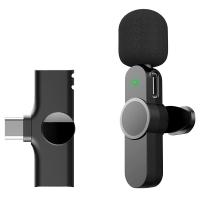
EP033 Mini Plug Play Microphone Wireless Lavalier Mic For Type-C Phones Laptop
6
$48.89
67mm Clip-on CPL&Black Mist 1/4 2-in-1 Phone Camera Lens Filter Kit Applicable to All Mobile Phone Models
3
$29.99
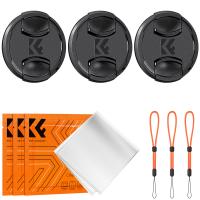
82mm Snap-On Center Pinch Lens Cap 9 in 1 with Anti-Loss Keeper Leash Compatible with Nikon, Canon, Sony, Fujifilm Camera Lenses (shipped to the USA)
146
$18.99 $10.99
55mm Snap-On Center Pinch Lens Cap 9 in 1 with Anti-Loss Keeper Leash Compatible with Nikon, Canon, Sony, Fujifilm Camera Lenses (Shipped only to the USA)
73
$18.99 $9.99
72mm Snap-On Center Pinch Lens Cap 9 in 1 with Anti-Loss Keeper Leash Compatible with Nikon, Canon, Sony, Fujifilm Camera Lenses (Shipped only to the USA)
73
$18.99 $10.99
77mm Snap-On Center Pinch Lens Cap 9 in 1 with Anti-Loss Keeper Leash Compatible with Nikon, Canon, Sony, Fujifilm Camera Lenses (Shipped only to the USA)
73
$18.99 $10.99
Products You May Like
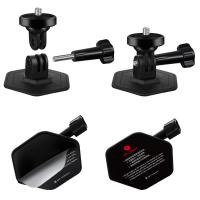
K&F Concept 2-pack Flexible Adhesive Helmet Mount use Genuine 3M for GoPro Hero13/12/11/10/9/8 Max DJI Action 5 Pro 4 3 Insta360 X5 X4 X3 Ace Pro 2 Sports Camera Accessories Flat Curved Surfaces
73
$19.99
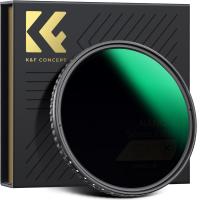
K&F Concept 62mm Variable ND Filter ND8-128 (3-7 Stop) HD Hydrophobic VND Filter for Camera Lens No X Cross Nano-Xcel
39
$78.99 $62.99
K&F Concept TM2534 DSLR Camera Tripod Monopod Kit fit Canon, Nikon
5
$89.99
8 X 42 Binoculars BAK4 Waterproof for Outdoor Watching
4
$46.99 $29.99
55mm Solar Filter 16.6-Stops,ND100000 Solid Neutral Density Filter For Eclipse With 18 Multi-Layer Coatings Nano-Klear Series (Only ship to US)
44
$24.99 $19.99
72mm Black mist filter 1/8 28 layers of anti-reflection green film waterproof and scratch-resistant with metal lens cover Nano-X series
32
$81.99 $52.99
DM101 Digital USB Microscope Camera Coin Magnifier, 10X-500X Magnification, PC Compatible
41
$109.99 $74.99
15.6" Camera Backpack Bag 25L with Laptop Compartment for DSLR/SLR Mirrorless Camera Case for Sony Canon Nikon Camera/Lens/Tripod Parts - Backpack 25L Nature Wander 03 (Black)
66
$119.99 $83.99
Kentfaith Pro 2500X Microscope, 7" IPS Screen, Brightfield/Darkfield Switch, 195 Achromatic Objectives, 5MP Camera, Mechanical Stage, for Science Education, Live Blood, Hobbyists
10
$1,112.49 $799.99
43mm True Color Ultra-Low Reflectivity CPL Filter Polarizer Lens Filter Circular Polarizing for Camera Lenses with 28 Multi-Coated Nano-Xcel Series
36
$68.99 $54.99
Related articles
How To Turn On Camera And Microphone On Dell Laptop ?
How To Use Earphone Microphone On Laptop?
How To Enable Camera And Microphone On Instagram ?
How To Set Up Lavalier Microphone On Laptop?
How To Allow Access To Camera And Microphone On Android ?
Can You Turn The Microphone Off On Iphone?
How To Turn On Flip Video Camera?
How To Use Video Camera On Laptop?
How To Change Video Camera On Laptop?
How To Install Ring Camera Outdoor Wireless?
Blog You May Like
Which Smartwatch Has Best Sleep Tracking?
What Is The Best Dslr Camera For Video?
Can You Track A Smart Watch?
How Do You Install A Wireless Backup Camera?
How To Connect Wireless Camera With Pc?
How Do I Make A Facebook Camera Filter?
How To Center A Microscope Stage?
How To Use Wireless Camera Without Receiver?
Can You Record Your Voice While Screen Recording?
How To Use Old Rangefinder Camera?
Related categories
On-Dash Camera streaming video camera camera and lens cleaning kit C mount lens adapter lens adapters m4/3 adapter
Popular products
high quality condenser microphone wireless microphone transmitter receiver light with power bank Polarize Filter For Mobile Phone clip on phone camera lens travel tripod for iphone lens with 82mm filter protective lens cap dslr nikon lens with 72mm filter camera lens sony compatible
Related searches
Clip On Lavalier Microphone Microphone On Iphone 11 Bluetooth Clip On Microphone On Camera Flashes Microphone For Laptop And Phone Bluetooth Clip On Wireless Microphone Microphone On Ipad Pro 11 Microphone For Karaoke On Computer On Ear Headset With Microphone Microphone On Iphone 12 Pro
Related Scenes
Best Carry On Camera Bag Best Backpack For Camera And Laptop Best Vlogging Camera And Microphone Best Travel Backpack For Camera And Laptop Best Camera And Microphone For Streaming Best Camera And Microphone For Vlogging Best Camera To Video Sports Best Camera To Capture Wildlife Best Dslr Camera Laptop Backpack Best Video Camera To Record Sports
Blog Category
  • Activities
  • Guide
    • Filter Guide
    • Lens Adapter
    • Product Review
  • News & Reviews
    • Camera Reviews
    • Sample Gallery
    • News
  • Tutorials
    • Solar eclipse photography
    • Photography Basics
    • Landscape Photography
  • Inspiration
    • Travel
    • Travel Stories
Search Article
Latest from the Blog
How To Get Metal Detector?
What Phone Has The Best Camera?
Can Headphones Be Both Wired And Wireless?
Can A Digital Camera Record Video?
Which Smartwatch Is Most Accurate For Calories?
What Do You Use A Ring Light For?
Smartwatch That Can Monitor Blood Pressure?
How To Stream Video From Webcam?
Which Smartwatch Has Best Sleep Tracking?
How To Allow Camera And Microphone?
  • Easy Payment Multilple Payment Options

  • Free Shipping Global WareHouse Shipment

  • No Risk 30-Day No Reason Return

  • Limited Deals Buy More, Save More

  • Tax Free No any surcharges or tax fee

Information
  • About us
  • Contact Us
  • Site Map
  • Blog
  • Video
  • Gallery
  • VIP Membership Rewards
Service
  • Privacy Policy
  • Terms & Conditions
  • Shipping & Delivery
  • Payment Info
  • Warranty, Return & Refund
  • Intellectual Property Rights
  • Ambassador
  • Affiliates
  • Wholesale
Support
  • My account
  • Order History
  • FAQs
  • Extend Warranty
  • Logistics Tracking
Follow us
NewsLetter

Get the latest product, K&F Concept respects your privacy.

Powered By KENTFAITH © 2026