How To Stream Video From Webcam?
Streaming video from a webcam is simple once you know where the video needs to go. The setup is different if you want to join a Zoom call, stream to YouTube, monitor a room over your home network, or send webcam video from one computer to another.
The first decision is not the camera. It’s the destination.
If your goal is a live public stream, use streaming software such as OBS Studio and send the feed to YouTube, Twitch, Facebook Live, or another platform. If you only need private video chat, a browser-based service is easier. If you want to view your webcam remotely like a security camera, you’ll need either local network streaming software or an app designed for remote camera access.
Below is the practical way to choose and set it up without overcomplicating it.
Start with the easiest option: browser-based webcam streaming
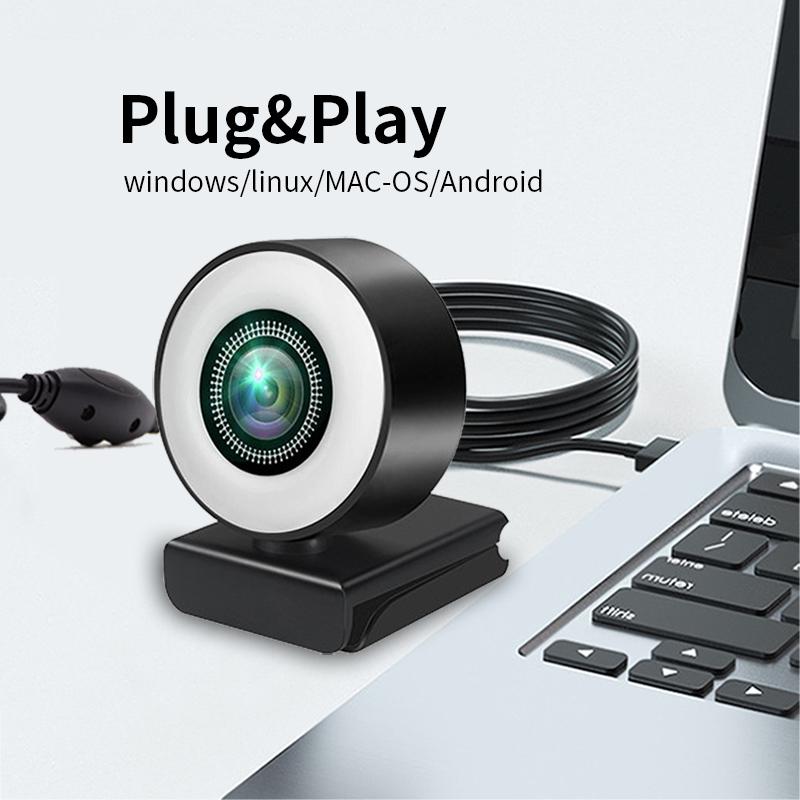
For many people, “streaming from a webcam” just means sharing live video with someone else. In that case, you usually do not need special streaming software.
Services like Google Meet, Zoom, Microsoft Teams, Discord, Whereby, and similar tools can access your webcam directly from the browser or desktop app.
The usual process is:
- Plug in your webcam, if it is not built in.
- Open the video service.
- Allow camera and microphone permissions when prompted.
- Choose the correct camera in the app’s settings.
- Start the call or meeting.
This is the cleanest option for private conversations, online classes, interviews, customer calls, and small group events.
A common mistake is assuming the webcam is broken when the browser is simply blocked from using it. On Chrome, Edge, Firefox, and Safari, check the camera permission icon near the address bar. Also make sure no other app is already using the camera. Some webcams can only be used by one program at a time.
If your camera works in Zoom but not in the browser, the problem is usually browser permission. If it works in the browser but not in Zoom, check Zoom’s video settings and select the right device.
Use OBS Studio for YouTube, Twitch, Facebook Live, and serious streaming
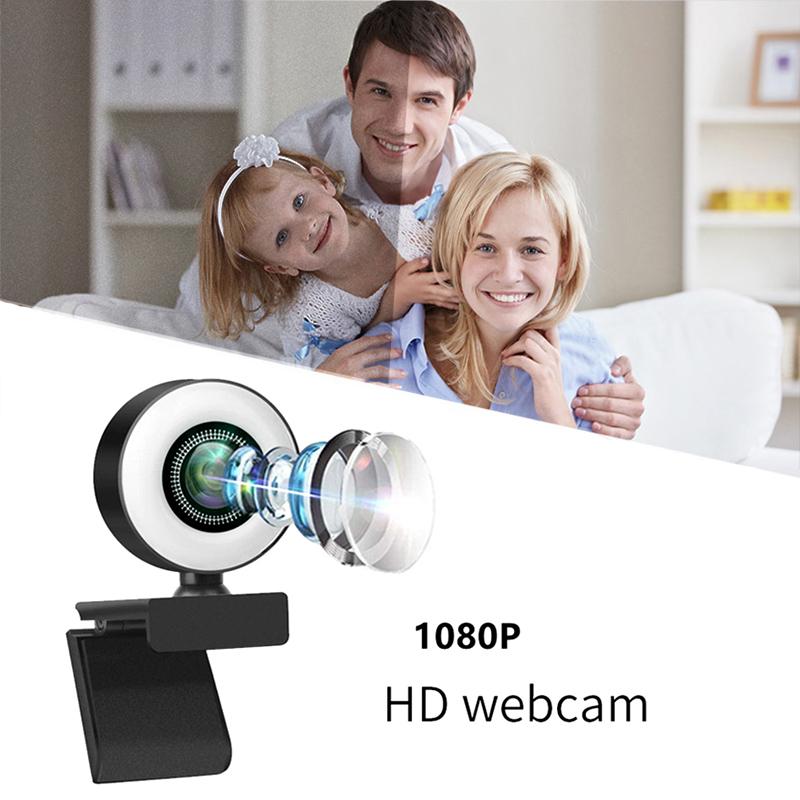
If you want to stream your webcam to a public platform, OBS Studio is the most common free tool. It gives you control over the camera, microphone, layout, screen sharing, overlays, scenes, and streaming quality.
OBS can feel intimidating the first time you open it, but a basic webcam stream only needs a few settings.
After installing OBS:
- Open OBS Studio.
- In the “Sources” area, add a “Video Capture Device.”
- Choose your webcam.
- Add an “Audio Input Capture” source for your microphone.
- Open the streaming platform you want to use.
- Find the stream key or connect your account inside OBS.
- Set your video bitrate and resolution.
- Click “Start Streaming.”
For a simple webcam-only stream, 720p is often better than 1080p if your internet connection is average. A stable 720p stream looks better than a choppy 1080p stream. People often chase higher resolution and then wonder why the video stutters.
For 720p, a bitrate around 2500–4000 kbps usually works well. For 1080p, you may need around 4500–6000 kbps or more depending on the platform. Your upload speed matters more than your download speed. If your internet plan says “300 Mbps,” that may be download speed. Your upload speed could be much lower.
Before going live, run a private or unlisted test stream. Check audio first. Viewers will tolerate slightly soft video, but bad audio makes a stream hard to watch.
Check your webcam quality before blaming the software
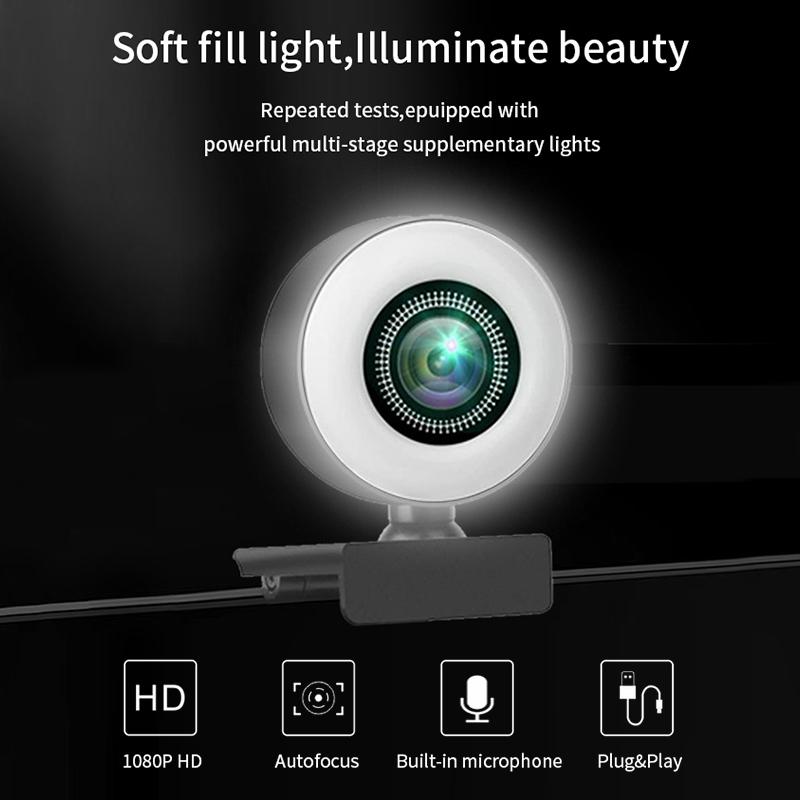
A cheap webcam can look fine in daylight and terrible at night. Most webcam issues come from lighting, not the camera itself.
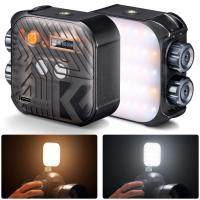
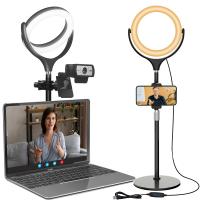
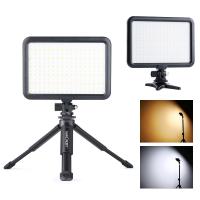
Place a light in front of you, not behind you. A window behind your head will make your face dark because the camera exposes for the bright background. A small desk lamp, ring light, or soft light bouncing off a wall can improve the image immediately.
Also check the camera angle. Eye-level is much more natural than a laptop camera pointing up from the desk. If you use a laptop, raising it on a stand or even a stack of books can make the video look far better.
For built-in laptop webcams, expect limits. Many are still mediocre in low light. An external USB webcam usually gives a better image, especially for long streams, teaching, interviews, or content creation.
Don’t ignore audio
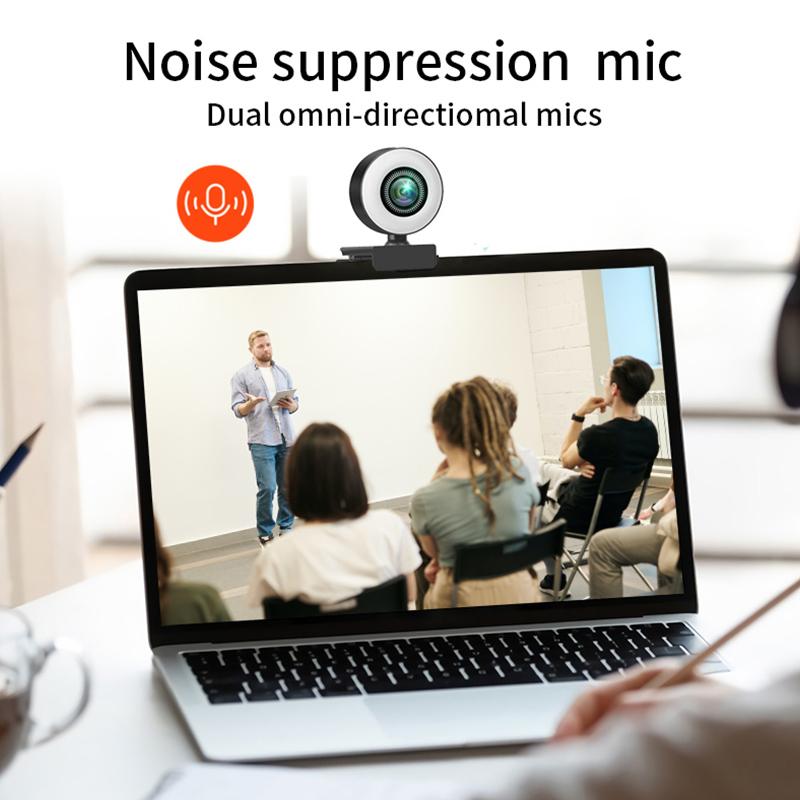
A webcam stream with poor sound feels amateur even if the video is sharp. Built-in webcam microphones often pick up keyboard clicks, room echo, fans, and desk noise.
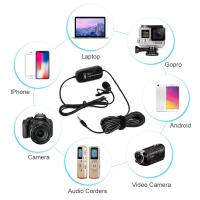
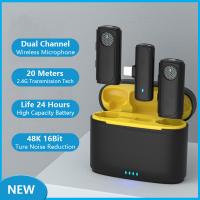
If you only upgrade one thing, upgrade the microphone before buying an expensive camera. A simple USB mic, headset mic, or lavalier microphone can make a bigger difference than moving from a basic webcam to a premium one.
In OBS or your video app, choose the microphone manually instead of relying on the default input. On laptops, apps sometimes pick the built-in mic even after you plug in a better one.
If your voice sounds distant, get the microphone closer. Turning up the gain is not the same thing; it often makes background noise louder too.
Streaming webcam video over your local network
Sometimes the goal is not YouTube or a meeting. You may want to view a webcam feed from another computer, phone, or device on the same Wi-Fi network.
For local streaming, tools like VLC, OBS with plugins, Motion, FFmpeg, or dedicated webcam server apps can work. The best choice depends on how technical you want to get.
VLC can stream a webcam over the network, but it is not always the friendliest option. It works better for people comfortable with IP addresses, ports, and stream formats.
A simpler route is using a webcam monitoring app that turns your computer into a small camera server. These apps usually give you a local web address, something like:
http://192.168.1.25:8080
Then another device on the same network can open that address in a browser and view the feed.
This is useful for a workshop, 3D printer monitoring, a pet camera while you are in another room, or checking a doorway inside a private network.
Be careful with remote access. Do not expose a webcam stream to the internet without authentication. Open webcam feeds get found surprisingly quickly. If you need remote viewing while away from home, use a trusted camera app, VPN, or a platform with proper login protection.
Using a phone as a webcam
If your computer webcam is poor, your phone may be the best camera you already own. Modern phones often beat budget webcams in image quality.
Apps such as DroidCam, Camo, EpocCam, Iriun, and similar tools can turn a phone into a webcam for Windows or Mac. Some work over USB, Wi-Fi, or both.
USB is usually more reliable than Wi-Fi. It avoids lag, dropouts, and battery drain issues during longer sessions. If you use Wi-Fi, keep the phone close to the router and plug it into power.
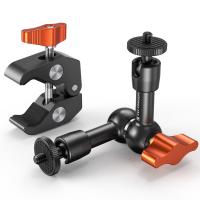
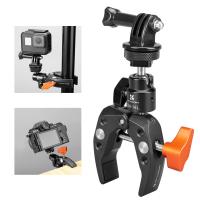
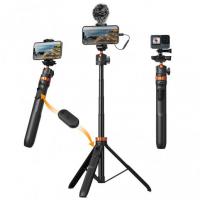
Mounting matters. Holding a phone by hand gets old quickly and looks shaky. A small tripod or clamp makes the setup feel much more professional.
For streaming through OBS, most phone webcam apps appear as a regular camera source once the companion desktop software is installed.
Common problems and quick fixes
If the webcam shows a black screen, close other apps that may be using it. Restart the browser or streaming software. If that fails, unplug and reconnect the camera.
If the wrong camera appears, open the app’s video settings and select the correct device. This is common on laptops with both built-in and external webcams.
If the video lags, lower the resolution or frame rate. Try 720p at 30 fps before pushing 1080p at 60 fps. Also check whether your computer is overloaded. OBS can strain older laptops, especially if you are streaming, recording, and screen sharing at the same time.
If the stream keeps buffering, your upload speed may be too low or unstable. Use a wired Ethernet connection if possible. Wi-Fi can work, but it is more likely to fluctuate, especially in apartments or busy homes.
If the image looks grainy, add more light. Do that before replacing the camera.
If audio and video are out of sync in OBS, you can adjust audio sync offset in the advanced audio properties. This usually matters more when using capture cards, Bluetooth microphones, or phone-as-webcam setups.
Privacy and security matter more than people think
Webcams are easy to activate by accident if permissions are loose. Keep camera access limited to apps you actually use. On Windows and macOS, privacy settings let you see which apps can access the camera and microphone.
For public streaming, remember that anything in the background may be visible. Whiteboards, mail, family photos, addresses, open browser tabs, and notification pop-ups can all leak information.
If you stream from home regularly, create a repeatable setup: same desk position, same camera angle, same light, same microphone. It saves time and reduces mistakes.
For private monitoring, avoid leaving streams open without passwords. A webcam pointed at a pet or printer may seem harmless, but it still reveals activity inside your home.
The simplest setup that works well
For most people, the best webcam streaming setup is not complicated:
- A USB webcam or phone camera
- A decent microphone
- Good front-facing light
- OBS Studio for public streaming
- A browser app for private calls
- Wired internet if the stream matters
Test everything before the real session. Record a 30-second clip, play it back, and check your face, sound, background, and connection. That short test catches most problems before anyone else sees them.
Once the camera, mic, and lighting are stable, streaming from a webcam becomes routine. The software is only part of it. The real difference comes from a clean signal, enough light, reliable upload speed, and knowing where your video is going before you press “Go Live.”