kfconcept

KENTFAITH
K&F Concept    Blog >

Enjoy Your Selected Digital Life

Recently Viewed
  • Recently Viewed
  • Recently Viewed list is empty.

Compare (0) 0
  • Compare
  • You have not chosen any products to compare.

  • Compare
Currency: USD
  • Currency
Shop by Scene Shop by Rank

Log Into Your Account

Account

Order History

Wish List

Login

Forgotten Password?

or connect with

Register Account

Already have an Account?Log In

  • Shopping Cart
  • Your shopping cart is empty!

  • Register/Login to purchase, earn points
  • Favorite
  • Your wish list is empty.

  • Register/Login to like, earn points
  • Activities
  • Guide
    • Filter Guide
    • Lens Adapter
    • Product Review
  • News & Reviews
    • Camera Reviews
    • Sample Gallery
    • News
  • Tutorials
    • Solar eclipse photography
    • Photography Basics
    • Landscape Photography
  • Inspiration
    • Travel
    • Travel Stories
  • Home
  • Blog
  • How To Speed Up A Video On Camera?

How To Speed Up A Video On Camera?

Kentfaith 2025-10-13 02:29:04 0 Comments

How to Speed Up a Video on Camera: A Comprehensive Guide

Ever wonder how to speed up a recorded video directly using your camera? Maybe you want to create a dynamic time-lapse, fast-forward through a repetitive scene, or add a creative flair to your footage without diving into complicated post-production software. Learning how to manipulate video speed on your camera can save time and help you achieve stunning effects on the go.

In this article, we will explore everything you need to know about speeding up video footage using the built-in features of your camera. We’ll cover what settings to adjust, tips and tricks for achieving great results, and how to identify whether your camera supports in-camera speed modification. By the end of this guide, you’ll have all the knowledge you need to create visually engaging, sped-up videos effortlessly.

Why You Might Want to Speed Up Video
how to speed up a video on camera 1

Before we dive into the technical aspects, it’s important to understand why speeding up a video could be useful:

1. Creating Time-Lapses: Time-lapse photography condenses lengthy events, like sunsets or bustling city scenes, into a shorter, dramatic video.

2. Highlighting Key Moments: In dynamic projects, speeding through mundane or repetitive segments keeps the attention on the exciting parts.

3. Elevating Storytelling: Fast-forward effects add energy and pace to videos, making them more engaging.

4. Saving Time During Post-Production: Editing software can be cumbersome to navigate; accomplishing speed adjustments directly from your camera makes the workflow quicker.

Step 1: Check Your Camera’s Capabilities

how to speed up a video on camera 2

Not all cameras allow you to speed up your video footage directly during recording. Here’s how you can determine if your camera supports it:

Review the User Manual: Check if your camera includes a time-lapse or high-speed recording mode.

Explore Camera Menus: Many modern DSLR, mirrorless, and smartphone cameras have built-in options to create time-lapse video, which essentially speeds up your footage by capturing one frame every few seconds.

Search Online: Look for forums, tutorials, or the manufacturer’s website to confirm if your camera supports this feature.

If your camera does not offer direct speed controls, don’t worry—there are workarounds such as recording video and editing it in post-production software, which we’ll touch on later.

Step 2: Use Time-Lapse or Interval Settings
how to speed up a video on camera 3

The most straightforward way to speed up video is by utilizing the time-lapse function, which most modern cameras include. This feature records a series of still images at preset intervals and automatically stitches them into a video file. Here’s how to do it:

1. Access Time-Lapse Settings: Navigate through your camera’s settings menu to find the “Time-Lapse” or “Interval Timer” mode.

2. Set the Interval: Decide how frequently the camera should take a frame. For example, for a dramatic effect, you could set an interval of one frame every 10 seconds.

3. Set the Duration: Determine how long you want the camera to record. The total recording time should align with how long the final sped-up video is.

4. Start Recording: Once you press the record button, the camera will begin capturing frames at the interval you’ve specified.

Pro Tip: Use a tripod to keep the camera stable during the time-lapse sequence. Shaky footage can ruin the final product!

Step 3: Adjust Frame Rates
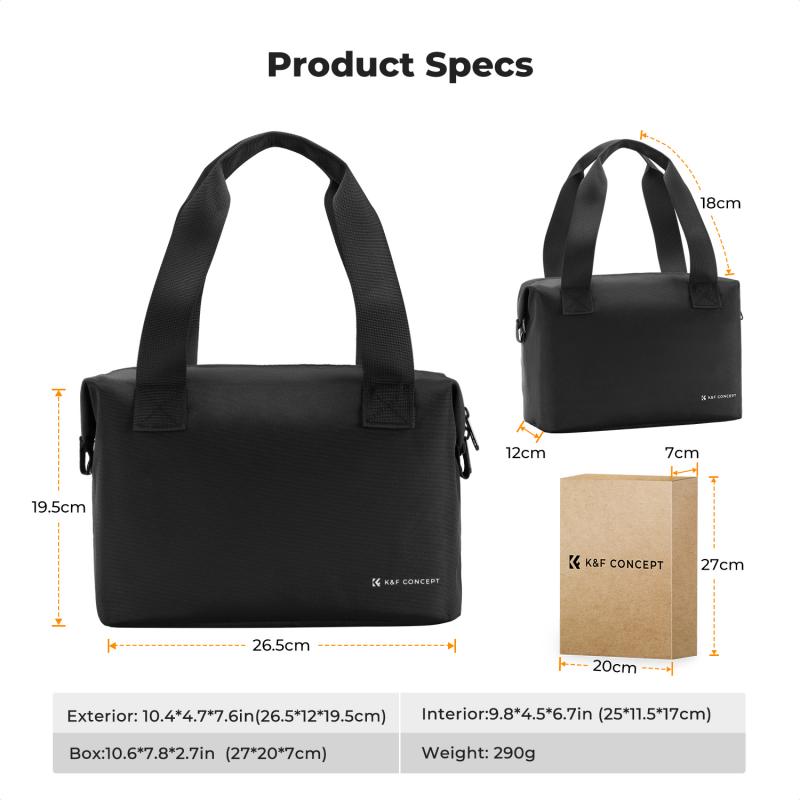
how to speed up a video on camera 4

Some cameras allow you to increase the playback speed by adjusting the frame rate during recording. When you select a lower frame rate (e.g., 15 fps instead of 30 fps) and then play it back at a standard frame rate, the video appears sped up without losing quality.

1. Go to Video Settings: Access your camera’s video settings, and look for options to set the frame rate.

2. Record in Lower Frame Rates: Choose a frame rate lower than your project’s playback rate.

3. Playback: When played at standard 24–30 fps, the footage will appear faster.

Important Caveat: Lower frame rates may make the footage look choppy if overused, so this method works best for shorter clips.

Step 4: Leverage High-Speed Recording (Hyperlapse Cameras)

Some high-end cameras and smartphones include dedicated high-speed recording features like hyperlapse modes. These allow you to record video that automatically appears faster during playback. It’s practically an automated time-lapse.

For example:

Smartphone Cameras like iPhones: iPhone's Time-Lapse feature in the native camera app does a great job of speeding up videos automatically.

Action Cameras: Devices like GoPro come with specialized time-lapse and hyperlapse settings designed to speed up footage conveniently.

Step 5: Record Shorter Clips and Stitch Them

If your camera lacks a formal time-lapse or hyperlapse mode, one unconventional approach is to record shorter footage and later stitch these small clips together in post-editing. For DIY speed boosting:

- Record at regular intervals.

- Ensure consistent stability and focus for each short clip.

This method isn’t as efficient as the time-lapse mode but can be a workaround if you’re limited by camera features.

Troubleshooting and Common Mistakes

Even with the best intentions, it’s easy to make errors when trying to speed up video on a camera. Here are some common issues and how to resolve them:

1. Overexposed Footage in Time-Lapse Mode: Long recording durations can lead to overexposure if you’re manually adjusting settings. Always ensure the correct aperture and ISO for your shot.

2. Battery Drain: Time-lapse shoots can exhaust your battery. Bring a backup or use an external power source.

3. Flickering in Output: Flickering sometimes appears when light changes rapidly (e.g., shooting during sunrise). Use manual exposure settings to minimize changes during capture.

4. Shaky Footage: Always use a tripod for a stable shot.

What if Your Camera Does Not Support Speed Control?

If your camera doesn’t have any speed-control or time-lapse features, use editing software like Adobe Premiere Pro, Final Cut Pro, or free tools like DaVinci Resolve to speed up the video. Import your recording, locate playback speed settings, and adjust it by 2x, 5x, or higher multipliers.

Practical Applications of Sped-Up Videos

1. Educational Videos: Compress lengthy demonstrations into short, engaging clips.

2. Fitness Content: Showcase workout routines by accelerating repetitions.

3. Travel Films: Use time-lapse to summarize long journeys or transitions between locations.

4. Event Footage: Capture the energy of a crowded event by speeding through guest interactions or scene changes.

Final Tips for Success

To create the best sped-up videos, follow these additional tips:

Plan Your Shot: Speeding up a dull scene still makes it dull. Choose an inspiring subject and environment.

Test Settings in Advance: Experiment with interval settings and frame rates before shooting the full project.

Keep Backup Storage: Time-lapse mode generates a lot of data. Ensure your memory card can handle the storage requirements.

Speeding up video directly on your camera can save you significant time and effort while enabling stunning visual effects. By leveraging time-lapse modes, interval settings, or specialized features like hyperlapse, you can create captivating fast-paced footage without spending hours editing. While not all cameras have advanced speed control options, understanding your device’s capabilities opens up creative possibilities to elevate your video production.

By practicing these techniques and tweaking your approach based on your specific project, you'll be well-prepared to create professional-quality video effects. So, pick up your camera, dive into its menus, and start creating those fast-paced, eye-catching clips today!
Leave your comment
Cancel reply
Note: HTML is not translated!
Related products
4K Video Camera Professional 60FPS UHD for Filmmaking, Movie & Photography, Video Recorder Camera with 18X Zoom, Digital Camera for Video Recording, 4.0" Flip Touchscreen, 64GB Card, Up To 6 Hours Work Time
508
$404.99 $239.99
K&F CONCEPT 75" Video Tripod, Heavy Duty Camera Tripod Stand with 360° Fluid Head Load up to 17.6lb, Quick Release Plate Compatible with Canon Nikon Sony and Other DSLR Camera Camcorder
42
$266.99 $159.99
67mm Clip-on CPL Phone Camera Lens Filter Kit Applicable to All Mobile Phone Models
40
$18.99
67mm Clip-on ND2-32 Phone Camera Lens Filter Kit Applicable to All Mobile Phone Models
13
$37.99
37-40.5mm Step Up Ring Aviation-grade Aluminum Filter Adapter Ring 2-pack with a Cleaning Cloth
99
$5.99
39-43mm Step Up Ring Aviation-grade Aluminum Filter Adapter Ring 2-pack with a Cleaning Cloth
99
$5.99
43-49mm Step Up Ring Aviation-grade Aluminum Filter Adapter Ring 2-pack with a Cleaning Cloth
99
$5.99
49-52mm Step Up Ring Aviation-grade Aluminum Filter Adapter Ring 2-pack with a Cleaning Cloth
101
$7.99
43-46mm Step Up Ring Aviation-grade Aluminum Filter Adapter Ring 2-pack with a Cleaning Cloth
99
$5.99
49-55mm Step Up Ring Aviation-grade Aluminum Filter Adapter Ring 2-pack with a Cleaning Cloth
99
$5.99
Products You May Like
52mm Black mist filter 1/8 28 layers of anti-reflection green film waterproof and scratch-resistant with metal lens cover Nano-X series
32
$61.99 $39.99
K&F CONCEPT Magnetic Phone LED Light: Foldable Selfie Light with Makeup Mirror, 3000K-6500K Dimmable Vlog Fill Light for iPhone, Video Calls & Makeup (Black)
42
$29.99
55mm Cool Tone Soft Focus 1/4 Filter, Cinematic Blue Mist Glow Lens Filter for Portrait & Night Video, Highlights Cool Blue Tones, Reduce Contrast - Nano-Xcel Series
$69.99
K&F Concept MCN1 67mm Lens Filter Kit ND1000 CPL with Multiple Layer Nano Coated
$48.99 $39.99
DJI Air 2S/2 LED Colorful Landing Gear Compatible ,Foldable Height-Enhancing Extender for DJI Air 2S/2 Landing Gear Accessory
$31.24 $24.99
XbotGo Falcon All-in-One AI Action Camera, 4K Auto Tracking Sport Camera for Soccer, Basketball & Football, Dual-Lens Team Sports Recorder with Live Streaming, No Subscription Required, 4m Tripod Included (Edge Green)
$1,124.99 $899.99
V8S Stereo Wireless Business Intelligence Noise Reduction Bluetooth Headset for Business/Office/Driving
33
$16.99
Tamron Adaptall ii Lenses to Micro Four Thirds (M4/3) Camera Mount Adapter
2
$24.99
52mm UV Filter 0.1% Ultra-low Reflection (titanium coating ) with 28 Multi-Layer Coatings Nano-Xcel Series
76
$39.99 $31.99
52mm Black Mist 1/8 Filter + Lens Cap, Mist Cinematic Effect Filter with 18 Multi-Layer Coatings for Video, Vlog, Portrait Photography Nano-Klear Series
21
$39.99 $29.99
Related articles
How To Speed Up Sound Recordings?
How To Find Shutter Speed On Canon Camera?
How To Mirror A Video On Iphone Camera?
Does A Speed Camera Always Flash?
When Will A Speed Camera Flash?
How To Set Up Video Lighting At Home?
How To Set Up Lighting For Video Conferencing?
How To Test Sd Card Speed On Android?
What Happens If A Speed Camera Flashes?
What Does A Bayonet Lens Hood Do?
Blog You May Like
How To Use Selfie Monopod With Remote?
Baby Cameras That Can Take Pictures?
How To Build A Light Table For Photography?
How To Find Camera Uid?
How Do Selfie Sticks Work With Cameras?
How to choose bird-watching binoculars?
How To Get Sound In Screen Recording?
Dash Cam That Can Connect To Phone?
Binoculars That Can Range Find?
How To Connect 2 Bluetooth Headphones To Laptop Windows 10 ?
Related categories
On-Dash Camera streaming video camera A Mount Lens Adapter C mount lens adapter digital camera for beginner Sony A Mount Lens Adapters Video Shooting Leica lens adapter
Popular products
4k video memory card speed 4K Camera For Streaming baby monitor with screen and app baby monitor 2 cameras best baby monitor with screen and app lens step up adapter k&f concept 58mm lens filter kit step up lens adapter set lens adapter for digital camera 43-49mm step up ring
Related searches
Video Camera On A Stick Best Video Camera On A Phone Camera On A Rope Ultra High Speed Video Camera High Speed Digital Video Camera Cheap High Speed Video Camera Flash On A Digital Camera Video Camera On Tripod On Camera Video Monitor High Speed Video Cameras
Related Scenes
Best Camera To Video Sports Best Sony A Camera For Video Best Video Camera To Record Sports Best Carry On Camera Bag Best Camera To Capture Wildlife Best Batteries For A Trail Camera Best Action Video Camera Best Digital Video Camera Best Sports Video Camera Best Compact Video Camera
Blog Category
  • Activities
  • Guide
    • Filter Guide
    • Lens Adapter
    • Product Review
  • News & Reviews
    • Camera Reviews
    • Sample Gallery
    • News
  • Tutorials
    • Solar eclipse photography
    • Photography Basics
    • Landscape Photography
  • Inspiration
    • Travel
    • Travel Stories
Search Article
Latest from the Blog
How To Pair Wireless Lavalier Microphone?
Can A Digital Camera Record Video?
How To Build Security Camera System?
Binoculars That Can See In The Dark?
What Is The Best Sound Cancelling Headphones?
How To Hide A Home Security Camera?
How To Receive Notifications On Smartwatch?
How Accurate Are Smart Watch Blood Oxygen Monitor?
How Long To Charge Bluetooth Headphones?
What Projector For Outdoor Movies?
  • Easy Payment Multilple Payment Options

  • Free Shipping Global WareHouse Shipment

  • No Risk 30-Day No Reason Return

  • Limited Deals Buy More, Save More

  • Tax Free No any surcharges or tax fee

Information
  • About us
  • Contact Us
  • Site Map
  • Blog
  • Video
  • Gallery
  • VIP Membership Rewards
Service
  • Privacy Policy
  • Terms & Conditions
  • Shipping & Delivery
  • Payment Info
  • Warranty, Return & Refund
  • Intellectual Property Rights
  • Ambassador
  • Affiliates
  • Wholesale
Support
  • My account
  • Order History
  • FAQs
  • Extend Warranty
  • Logistics Tracking
Follow us
NewsLetter

Get the latest product, K&F Concept respects your privacy.

Powered By KENTFAITH © 2026