How To Find Shutter Speed On Canon Camera?
Understanding your Canon camera’s shutter speed is essential for capturing photographs with precision. Whether you’re a beginner who is just starting out with photography or an advanced user aiming to refine your skills, knowing how to locate and set the shutter speed can significantly improve the quality of your images. In this article, we’ll delve into the process of finding and adjusting the shutter speed on a Canon camera, explain its importance in photography, and provide practical tips to optimize your shooting experience.
What is Shutter Speed?

Before we dive into the steps, let’s briefly explain what shutter speed is and why it’s critical in photography. Shutter speed refers to the length of time the camera's shutter remains open, allowing light to hit the camera's sensor during exposure. This setting plays a pivotal role in determining the brightness of your image and freezing or blurring motion.
Shutter speed is usually measured in seconds or fractions of a second. For instance, a shutter speed of 1/1000 signifies that the shutter remains open for one one-thousandth of a second, which allows for freezing quick-motion subjects, while a shutter speed of 5” (5 seconds) means the shutter stays open longer, suitable for low-light photography or capturing motion blur.
Locating Shutter Speed on a Canon Camera
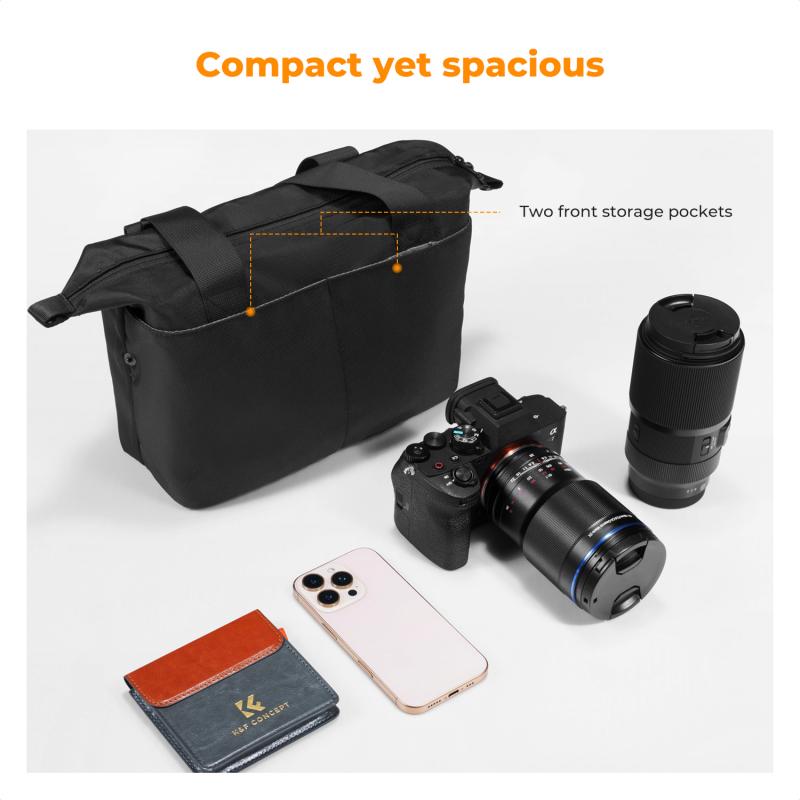
Canon cameras feature intuitive controls for changing shutter speed depending on the model, whether it’s a DSLR or a mirrorless model. The steps below are applicable to most Canon cameras; however, some variations in controls may exist across different models.
Step 1: Switch to the Correct Shooting Mode
Shutter speed is primarily adjusted in specific shooting modes, such as Manual Mode (M) or Shutter Priority Mode (Tv). Here’s how they work:
Manual Mode (M): This allows you to change both the shutter speed and aperture independently, giving you full control over your exposure settings.
Shutter Priority Mode (Tv): In this mode, you choose the shutter speed while the camera automatically selects the aperture to ensure proper exposure.
To get started, rotate your camera’s mode dial to either M or Tv.
Step 2: Access the Shutter Speed
Once you’re in the appropriate mode, look at the camera's LCD screen or the viewfinder display. The shutter speed is usually displayed as a number (e.g., 1/500 or 30”) on these screens. It’s part of the exposure information alongside the aperture (f-stop) and ISO settings.
Step 3: Use the Main Dial to Adjust Shutter Speed
Canon cameras typically feature a Main Dial near the shutter button at the top of the camera body. To change the shutter speed:
1. Rotate the Main Dial while keeping an eye on the LCD screen or viewfinder display.
2. As you rotate the dial to the left, the shutter speed decreases—allowing longer exposures. Rotating to the right increases the shutter speed—perfect for freezing fast-moving objects.
If you’re using a Canon mirrorless camera or a model with a touchscreen, you may also have the option to adjust shutter speed via the on-screen controls directly.
Practical Applications of Shutter Speed
Depending on your photographic goals, shutter speed controls can be applied creatively for specific results. Here are some practical examples:
1. Freezing Motion in Action Shots
To capture sharp images of moving subjects like athletes, cars, or wildlife, you need a fast shutter speed, such as 1/500 or higher. Fast shutter speeds minimize motion blur, ensuring subjects appear crisp and well-defined. Pair this with a higher ISO, if necessary, to gather sufficient light for proper exposure.
2. Creating Motion Blur Effects
Slow shutter speeds, such as 1/30 or slower, allow you to capture creative motion blur. This technique is often used in photography of waterfalls, waves, or night street scenes to give a smooth and artistic effect. Remember that using a tripod is essential when shooting with slow shutter speeds to avoid unintended camera shake.
3. Low-Light or Night Photography
When shooting in low-light conditions, such as astrophotography or cityscapes at night, slower shutter speeds (e.g., several seconds) are required to allow for more light to enter the sensor. Using a sturdy tripod and a remote shutter release or timer function is crucial to avoid blurring due to camera shake.
Tips for Adjusting Shutter Speed Effectively
While knowing how to find and adjust shutter speed is important, here are some additional tips to apply this feature effectively:
Understand the Exposure Triangle
Shutter speed is only one part of the exposure triangle, which also includes aperture and ISO. Changing shutter speed alone may result in underexposed or overexposed images, so you need to balance it with aperture (the amount of light entering the camera) and ISO (the camera’s sensitivity to light).
Use the Right Accessories
For slower shutter speeds, always use a tripod to eliminate camera shake. Additionally, if you’re shooting long exposure images, a remote shutter release will help prevent vibration caused by pressing the shutter button manually.
Consider the Light Conditions
If your scene is bright, you can generally use faster shutter speeds without requiring additional adjustments. However, in dim conditions, you may need to slow down the shutter speed and compensate by increasing ISO or using a wider aperture.
Practice and Experimentation
The best way to master shutter speed adjustments is through practice. Take your camera outdoors and experiment by capturing subjects in motion, such as cyclists, flowing water, or even busy city scenes, to see how different shutter speeds impact your outcomes.
Troubleshooting Common Issues
Some challenges may arise when adjusting shutter speed. Here’s how to address them:
1. Blurry Images: If your images are blurry, it’s likely because your shutter speed is too low, and camera shake or subject movement is causing the issue. Increase the shutter speed or stabilize the camera with a tripod.
2. Overexposed or Underexposed Photos: If your photos are too bright or too dark, balance the exposure settings. Adjust the aperture or ISO as needed while setting the shutter speed.
3. Noise in Photos: Using a slow shutter speed alongside high ISO settings may introduce noise into your images. In such cases, aim to maximize the use of natural light or use a slower shutter speed without increasing ISO excessively.
Frequently Asked Questions About Shutter Speed
Here are common queries new photographers often have when working with shutter speed settings:
Is Shutter Speed Important in Automatic Modes?
In fully automatic modes, the camera chooses shutter speed for you. While convenient, it limits creative control, so switching to Tv or Manual mode gives you freedom to experiment.
What Is the Bulb Mode on Canon Cameras?
Bulb mode allows the shutter to remain open for as long as you press the shutter button. This mode is ideal for long exposures like night-time landscapes or light painting.
Can I Use Shutter Speed to Improve Portraits?
Absolutely! Proper shutter speed ensures that your portraits are free from motion blur, allowing for a sharp focus on your subject’s features.
Mastering the shutter speed function on your Canon camera is a crucial step toward becoming a confident and skilled photographer. Whether you aim to freeze motion, capture creative blur effects, or shoot in challenging light conditions, selecting the right shutter speed unlocks endless possibilities for your images.
The more you understand how shutter speed interacts with aperture and ISO, the easier it will be to adapt to various scenarios and conditions. With practice and focused attention on your camera settings, including experimenting with different shutter speeds, you’ll gain confidence behind the lens and elevate your photography to the next level.
Grab your Canon camera, switch to Manual or Tv mode, and begin exploring all that shutter speed has to offer. Whether you’re photographing a bustling city or tranquil nature scenes, shutter speed is a powerful tool in translating your creative vision into stunning photographs.