How To Receive Notifications On Smartwatch?
Getting notifications to show up on your smartwatch
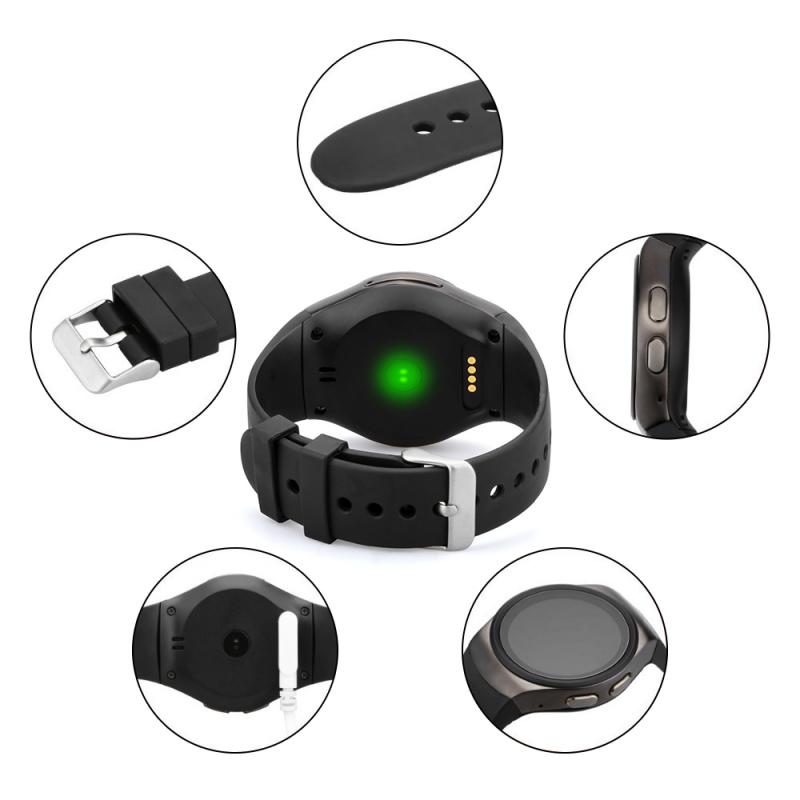
Most smartwatches don’t receive notifications by themselves. They mirror notifications from your phone. If the phone doesn’t receive the alert, if Bluetooth is disconnected, or if the watch app doesn’t have permission, the watch usually stays silent.
The basic setup is simple, but the small settings matter. A watch can be paired correctly and still not show WhatsApp, text messages, calls, calendar alerts, or app notifications if one permission is missing.
Start with the phone-watch connection
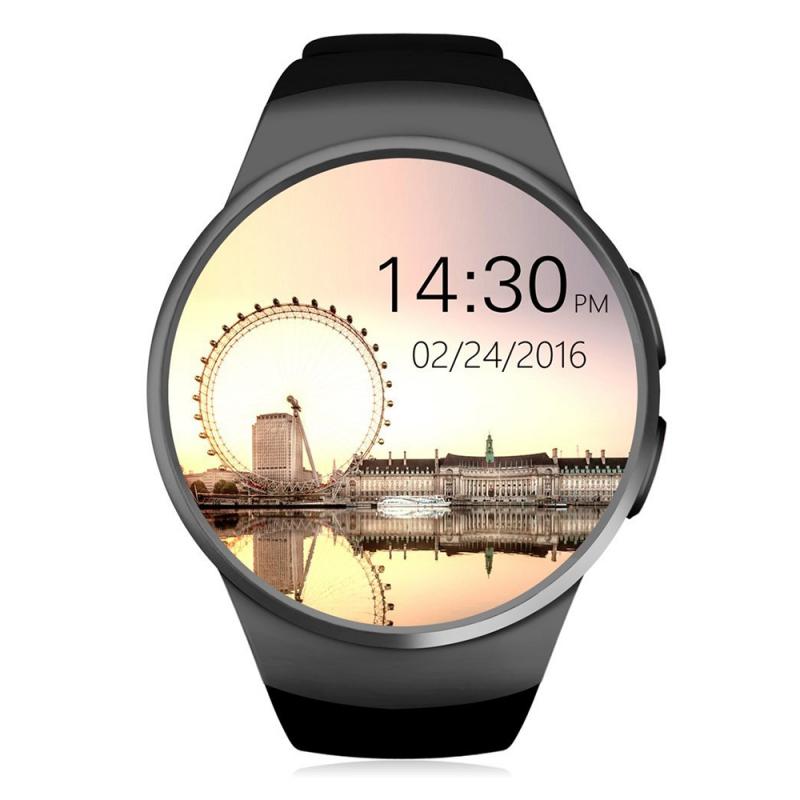
Before changing notification settings, check that the watch is actually connected to your phone.
On most watches, swipe down from the watch face and look for a phone, Bluetooth, or connection icon. If it shows disconnected, notifications won’t arrive reliably.
On your phone:
- Keep Bluetooth turned on
- Keep the smartwatch companion app installed
- Make sure the watch appears as connected in the companion app
- Keep the watch close enough to the phone, especially during setup
For many watches, the companion app is essential. For example:
- Apple Watch uses the Watch app on iPhone
- Samsung Galaxy Watch uses Galaxy Wearable
- Wear OS watches use the Wear OS app or the brand’s app, depending on model
- Fitbit uses the Fitbit app
- Garmin uses Garmin Connect
- Amazfit uses Zepp
- Huawei uses Huawei Health
If you delete or restrict the companion app, notifications often stop even though the watch still appears paired through Bluetooth.
Turn on notification access
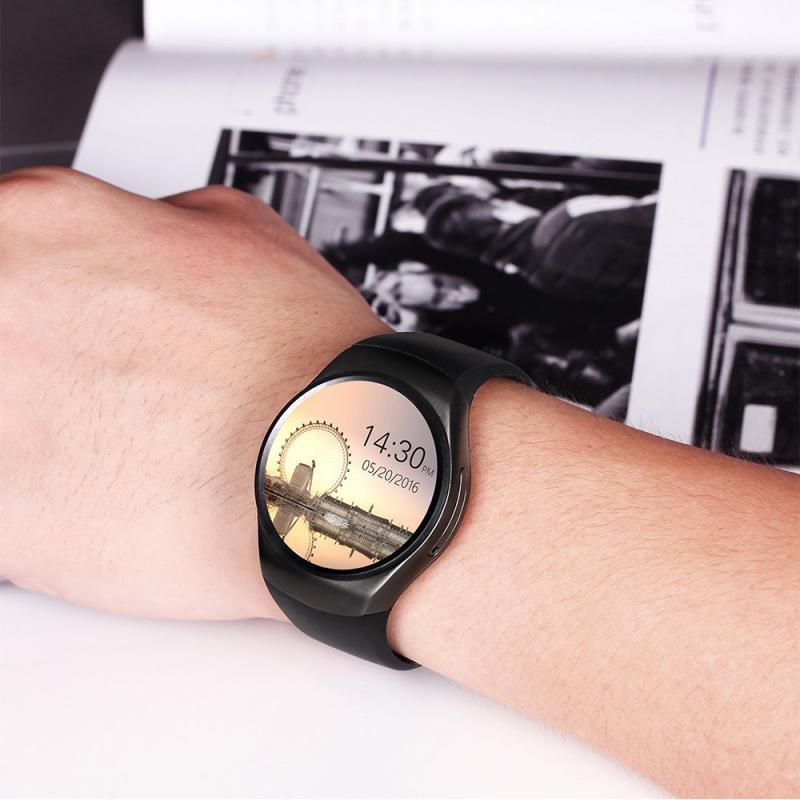
This is the setting people miss most often.
On Android phones, many smartwatches need “notification access” permission. Without it, the watch can connect, track steps, and sync health data, but it cannot read and forward your alerts.
On Android:
- Open Settings
- Go to Notifications, Apps, or Special app access
- Look for Notification access
- Enable access for your watch app, such as Galaxy Wearable, Garmin Connect, Fitbit, Zepp, or Wear OS
- Confirm the warning if Android asks
The exact menu name changes by phone brand. On Samsung phones, it may be under Settings > Notifications > Advanced settings > Notification access. On Pixel phones, it is usually under Settings > Notifications > Device & app notifications or Special app access.
On iPhone, Apple handles this differently. Apps do not get the same broad notification access as Android. The Apple Watch mirrors iPhone notifications through the Watch app, while third-party watches usually rely on Bluetooth sharing and app permissions.
For iPhone users with a non-Apple smartwatch, make sure Bluetooth sharing is allowed:
- Open Settings
- Go to Bluetooth
- Tap the info icon next to your watch
- Make sure notification sharing is allowed if the option appears
Some third-party watches work better with Android than iPhone for notifications. They may show basic alerts but not allow replies, rich previews, or call handling.
Choose which apps can send alerts to the watch
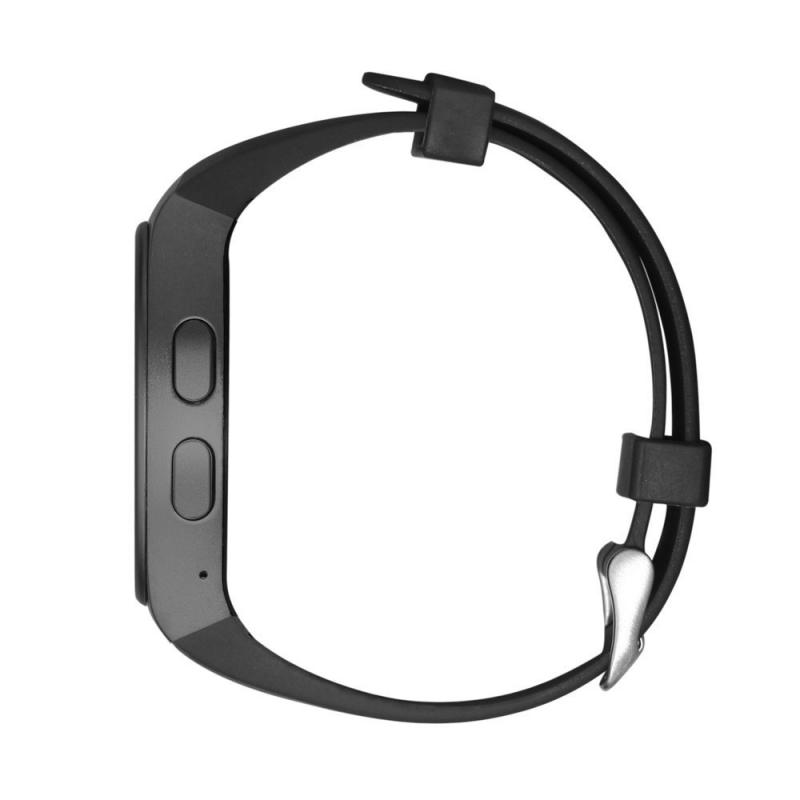
Once notification access is enabled, open your watch’s companion app and choose the apps you want on your wrist.
This is worth doing carefully. If you allow every app, the watch becomes annoying within a day. Food delivery updates, shopping offers, social media likes, email newsletters, and banking promos can make the watch buzz constantly.
A practical setup usually looks like this:
- Calls
- SMS or iMessage
- WhatsApp, Telegram, Signal, or Messenger
- Calendar
- Email, if you actually need it
- Banking alerts
- Ride-hailing or delivery apps if you use them often
- Work apps like Slack, Teams, or Outlook, only if necessary
Leave noisy apps off at first. You can always add them later.
On Apple Watch:
- Open the Watch app on iPhone
- Tap Notifications
- Choose how each app behaves
- For many apps, select Mirror my iPhone
- For others, choose custom settings
For Apple’s own apps, you get more control. Messages, Mail, Calendar, Reminders, and Phone can be adjusted separately.
On Samsung Galaxy Watch:
- Open Galaxy Wearable
- Tap Watch settings
- Go to Notifications
- Tap App notifications
- Enable the apps you want
Samsung also has settings for showing alerts only while wearing the watch, turning on the screen for new alerts, and muting notifications while using the phone.
On Garmin, Fitbit, Amazfit, and similar watches, notification settings are usually inside the companion app under a section called Notifications, Smart notifications, or App alerts.
Check your phone’s own notification settings
Your watch cannot show alerts your phone is blocking.
If WhatsApp notifications are disabled on your phone, your watch will not magically receive them. If your phone hides lock screen previews, your watch may show only the app name instead of the message content.
Check the app on your phone:
- Open phone Settings
- Go to Apps
- Select the app, such as WhatsApp or Gmail
- Tap Notifications
- Make sure notifications are allowed
- Check that message, call, or alert categories are enabled
Android notification categories can be sneaky. An app may have general notifications turned on, but message notifications turned off. This is common with Gmail, WhatsApp, Instagram, and work apps.
On iPhone:
- Open Settings
- Tap Notifications
- Choose the app
- Enable Allow Notifications
- Check Lock Screen, Notification Center, and Banner settings
- Set preview behavior if needed
If alerts only appear after unlocking the phone, your watch may also behave inconsistently.
Make sure Do Not Disturb and Focus modes are not blocking alerts
This is another common cause. The watch is working, but a silent mode is doing exactly what it was designed to do.
Check these settings on both the phone and the watch:
- Do Not Disturb
- Sleep mode
- Theater mode
- Focus mode
- Driving mode
- Bedtime mode
- Work profile quiet hours
- Battery saver or power saving mode
Apple Watch often mirrors iPhone Focus modes. If Sleep Focus is on, the watch may block almost everything except allowed contacts or apps.
Samsung and Wear OS watches can also sync Do Not Disturb between phone and watch. If you turn it on from the watch before a meeting and forget, notifications may seem broken later.
On fitness watches, sleep mode can be especially confusing. Some Garmin, Fitbit, and Amazfit models automatically enter sleep mode during scheduled hours. If your sleep schedule is wrong, the watch may suppress alerts in the evening or morning.
Wear detection can affect notifications
Many smartwatches only show notifications when they think they are being worn. This prevents private messages from appearing on a watch sitting on a desk.
If notifications arrive only sometimes, check the fit.
The watch should sit snugly enough for the sensor to detect your wrist. It does not need to be painfully tight, but if it slides around loosely, the watch may think it has been removed.
This happens more often with:
- Metal bands worn loose
- Large watches on small wrists
- Tattoos under the sensor area
- Very hairy wrists
- Dirty optical sensors
- Cold weather reducing sensor contact
Some watches let you disable wrist detection, but doing so may reduce security features or payment support. On Apple Watch, wrist detection is tied to passcode behavior and Apple Pay.
Why notifications arrive late
Delayed notifications are usually caused by battery saving, weak Bluetooth connection, or the phone aggressively putting the watch app to sleep.
Android phones are especially aggressive about battery management. Xiaomi, Oppo, Vivo, OnePlus, Huawei, and some Samsung models may restrict background apps unless you manually allow them.
If your watch notifications arrive late, open your phone’s battery settings and allow the companion app to run in the background.
Look for settings like:
- Unrestricted battery usage
- Allow background activity
- Auto-start
- Don’t optimize
- Keep app running
- Lock app in memory
The names vary, but the goal is the same: don’t let the phone shut down the watch app.
Also avoid force-closing the companion app. Swiping it away from the recent apps screen can break notification delivery on some phones until the app is opened again.
Calls and messages may need separate permissions
Receiving a call notification is not the same as answering a call from the watch.
To see incoming calls, basic notification permission may be enough. To answer calls on the watch, the device usually needs microphone, speaker, contacts, and phone permissions. Some watches also require a second Bluetooth connection for calls.
This is common with watches that show two Bluetooth entries: one for data and one for calls or audio. If call audio does not work, open Bluetooth settings and check whether the watch is connected for calls.
For messages, replies depend on the watch and phone combination.
Apple Watch can reply to iMessage, SMS, WhatsApp notifications, and many other apps when paired with iPhone, depending on app support.
Wear OS and Galaxy Watch usually allow replies on Android through quick replies, voice dictation, keyboard, or emoji.
Many budget fitness watches only show message previews. They may not support replies at all, even if they display notifications perfectly.
If notifications still do not work
A clean reset of the connection often fixes stubborn problems, but do the easier checks first.
Try this order:
- Restart the watch
- Restart the phone
- Open the companion app and wait for it to sync
- Turn Bluetooth off and back on
- Check notification access again
- Update the watch app
- Update the watch firmware
- Remove and re-pair the watch if nothing else works
If you re-pair, do it from the companion app whenever possible, not just from Bluetooth settings. Deleting the Bluetooth connection alone can leave the app confused.
For Apple Watch, unpair through the Watch app so the phone creates a backup. For Garmin, Fitbit, and Samsung, remove the device inside the brand app before pairing again.
A sensible notification setup for daily use
The best smartwatch notification setup is not the one that mirrors everything. It is the one that makes your wrist useful without turning it into a distraction machine.
Start with calls, messages, calendar, and one or two essential apps. Wear it for a day. If you miss something useful, add it. If an app annoys you, remove it from the watch instead of silencing your whole phone.
Also decide whether you want message previews visible. If you work around other people or leave your wrist on a desk often, hiding sensitive content may be better. The watch can still buzz and show the app name without displaying the full message.
Once permissions, app choices, Focus modes, and battery settings are set correctly, smartwatch notifications are usually reliable. Most problems come from one of those areas, not from the watch being defective.