kfconcept

KENTFAITH
K&F Concept    Blog >

Enjoy Your Selected Digital Life

Recently Viewed
  • Recently Viewed
  • Recently Viewed list is empty.

Compare (0) 0
  • Compare
  • You have not chosen any products to compare.

  • Compare
Currency: USD
  • Currency
Shop by Scene Shop by Rank

Log Into Your Account

Account

Order History

Wish List

Login

Forgotten Password?

Or connect with

Register Account

Already have an Account?Log In

  • Shopping Cart
  • Your shopping cart is empty!

  • Register/Login to purchase, earn points
  • Favorite
  • Your wish list is empty.

  • Register/Login to like, earn points
  • Activities
  • Guide
    • Filter Guide
    • Lens Adapter
    • Product Review
  • News & Reviews
    • Camera Reviews
    • Sample Gallery
    • News
  • Tutorials
    • Solar eclipse photography
    • Photography Basics
    • Landscape Photography
  • Inspiration
    • Travel
    • Travel Stories
  • Home
  • Blog
  • How To Mirror A Video On Iphone Camera?

How To Mirror A Video On Iphone Camera?

Kentfaith 2024-09-13 01:04:06 0 Comments

Mirroring a video on an iPhone camera can be a useful skill for various reasons, such as correcting the orientation of a video or creating a mirrored effect for artistic purposes. Whether you're a content creator, a social media enthusiast, or simply someone who enjoys experimenting with video editing, knowing how to mirror a video on your iPhone can enhance your creative toolkit. In this article, we will explore different methods to achieve this, including using built-in iPhone features and third-party apps.

Understanding Video Mirroring
how to mirror a video on iphone camera 1

Before diving into the methods, it's essential to understand what video mirroring entails. Mirroring a video means flipping it horizontally so that the left side becomes the right side and vice versa. This can be particularly useful if you want to correct the orientation of a video that appears reversed or if you want to create a specific visual effect.

Method 1: Using the iPhone's Built-in Editing Tools
how to mirror a video on iphone camera 2

The iPhone's Photos app offers basic video editing tools, including the ability to rotate and crop videos. However, it does not provide a direct option to mirror a video. To achieve this, you can use the iMovie app, which is available for free on the App Store.

Step-by-Step Guide to Mirroring a Video Using iMovie
how to mirror a video on iphone camera 3

1. Download and Install iMovie: If you don't already have iMovie installed on your iPhone, download it from the App Store.

2. Open iMovie: Launch the iMovie app and tap on the "+" icon to create a new project.

3. Import Your Video: Select "Movie" and then choose the video you want to mirror from your photo library. Tap "Create Movie" to import the video into your project.

4. Select the Video Clip: Tap on the video clip in the timeline to select it. A yellow border will appear around the clip, indicating that it is selected.

5. Access the Editing Tools: Tap on the magnifying glass icon to open the editing tools. Then, tap on the "Actions" button (represented by a pair of scissors).

6. Mirror the Video: In the Actions menu, tap on the "Flip" button to mirror the video horizontally. You will see the video flip in real-time.

7. Save Your Mirrored Video: Once you are satisfied with the mirrored effect, tap "Done" to exit the editing mode. Then, tap the "Share" button and select "Save Video" to export the mirrored video to your photo library.

Method 2: Using Third-Party Apps
how to mirror a video on iphone camera 4

While iMovie is a powerful tool, some users may prefer third-party apps that offer more specialized features for video mirroring. Here are a few popular options:

1. InShot

InShot is a versatile video editing app that provides a straightforward way to mirror videos. Here's how to use it:

1. Download and Install InShot: Get InShot from the App Store and open the app.

2. Import Your Video: Tap on "Video" and select the video you want to mirror from your photo library.

3. Access the Flip Tool: Tap on the "Canvas" icon and then select the "Flip" option to mirror the video horizontally.

4. Save Your Mirrored Video: Tap the checkmark to apply the changes, then tap "Save" to export the mirrored video to your photo library.

2. Video Rotate + Flip

Video Rotate + Flip is a dedicated app for rotating and flipping videos. It offers a simple interface and quick results.

1. Download and Install Video Rotate + Flip: Find the app on the App Store and install it.

2. Import Your Video: Open the app and tap on the "+" icon to import the video you want to mirror.

3. Mirror the Video: Tap on the "Flip" button to mirror the video horizontally.

4. Save Your Mirrored Video: Tap "Save" to export the mirrored video to your photo library.

Method 3: Using Online Tools

If you prefer not to download additional apps, you can use online tools to mirror your video. Websites like Clideo and Kapwing offer video editing features, including mirroring.

Step-by-Step Guide to Using Clideo

1. Visit Clideo's Website: Open your web browser and go to Clideo's video flipping tool.

2. Upload Your Video: Tap on "Choose file" to upload the video you want to mirror from your iPhone.

3. Mirror the Video: Select the "Flip Horizontally" option to mirror the video.

4. Download Your Mirrored Video: Once the video is processed, tap "Download" to save the mirrored video to your iPhone.

Tips for Effective Video Mirroring

1. Check the Orientation: Before mirroring a video, ensure that the original orientation is correct. Mirroring a video that is already correctly oriented can result in an unintended effect.

2. Preview the Changes: Always preview the mirrored video before saving it to ensure that it meets your expectations.

3. Use High-Quality Videos: For the best results, use high-resolution videos. Mirroring can sometimes affect the quality, so starting with a high-quality video is essential.

4. Experiment with Effects: Don't be afraid to experiment with other editing effects, such as filters and transitions, to enhance your mirrored video.

Mirroring a video on your iPhone is a straightforward process, whether you use built-in tools like iMovie, third-party apps like InShot and Video Rotate + Flip, or online tools like Clideo. Each method offers unique features and benefits, allowing you to choose the one that best suits your needs. By following the steps outlined in this article, you can easily mirror your videos and add a creative touch to your content. Whether you're correcting the orientation of a video or creating a mirrored effect for artistic purposes, mastering this skill will undoubtedly enhance your video editing capabilities.
Leave your comment
Cancel reply
Note: HTML is not translated!
Related products
K&F CONCEPT Magnetic Phone LED Light: Foldable Selfie Light with Makeup Mirror, 3000K-6500K Dimmable Vlog Fill Light for iPhone, Video Calls & Makeup (Black)
42
$29.99
K&F CONCEPT Magnetic Phone LED Light: Foldable Selfie Light with Makeup Mirror, 3000K-6500K Dimmable Vlog Fill Light for iPhone, Video Calls & Makeup (White)
42
$29.99
K&F CONCEPT 360° Vacuum Magnetic Car Mount, Foldable & Adjustable Magnetic Phone Holders for Your Car/Gym/Mirror/Smooth Surface, Compatible with iPhone 17 Pro Max 16/15/14/13/12 & Android Phone
29
$29.99
K&F CONCEPT Magnetic Phone Holder for Car, 360° Rotatable Vacuum Magnetic Phone Holder for Your Car/Gym/Mirror/Smooth Surface, Compatible with iPhone 17 Pro MAX 16/15/14/13/12 & Android Phone
46
$21.99
67mm Clip-on CPL Phone Camera Lens Filter Kit Applicable to All Mobile Phone Models
40
$18.99
67mm Clip-on ND2-32 Phone Camera Lens Filter Kit Applicable to All Mobile Phone Models
NEW Arrival
67mm Clip-on ND2-32 Phone Camera Lens Filter Kit Applicable to All Mobile Phone Models
13
$37.99
63'' Magnetic Iphone Tripod Phone Selfie Stick Tripod And Clip-On ND Filter(1-9 stops) For All Phone Set
207
$113.99 $59.99
Minolta A / Sony A Lenses to Pentax Q Lens Mount Adapter K&F Concept M22161 Lens Adapter
$45.99 $23.99
52mm Clip-on ND2-400 Phone Camera Lens Filter Kit, Adjustable Neutral Density Filter Compatible models: iPhone 15 series / 14 series / 13 series / 12 series / 11 series
HOT Seller
52mm Clip-on ND2-400 Phone Camera Lens Filter Kit, Adjustable Neutral Density Filter Compatible models: iPhone 15 series / 14 series / 13 series / 12 series / 11 series
113
$25.99
67mm Clip-on Black Mist 1/4 Phone Camera Lens Filter Kit Applicable to All Mobile Phone Models
7
$29.99
Products You May Like
mini trail camera
mini trail camera
10
$135.99 $106.99
best affordable trail camera
10
$135.99 $74.99
3.3m 100% Stainless Steel Heavy Duty C Stand with Boom Arm, Stand with 126cm Holding Arm, 2 Sandbags for Studio Monolight, Softbox, Reflector
$124.99 $119.99
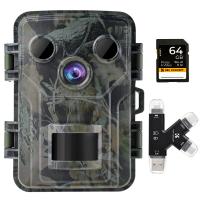
1080P 20MP Wildlife Camera Trail Camera with Night Vision 0.2S Trigger Motion Activated IP66 Waterproof with 64G SD Card and Multi-function Card Reader
77
$148.99 $74.99
62mm Star Filter 4-8 Points Variable Starburst Filter Cross Screen, 18 Layer Coating Ultra Slim Optical Glass, with 3 Pcs Cleaning Cloths Nano-Klear
46
$33.99 $26.99
72mm Blue Streak Filter (2mm)  Anamorphic Lens Effect Filter Optical Glass Ultra-clear Waterproof Anti-Scratch Anti-Reflection Green Film Nano-Klear Series
72mm Blue Streak Filter (2mm) Anamorphic Lens Effect Filter Optical Glass Ultra-clear Waterproof Anti-Scratch Anti-Reflection Green Film Nano-Klear Series
32
$33.99 $26.99
58mm True Color Ultra-Low Reflectivity CPL Filter Polarizer Lens Filter Circular Polarizing for Camera Lenses with 28 Multi-Coated Nano-Xcel Series
NEW Arrival
58mm True Color Ultra-Low Reflectivity CPL Filter Polarizer Lens Filter Circular Polarizing for Camera Lenses with 28 Multi-Coated Nano-Xcel Series
36
$74.99 $59.99
43mm Variable ND2-32 (1-5 Stops) & Circular Polarizing Filter CPL & Black Mist 1/4 3 in 1 HD Lens Filter with 28 Multi-Coated for Camera Lenses Nano-Xcel Series
NEW Arrival
43mm Variable ND2-32 (1-5 Stops) & Circular Polarizing Filter CPL & Black Mist 1/4 3 in 1 HD Lens Filter with 28 Multi-Coated for Camera Lenses Nano-Xcel Series
33
$99.99 $79.99
95mm Lens ND Filter Kit ND4+ND8+ND64+ND1000 Neutral Density 2/3/6/10 Stops Set with 28 Layers Multi-Coated HD Optical Glass and 4-Filter Pouch Nano-Xcel Series
78
$174.99 $139.99
Nikon G Lens to Canon EOS R Camera Body Lens Mount Adapter
49
$100.99 $56.99
Related articles
How To Get A Filter On Iphone Camera?
How To Find Camera In Mirror?
How Does A Double Mirror Camera Filter Work?
How To Speed Up A Video On Camera?
How To Get Face Filters On Iphone Camera?
How To Change Camera Lens On Iphone 11?
How To Turn On Flash In Iphone Camera?
How To Use Filter On Iphone 12 Camera?
How To Find Camera Roll On Iphone 5s?
Which Camera Is Good For Home Security?
Blog You May Like
Can Connect Wifi Camera To Android Phone?
How To Clean Earphone Plug?
How To Setup V380 Wifi Smart Net Camera ?
How To Charge Crosstour Action Camera?
What Does A Scanning Electron Microscope Do?
How To Record Sound On The Computer?
How To Record Video While Car Driving?
How To Check Wifi Signal For Cctv Camera?
What Is Inverted Filter On Camera?
How Does A Dash Camera Get Power?
Related categories
On-Dash Camera phone camera lens streaming video camera A Mount Lens Adapter C mount lens adapter digital camera for beginner Sony A Mount Lens Adapters Video Shooting minolta a mount lenses
Popular products
wireless microphone transmitter receiver travel tripod for iphone nd filter for iphone 17 pro wireless system for microphone iphone wireless microphone for video Polarize Filter For Mobile Phone clip on phone camera lens leica m sony e mount adapter sony minolta adapter high quality condenser microphone
Related searches
Video Camera On A Stick Best Video Camera On A Phone Camera On A Rope Flash On A Digital Camera Video Camera On Tripod On Camera Video Monitor Digital Video Camera On Tripod Professional Video Camera On Sale On The Go Video Camera Microphone On Iphone 11
Related Scenes
Best Camera To Video Sports Best Video Camera To Record Sports Best Carry On Camera Bag Best Batteries For A Trail Camera Best Camera To Capture Wildlife Best Action Video Camera Best Digital Video Camera Best Sports Video Camera Best Home Video Camera Best Rechargeable Digital Camera
Blog Category
  • Activities
  • Guide
    • Filter Guide
    • Lens Adapter
    • Product Review
  • News & Reviews
    • Camera Reviews
    • Sample Gallery
    • News
  • Tutorials
    • Solar eclipse photography
    • Photography Basics
    • Landscape Photography
  • Inspiration
    • Travel
    • Travel Stories
Search Article
Latest from the Blog
How To Reduce Noise In Bluetooth Headphones?
Where To Get Wireless Earbuds?
How To Allow Camera And Microphone?
How Expensive Is A Metal Detector?
What Is The Best Smartwatch For Heart Health?
Can A Tripod Fit Any Camera?
How Accurate Are Smart Watch Blood Oxygen Monitor?
How To Focus An Image On A Microscope?
Kentfaith x Citadel Season 2
What Is The Best Smartwatch For A Woman?
  • Easy Payment Multilple Payment Options

  • Free Shipping Global WareHouse Shipment

  • No Risk 30-Day No Reason Return

  • Limited Deals Buy More, Save More

  • Tax Free No any surcharges or tax fee

Information
  • About us
  • Contact Us
  • Site Map
  • Blog
  • Video
  • Gallery
  • VIP Membership Rewards
Service
  • Privacy Policy
  • Terms & Conditions
  • Shipping & Delivery
  • Payment Info
  • Warranty, Return & Refund
  • Intellectual Property Rights
  • Ambassador
  • Affiliates
  • Wholesale
Support
  • My account
  • Order History
  • FAQs
  • Extend Warranty
  • Logistics Tracking
Follow us
NewsLetter

Get the latest product, K&F Concept respects your privacy.

Powered By KENTFAITH © 2026