How To Charge Crosstour Action Camera?
Charging a Crosstour action camera is a relatively simple process, but many users often have questions regarding the proper procedure, maintenance, and troubleshooting associated with recharging their devices. This article delves into the step-by-step process for charging your Crosstour action camera, explores troubleshooting techniques for issues that may arise, and offers best practices for maximizing battery life.
Step-by-Step Guide to Charging Your Crosstour Action Camera
1. Inspect the Camera and Charging Accessories:
Ensure the appropriate USB cable and adapter are compatible with your Crosstour action camera. Most Crosstour models use a micro-USB cable for charging, but it’s important to check your manual in case your model uses a different type.
2. Turn Off the Camera Before Charging:
Although some Crosstour cameras can charge while powered on, turning off the camera during charging is generally recommended. This prevents unnecessary strain on the battery and allows it to charge more efficiently.
3. Connect the USB Cable:
Plug the micro-USB end of the cable into the camera’s charging port. The charging port is typically located on the side or bottom of the camera and may be hidden under a protective flap.
4. Choose Your Power Source:
You have multiple options for charging your camera:
Wall Outlet: Use a USB adapter to plug the camera into a wall outlet. Ensure the adapter delivers the appropriate voltage (typically 5V) to avoid damaging the battery.
Computer: You can use a USB port on your laptop or PC to charge your action camera. Charging via a computer is slower but convenient if you’re working simultaneously.
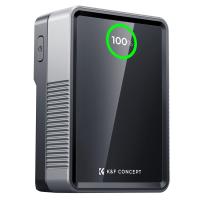
Power Bank: For users on the go, portable power banks are great for keeping your camera charged during outdoor activities.
5. Monitor the Charging Indicators:
Your Crosstour action camera typically has a charging indicator light. The light will turn red to signify that the battery is charging, and once fully charged, it will change to green or turn off. If your camera does not have a light indicator, refer to the user manual for alternative ways to check charging progress.
6. Finish Charging and Disconnect:
Once the battery is fully charged, unplug the USB cable and close the protective flap to prevent dust or water from entering the charging port. Avoid leaving the camera connected to the power source for extended periods after charging is complete, as this can potentially strain the battery.
Troubleshooting Charging Issues
Despite the straightforward process of charging a Crosstour action camera, users may occasionally encounter issues. If your camera doesn’t charge properly, consider the following troubleshooting steps:
1. Check the Cable and Adapter:
Faulty cables or adapters are among the most common causes of charging problems. Inspect the USB cable for visible damage, frayed wires, or loose connections. If possible, test the cable with a different device or replace it with a new one.
2. Clean the Charging Port:
Dust and debris can obstruct the connection between the USB cable and the camera. Use a soft brush or a dry microfiber cloth to clean the charging port gently. Avoid using liquids or sharp objects during cleaning.
3. Verify the Power Source:
Ensure that the wall outlet, USB port, or power bank you’re using is functioning correctly. Test the power source with another device to rule out external issues.
4. Restart the Camera:
Sometimes, a quick restart can resolve issues related to internal software glitches. Turn the camera off fully, wait for a few seconds, and then power it back on.
5. Update Firmware:
Outdated firmware can occasionally cause technical hiccups, including charging problems. Check the Crosstour website or contact customer support to verify if your camera’s firmware is up to date.
6. Inspect the Battery Health:
If your camera has been heavily used or is older, the internal battery may have deteriorated, reducing its ability to recharge. Consider replacing the battery if charging issues persist.
7. Contact Customer Support:
If none of the above steps resolve the issue, reach out to Crosstour’s customer support for assistance. They can provide specific advice tailored to your camera model.
Best Practices for Battery Preservation and Longevity
To extend the lifespan of your Crosstour action camera’s battery and maintain its optimal performance, adopt these best practices:
1. Avoid Overcharging:
Once the battery is fully charged, unplug the camera from the power source promptly. Overcharging can degrade the battery over time.
2. Follow Manufacturer Guidelines:
Always use the charger and cable recommended by Crosstour. Third-party accessories may deliver inconsistent voltages that can harm your device.
3. Store the Camera Properly:
When not in use, store the camera in a cool, dry place. Extreme heat or cold can negatively impact the battery’s endurance and efficiency.
4. Use the Camera Regularly:
Lithium-ion batteries, used in most Crosstour cameras, perform best when used regularly. If you don’t use the camera for an extended period, ensure you charge it to around 50% every few months.
5. Enable Power-Saving Settings:
When recording, enable battery-saving features such as low brightness or power-saving recording modes to extend battery life between charges.
6. Avoid Fully Discharging Often:
Repeatedly draining the battery to 0% can wear it down quicker. Aim to recharge the camera when the battery reaches around 20-30%.
Essential Accessories for Charging Outdoors
For adventurers who rely on their Crosstour action camera in remote areas, investing in portable charging accessories can be invaluable. Some popular options include:
1. High-Capacity Power Banks:
Select power banks with high mAh ratings to ensure multiple charges for your camera before needing to recharge the bank itself.
2. Solar Chargers:
Eco-conscious travelers can use solar chargers to recharge their cameras. Look for models with USB ports compatible with Crosstour cameras.
3. Car Chargers:
For road trip enthusiasts, USB car chargers are a great solution for charging your camera while driving.
Additional Tips for Optimizing Battery Usage During Recording
When recording video or photos, the Crosstour action camera’s battery can drain more quickly depending on the settings. Here are a few tips to minimize energy consumption during use:
1. Lower Resolution Settings:
If you don’t need ultra-high-definition footage, reduce the video resolution to save battery life.
2. Turn Off Unnecessary Features:
Features like WiFi, Bluetooth, or continuous screen display consume extra energy. Turn these off when not needed.
3. Use Extra Batteries:
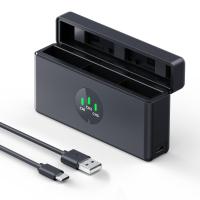
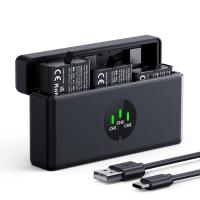
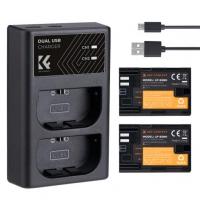
If you anticipate long shooting sessions, keep spare batteries handy to swap out during recording. Crosstour often sells compatible battery packs for its cameras.
Properly charging your Crosstour action camera is essential for ensuring optimal performance, and understanding both the charging process and battery maintenance can help improve the lifespan of your device. From selecting the right charging accessories to troubleshooting common issues, you now have a comprehensive guide to help you keep your Crosstour camera powered up whenever adventure calls.
By adopting the best practices outlined in this article, you can minimize battery-related frustrations and maximize your camera’s utility. Whether you’re scaling mountain peaks or snorkeling with sea life, a well-maintained battery ensures your Crosstour action camera reliably captures your most thrilling and unforgettable moments.
Happy shooting!