kfconcept

KENTFAITH
K&F Concept    Blog >

Enjoy Your Selected Digital Life

Recently Viewed
  • Recently Viewed
  • Recently Viewed list is empty.

Compare (0) 0
  • Compare
  • You have not chosen any products to compare.

  • Compare
Currency: USD
  • Currency
Shop by Scene Shop by Rank

Log Into Your Account

Account

Order History

Wish List

Login

Forgotten Password?

Or connect with

Register Account

Already have an Account?Log In

  • Shopping Cart
  • Your shopping cart is empty!

  • Register/Login to purchase, earn points
  • Favorite
  • Your wish list is empty.

  • Register/Login to like, earn points
  • Activities
  • Guide
    • Filter Guide
    • Lens Adapter
    • Product Review
  • News & Reviews
    • Camera Reviews
    • Sample Gallery
    • News
  • Tutorials
    • Solar eclipse photography
    • Photography Basics
    • Landscape Photography
  • Inspiration
    • Travel
    • Travel Stories
  • Home
  • Blog
  • How To Format Sd Card In Windows?

How To Format Sd Card In Windows?

Kentfaith 2024-11-13 01:55:38 0 Comments

Formatting an SD card in Windows can be a routine yet crucial task for various users, whether you’re looking to clear storage, resolve issues, or set up the card for a specific use. This comprehensive guide will take you through the steps required to format an SD card on a Windows operating system, addressing common concerns and ensuring your data is handled correctly.

Understanding the Need to Format an SD Card

how to format sd card in windows 1

Before diving into the actual steps, it’s important to understand why formatting an SD card might be necessary. Formatting essentially prepares the card for use by erasing all existing data and setting up a new file system. Here are some scenarios where you may need to format an SD card:

1. Performance Issues: If your SD card is performing slowly, a format might help by clearing out unseen errors or fragmented data.

2. File System Errors: Sometimes, SD cards can encounter file system errors that prevent them from functioning correctly.

3. Preparing for a New Device: Different devices might require specific file systems; formatting ensures compatibility.

4. Data Wipe: To safely remove all existing data, formatting is more reliable than simply deleting files.

Precautions Before Formatting
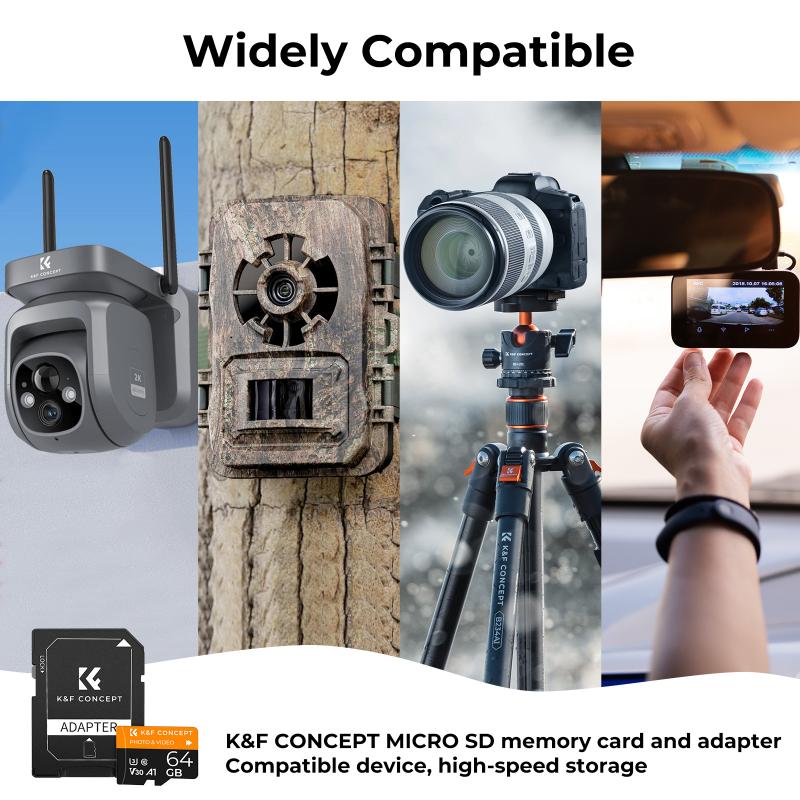
how to format sd card in windows 2

Before proceeding with formatting, ensure you back up any important data. Formatting erases all data on the SD card and there's no way to recover it once the process is complete.

Step-by-Step Guide to Formatting an SD Card
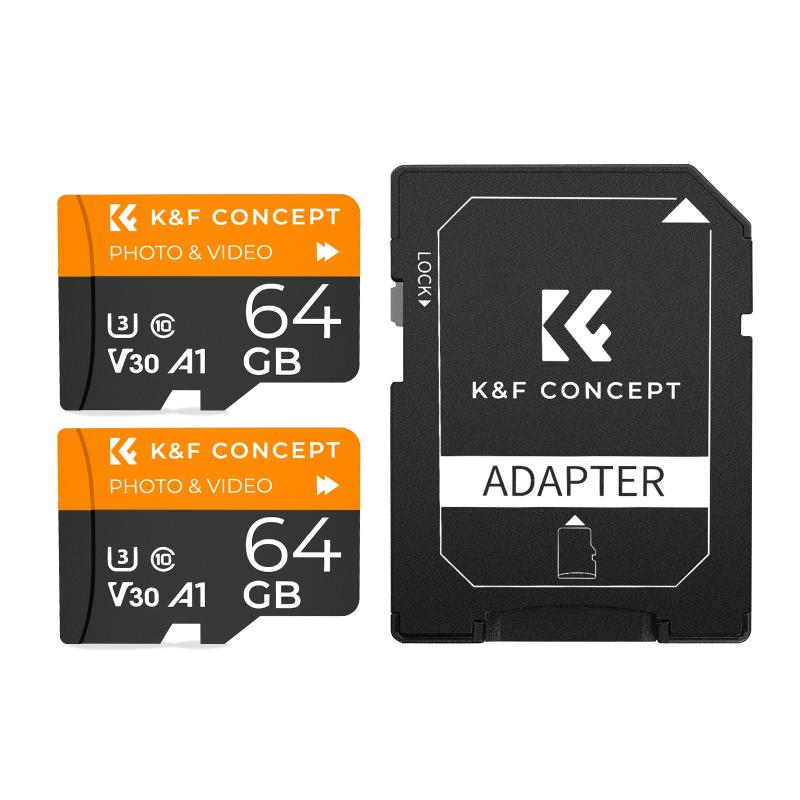
how to format sd card in windows 3

Step 1: Insert the SD Card

how to format sd card in windows 4

Insert the SD card into the SD card slot on your computer. If your computer doesn’t have an SD card slot, you can use an external SD card reader that connects via USB.

Step 2: Open ‘File Explorer’

Press `Win + E` to open ‘File Explorer.’ On the left-hand side, you’ll see a list of drives under ‘This PC’ or ‘My Computer.’ Your SD card should appear there, usually labeled as a removable disk.

Step 3: Right-Click the SD Card and Select ‘Format’

Right-click the SD card drive and choose the ‘Format’ option. This will open the Format window containing several options you can configure.

Step 4: Configure the Formatting Options

In the Format window, you’ll see several settings:

- File System: Here, you can choose between FAT32, exFAT, or NTFS. Generally, FAT32 is suitable for smaller cards (up to 32GB) and for compatibility with various devices. exFAT is good for larger cards and files over 4GB. NTFS is less commonly used for SD cards but it can be useful in some situations where security is a concern.

- Allocation Unit Size: Usually, the default allocation size is recommended unless you have a specific need to change it.

- Volume Label: You can give your SD card a name here.

- Quick Format: This option speeds up the process but doesn’t thoroughly check for errors. Uncheck it if you want a more thorough format, though this will take longer.

Step 5: Start the Format

Double-check your options and click the ‘Start’ button to begin formatting. A warning will appear alerting you that all data will be erased. Confirm to proceed. The format process may take a few seconds to a few minutes, depending on the size of the SD card and if you chose a Quick Format.

Step 6: Complete the Process

Once the format is complete, you’ll receive a notification saying that the format is complete. Click 'OK’ to close the dialog box. Your SD card is now formatted and ready for use.

Troubleshooting Formatting Issues

If you encounter issues while trying to format your SD card, here are some troubleshooting tips:

- Card is Write-Protected: Some SD cards have a tiny switch on the side that enables write protection. Make sure this switch is in the correct position.

- Card Not Recognized: Ensure that the card is properly inserted. Try using a different card reader or another USB port.

- Windows Can’t Format the Card: Sometimes, Windows might fail to format the card correctly. You can try using third-party software like SD Formatter, a tool designed specifically for this purpose.

- Preventing Frequent Formatting: Frequent formatting can lead to wear and tear on the SD card over time. Use high-quality cards and try to minimize the number of times you need to format.

Advanced Formatting Options

For advanced users, there are additional tools and command-line options available that offer more control over the formatting process.

1. Using Disk Management

- Open Disk Management by pressing `Win + X` and selecting ‘Disk Management.’

- Locate your SD card among the list of drives.

- Right-click the SD card and select ‘Format.’

- Configure options as described in the steps above and click ‘OK.’

2. Using Command Prompt

- Open Command Prompt with administrative privileges by pressing `Win + X` and selecting 'Command Prompt (Admin).'

- Type `diskpart` and press `Enter`. This opens the Diskpart utility.

- Type `list disk` to see a list of all connected drives.

- Identify your SD card by its size and type `select disk X`, where X is the number corresponding to your SD card.

- Type `clean` to wipe all data.

- Type `create partition primary` to set up a new partition.

- Type `format fs=fat32 quick` (or replace ‘fat32’ with another file system based on your needs) and press `Enter`.

Formatting an SD card in Windows is a task that can be accomplished with a few simple steps. Understanding the different file systems and settings ensures that you format your SD card to best suit your needs. Always remember to back up important data before formatting to avoid data loss. With this guide, you should be able to approach the task with confidence, ensuring that your SD card is ready for use no matter the scenario.
Leave your comment
Cancel reply
Note: HTML is not translated!
Related products
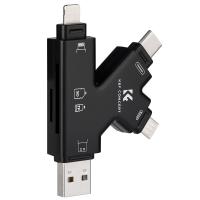
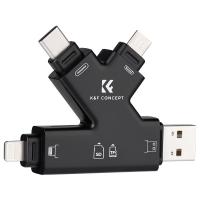
SD Card Reader for iPhone/iPad/Android/Mac/Computer/Camera, 4 in 1 Micro SD Card Reader Tracking Camera Viewer, Portable Memory Card Reader SD Card Adapter Compatible with SD and Micro SD Card/TF Card ( black)
$14.99
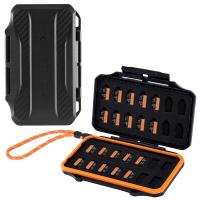
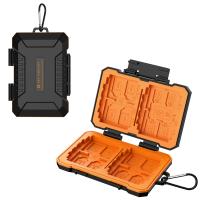
K&F Concept 36 Slots SD Micro SD Memory Card Case, Water-Resistant SD Card Holder, Anti-Shock Card Carrying Storage Box for 24 Micro SD SDXC SDHC TF Cards and 12 SD SDXC SDHC Cards
$18.99 $9.99
K&F Concept 28 Slots Micro SD Card Case,Water-Resistant Anti-Shock Anti-Dust TF Card Holder,Micro SD/Micro SDHC/Micro SDXC Card Box Organizer Storage
$18.99 $9.99
128GB MicroDrive Micro SD UHS-I Memory Card
2
$31.99
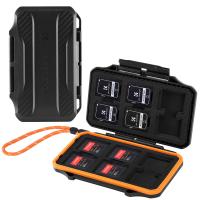
K&F Concept 24 Slots SD Card Holder Memory Card Case, Water-Resistant Shockproof Memory Card Storage Carrying Case for 12 SD SDXC SDHC Cards, 12 CFexpress Type A Cards
$18.99 $9.99
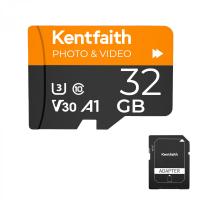
32GB Micro SD Card U3/V30/A1 with Adapter, Memory Card for Cameras, Borescopes,  Microscopes, Night Vision Goggles, Kentfaith
32GB Micro SD Card U3/V30/A1 with Adapter, Memory Card for Cameras, Borescopes, Microscopes, Night Vision Goggles, Kentfaith
$19.99 $15.99
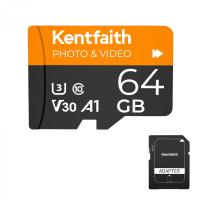
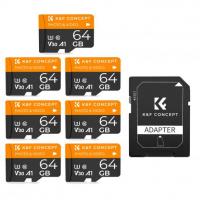
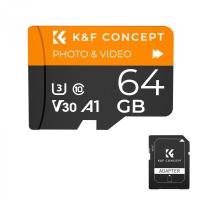
64GB Micro SD Card U3/V30/A1 with Adapter, Memory Card for Cameras, Borescopes,  Microscopes, Night Vision Goggles, Kentfaith
64GB Micro SD Card U3/V30/A1 with Adapter, Memory Card for Cameras, Borescopes, Microscopes, Night Vision Goggles, Kentfaith
$23.75 $23.73
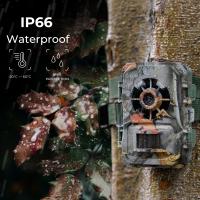
4K 32MP Hunting Camera, 100° Wide Motion Sensor 0.2s Trigger IP67 Waterproof, 2.31" Display, with 64G SD Card +Card Reader
$114.99
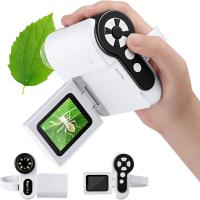
Digital Mini Microscope for Kids, 100x-1000x Handheld Microscope with 32GB SD Card & Battery
32
$92.99 $65.99
Products You May Like
trail cameras with wifi
10
$135.99 $106.99
K&F CONCEPT 2pcs 2.0m Aluminum Foldable Light Stands with 1/4" Screws & Bag – for Video & Studio Lights
$88.99
D2 HD 1080P multi-function clip-on camera, body-worn camera with MP3, infrared night vision, recording function, support screen recording, suitable for sports, home, office
$29.99
82mm Magnetic ND1000 Filter, HD Waterproof Scratch-Resistant Anti-Reflection Nano-Xcel Series
29
$71.99 $44.98
Lens Mount Adapter Compatible for Leica R Mount Lens to Sony E-Mount NEX Body Adapter
151
$43.99 $23.99
78"/2m Overhead Aluminum DSLR Tripod Compact Portable Vlog Tripod Monopod 22lbs/10kg Load, K234A7+BH-28L (S210)
$182.99 $74.99
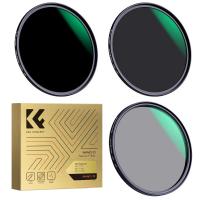
58mm Magnetic CPL Filter + Magnetic Basic Ring Kit Waterproof Scratch Resistant with 28 Multi-Coatings for Camera Lens (Nano-Xcel Series)
29
$58.99 $46.99
49mm Variable ND2-400 (1-9 Stops) & Black Mist 1/4 Filter with 18 Multi-Coatings for Camera Lenses Nano-Klear Series
$39.99
Digital Camera for Kids with Dual 48MP Cameras Auto Focus for 3-12 Years Kids
$82.79 $57.99
DJI Air 3 CPL+ND8+ND16 3cps Filters Set, 28 Layer Multi-Coated HD Optical Glass Filter K&F Concept
59
$27.99 $28.99
Related articles
How To Format A Sd Card In Linux?
How To Format Sd Card On Mobile?
How To Format Sd Card On Tablet?
How To Format A New Sd Card?
How To Access Sd Card Windows 10?
How To Format Sd Card On My Phone?
How To Format Sd Card On Gopro 10?
How To Format External Memory Card In Android?
Can I Install Windows 10 On Sd Card?
What Is Ring Flash Macro Photography?
Blog You May Like
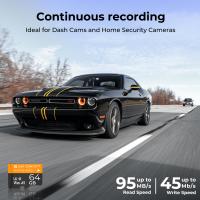
What Is The Use Of Dash Cam?
How Do I Find Hidden Cameras?
what does a uv filter do on a camera?
How To Record Audio During Screen Recording?
How Do You Install Nest Outdoor Camera?
How To Check Real Sd Card Capacity?
How To Choose The Best Digital Camera?
Why Is My Camera Battery Charger Blinking?
What Is Inverted Filter On Camera?
How To Set Up Lavalier Microphone On Laptop?
Related categories
2 in 1 Filter camera card memory Screw-In Filter C mount lens adapter
Popular products
portable sd card reader magnetic memory card 64Gb Micro Sd Memory Card 32gb sd flash memory card 4k sd memory card Full Size Sd Memory Card sd memory card carrying case 64gb memory card micro surveillance memory card digital camera sd card speed
Related searches
Format Sd Card For Video Camera Micro To Sd Card Adapter Sd Card Cameras Sd Card Recorder Standard Sd Card Internal Sd Card Sd Card Security Cameras Camera Sd Card Holder Micro Sd Card Adapters Canon Sd Card Adapter
Popular searches
Nikon Lens Cap 67mm Canon Fd To Fuji X Apsc Cleaning Kit Bluetooth Earbuds For Work Neewer Quick Release Softbox Sony A9 Viewfinder Gobe Ndx 55mm Variable Nd Lens Filter Sony A7iii Mount Type 82mm Star Filter Waterproof Bluetooth Earphones
Blog Category
  • Activities
  • Guide
    • Filter Guide
    • Lens Adapter
    • Product Review
  • News & Reviews
    • Camera Reviews
    • Sample Gallery
    • News
  • Tutorials
    • Solar eclipse photography
    • Photography Basics
    • Landscape Photography
  • Inspiration
    • Travel
    • Travel Stories
Search Article
Latest from the Blog
What Is The Best Wireless Outdoor Security Camera?
Can Security Cameras Detect Motion Through Glass?
How To Find A Good Digital Camera?
How To Stream Live From Surveillance Camera?
How To Put Sd Card In Camera?
What Is A Good Quality Dash Cam?
How To Place Cameras Around Your House?
Which Camera Is Best For Low Light Photography?
Camera That Can Wifi Photos To Phone?
How Do Cellular Trail Cameras Work? – The Complete Guide for Hunters and Wildlife Enthusiasts
  • Easy Payment Multilple Payment Options

  • Free Shipping Global WareHouse Shipment

  • No Risk 30-Day No Reason Return

  • Limited Deals Buy More, Save More

  • Tax Free No any surcharges or tax fee

Information
  • About us
  • Contact Us
  • Site Map
  • Blog
  • Video
  • Gallery
  • VIP Membership Rewards
Service
  • Privacy Policy
  • Terms & Conditions
  • Shipping & Delivery
  • Payment Info
  • Warranty, Return & Refund
  • Intellectual Property Rights
  • Ambassador
  • Affiliates
  • Wholesale
Support
  • My account
  • Order History
  • FAQs
  • Extend Warranty
  • Logistics Tracking
Follow us
NewsLetter

Get the latest product, K&F Concept respects your privacy.

Powered By KENTFAITH © 2025