kfconcept

KENTFAITH
K&F Concept    Blog >

Enjoy Your Selected Digital Life

Recently Viewed
  • Recently Viewed
  • Recently Viewed list is empty.

Compare (0) 0
  • Compare
  • You have not chosen any products to compare.

  • Compare
Currency: USD
  • Currency
Shop by Scene Shop by Rank

Log Into Your Account

Account

Order History

Wish List

Login

Forgotten Password?

Or connect with

Register Account

Already have an Account?Log In

  • Shopping Cart
  • Your shopping cart is empty!

  • Register/Login to purchase, earn points
  • Favorite
  • Your wish list is empty.

  • Register/Login to like, earn points
  • Activities
  • Guide
    • Filter Guide
    • Lens Adapter
    • Product Review
  • News & Reviews
    • Camera Reviews
    • Sample Gallery
    • News
  • Tutorials
    • Solar eclipse photography
    • Photography Basics
    • Landscape Photography
  • Inspiration
    • Travel
    • Travel Stories
  • Home
  • Blog
  • How To Find My Canon Camera On Mac?

How To Find My Canon Camera On Mac?

Kentfaith 2024-10-28 02:13:06 0 Comments

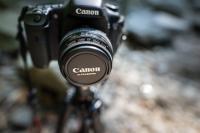
When connecting a Canon camera to a Mac, users may encounter various issues that can prevent the camera from being recognized by the operating system. Luckily, there are a number of troubleshooting steps and solutions available to resolve these problems. This article will guide you through detailed steps to ensure your Canon camera is successfully recognized by your Mac, allowing easy transfer of photographs and videos.

Check Basic Connections and Equipment
how to find my canon camera on mac 1

First and foremost, ensure that you have established the correct and secure connections. Although this may seem rudimentary, it’s often the simplest steps that can be overlooked.

1. USB Cable: Verify that the USB cable is properly connected to both your camera and your Mac. Some cameras require a specific type of USB cable for data transfer, so ensure you are using the right one.

2. Camera Settings: Ensure your camera is switched on and set to the correct mode. Some cameras need to be in "Playback" mode or another specific mode to communicate with a computer.

3. Power Supply: Make sure your camera has sufficient battery life, or better yet, connect it to an external power source to avoid interruptions due to power loss.

If you’ve checked all these basic elements and your camera is still not recognized, you might need to delve deeper into software-related solutions.

Update Software and Drivers
how to find my canon camera on mac 2

Outdated software and drivers often lead to recognition issues between cameras and computers. Ensure your Mac’s operating system, as well as any relevant software, is up to date.

1. Mac OS Update: Always keep your Mac’s operating system up to date with the latest version. Go to 'System Preferences' > 'Software Update' to see if there are any available updates.

2. Canon Software: Canon provides specific software such as the EOS Utility, which facilitates communication between your camera and your Mac. Visit Canon's official website to download the latest version appropriate for your camera model and Mac OS version.

3. Third-Party Applications: Sometimes, third-party applications like Image Capture, Lightroom, or Photos might have better luck recognizing your camera. Make sure these apps are also updated to their latest versions.

Use Image Capture
how to find my canon camera on mac 3

Image Capture is a built-in application on Mac that can be used to import photos and videos from your camera.

1. Open Image Capture: Go to 'Applications' > 'Image Capture'.

2. Connect Your Camera: Ensure your Canon camera is connected and turned on.

3. Check Device List: In the devices list on the left side of the Image Capture window, your Canon camera should appear. Select it to preview the media files on your camera.

4. Import Files: Simply choose the files you wish to import and select a destination on your Mac’s storage. Click 'Import' to start the transfer.

Enable Disk Utility Settings
how to find my canon camera on mac 4

Allowing your Mac to see your camera as a storage device can sometimes resolve the issue.

1. Open Disk Utility: Open 'Applications' > 'Utilities' > 'Disk Utility'.

2. Check for Your Camera: Your Canon camera should be listed on the left side under external devices. If it doesn’t appear, click on 'View' > 'Show All Devices'.

3. Mount the Camera: If your camera appears but is not mounted, select it and click on 'Mount'.

Reset Privacy Settings

Mac’s stringent privacy settings can sometimes restrict the connection between your camera and your computer.

1. Open System Preferences: Go to 'System Preferences' > 'Security & Privacy'.

2. Privacy Tab: Click on the 'Privacy' tab and then select 'Files and Folders' or 'Camera' from the sidebar.

3. Allow Access: Find the applications that need access, such as Photos, Image Capture, or EOS Utility, and ensure they are checked.

4. Restart Your Mac: Often, a restart is required for these changes to take effect.

Check Camera Firmware

Sometimes the issue lies within the camera itself and not compatibility with the Mac.

1. Check Firmware Version: Go to the Canon official website and check if there are any firmware updates available for your specific camera model.

2. Update Firmware: Carefully follow the instructions provided by Canon to update your camera’s firmware. Sometimes, this includes transferring the firmware update file to an SD card and loading it onto the camera.

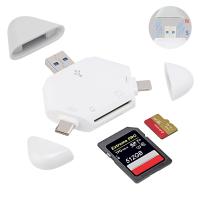
Try Using a Card Reader

If none of the above solutions work, try using an external card reader. This bypasses the need to connect the camera directly to the Mac and can be more reliable.

1. Insert Memory Card: Remove the memory card from your camera and insert it into the card reader.

2. Connect to Mac: Connect the card reader to your Mac via USB.

3. Open Finder or Image Capture: The memory card should appear as an external drive. You can navigate using Finder or open Image Capture to access your photos and videos.

Final Words

Connecting your Canon camera to a Mac shouldn't be a complicated process, but various factors can make it so. By following the above steps, you should be able to troubleshoot and resolve most of the common issues, making the process more seamless. Regular updates and ensuring the proper setup can prevent future connection problems. Whether it’s a simple cable issue, software compatibility, or more complex firmware updates, understanding and employing these solutions can make your photo-transfer experience smooth and efficient.

Leave your comment
Cancel reply
Note: HTML is not translated!
Related products
Anti-Spy Detector Scan & Disconnect for 24/7 Protection Find Bugs Hidden Cams
15
$89.99 $59.99
67mm Clip-on CPL Phone Camera Lens Filter Kit Applicable to All Mobile Phone Models
24
$18.99
Canon EOS Lens to Canon EOS R Camera Body Lens Mount Adapter
49
$55.99 $31.99
Digital Camera for Microscopes 5 Megapixel Color CMOS for Windows Mac OS Android Phones Kentfaith
12
$99.99 $79.99
67mm Clip-on ND2-32 Phone Camera Lens Filter Kit Applicable to All Mobile Phone Models
24
$37.99
Canon FD FL Lens to Canon EOS R Camera Body Lens Mount Adapter
49
$87.99 $49.99
67mm Clip-on Black Mist 1/4 Phone Camera Lens Filter Kit Applicable to All Mobile Phone Models
24
$29.99
52mm Clip-on CPL Phone Camera Lens Filter Kit, Circular Polarizer Polarizing Filter Applicable to All Mobile Phone Models
24
$16.99
Metal Detectors for Adults and Kids, Gold Detector Kit with LCD Display & IP68 Waterproof Search Coil for Find Valuables
285
$215.99 $151.99
DM9 7" LCD Digital Microscope 10X-1200X, 1080P Coin Microscope with 12MP Camera Sensor Work with Windows/Mac OS
118
$149.99 $121.99
Products You May Like
15.6" Camera Backpack Bag 25L with Laptop Compartment for DSLR/SLR Mirrorless Camera Case for Sony Canon Nikon Camera/Lens/Tripod Parts - Backpack 25L Nature Wander 03 (Grey)
130
$135.99 $83.99
KW16 1.32-inch round screen smart watch supports heart rate monitoring, pedometer, blood pressure, blood oxygen, IP68 waterproof, gray
$56.00 $40.99
Olympus OM Lenses to Leica M Lens Mount Adapter K&F Concept M16151 Lens Adapter
31
$58.99 $30.99
J20 One-two Wireless Lavalier Microphone Charging Case, for Youtube, Recording, Video Blogging, Facebook Live Streaming, for Camera Interface
34
$32.99 $29.99
72mm Ultra-Low Reflection Variable ND Lens Filter, ND2-400 (1-9 Stop)  HD Adjustable Neutral Density Filter with 28 Multi-Layer Coatings for Camera Lenses - Nano-X Series
72mm Ultra-Low Reflection Variable ND Lens Filter, ND2-400 (1-9 Stop) HD Adjustable Neutral Density Filter with 28 Multi-Layer Coatings for Camera Lenses - Nano-X Series
52
$127.99 $86.39
V Mount Battery 50Wh 3400mAh Mini V-Mount Battery with 65W Output and TFT Screen, 2H Full Charge, DC, D-Tap, USB-C, USB-A for Camera Camcorder Video Light Monitor
14
$89.99
67mm MCUV+CPL+ND4 Lens Filter Kit with Lens Cleaning Cloth and Filter Bag Nano-Klear
80
$53.99 $39.99
1080P Projector 120" HD Screen with HiFi Stereo Speakers 50000H Work With TV Sticks Smartphones Tablets HDMI USB VGA AV (US Standard)
3
$113.99
 US Sim Card Without Contract
US Sim Card Without Contract
$10.90
82mm Variable ND Filter Kit 2pcs ND2-32 & ND32-512 with Waterproof Anti-scratch Anti-reflection Green Film NANO-X Series
62
$224.99 $133.99
Related articles
How To Find Camera Sd Card On Mac?
How To Find Mac Address On Ring Camera?
How To Find Shutter Speed On Canon Camera?
How To Find Camera In Mac?
How To Connect Canon Camera To Mac Through Wifi ?
How To Find Camera Plugged Into Mac?
How To Take Video On Mac Camera?
How To Use Microphone On Mac?
How To Fix Strap On Canon Camera?
How To Clear Sd Card On Gopro 10?
Blog You May Like
Can A Camera Flash Blind You?
At What Speed Do Cameras Flash?
What Is Inverted Filter On Camera?
Can A Camera Flash Damage Your Eyes?
Which Binoculars To Buy?
How To Manage Sd Card On Android Phone?
What Does The Flash Do On A Camera?
Can Neighbors Security Camera At Your House?
Bluetooth Microphone How To Use?
What Is A Off Camera Flash?
Related categories
On-Dash Camera C mount lens adapter Cannon camera battery canon ring flash m4/3 adapter canon cameras lens Canon RF Mount Adapter canon lens filters ND variable filter
Popular products
no spy hidden camera detector Polarize Filter For Mobile Phone Gold Detector Kit sony lens on canon camera dslr camera lens cap 58mm snap on lens cap dslr lens cap pinch 67mm snap on lens cap camera lens for dslr canon dslr lens cap keeper
Related searches
Find Hidden Camera Detector Mac Compatible Microscope Mac Compatible Webcam Digital Microscope Mac Metal Detector Find Bag Thunderbolt Apple Adapter For My Sony Microphone For Mac Mini External Webcam For Mac 4k Webcam For Mac Adapter To Use Nikon Lens On Canon
Popular searches
High Speed Sd Card For Camera Nikon P510 Adapter Ring K&f Carbon Fiber Tripod Eos M6 Lens Mount Leica L Mount Lenses Third Party Rear Projector Tv Cell Phone Lens Adapter Best High Speed Sd Card For Camera Solar Cellular Trail Camera Efs Lens Adapter For 5d
Blog Category
  • Activities
  • Guide
    • Filter Guide
    • Lens Adapter
    • Product Review
  • News & Reviews
    • Camera Reviews
    • Sample Gallery
    • News
  • Tutorials
    • Solar eclipse photography
    • Photography Basics
    • Landscape Photography
  • Inspiration
    • Travel
    • Travel Stories
Search Article
Latest from the Blog
How To Make Your Eyes Flash On Camera?
What To Look For In A Dash Cam?
How To Wear Monocular?
Is the Sony A7M5 worth buying?
How To Put Sd Card In Camera?
What Is The Difference Between Binoculars And Telescope?
Neutral Density Filter: The Ultimate Guide for Photographers and Videographers
Camera That Can Wifi Photos To Phone?
How Do Cellular Trail Cameras Work? – The Complete Guide for Hunters and Wildlife Enthusiasts
How To Make A Camera Flash After Effects?
  • Easy Payment Multilple Payment Options

  • Free Shipping Global WareHouse Shipment

  • No Risk 30-Day No Reason Return

  • Limited Deals Buy More, Save More

  • Tax Free No any surcharges or tax fee

Information
  • About us
  • Contact Us
  • Site Map
  • Blog
  • Video
  • Gallery
  • VIP Membership Rewards
Service
  • Privacy Policy
  • Terms & Conditions
  • Shipping & Delivery
  • Payment Info
  • Warranty, Return & Refund
  • Intellectual Property Rights
  • Ambassador
  • Affiliates
  • Wholesale
Support
  • My account
  • Order History
  • FAQs
  • Extend Warranty
  • Logistics Tracking
Follow us
NewsLetter

Get the latest product, K&F Concept respects your privacy.

Powered By KENTFAITH © 2025