Can You Connect Bluetooth Earbuds To A Tv?
Bluetooth technology has become increasingly common in modern electronics, offering the convenience of wireless connections for a variety of devices. One popular use case is pairing Bluetooth earbuds with a TV, which allows for a private viewing experience without disturbing others or dealing with tangled cables. While this may sound straightforward, the process can differ depending on the TV model, Bluetooth support, and the earbuds themselves. In this article, we’ll explore how to connect Bluetooth earbuds to a TV and troubleshoot common issues so you can enjoy seamless audio playback.
Understanding Bluetooth Support on TVs
Before diving into the connection process, it’s essential to determine if your TV supports Bluetooth functionality. Not all TVs, especially older models, come equipped with built-in Bluetooth capabilities. Here’s how you can check:
1. Review the TV Specifications: Look for Bluetooth functionality in the user manual or product description. Most modern smart TVs explicitly list Bluetooth compatibility among their features.
2. Explore the TV Settings Menu: Navigate to the settings section on your TV using the remote control. If the TV has a Bluetooth option, it is likely present under “Sound,” “Audio,” or “Connections.”
3. Manufacturer Confirmation: In case the manual or settings menu does not clarify the issue, consult the manufacturer’s website or customer support.
If your TV supports Bluetooth, you can connect your earbuds directly. If not, you might need additional hardware like a Bluetooth transmitter to add wireless connectivity.
Step-by-Step Guide to Connect Bluetooth Earbuds to a TV
Let’s assume your TV does support Bluetooth. Follow these steps to connect your Bluetooth earbuds:
Step 1: Put Your Earbuds in Pairing Mode
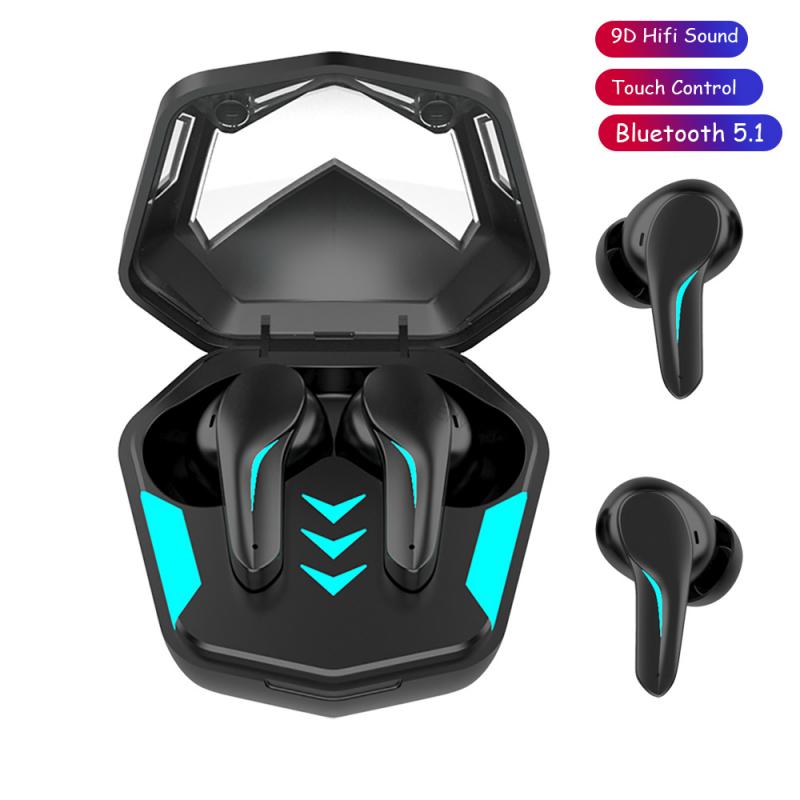
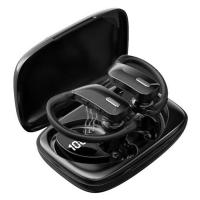
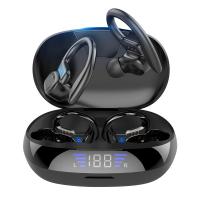
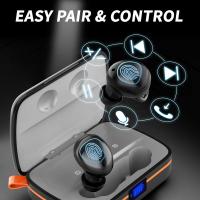
Most Bluetooth earbuds can be set to pairing mode by pressing and holding a specific button (often the power or multifunction button). Some earbuds use a charging case to enable pairing mode. Check your earbuds’ user manual for instructions on how to make them discoverable to other devices.
Step 2: Access the TV’s Bluetooth Settings
Grab your TV remote and head to the Bluetooth settings menu. The process varies depending on the brand and model, but it usually involves navigating to Settings > Sound > Bluetooth or Settings > Connections.
Step 3: Search for Available Devices
Once Bluetooth is turned on in the TV menu, start the device search. This will scan for nearby Bluetooth devices, including your earbuds.
Step 4: Select Your Earbuds
When your earbuds appear on the list of available devices, select them to initiate pairing. If prompted, confirm the connection or enter any required passcode (typically "0000" or "1234").
Step 5: Test the Connection
Once paired, play a video or audio file on your TV to ensure the sound is directed to your earbuds. Adjust the volume to a comfortable level and confirm that the audio is clear.
What If Your TV Lacks Bluetooth Support?
If your TV doesn’t support Bluetooth, you can use a Bluetooth transmitter to bridge the gap. Here’s how:
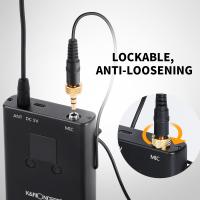
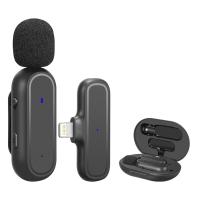
1. Purchase a Bluetooth Transmitter: These compact devices plug into your TV’s audio output port (usually 3.5mm headphone jack, optical port, or RCA ports) and enable Bluetooth connectivity.
2. Connect the Transmitter to Your TV: Use the appropriate cable to attach the transmitter to your TV. Most transmitters come with instructions that explain the setup process.
3. Pair Your Earbuds to the Transmitter: Once the transmitter is powered on and ready, put your earbuds in pairing mode. Follow the instructions provided with the transmitter to complete the pairing.
4. Test Audio Playback: As with the direct connection method, play a video or audio file to confirm that the sound is routed to your earbuds.
Troubleshooting Common Connectivity Issues
Even with the right setup, things don’t always go smoothly. Here are some common problems and their solutions:
Problem 1: Earbuds Not Showing Up on TV
If your Bluetooth earbuds don’t appear in the list of available devices, ensure they are in pairing mode and close enough to the TV. Restart the TV and earbuds, then try again. Additionally, check if the TV’s Bluetooth function is enabled properly.
Problem 2: Audio Delay or Lag
Bluetooth headphones and earbuds sometimes experience a noticeable delay between the audio and video. This is due to latency in wireless communication. To address this issue:
- Use earbuds that specifically support low-latency audio (look for aptX Low Latency in the specifications).
- Adjust the audio delay settings on your TV if it has that option.
- Opt for a high-quality Bluetooth transmitter designed to minimize latency.
Problem 3: Connection Interference
Other wireless devices nearby may cause interference, leading to connection drops or audio distortion. Reduce interference by turning off unused Bluetooth devices in the vicinity or moving them further away from your TV and earbuds.
Problem 4: Limited Range
Bluetooth typically has a range of 30 feet (about 10 meters). If you wander farther than this distance, the audio may cut out. Stay within range to maintain a stable connection.
Problem 5: TV Range of Compatibility Issues
Some TVs are not compatible with all Bluetooth devices, even if both the TV and earbuds support Bluetooth. Check if your TV manufacturer recommends specific devices for pairing. Alternatively, you may need to try another pair of earbuds or use a universal Bluetooth transmitter.
Benefits of Using Bluetooth Earbuds with a TV
While the process of connecting Bluetooth earbuds to a TV may require some effort, the benefits are worth it:
1. Private Listening: You can enjoy TV shows and movies without disturbing others in your household or surroundings.
2. Wireless Convenience: Say goodbye to cumbersome headphone cables and enjoy freedom of movement.
3. Enhanced Audio Experience: Many Bluetooth earbuds offer superior sound quality with features like noise cancellation, customized EQ settings, and immersive audio.
4. Nighttime Viewing: Watch TV late at night without worrying about waking others.
5. Accessibility: Bluetooth earbuds are helpful for individuals with hearing impairments, as they allow for direct and focused sound delivery.
Practical Tips for a Smooth Connection
To ensure a seamless experience, keep these tips in mind:
Keep Firmware Updated: Periodically update the firmware of your TV and earbuds. New updates often improve compatibility and performance.
Charge Your Devices: Ensure both your earbuds and TV (or Bluetooth transmitter) are adequately charged or powered for uninterrupted use.
Know Compatibility Limits: Some older TV models may only support stereo sound formats, which might restrict advanced audio features available in high-end Bluetooth earbuds.
Connecting Bluetooth earbuds to a TV is a largely hassle-free process when done correctly, whether your TV supports Bluetooth natively or requires a transmitter. Once connected, you can enjoy numerous benefits like private listening, freedom of movement, and improved audio quality. For best results, take the time to select compatible devices, invest in a high-quality Bluetooth transmitter if necessary, and familiarize yourself with troubleshooting techniques to address potential issues.
By following the steps and tips outlined in this guide, you’ll be able to pair your Bluetooth earbuds with your TV effectively and enjoy a truly wireless entertainment experience. Whether you’re watching your favorite series or diving into an action-packed movie, Bluetooth earbuds can elevate your viewing experience to the next level.