How To Switch On Smart Watch?
How do I power on my smartwatch?
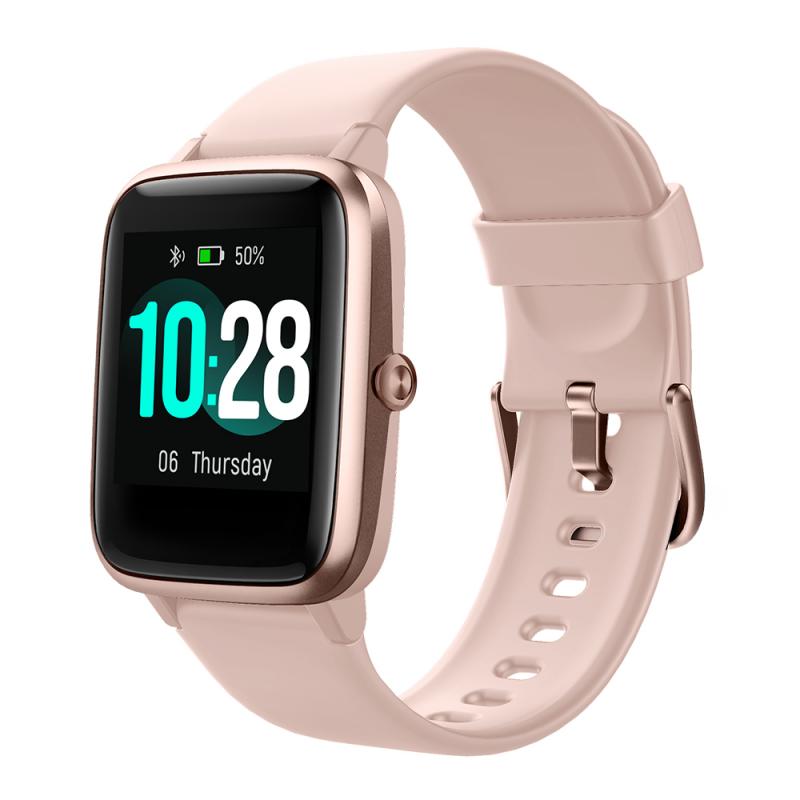
make sure the smartwatch is charged before trying to power it on. press and hold down the middle pusher button for at least three seconds. the smartwatch will also power on when connected to the charger.
Charge the watch
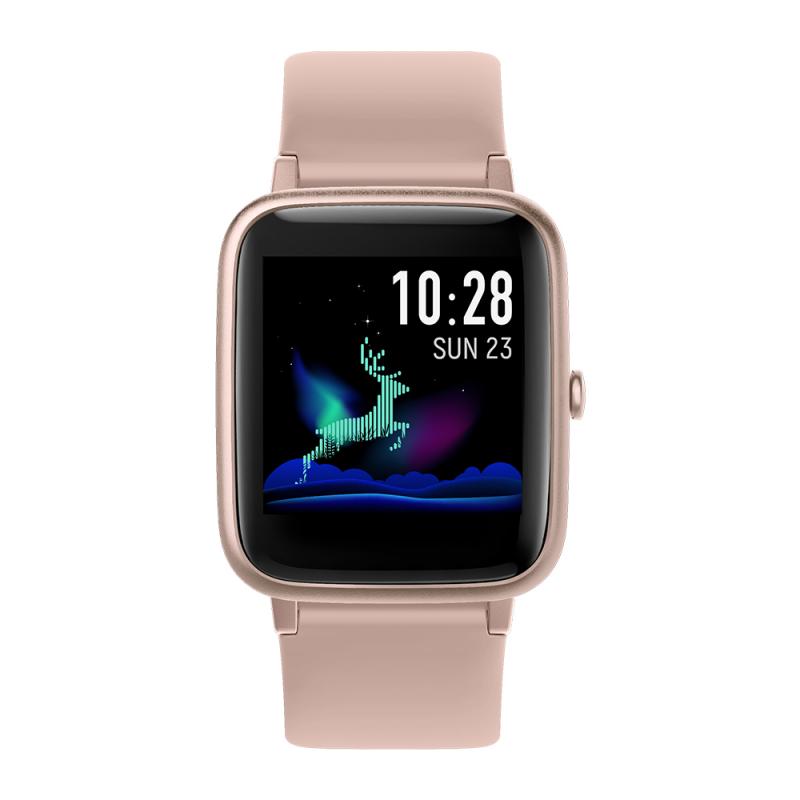
- most smartwatches automatically power on when connected to their charger. if your watch is completely off because of a drained battery, placing it on the correct charger is the first thing to try.
- many smartwatches automatically turn on when connected to a charger, even if the power button is broken.
- connect the smartwatch to itsoriginal charger.
- ensure the charging pins are clean and making proper contact.
- wait5-10 minutes—some watches display a battery icon before booting up.
- if it doesn’t turn on automatically, tryholding the screenortapping itto wake it up.
Press and hold
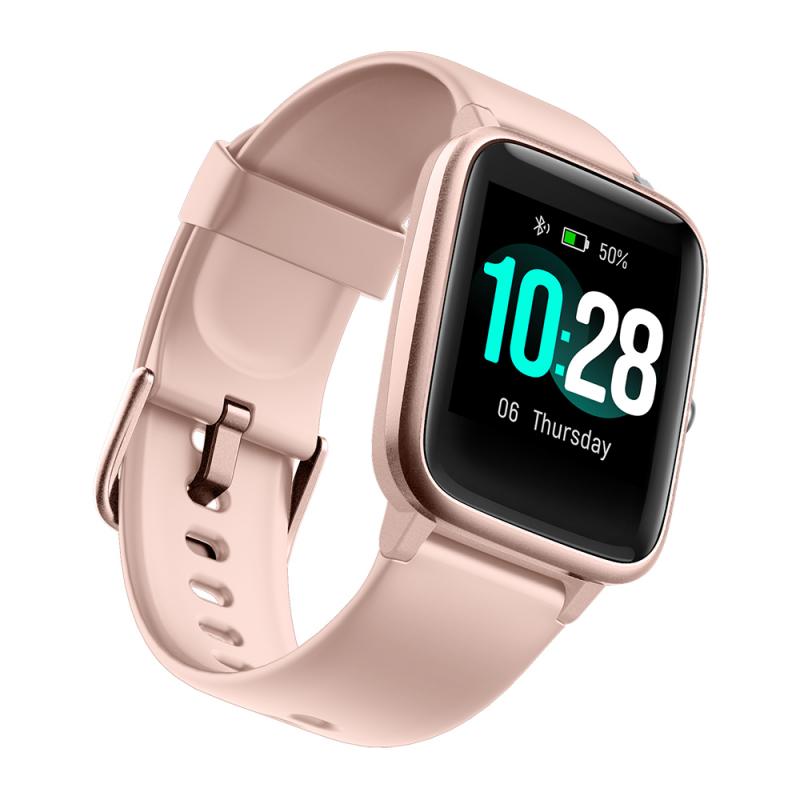
- press and hold the power button for about 3–5 seconds.
- wait for the screen to light up, and you should see the brand logo or a welcome screen appear.
- the band may also vibrate or give an audible sound as it powers on.
Power button or gesture area
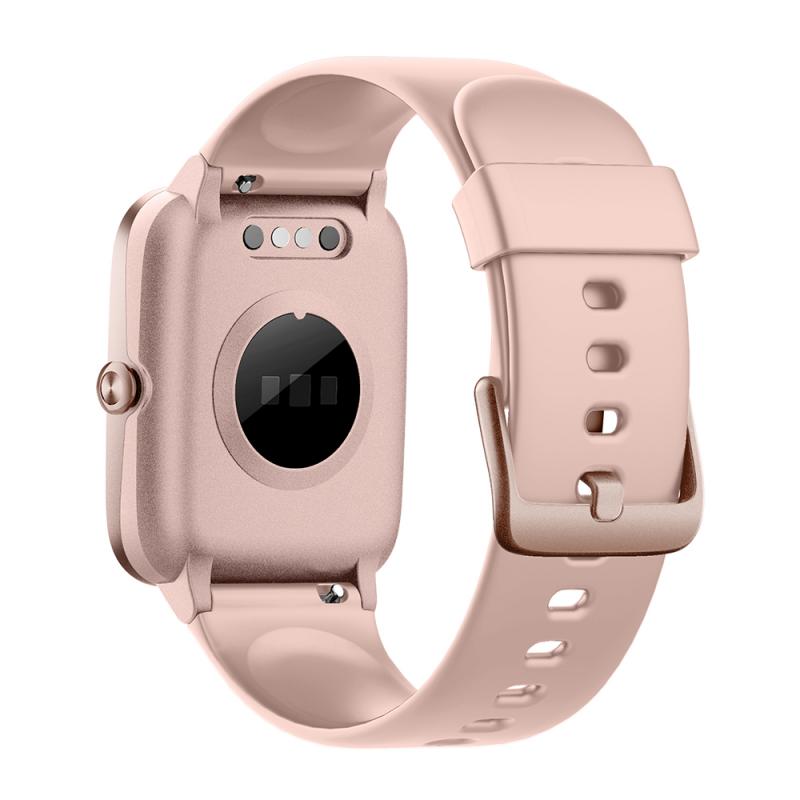
- some smart bands, especially those with physical buttons, may have a small button on the side of the device. this button can be used to turn the device on. depending on the design of the band, it might be a tactile button or a capacitive button that requires a gentle touch.
- many smart bands have a touchscreen interface and rely on touch gestures to wake up the device. if the band is off or the display is dark, simply tapping the screen once or holding it for a few seconds may activate it.
- for bands that support gesture controls, you may be able to raise your wrist or shake the band to turn it on. this feature is commonly found in higher-end models that include motion sensors.
Wait for the boot-up process
once you’ve pressed and held the power button or tapped the screen, the smart band will begin its boot-up process. this might take a few seconds or longer, depending on the brand and model. during this time, the device is loading its operating system and preparing to show data like the time, battery percentage, and health metrics.
if your smart band is new, it might also show a setup guide or prompt you to pair it with your smartphone. you’ll need to follow these instructions to get started with syncing and configuration.
Force restart
- if the watch is frozen but still has power, aforce restartcan bypass the need for the power button.
- press and holdboth the digital crown + side buttonfor 10+ seconds until the apple logo appears.
- hold thehome (bottom) + back (top) buttonsfor 7-10 seconds until it reboots.
- hold themiddle button + a secondary button(varies by model) for 10+ seconds.
Use the companion phone app to wake or reboot
many smartwatches are tightly integrated with companion apps on smartphones. in some models, the phone app can send a wake or restart command over bluetooth.
- open the official companion app (e.g., wear os, galaxy wearable, fitbit, garmin connect).
- check for a device status page that shows battery level or a “find my watch” / “ping” feature that can make the device vibrate and wake the screen.
- try toggling bluetooth off and on in both devices to prompt the watch to reconnect and respond.
- some apps offer a remote restart or software update option that will boot the watch as part of the process.
Force a restart via charging port or sensors
certain models expose a hidden reset sequence, often involving placing the watch on a charger and holding two points on the case or screen simultaneously. check the manual or trusted forums for model-specific instructions.
- connect the watch to power and press or hold any accessible side buttons (if any function) while charging — sometimes the act of charging plus a long press triggers a restart.
- if the watch has a recessed reset pinhole, use a soft tool like a paperclip to press the internal reset button gently while on the charger.
- only do this if documented for your model.
- for watches with touchscreens that respond when tapped during charging, try a long press on the display area after a few minutes of charging.
Use “find my device” or similar network services
if your watch supports network features (wi-fi or paired phone connectivity) and is registered to an account, remote services might be able to ping or wake it.
- log in to the manufacturer’s web portal or app and look for device actions like “locate,” “ring,” or “wake.”
- these features usually only work if the watch has some residual power and is connected; they won’t help a fully dead battery but can wake a device that’s asleep with a faulty button.
Troubleshooting common power-on issues
- low or no battery: ensure that the device has been charged sufficiently. if it’s not charging, try using a different charging cable or adapter, or check for any damage to the charging port.
- frozen or unresponsive screen: if the device seems frozen during the boot-up process or is unresponsive to touch, try performing a reset. this may involve holding the power button for 10-15 seconds or using a dedicated reset option in the app.
- software issues: in some cases, software glitches can cause the band to remain unresponsive. try restarting your phone and the smart band, or reinstalling the companion app.
- hardware failure: if none of the above solutions work, the smart band might have a hardware issue. in this case, it’s best to contact customer support or visit a service center for repairs.