How To Improve Sound Quality Of Microphone?
Most microphone problems don’t come from the microphone itself. They come from the room, the distance from your mouth, bad input settings, background noise, or using the wrong type of mic for the job.
I’ve heard cheap USB microphones sound perfectly usable with a good setup, and I’ve heard expensive studio mics sound awful in a bare room with the gain cranked too high. Before buying new gear, fix the basics. They usually make the biggest difference.
Start with mic position

The fastest way to improve microphone quality is to place the mic correctly.
For most speaking situations, keep the microphone about 4 to 8 inches from your mouth. If it’s too far away, it picks up more room echo, keyboard noise, fan noise, and general background sound. If it’s too close, your voice can sound boomy, harsh, or distorted.
Don’t speak directly into the front of the mic from dead center unless you know it handles plosives well. Plosives are those harsh bursts from “p,” “b,” and sometimes “t” sounds. A better setup is to angle the mic slightly off to the side, aimed toward your mouth but not directly in the path of your breath.
For a desk mic, try placing it just to the side of your mouth rather than directly under your chin or far away behind the keyboard. For a boom arm, position it close enough that you can speak naturally without leaning forward.
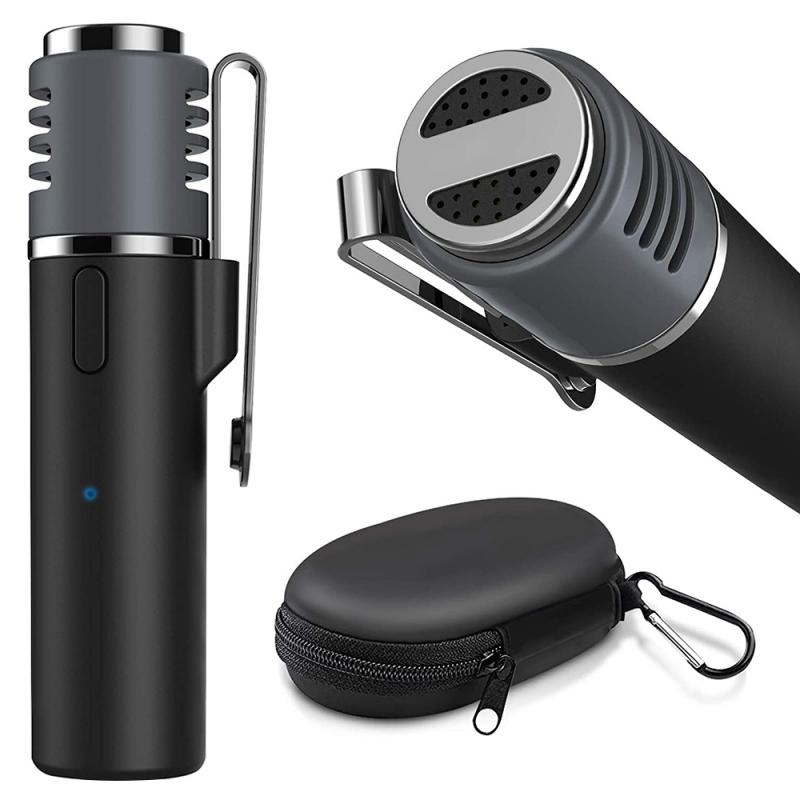
If you’re using a headset mic, place the capsule near the corner of your mouth, not right in front of your lips. This usually reduces breath noise and popping.
Fix your input gain before touching filters
Bad gain settings ruin audio quickly.
If your microphone gain is too high, your voice may crackle, distort, or sound harsh when you speak loudly. If it’s too low, you’ll need to boost the volume later, which brings up hiss and room noise.
A good rule: speak at your normal loudest level and watch your input meter. You want your voice to stay safely below the red zone. In many apps, peaks around -12 dB to -6 dB are a comfortable target. You don’t need to hit the top of the meter. Digital audio does not reward “as loud as possible.”
On Windows, check microphone input level in Sound settings. On macOS, check Input settings. If you use OBS, Discord, Zoom, Audacity, GarageBand, or a USB/XLR interface, check gain there too. A common mistake is adjusting only one place while another app is still boosting or compressing the mic aggressively.
If your mic has a physical gain knob, start there. Set software input levels near normal, then adjust the physical gain until your voice is clear without clipping.
Get closer instead of turning the gain up
This sounds simple, but it solves a lot.
A microphone does not “zoom in” on your voice. If you sit far away and turn the gain up, the mic hears everything more loudly: your room, PC fans, air conditioner, mouse clicks, traffic, and echo from the walls.
Moving the mic closer lets your voice become much louder compared with the background. Then you can lower the gain, which makes everything cleaner.
This is why podcast mics are often right in front of people’s faces. It’s not just for looks. Close mic technique gives you a stronger voice signal and less room sound.
Reduce room echo before blaming the mic
Echo and reverb make microphones sound cheap. Bare walls, hard floors, glass windows, empty rooms, and large desks all reflect your voice back into the mic.
You don’t need a professional studio. Soft materials help a lot.
Thick curtains, rugs, fabric furniture, shelves full of books, and even a blanket behind the mic can reduce reflections. If your desk faces a bare wall, your voice may bounce straight back into the microphone. Moving the desk, turning your body, or placing soft material on that wall can make a surprising difference.
Avoid recording in kitchens, empty bedrooms, bathrooms, and rooms with hard floors unless you have no choice. A closet full of clothes often sounds better than a clean, empty office.
If you record voiceovers, try a quick clap test. Clap once and listen. If you hear a sharp ring or flutter echo, your mic will probably hear it too.
Use a pop filter or windscreen
A pop filter is not just a “studio accessory.” It prevents bursts of air from hitting the microphone capsule.
If your recordings have ugly thumps on words like “please,” “people,” “better,” or “podcast,” you need either better mic angle, more distance, or a pop filter.
Foam windscreens help too, especially for headset mics, lavalier mics, and handheld mics. They also reduce slight breath noise. They won’t fix a bad room, but they can make close speaking more forgiving.
For most desk setups, a simple mesh pop filter placed a couple of inches in front of the microphone works well. If you don’t like the look, angle the mic off-axis instead.
Cut background noise at the source
Noise reduction software can help, but it often leaves your voice sounding watery or dull if pushed too hard. Fix the physical noise first.
Move the mic away from keyboards, laptop fans, PC towers, external hard drives, and air vents. If your computer is loud, don’t place the mic between your mouth and the fan. The mic hears what it is pointed at.
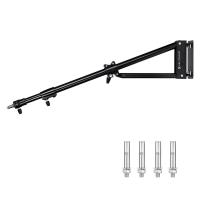
Use a boom arm or stand that lets the microphone sit closer to your mouth and farther from the desk. Desk vibrations can travel through cheap stands, especially if you type while speaking. A shock mount can help if the mic picks up thumps from the desk.
For mechanical keyboards, the real fix is usually mic placement plus lower gain. Noise gates can hide keyboard sound between words, but they won’t remove clicks while you’re talking.
Also check small things people forget: ceiling fans, open windows, humming chargers, refrigerators in the next room, fluorescent lights, and buzzing USB hubs.
Choose the right microphone pattern
Many microphones have pickup patterns. The most useful one for voice is usually cardioid. It mainly captures sound from the front and rejects some sound from the back.
If your microphone has multiple modes, make sure it is not set to omnidirectional unless you actually want to capture the whole room. Omni mode picks up sound from all directions, which is usually bad for gaming, calls, streaming, podcasting, and voice recording in a normal room.
For a Blue Yeti-style microphone, this mistake is extremely common. People leave it on the wrong pattern, talk into the wrong side, then wonder why it sounds distant. With side-address microphones, you speak into the side with the logo or capsule area, not the top.
Dynamic microphones are often better in noisy rooms because they tend to pick up less distant room sound when used close. Condenser microphones can sound detailed and open, but they also reveal bad rooms more easily.
Check app settings that secretly damage sound
Some apps apply automatic processing that can make your mic sound worse.
In Discord, Zoom, Teams, Google Meet, OBS, and streaming software, look for settings like:
- automatic gain control
- noise suppression
- echo cancellation
- voice enhancement
- input sensitivity
- audio normalization
These are useful in some situations, especially for laptop mics and noisy calls. But they can also pump volume up and down, cut off the start of words, or make your voice sound metallic.
For casual meetings, built-in noise suppression is fine if your room is noisy. For recording podcasts, voiceovers, or videos, you’ll usually get better results by recording a clean signal and applying light processing afterward.
If your voice keeps fading in and out, automatic gain or noise suppression may be overreacting. Turn off one setting at a time and test again.
Use basic processing carefully
A few simple audio effects can improve voice quality, but heavy processing often sounds worse than no processing.
A high-pass filter is usually helpful. It removes very low rumble from desk bumps, air conditioning, traffic, and mic handling. For most spoken voices, setting it somewhere around 70 to 100 Hz is a safe starting point. Higher voices may tolerate a little more; deeper voices may need less.
Compression evens out volume differences, making quiet words easier to hear and loud words less aggressive. Use it lightly. Over-compression makes your voice sound flat, squeezed, or tiring.
EQ can help, but don’t start by boosting everything. If your voice sounds muddy, try reducing some low-mid frequencies rather than adding treble. If it sounds sharp or painful, reduce harsh upper frequencies slightly. Small moves are better than dramatic curves.
Noise gates can reduce background noise between sentences. Set them too aggressively and they chop off quiet words or make the audio open and close unnaturally. A gate should feel invisible.
Record in the right format when quality matters
For meetings and casual calls, you don’t need to worry much about file format. For podcasts, voiceovers, music, or videos, record in a proper uncompressed or lightly compressed format.
WAV is a safe choice while editing. Record at 24-bit if your software and interface support it, because it gives more room for level changes. A 48 kHz sample rate is common for video; 44.1 kHz is common for music. Either is fine for voice if your workflow is consistent.
Avoid recording directly into low-bitrate MP3 if you plan to edit later. Compression artifacts become more obvious after noise reduction, EQ, and additional exporting.
Don’t ignore cables, ports, and power
If your mic has random crackling, buzzing, or dropouts, the problem may not be your voice or settings.
For USB microphones, try a different USB port, preferably directly on the computer rather than through a cheap hub. Swap the cable if possible. Some USB cables charge devices fine but perform poorly for audio.
For XLR microphones, use a decent XLR cable and check your audio interface gain. Condenser mics need phantom power, usually labeled 48V. Dynamic mics do not require it in most cases, though some inline boosters do.
Electrical hum can come from ground loops, bad cables, nearby power bricks, or running audio cables alongside power cables. Move things around before assuming the mic is defective.
Make a short test recording, not endless guesses
The best way to improve mic sound is to change one thing at a time and record a short sample.
Read the same sentence at the same volume after each change. Test mic distance, angle, gain, room treatment, and software settings separately. Listening back is more reliable than judging your voice live through headphones, especially if there is latency or monitoring coloration.
Use headphones while testing so your speakers don’t feed back into the microphone.
A good test sentence should include plosives, quiet words, and louder phrases. Something like: “Please bring the package back before the meeting starts, and I’ll explain the rest later.” It’s not poetry, but it reveals pops, harshness, volume jumps, and clarity problems quickly.
If you buy new gear, buy for your room and use case
A more expensive microphone will not automatically fix poor sound. In a noisy apartment or untreated office, a close-talk dynamic mic may work better than a sensitive condenser. For travel and calls, a decent headset may beat a fancy desk mic placed too far away. For video, a lavalier mic clipped near your chest can sound much clearer than a camera mic across the room.
Spend money where it solves the actual problem. A boom arm, pop filter, quieter keyboard, rug, or better mic placement may improve your sound more than upgrading the microphone itself.
The cleanest microphone sound usually comes from a simple chain: quiet space, close mic position, sensible gain, light processing, and consistent speaking distance. Get those right, and even modest gear can sound clear, full, and professional enough for calls, streaming, podcasts, lessons, and recordings.