kfconcept

KENTFAITH
K&F Concept    Blog >

Enjoy Your Selected Digital Life

Recently Viewed
  • Recently Viewed
  • Recently Viewed list is empty.

Compare (0) 0
  • Compare
  • You have not chosen any products to compare.

  • Compare
Currency: USD
  • Currency
Shop by Scene Shop by Rank

Log Into Your Account

Account

Order History

Wish List

Login

Forgotten Password?

Or connect with

Register Account

Already have an Account?Log In

  • Shopping Cart
  • Your shopping cart is empty!

  • Register/Login to purchase, earn points
  • Favorite
  • Your wish list is empty.

  • Register/Login to like, earn points
  • Activities
  • Guide
    • Filter Guide
    • Lens Adapter
    • Product Review
  • News & Reviews
    • Camera Reviews
    • Sample Gallery
    • News
  • Tutorials
    • Solar eclipse photography
    • Photography Basics
    • Landscape Photography
  • Inspiration
    • Travel
    • Travel Stories
  • Home
  • Blog
  • How Do You Record Facetime With Audio?

How Do You Record Facetime With Audio?

Kentfaith 2024-12-23 04:01:11 0 Comments

Recording FaceTime calls, including both video and audio, can be quite useful for many reasons, such as for meetings, interviews, or simply keeping memories. However, it's important to note that recording FaceTime calls without the other party's consent may be illegal in certain regions, so always make sure you're respecting privacy laws and notifying participants.

Here’s a detailed guide on how to record FaceTime with audio, along with some tips and tools to help you achieve the best quality.

1. Record FaceTime on an iPhone or iPad (Screen Recording Method)

One of the simplest ways to record FaceTime with audio on iPhones or iPads is by using the built-in screen recording feature. Here’s how to do it:

Step-by-Step Process:
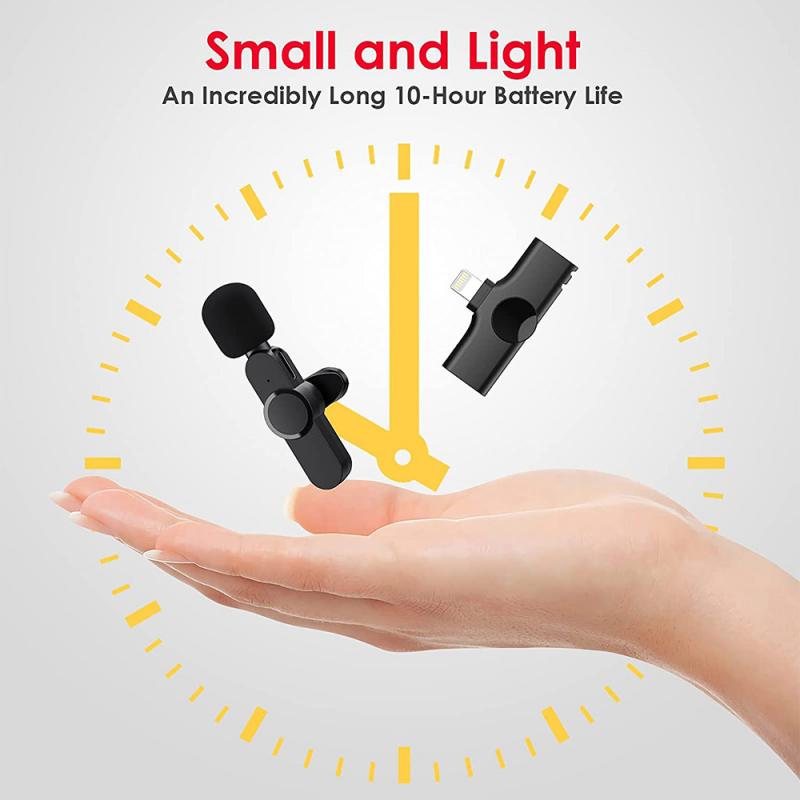
how do you record facetime with audio 1

1. Enable Screen Recording:

- Open the Settings app.

- Scroll down and tap on Control Center.

- Under the "Included Controls" section, tap the green plus button next to Screen Recording to add it to your Control Center.

2. Start Screen Recording:

- Open the Control Center by swiping down from the top-right corner on an iPhone with Face ID or swiping up from the bottom on an iPhone with a Home button.

- Press the screen recording icon (a circle within a circle).

- You'll see a 3-second countdown before recording starts. To ensure you’re recording audio, make sure the microphone icon at the bottom is red. If it's not, tap it to enable sound recording.

3. Make the FaceTime Call:

- Open the FaceTime app and place or receive a call.

- The screen recording will capture both video and audio from the call.

4. Stop the Recording:

- Once your call is finished, open the Control Center again and tap the screen recording icon to stop.

- Your recording will automatically save to the Photos app, where you can access it.

Important Considerations:
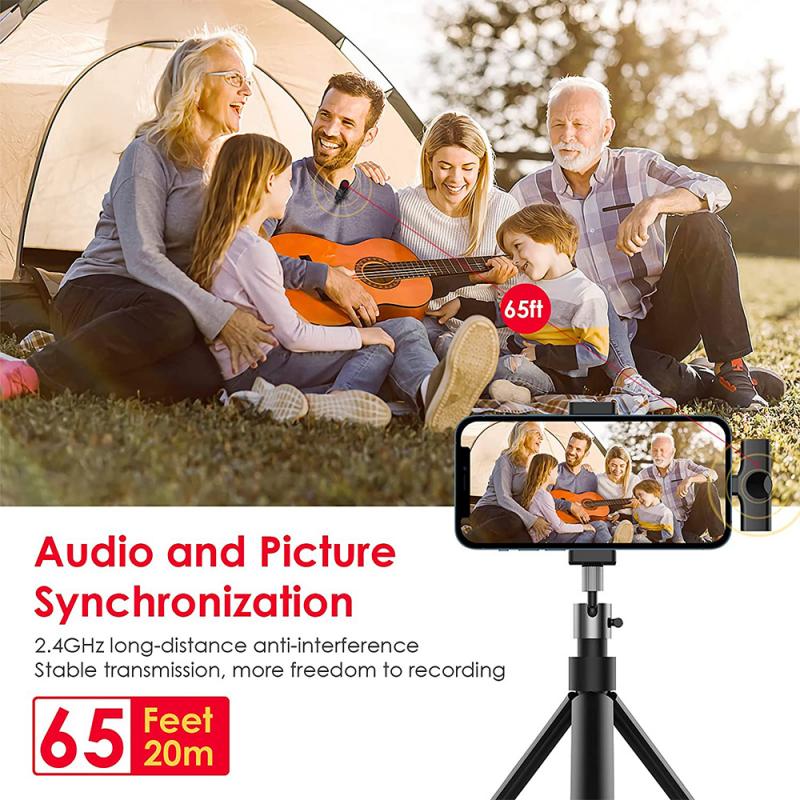
how do you record facetime with audio 2

- Audio Quality: The iPhone’s screen recording captures internal audio, but sometimes, external noise or background sounds may interfere. To minimize this, ensure that you're in a quiet environment.

- Mute Notifications: Consider turning on Do Not Disturb mode to prevent notifications from popping up during your recording.

2. Using Third-Party Apps for Recording

If you’re looking for more advanced features or higher-quality recordings, third-party apps might be an ideal solution. Several apps are specifically designed to help you capture FaceTime calls, including audio.

Popular Apps for Recording FaceTime:
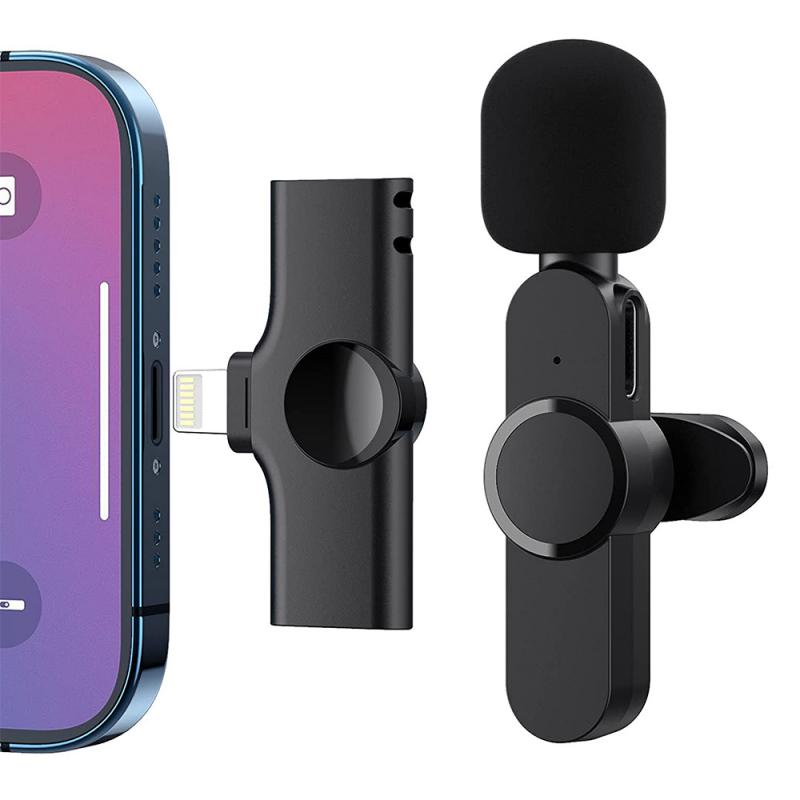
how do you record facetime with audio 3

1. TapeACall (iOS App)

- TapeACall is one of the most popular apps for recording calls, including FaceTime audio calls. Although it mainly works for regular calls, it can be used with FaceTime Audio (not FaceTime Video) calls by merging calls with the app's recording service.

- Pros: Simple to use, provides both audio and video recording, and includes cloud storage options.

- Cons: It’s a paid app, and there’s a limitation on free usage.

2. Call Recorder for FaceTime (iOS)

- This app is designed specifically for FaceTime and other video calls. It allows you to record both audio and video with ease, and it’s a popular choice among users who need reliable call recording.

- Pros: Easy interface, free basic version available.

- Cons: The quality of the video might be reduced during longer calls, and certain features are locked behind a paywall.

How to Use Third-Party Apps:
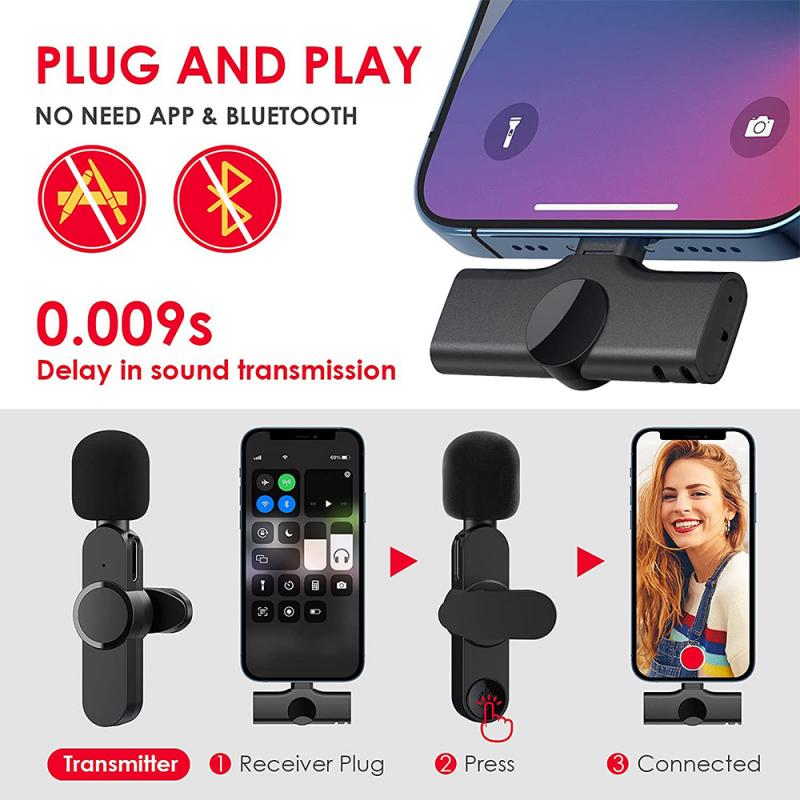
how do you record facetime with audio 4

- Download the app from the App Store.

- Follow the app's instructions to record the call. Many of these apps require you to either start the recording before or during the call. Some may also prompt you to join a specific call number or merge your FaceTime call with the app’s recording system.

3. Using a Mac for FaceTime Recording

If you’re using a Mac, the process for recording FaceTime is slightly different. macOS offers more flexibility, and you can take advantage of tools like QuickTime Player, which allows you to record both screen and audio with high-quality results.

Step-by-Step Process:

1. Open QuickTime Player:

- Go to Applications and open QuickTime Player.

- From the top menu, click File and then select New Screen Recording.

2. Enable Audio Recording:

- Before starting, click the small arrow next to the record button in QuickTime to select the microphone input. Make sure to choose Internal Microphone if you want to capture audio from the FaceTime call.

3. Start the Recording:

- Click the Record button in QuickTime. You can choose to record the full screen or select a portion of the screen that includes your FaceTime window.

- Once the recording starts, initiate or answer your FaceTime call.

4. Stop the Recording:

- When you’re done, click the Stop button in QuickTime.

- Save the recording to your preferred location.

Advantages of Using a Mac:

- Better Quality: Mac’s internal microphone or any external microphones you connect will capture high-quality sound.

- Editing Capabilities: QuickTime lets you edit your recordings post-call, including trimming and cutting unwanted parts.

4. Using an External Audio Recorder

In some cases, if you want to ensure the highest possible audio quality, you can use an external microphone or audio recording device. This is especially useful if you want to record not just the FaceTime call but also any surrounding sounds or if you need to use a more professional setup.

Step-by-Step Process:

1. Connect the External Microphone:

- Connect a high-quality microphone (e.g., USB microphone, lapel mic, or condenser mic) to your Mac or iPhone.

2. Start the FaceTime Call:

- Start your FaceTime call on your device as usual.

3. Start the External Recording Device:

- Begin recording with your external device. You can use a separate audio recording app like Audacity on your Mac or Ferrite on your iPhone for more advanced control over the audio quality.

4. Sync Audio and Video:

- After the call, you may need to sync the external audio with the video in a video editor, such as iMovie or Final Cut Pro.

Pros and Cons:

- Pros: Superior audio quality, more control over the recording.

- Cons: Additional equipment is required, and syncing audio/video can be time-consuming.

5. Legal Considerations:

Before proceeding with recording a FaceTime call, it’s crucial to consider the legal implications. In many regions, recording conversations without the consent of all participants is prohibited.

- One-Party Consent States: In some places, only one person needs to consent to the recording. This means you can legally record the call as long as you’re one of the participants.

- All-Party Consent States: In other places, all participants need to be informed and consent to the recording. Always ask for permission before recording.

Failure to follow these laws can result in legal consequences, so make sure to familiarize yourself with your local regulations.

Conclusion:

Recording FaceTime calls with audio is relatively straightforward, whether you’re using a built-in iPhone feature like screen recording, third-party apps, or professional software on a Mac. While the methods vary in complexity and quality, each option provides a viable solution depending on your needs. Always keep in mind the legal and ethical implications of recording calls, and ensure that everyone involved is aware and has consented to the recording.

With these tools and tips at your disposal, you can capture FaceTime calls with ease, making it simple to preserve important conversations or create high-quality recordings for professional use.

Leave your comment
Cancel reply
Note: HTML is not translated!
Related products
A Camping Lantern That Dances with You, Rechargeable, Telescoping & Compact with Bluetooth Speaker, Emergency Power Bank 14000mAh Battery Kentfaith
116
$199.99 $94.99
128G Mini Digital Voice Recorder with Color Screen Bluetooth Call Record 3072kbps Kentfaith
HOT Seller
128G Mini Digital Voice Recorder with Color Screen Bluetooth Call Record 3072kbps Kentfaith
15
$119.99 $83.99
5K Video Camera with 75MP Photos, 8X Optical Zoom, WiFi Transfer, Wireless Mic, Dual Batteries, Support PIP Record, Kentfaith
16
$274.99 $239.99
5K Video Camera with 75MP Photos, 8X Optical Zoom, WiFi Transfer, Foldable Tripod, Wireless Mic, Dual Batteries, Support PIP Record, Kentfaith
$312.49 $249.99
Instant Cross-APP Translator Device for Business & Trade, Video Call Translation, Record, & Transcription, Kentfaith AI Translator Devices
12
$124.99 $99.99
AI Translator Device for Business & Trade, 142 Languages Real-Time Online & Offline, Smart Office/Cross-App/Video/Photo Translation, Record & Transcription, Kentfaith
15
$182.49 $145.99
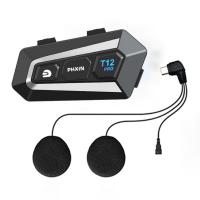
Dual-Rider Intercom Motorcycle Helmet Bluetooth Headset with Audio Multitasking Music Sharing
12
$134.99 $94.99
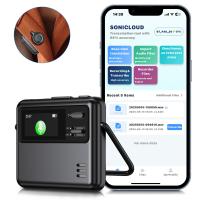
AI Voice Recorder Transcriber Summary Translation Audio Activated 128G Kentfaith
NEW Arrival
AI Voice Recorder Transcriber Summary Translation Audio Activated 128G Kentfaith
15
$99.99 $79.99
32 Riders Intercom Motorcycle Helmet Bluetooth Headset Mesh 3.0 Audio Multitasking
12
$209.99 $146.99
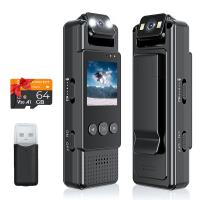
Mini WiFi Body Camera 1080P with Audio, 180° Rotatable Lens, 2 LED Fill Lights & Smart Motion Detection & 64G Memory Card
13
$74.99 $62.99
Products You May Like
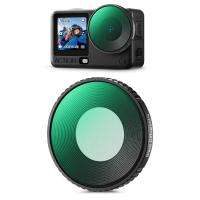
K&F CONCEPT Black-mist 1/4 Filter Compatible with DJI Osmo Action 6 Black Diffusion 1/4, HD Optical Glass with 28-layer Nano-Coating (Threaded Mount)
53
$19.99
82mm Circular Polarizer Filter with Lens Cap Optical Glass Ultra Slim 18 Multi-Layer Coatings Polarizing Filter for Camera Lens Nano-Klear Series
86
$37.99 $19.99
67mm Filter Set (Graduated & Full Color Orange, Blue, Red, Green, Yellow, Purple, Pink, Grey, Brown)
5
$65.99 $32.99
MS03 13''/33cm Phone Tripod Selfie Stick Desktop Stand (Small Size) For Gopro, Action, And Insta Black Orange
$19.99 $14.99
82mm MCUV Protection Filter with 28 Multi-Layer Coatings HD/Hydrophobic/Scratch Resistant/Ultra-Slim UV Filter for 82mm Camera Lens Nano-X Series
$54.99 $39.99
60"/1.5m Carbon Fiber Camera Tripod Lightweight Travel Tripod 17.6lbs Load 360° Ball Head for Vlog,Travel & Work DSLR, A225C0+BH-25L
81
$189.99 $119.99
Lens Mount Adapter Compitable with Minolta MD MC Lens to NEX E-Mount Camera Body with Brass Material Version 2
148
$56.99 $31.99
4K Dash Cam Front and Rear with GPS, 5G WiFi, Starlight Night Vision, G-Sensor, 24H Parking Mode Kentfaith
15
$149.99 $119.99
Sony Alpha Minolta AF A-Type Lens to NEX E-Mount Mirrorless Camera with Matting Varnish Design
146
$64.99 $35.99
77mm 2 in 1 ND32 (5 Stop) and CPL Lens Filters, Multi-coated Waterproof Anti-Reflection Nano-X Japan Optical Glass
$60.99 $39.99
Related articles
How Do You Get Sound With Screen Record?
How To Record On Pc With Audio?
How To Record Screen With System Audio?
Can Alexa Record Audio For You?
How To Record Line Video Call With Audio?
How To Record Your Ipad Screen With Audio?
Can You Record Voice With Airpods?
Can I Record My Phone Screen With Audio?
Can You Record With A Selfie Stick?
Trail Camera You Can View From Your Phone?
Blog You May Like
How To Remove Waterproof Camera Case?
Which Headphones Have The Best Noise Cancelling?
What Is The Best Budget Action Camera?
How To Stop Crackling Noise In Headphones ?
How To Make Spy Camera Wireless?
What Batteries Does The Adventure Challenge Camera Use?
What Does Uv Filter Do For Dslr?
How To Download Zoom Audio Recording?
How To Make Camcorder From Gopro?
Where To Find Ring Lights?
Related categories
Baby Movement Monitor led ring light with stand golf rangefinder trail camera with screen camera battery reflector for photography graduated neutral density lens filter
Popular products
Mini Digital Voice Recorder​ best camping rechargeable lantern video recording camera for youtube sony camera with microphone external webcam for laptop 360 auto tracking phone holder waterproof motorcycle bluetooth headset wireless security camera system for home surveillance camera system for home wifi security system with camera
Related searches
Camera Tripod That Follows You Cheap Camera To Record Videos Night Vision Binoculars That Record Surveillance Cameras With Audio Security Cameras With Audio Audio System With Microphone Outdoor Camera With Audio Best Camera To Record Time Lapse Cctv Camera With Audio Recording Ip Surveillance Camera With Audio
Popular searches
Binoculars For Camping Gopro Hero 13 Enduro Battery Charger Sony E Mount Fisheye Fujifilm X100f Lens Adapter Wireless Headphones For Computer With Mic Tripod To Hold Cell Phone Android Smart Watch With Ecg Variable Nd Filter 46mm Bluetooth Headphones Music And Phone K&f Concept Video Tripod
Blog Category
  • Activities
  • Guide
    • Filter Guide
    • Lens Adapter
    • Product Review
  • News & Reviews
    • Camera Reviews
    • Sample Gallery
    • News
  • Tutorials
    • Solar eclipse photography
    • Photography Basics
    • Landscape Photography
  • Inspiration
    • Travel
    • Travel Stories
Search Article
Latest from the Blog
How Much Does It Cost For Security Cameras?
How To Find Camera Roll On Iphone 5s?
How To Wear Monocular?
Which Binoculars To Buy?
Is the Sony A7M5 worth buying?
How To Find A Good Digital Camera?
Dash Cam That Can Connect To Phone?
What Is The Difference Between Binoculars And Telescope?
Which Camera Is Best For Low Light Photography?
How To Stream Live From Surveillance Camera?
  • Easy Payment Multilple Payment Options

  • Free Shipping Global WareHouse Shipment

  • No Risk 30-Day No Reason Return

  • Limited Deals Buy More, Save More

  • Tax Free No any surcharges or tax fee

Information
  • About us
  • Contact Us
  • Site Map
  • Blog
  • Video
  • Gallery
  • VIP Membership Rewards
Service
  • Privacy Policy
  • Terms & Conditions
  • Shipping & Delivery
  • Payment Info
  • Warranty, Return & Refund
  • Intellectual Property Rights
  • Ambassador
  • Affiliates
  • Wholesale
Support
  • My account
  • Order History
  • FAQs
  • Extend Warranty
  • Logistics Tracking
Follow us
NewsLetter

Get the latest product, K&F Concept respects your privacy.
Powered By KENTFAITH © 2026