kfconcept

KENTFAITH
K&F Concept    Blog >

Enjoy Your Selected Digital Life

Recently Viewed
  • Recently Viewed
  • Recently Viewed list is empty.

Compare (0) 0
  • Compare
  • You have not chosen any products to compare.

  • Compare
Currency: USD
  • Currency
Shop by Scene Shop by Rank

Log Into Your Account

Account

Order History

Wish List

Login

Forgotten Password?

Or connect with

Register Account

Already have an Account?Log In

  • Shopping Cart
  • Your shopping cart is empty!

  • Register/Login to purchase, earn points
  • Favorite
  • Your wish list is empty.

  • Register/Login to like, earn points
  • Activities
  • Guide
    • Filter Guide
    • Lens Adapter
    • Product Review
  • News & Reviews
    • Camera Reviews
    • Sample Gallery
    • News
  • Tutorials
    • Solar eclipse photography
    • Photography Basics
    • Landscape Photography
  • Inspiration
    • Travel
    • Travel Stories
  • Home
  • Blog
  • How To Put Headphones In Pc?

How To Put Headphones In Pc?

Kentfaith 2024-10-28 02:06:52 0 Comments

When it comes to utilizing headphones with a PC, the process might seem straightforward, but there are several nuances that can impact the quality and ease of use. In this article, we will break down the step-by-step instructions for connecting headphones to a PC, discuss common issues and how to troubleshoot them, and offer tips on optimizing audio quality.

Step-by-Step Guide to Connecting Headphones to a PC
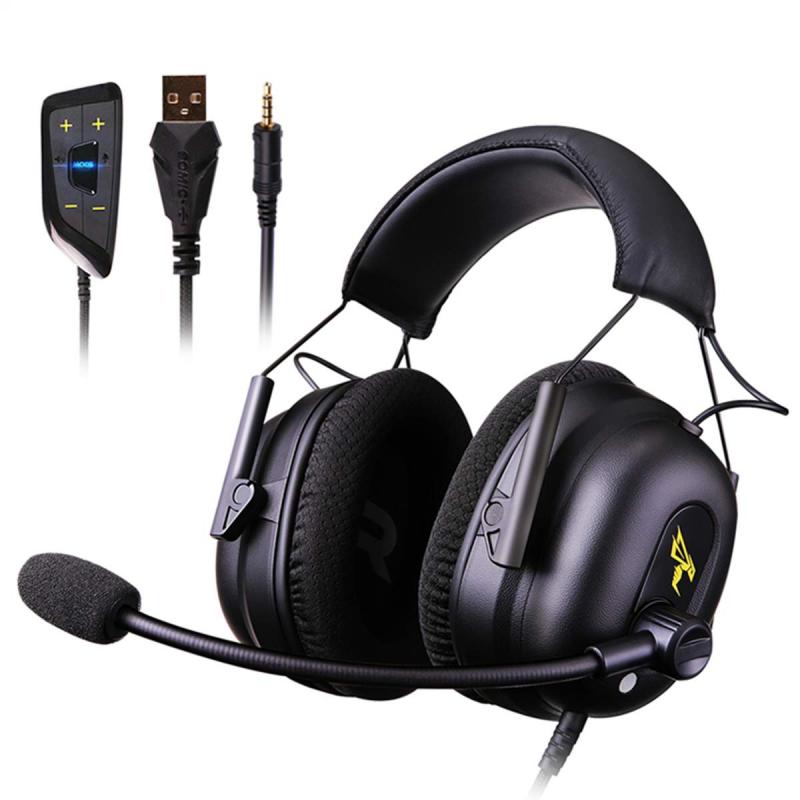
how to put headphones in pc 1

1. Identify the Type of Headphones and Connection

Before you connect your headphones, determine the type they are and the type of connection they use. The common types of connections include:

- 3.5mm Jack: Most standard wired headphones use this type of connection.

- USB: Some wired headphones, particularly gaming headsets, use USB connections.

- Bluetooth: Wireless headphones often use Bluetooth technology to connect to PCs.

2. Locate the Appropriate Port on Your PC

- 3.5mm Jack: Check your PC for the 3.5mm headphone jack. It is typically marked with a headphone symbol. On desktop PCs, this jack is usually located at the front or the back of the tower. On laptops, it is usually on either the left or right side.

- USB Port: Locate a free USB port on your PC. These ports are widely available on both desktops and laptops.

- Bluetooth: Ensure your PC has Bluetooth capabilities. Most modern laptops have built-in Bluetooth, but desktops might require a Bluetooth USB adapter if they do not have built-in Bluetooth.

3. Connecting Wired Headphones

- 3.5mm Jack:

1. Simply plug the headphone jack into the 3.5mm port.

2. Your PC should automatically recognize the headphones.

3. If the sound does not automatically switch to your headphones, go to your sound settings and select your headphones as the default output device.

- USB:

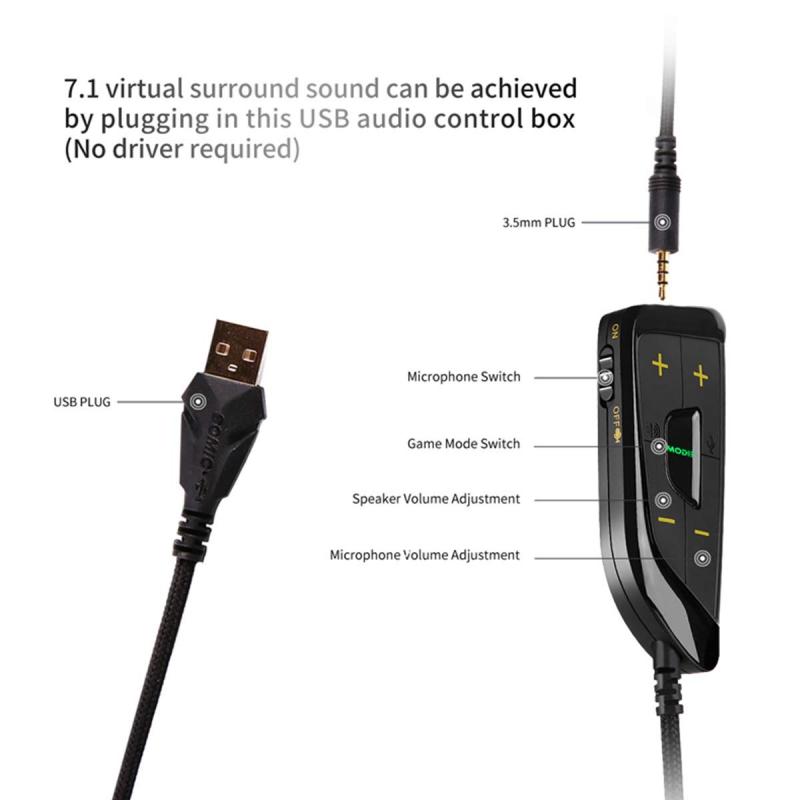
1. Plug the USB connector into a free USB port.

2. Windows should automatically install any necessary drivers. You might see a notification indicating that the device is setting up.

3. If the setup does not complete automatically, you might need to download and install drivers from the headphone manufacturer’s website.

4. Connecting Bluetooth Headphones

1. Enable Bluetooth on your PC by going to Settings > Devices > Bluetooth & other devices, then turning on Bluetooth.

2. Put your headphones in pairing mode. This usually involves holding down a specific button until an LED light flashes, but refer to your headphone's manual for exact instructions.

3. On your PC, click “Add Bluetooth or other device,” select Bluetooth, and choose your headphones from the list of available devices.

4. Windows will pair and connect to your headphones. You might be prompted to enter a pairing code – refer to your headphones' manual for this code if needed.

Troubleshooting Common Issues
how to put headphones in pc 2

Connecting headphones to a PC can sometimes come with challenges. Here are common issues users face and practical solutions to resolve them:

1. Headphones Not Recognized

- Verify that the headphones are properly plugged in.

- Check the sound settings to make sure the headphones are set as the default playback device.

- Update or reinstall audio drivers:

1. Go to Device Manager.

2. Expand "Sound, video and game controllers."

3. Right-click your audio device and select “Update driver” or “Uninstall device” then restart your PC.

- For Bluetooth headphones, ensure Bluetooth is enabled and try pairing again.

2. No Sound from Headphones

- Ensure the volume is not muted and turned up on both the headphones and the PC.

- Check the connections - for 3.5mm headphones, try another port if available.

- For Bluetooth headphones, disconnect and reconnect, and ensure that the headphones battery is not depleted.

- Test the headphones with another device to rule out hardware issues.

3. Poor Audio Quality

- Ensure the headphone jack or USB port is clean from dust and debris.

- Update audio drivers.

- Customize sound settings and enhancements in your audio control panel or sound settings.

- Try different audio formats and player settings to see if that improves quality.

Tips for Optimizing Audio Quality
how to put headphones in pc 3

Here are some additional tips to ensure the best audio experience with your headphones connected to a PC:

- Use High-Quality Sources: Ensure the audio files you are playing are of high quality. Compressed audio files can degrade sound quality.

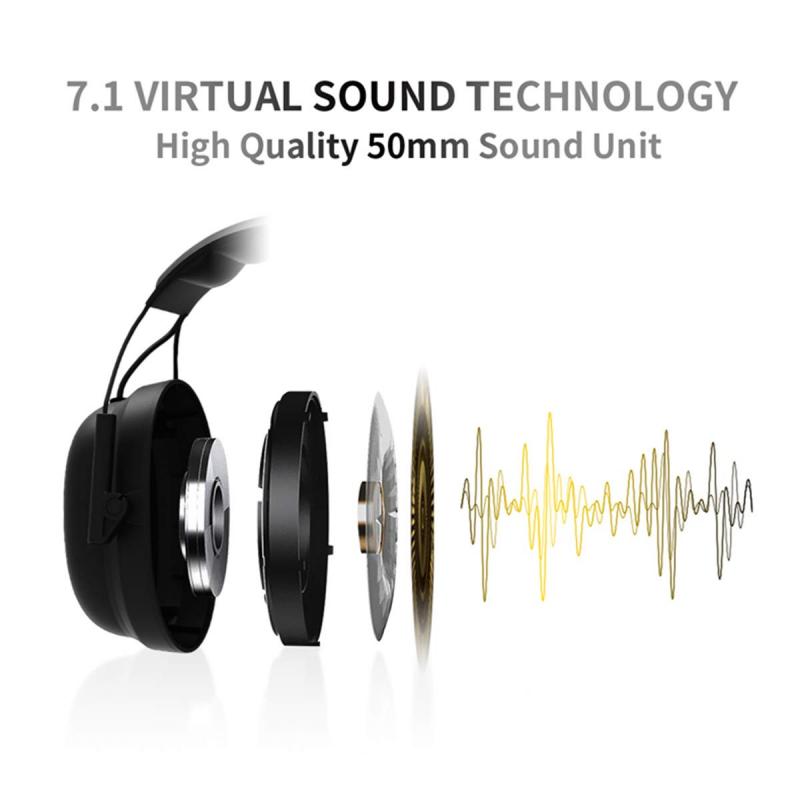
- Adjust Audio Settings: Use the equalizer settings in your audio control panel to find the best sound profile for your headphones. Some software and drivers provide additional enhancements and virtual surround sound options.

- Regular Maintenance: Keep your headphones clean and free of dust, and handle the cable carefully to avoid damage.

- Consider an Audio Interface: If you require high-fidelity audio, using an external USB audio interface or a DAC (Digital-to-Analog Converter) can significantly improve sound quality.

Connecting headphones to a PC can be simple, but understanding the specific type of headphones and connection method is crucial. By following the steps outlined above, you can easily connect your headphones and troubleshoot any common issues you might encounter. Additionally, optimizing audio settings and utilizing high-quality audio sources will enhance your listening experience. Whether you are using wired or wireless headphones, these guidelines will ensure a smooth and enjoyable audio setup on your PC.
Leave your comment
Cancel reply
Note: HTML is not translated!
Related products
K&F Concept Bluetooth 5.0 Wireless Earbuds Wireless Earbuds In-Ear Headphones with Charging Case, Mini Car Headphones with Built-in Microphone for Phone Call/Running, 5H Playtime
$151.99 $79.99
Over Ear Headphones 7.1 Surround Sound Gaming Headset Works with PC, PS4 PRO, Xbox One S, Cell Phone SOMIC Active Noise Canceling with Mic HI-FI USB Jack Game Earphones
23
$65.99
Cell Phone Bluetooth Headphones Bluetooth V5.1 Headphones with Charging Case Hands-Free Single Ear Headphones with CVC8.0 Noise Cancelling Microphone for Office/Driving Compatible with Android/iPhone/Laptop
HOT Seller
Cell Phone Bluetooth Headphones Bluetooth V5.1 Headphones with Charging Case Hands-Free Single Ear Headphones with CVC8.0 Noise Cancelling Microphone for Office/Driving Compatible with Android/iPhone/Laptop
57
$26.99
Wireless Earbuds Bluetooth Headphones TWS Waterproof with Microphone
66
$31.99
8-in-1 Cleaning Kit, Multifunctional Electronic Cleaning Kit Cleaning Brush Tool for Airpod Pro / Keyboard / Earbuds / MacBook / Headphones / Earphones / iPad / iPhone
$16.99
Air Conduction Headphones Open-ear Comfort Bluetooth 5.4, 42H Playtime Kentfaith
HOT Seller
Air Conduction Headphones Open-ear Comfort Bluetooth 5.4, 42H Playtime Kentfaith
60
$55.49 $38.99
Wireless USB Inspection Camera, Waterproof Endoscope Inspection Camera with 6 LED Lights, 3 in 1 HD Endoscope Camera, Suitable for PC, Laptop, Computer, Android
9
$17.99
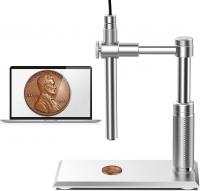
DM101 Digital USB Microscope Camera Coin Magnifier, 10X-500X Magnification, PC Compatible
HOT Seller
DM101 Digital USB Microscope Camera Coin Magnifier, 10X-500X Magnification, PC Compatible
41
$77.99 $59.99
500X Handheld Digital Microscope with 8 LEDs 2" IPS Screen PC Compatible
12
$97.49 $68.99
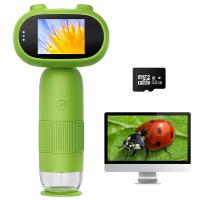
Mini Handheld Microscope for Kids, 1000x Zoom 8 Adjustable LED Lights PC Compatible
78
$119.99 $83.99
Products You May Like
5K Digital Video Camera Camcorder WIFI IR Night Vision for Vlogging Youtube
95
$269.99 $189.99
800 Yards Golf Rangefinder Telescope with Slope & Flag Lock Vibration, Vertical Horizontal Distance Measurement & Scan, for Golf, Hunting
$239.99 $89.99
DSLR Camera Cases Bag Grey 7.09*3.94*6.49 inches
17
$34.99
82mm Vintage Soft Filter 28 Multi-Coatings Cinematic Effect Camera Lens Filter - Nano-Xcel Series
NEW Arrival
82mm Vintage Soft Filter 28 Multi-Coatings Cinematic Effect Camera Lens Filter - Nano-Xcel Series
$106.99 $79.99
72mm-82mm Magnetic Lens Filter Adapter Ring
8
$22.99
67mm White Pro Mist Filter Cinematic Effect Filter with 18 Multi-Layer Coatings for Portrait and Landscape Photography Nano-Klear Series
33
$31.99 $24.99
TWS Bluetooth Headset 2000mah Wireless Charging Sports Headset White
34
$19.99
Electric Essential Oil Diffuser 400ML, Home Essential Oil Diffuser Fresh Mist, Essential Oil Diffuser with APP and Bluetooth Speaker, 30 Colors Light, YOUNGDO
$30.99
55mm MCUV Filter Brass Frame Multifunctional HD Ultra-Thin Brass Frame 36-Layer Anti-Reflection Green Film Nano-Xcel Pro Series
66
$99.99 $79.99
Wireless Trail Camera Wifi
10
$162.99 $106.99
Related articles
How To Put Memory Card In Pc?
How To Put Sony Headphones In Pairing Mode?
How To Listen With 2 Headphones On Pc ?
How To Set Earphone In Pc?
How To Stop Crackling Noise In Headphones ?
How To Put Earbuds In Your Ear?
How To Put Sd Card In Camera?
How To Put Sd Card In Iphone 14?
How To Put Bluetooth Speakers In Motorcycle Helmet?
How To Search Wifi For Hidden Camera?
Blog You May Like
What Is Nikon Dx Mount?
How To Set Up Garden Camera Wildlife?
How To Find Camera Uid?
Can You Use Rf Lens On Ef Mount?
What Are The Best Lights For Youtube Videos?
Can I Use A Video Camera For Zoom?
How To Turn On Screen Record Audio?
How To Find Ip Cameras On Network?
How Does Wireless Cameras Get Power?
What Solar Panels?
What Solar Panels?
Related categories
2 in 1 Filter Screw-In Filter C mount lens adapter m4/3 adapter outdoor lights camera lens hoods
Popular products
High Quality Noise Cancelling Headphones bluetooth wireless in ear earbuds 2 wireless microphone wireless earbuds with charging case best bluetooth stereo headphones Bluetooth Wireless Stereo Headphones car phone microphone Wireless Earbuds ps4 pro earphones earphone mic noise cancelling
Related searches
In The Ear Bluetooth Headphones Best In Ear Headphones For Gaming Best In Ear Headphones With Mic 2 In 1 Wireless & Wired Bluetooth Headphones Wireless Pc Camera Pc Video Camera Pc Microscope Usb Pc Camera And Microphone Pc Speakers With Microphone Pc Camera With Microphone
Popular searches
Gobe Ndx 46mm Variable Nd Lens Filter Sony Mead-sd02 Sdhc Sxs Card Adapter Sony Sd Card Adapter Xdcam Ex Borescope Camera K&f Concept Nd8 2000 Leica Macro Adapter M 14652 In Camera Flash Kiwifotos La-52rx100 Lens Adapter Ring Mft To Nikon F Adapter Konica Minolta Dynax 5d Lens Mount
Blog Category
  • Activities
  • Guide
    • Filter Guide
    • Lens Adapter
    • Product Review
  • News & Reviews
    • Camera Reviews
    • Sample Gallery
    • News
  • Tutorials
    • Solar eclipse photography
    • Photography Basics
    • Landscape Photography
  • Inspiration
    • Travel
    • Travel Stories
Search Article
Latest from the Blog
Camera Use Which Lens?
What Does A Uv Camera Filter Do?
How To Remove Memory Card From Nikon Camera?
How To Find A Good Digital Camera?
How To Buy A Security Camera System?
ND Filter: The Complete Guide to Neutral Density Filters for Photography and Video
How To Place Cameras Around Your House?
What is A Variable ND Filter? The Complete Guide to Mastering Exposure Control
How To Find Camera Roll On Iphone 5s?
Can I Charge Camera Battery With Power Bank?
  • Easy Payment Multilple Payment Options

  • Free Shipping Global WareHouse Shipment

  • No Risk 30-Day No Reason Return

  • Limited Deals Buy More, Save More

  • Tax Free No any surcharges or tax fee

Information
  • About us
  • Contact Us
  • Site Map
  • Blog
  • Video
  • Gallery
  • VIP Membership Rewards
Service
  • Privacy Policy
  • Terms & Conditions
  • Shipping & Delivery
  • Payment Info
  • Warranty, Return & Refund
  • Intellectual Property Rights
  • Ambassador
  • Affiliates
  • Wholesale
Support
  • My account
  • Order History
  • FAQs
  • Extend Warranty
  • Logistics Tracking
Follow us
NewsLetter

Get the latest product, K&F Concept respects your privacy.

Powered By KENTFAITH © 2025