kfconcept

KENTFAITH
K&F Concept    Blog >

Enjoy Your Selected Digital Life

Recently Viewed
  • Recently Viewed
  • Recently Viewed list is empty.

Compare (0) 0
  • Compare
  • You have not chosen any products to compare.

  • Compare
Currency: USD
  • Currency
Shop by Scene Shop by Rank

Log Into Your Account

Account

Order History

Wish List

Login

Forgotten Password?

or connect with

Register Account

Already have an Account?Log In

  • Shopping Cart
  • Your shopping cart is empty!

  • Register/Login to purchase, earn points
  • Favorite
  • Your wish list is empty.

  • Register/Login to like, earn points
  • Activities
  • Guide
    • Filter Guide
    • Lens Adapter
    • Product Review
  • News & Reviews
    • Camera Reviews
    • Sample Gallery
    • News
  • Tutorials
    • Solar eclipse photography
    • Photography Basics
    • Landscape Photography
  • Inspiration
    • Travel
    • Travel Stories
  • Home
  • Blog
  • How To Use Your Mobile Camera As PC Webcam Discord?

How To Use Your Mobile Camera As PC Webcam Discord?

Kentfaith 2023-07-04 09:32:35 0 Comments
In the current digital age, video calls have become an integral part of our daily lives and work. Whether you're working remotely, studying online, or video connecting with friends and family, a high-quality webcam is essential. However, not every computer comes with a high-quality webcam. Fortunately, we can take advantage of our phone's high-quality camera and use it as a webcam for our computer. This article will detail how to implement this feature, the required hardware and software, common problems and their solutions, and other related suggestions.
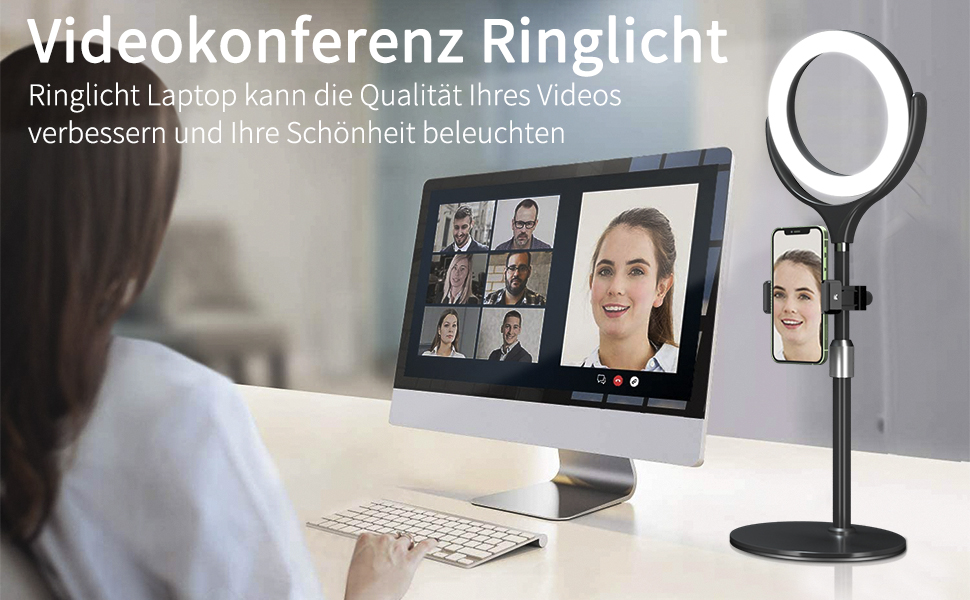

How to set up a mobile camera to use as a computer webcam
Here are the steps to use your phone's camera as a computer webcam:
Download the app: Download and install the appropriate app on your phone and computer. For example, many users choose DroidCam (available for Android and iOS) or EpocCam (available for iOS).
Connect your device: Connect your phone and computer via Wi-Fi, USB cable, or Bluetooth, depending on the application's requirements.
Configure the application: Select the mobile phone camera as the video input source in the computer application.
Test the connection: Open the video calling software (such as Zoom, Skype, etc.), select the mobile phone camera as the video source in the settings, and conduct a test.

What hardware and software are needed
To use your phone camera as a computer webcam, you need the following hardware and software:
hardware:
A smartphone (iOS or Android)
Computer (Windows or Mac)
USB data cable (if you choose to connect via USB)
Stable Wi-Fi network (if you choose to connect via Wi-Fi)
software:
Mobile applications (such as DroidCam, EpocCam)
Corresponding application client for PC
The specific application selection depends on your operating system and personal needs. Here are some recommended apps and their features:

DroidCam: Available for Android and iOS devices, connects via Wi-Fi or USB. The free version offers basic features, while the paid version offers HD quality and an ad-free experience.
EpocCam: Available for iOS devices, connects via Wi-Fi, USB or Bluetooth. The free version offers basic features, while the paid version offers more advanced features like green screen and gesture control.

During the setup process, you may encounter the following common issues:
Connection failed: Make sure the phone and computer are connected to the same Wi-Fi network, or check whether the USB data cable is damaged. If you still can't connect, you can try restarting your phone and computer, or reinstalling the app.
Screen freeze or delay: Try to choose USB connection method to improve connection stability and reduce delay. If you must use a Wi-Fi connection, make sure the network signal is strong and stable.
Device not recognized: Check that the app and operating system are up to date, sometimes updates can resolve compatibility issues. If the problem persists, you can try another app.
How to set up different operating systems
The steps for setting up your phone's camera to be used as a computer webcam may be slightly different under different operating systems:

Windows: You usually need to confirm that the mobile device is connected correctly in the device manager and select the correct video input source in the settings of the video calling software. Taking DroidCam as an example, after installing and opening the DroidCam application, connect your phone and computer via Wi-Fi or USB. In the settings of video calling software (such as Zoom, Skype, etc.), select "DroidCam Source" as the video input source.
Mac: Make sure you give the app the necessary permissions in System Preferences, then select your phone camera as the video source in your video calling software. Taking EpocCam as an example, install and open the EpocCam application and connect your phone and computer via Wi-Fi or USB. In the settings of the video calling software, select "EpocCam" as the video input source.
Suggestions for improving connection stability and image quality
To ensure connection stability and improve image quality, you can try the following suggestions:
Use USB connection: Compared with Wi-Fi connection, USB connection is more stable and has lower latency. If your network environment is unstable or your bandwidth is limited, give priority to USB connection.
Optimize light conditions: Making video calls under good light conditions can significantly improve the picture quality. Use natural light or soft indoor lighting to reduce noise and improve image clarity.
Adjust the position of the mobile phone: Use a mobile phone holder or tripod to fix the mobile phone in a suitable position to avoid shaking caused by holding it. Adjust the camera angle to eye level for a more natural perspective.
Lower the resolution: If the connection is unstable, you can try lowering the video resolution to reduce bandwidth usage and improve smoothness.

Security and privacy protection
When using your mobile phone camera as a computer webcam, pay attention to the following security and privacy protection measures:
Use trusted apps: Choose apps that are well-known and proven to be safe, and avoid downloading software from unknown sources. Both DroidCam and EpocCam are widely used and tested applications with guaranteed security.
Check permission settings: When installing an application, carefully check and set the necessary permissions to avoid leaking personal privacy. Regularly check the permission settings on your phone and computer and turn off unnecessary permissions.
Update software regularly: Keep mobile and computer applications up to date to prevent security vulnerabilities. Application developers regularly release updates to fix known security issues and improve performance.

Detailed description of different applications
DroidCam:
Supports Android and iOS devices.
Connect via Wi-Fi or USB.
Provides high-definition quality and low-latency video transmission.
The free version has ads, while the paid version is ad-free and offers more advanced features.
EpocCam:
Available for iOS devices.
Supports Wi-Fi, USB and Bluetooth connections.
Provides high-quality video transmission and supports advanced features such as green screen and gesture control.
The free version has limited features, while the paid version offers comprehensive advanced features.
iVCam:
Supports Android and iOS devices.
Connect via Wi-Fi or USB.
Available in HD and 4K quality options.
Supports a variety of video effects and filters.
IP Webcam:
Available only on Android devices.
Connect via Wi-Fi.
Offers multiple video resolution and frame rate options.
Supports video recording and remote access.
Video calling software settings
After selecting the application and completing the connection, you need to make the corresponding settings in the video calling software. Take Zoom as an example:
Open the Zoom app.
Enter the "Settings" menu.
Select the "Video" tab.
Select your phone camera app (such as DroidCam Source or EpocCam) in the camera options.
Test the video screen to make sure the connection is normal.
Similar steps also apply to other video calling software, such as Skype, Microsoft Teams, Google Meet, etc.

With the steps and suggestions above, you can easily use your phone's camera as your computer's webcam and enjoy a high-quality video calling experience. Whether used for remote working, online learning, or connecting with friends and family, this method provides great convenience and better picture quality. I hope the detailed guide in this article can help you successfully complete the setup, solve common problems, and improve your user experience.
Leave your comment
Cancel reply
Note: HTML is not translated!
Related products
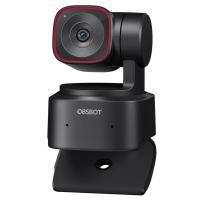
OBSBOT Tiny 2 Webcam 4K Voice Control PTZ, AI Tracking Multi-Mode & Auto Focus, Web Camera with 1/1.5" Sensor, Gesture Control, 60 FPS, HDR Light Correction, Webcam for PC, Streaming, Meeting
NEW Arrival
OBSBOT Tiny 2 Webcam 4K Voice Control PTZ, AI Tracking Multi-Mode & Auto Focus, Web Camera with 1/1.5" Sensor, Gesture Control, 60 FPS, HDR Light Correction, Webcam for PC, Streaming, Meeting
$374.99 $299.99
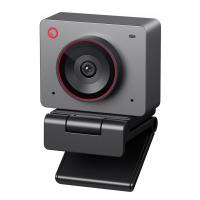
OBSBOT 4K 60 FPS Webcam for PC with 1/2" Sensor AI Framing & Autofocus Dual Mics Beauty Mode
NEW Arrival
OBSBOT 4K 60 FPS Webcam for PC with 1/2" Sensor AI Framing & Autofocus Dual Mics Beauty Mode
$174.99 $139.99
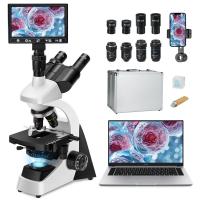
Compound Microscope with 9" Smart Screen, 5W Koehler Lighting, 40x-1600x Magnification PC Connection for Lab, Professionals Use Kentfaith
HOT Seller
Compound Microscope with 9" Smart Screen, 5W Koehler Lighting, 40x-1600x Magnification PC Connection for Lab, Professionals Use Kentfaith
17
$799.99 $639.99
OBSBOT Tiny 2 Lite 4K Webcam for PC, AI Tracking PTZ Streaming Camera with 1/2" Sensor, Gesture Control, 60 FPS, HDR, Microphones, Web Camera for Desktop Computer, Laptop, Meeting, Video Calls.
NEW Arrival
OBSBOT Tiny 2 Lite 4K Webcam for PC, AI Tracking PTZ Streaming Camera with 1/2" Sensor, Gesture Control, 60 FPS, HDR, Microphones, Web Camera for Desktop Computer, Laptop, Meeting, Video Calls.
$250.00 $200.00
67mm Clip-on CPL Phone Camera Lens Filter Kit Applicable to All Mobile Phone Models
40
$18.99
67mm Clip-on ND2-32 Phone Camera Lens Filter Kit Applicable to All Mobile Phone Models
NEW Arrival
67mm Clip-on ND2-32 Phone Camera Lens Filter Kit Applicable to All Mobile Phone Models
13
$37.99
67mm Clip-on Black Mist 1/4 Phone Camera Lens Filter Kit Applicable to All Mobile Phone Models
7
$29.99
52mm Clip-on CPL Phone Camera Lens Filter Kit, Circular Polarizer Polarizing Filter Applicable to All Mobile Phone Models
24
$19.99
67mm Clip-on CPL&Black Mist 1/4 2-in-1 Phone Camera Lens Filter Kit Applicable to All Mobile Phone Models
3
$29.99
 4.5" Suction Cup Camera Mount with Double Ball Head Magic Arm, Mobile Phone Clamp, Gopro Adapter Accessories, 3/8" to 1/4" Adapter Screw, MS45
NEW Arrival
4.5" Suction Cup Camera Mount with Double Ball Head Magic Arm, Mobile Phone Clamp, Gopro Adapter Accessories, 3/8" to 1/4" Adapter Screw, MS45
58
$59.99 $39.99
Products You May Like
1600mAh EN-EL25 EN-EL25A Battery and Charger Set, 2 Pack for Nikon Z30 Z50 ZFC Camera, Replacement Batteries with LCD Dual Slot Charger
45
$69.99 $62.99
K&F Concept  100% Cotton  T-Shirt - Black
K&F Concept 100% Cotton T-Shirt - Black
$15.99
Kentfaith Thermal Imaging Camera for Android 256*192 IR Pixel 25Hz Refresh Rate ±2℃ Accuracy
90
$269.99 $188.99
Nikon F-mount Body Cap*2 + Lens Rear Cap*2 + Hot Shoe Cap*2 + Cleaning Cloth*1 Compatible with Nikon D5, D6, D500, D610, D750, D780, D810, D850, D3400, D3500, D5000, D5200, D5300, D5500, D5600, D7000, D7100, D7200, D7500
$17.99 $8.99
K&F Concept Action Camera Motorcycle Dirt Bike Helmet Chin Strap Mount, Helmet Holder Mounting Attachment for GoPro Hero 13/12/11/10/9/8/7/6/5/4/DJI Osmo Action 5Pro/4/3/Insta360 X5/X4/X3
51
$13.99
Leica M39 35mm/135mm Lenses to Leica M Lens Mount Adapter K&F Concept M19151 Lens Adapter Non-SLR port M39
33
$37.99 $19.99
Pro Cam 14 Trail Camera
10
$162.99 $106.99
55mm Filter Set (UV, CPL, FLD)
$32.99 $17.99
5K Digital Camera for Beginners 8X Optical Zoom Flip Selfie Screen with Tripod and EVA Storage Case Kentfaith
$221.24 $176.99
40.5mm Variable ND Filter ND2-ND32 (1-5 Stops) Lens Filter Waterproof Scratch Resistant with 18 Layers of Nano-coating Nano-Klear Series
30
$37.99 $29.99
Related articles
How To Use Phone As Webcam For Pc?
How To Use Mobile As Car Dash Cam?
Can You Use Ps5 Camera As Webcam ?
How To Record Audio In Discord Mobile?
How To Setup Dslr As Webcam?
How To Flip Your Webcam Camera ?
How To Use Your Phone As A Microphone?
Can I Use Earphones As Mic On Pc?
How To Use Phone Camera As Projector ?
Where To Put Security Cameras Around House?
Blog You May Like
How To Screen Record Audio On Youtube?
Which One Is Better Headphones Or Earphones?
Kentfaith x Citadel Season 2
Best Dslr Cameras Can Cheap With Wifi?
Phone Makes Microphone Noise When Camera Is On?
How To See If Sd Card Is Working?
Can T Find Camera On Windows 10?
Can I Use Gopro As Security Camera?
Which Lens Filter To Use?
Why Does My Camera Keep Flashing?
Related categories
C mount lens adapter m4/3 adapter Camera Parts | Studio Camera Accessories streaming video camera digital camera for beginner Solar Cellular Trail Camera Non Cellular Trail Camera
Popular products
webcam for video recording webcam with microphone for pc external webcam for laptop usb webcam for streaming portable microscope with screen pocket microscope with light webcam for a laptop live streaming video webcam light with power bank usb webcam and microphone
Related searches
Use Iphone As Wireless Microphone Webcam And Microphone For Pc Usb Webcam With Microphone For Pc Nikon As-15 Non-dedicated Pc Sync Terminal Adapter Trail Camera That Connects To Your Phone Camera Bag As Carry On Easy To Use Digital Slr Camera Easy To Use Drone With Camera Pc Camera And Microphone Outdoor Use Camera
Related Scenes
Best Camera For Mobile Best Camera For Outdoor Use Best Camera To Video Sports Best Camera To Capture Wildlife Best Video Camera To Record Sports Best Compact Zoom Camera Best Sports Photography Camera Best Surveillance Camera System Best Action Video Camera Best Mini Digital Camera
Blog Category
  • Activities
  • Guide
    • Filter Guide
    • Lens Adapter
    • Product Review
  • News & Reviews
    • Camera Reviews
    • Sample Gallery
    • News
  • Tutorials
    • Solar eclipse photography
    • Photography Basics
    • Landscape Photography
  • Inspiration
    • Travel
    • Travel Stories
Search Article
Latest from the Blog
How To Take Great Photos With Digital Camera?
Where To Get Wireless Earbuds?
How To Take Pictures Through A Telescope?
Can Trail Cameras Be Used For Home Security?
What Are The Uses Of A Compound Microscope?
Where To Buy Solar Filter For Camera?
Can A Tripod Fit Any Camera?
What Camera Has The Best Video Quality?
What Bluetooth Headphones Work With Switch?
How To Reduce Noise In Bluetooth Headphones?
  • Easy Payment Multilple Payment Options

  • Free Shipping Global WareHouse Shipment

  • No Risk 30-Day No Reason Return

  • Limited Deals Buy More, Save More

  • Tax Free No any surcharges or tax fee

Information
  • About us
  • Contact Us
  • Site Map
  • Blog
  • Video
  • Gallery
  • VIP Membership Rewards
Service
  • Privacy Policy
  • Terms & Conditions
  • Shipping & Delivery
  • Payment Info
  • Warranty, Return & Refund
  • Intellectual Property Rights
  • Ambassador
  • Affiliates
  • Wholesale
Support
  • My account
  • Order History
  • FAQs
  • Extend Warranty
  • Logistics Tracking
Follow us
NewsLetter

Get the latest product, K&F Concept respects your privacy.

Powered By KENTFAITH © 2026